Will Emptying The Recycle Bin Make My Computer Faster
Emptying the recycle bin can free up storage space, but it alone will not dramatically speed up your computer. The real impact depends on how full your hard drive is and what type of files you are deleting. For best results, combine recycle bin cleanup with other disk maintenance habits.
Have you ever stared at your computer screen, watching it crawl along like it is wading through molasses, and thought to yourself, “Maybe I should just empty the recycle bin and call it a day?” You are not alone. Millions of people wonder if simply deleting the files sitting in their recycle bin will bring their sluggish computer back to life. It feels like such a simple fix. You drag things to the trash, they pile up, and eventually you empty it out hoping for the best.
The truth is, emptying the recycle bin does free up storage space, but whether it actually makes your computer faster depends on a few key factors. In this guide, we will walk through everything you need to know about the relationship between your recycle bin and your computer’s performance. We will cover when deleting files helps, when it does not, and what else you can do to get your PC running smoothly again.
Key Takeaways
- Point 1: Emptying the recycle bin frees up storage space but has a limited direct effect on computer speed.
- Point 2: A hard drive that is more than 85 percent full can noticeably slow down your system.
- Point 3: Deleting temporary files and cache data has a bigger impact on performance than simply emptying the bin.
- Point 4: Regular maintenance habits like disk cleanup and storage management keep your PC running smoothly.
- Point 5: If your computer is still slow after freeing space, other factors like RAM and CPU may be the culprit.
- Point 6: Always be cautious when deleting files permanently, as recovery becomes much harder.
📑 Table of Contents
What Happens When You Empty the Recycle Bin
When you delete a file on your computer, it does not vanish into thin air. Instead, it moves to the recycle bin, which acts as a safety net. The file stays on your hard drive until you empty the bin or restore it. Emptying the recycle bin removes the reference to that file, marking the space it occupied as available for new data.
Here is what actually happens behind the scenes:
- The operating system marks the deleted file’s space as free.
- The file itself remains on the hard drive until new data overwrites it.
- The storage space it used becomes available for future use.
- Your file allocation table updates to reflect the freed space.
So, does this process make your computer faster? The short answer is: it depends on how much space you freed. If you only had a few megabytes in the bin, you probably will not notice any difference. But if you had several gigabytes of old files sitting there, you might see some improvement.
Does Emptying the Recycle Bin Actually Speed Up Your Computer
This is the question everyone wants answered, and the answer is more nuanced than you might think. Emptying the recycle bin alone is unlikely to transform a slow computer into a speed demon. Think of it this way: if your hard drive has plenty of free space already, deleting a few extra gigabytes will not change much.
However, when your storage drive gets too full, things start to slow down. Your computer needs free space to handle temporary files, swap memory, and run background processes. When the drive is packed, there is no room to breathe, and everything crawls.
Here is when emptying the recycle bin can help improve performance:
- Your hard drive is more than 85 percent full.
- You have large files sitting in the bin, like old videos or backups.
- You have not performed any disk cleanup in months.
- Your system is constantly running low on storage space.
If any of these sound familiar, emptying the recycle bin is a good first step. But it is just the beginning. To truly boost your computer speed, you need to tackle the root causes of the slowdown.
When Deleting Files from the Recycle Bin Helps Performance
Not all file deletions are created equal. Some situations where emptying the recycle bin makes a real difference, and others where it barely moves the needle. Understanding the difference helps you focus your efforts where they matter most.
Large Files Taking Up Valuable Space
If you have been hoarding large files like old videos, game installations, or massive spreadsheets, emptying the recycle bin can free up significant space. For example, if you deleted a 10-gigabyte video project and it has been sitting in the bin for weeks, removing it gives your system breathing room.
Quick Tip: Before emptying, sort your recycle bin by size. This helps you identify the biggest space hogs and decide what is worth keeping versus deleting permanently.
System Drive Running Low
Your system drive, usually the C: drive on Windows, needs a certain amount of free space to operate efficiently. When it drops below 10 to 15 percent free, your computer can start to slow down noticeably. This affects everything from boot times to application launches.
If your C: drive is nearly full and the recycle bin contains several gigabytes of data, emptying it can provide immediate relief. The freed space allows your system to manage temporary files and cache data more effectively.
After a Major Cleanup Project
Have you just finished a big project and deleted dozens of related files? Perhaps you cleaned out old downloads or removed unnecessary documents. In these cases, emptying the recycle bin right away is a smart habit. It keeps your storage organized and prevents clutter from building up over time.
Other Ways to Speed Up a Slow Computer
Emptying the recycle bin is just one piece of the puzzle. If your computer is running slow and freezing, there are many other steps you can take to improve performance. Think of it as a full system tune-up rather than a single quick fix.
Run Disk Cleanup Tools
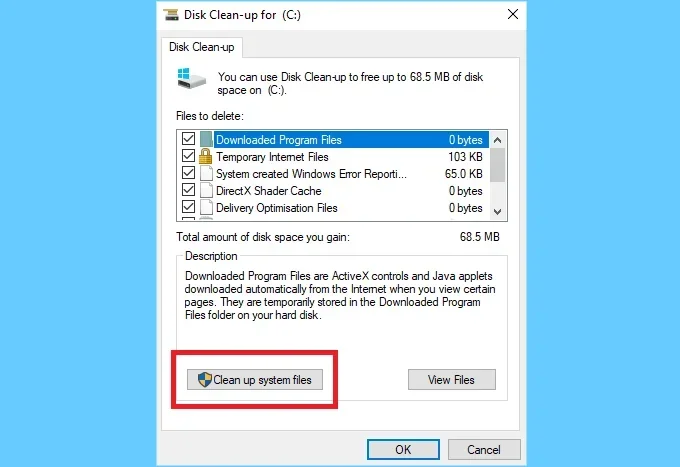
Windows comes with a built-in tool called Disk Cleanup that goes far deeper than the recycle bin. It scans your system for temporary files, cache data, old system files, and other digital clutter. Running Disk Cleanup once a month can free up gigabytes of space without you having to manually hunt down files.
To use it, simply search for “Disk Cleanup” in your Start menu, select your drive, and let the tool do the work. You will be surprised at how much hidden junk accumulates over time.
Check Your RAM and Storage
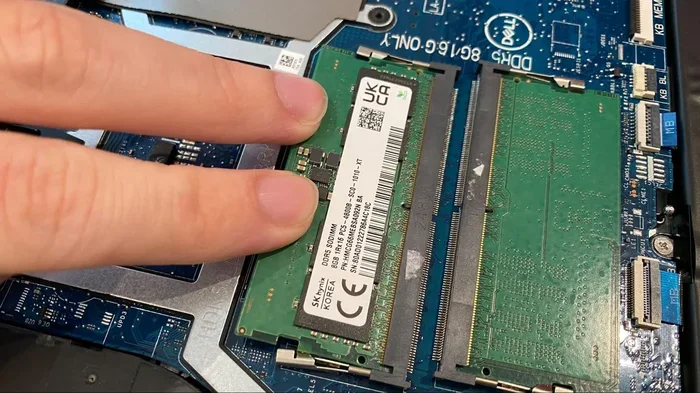
Sometimes a slow computer is not about storage space at all. If your system is constantly using up its RAM, even the fastest hard drive will not help. Checking how much RAM your laptop has is a great first step in diagnosing performance issues.
If you find that your RAM is maxed out, consider whether you can upgrade. Upgrading your laptop RAM is one of the most effective ways to improve multitasking speed and overall responsiveness. Many laptops allow you to add more memory, which can make a dramatic difference.
On the other hand, if your storage is the bottleneck, consider switching to a faster drive like an NVMe M.2 SSD. These drives are significantly faster than traditional hard drives and can breathe new life into an older computer.
Disable Unnecessary Startup Programs
Many programs launch automatically when you start your computer, eating up system resources before you even open a single application. Disabling unnecessary startup programs can dramatically reduce boot times and free up resources.
Open your Task Manager, go to the Startup tab, and disable programs you do not need running in the background. You will be amazed at how much faster your computer feels.
Keep Your System Updated
Operating system updates often include performance improvements and bug fixes. Keeping your system updated ensures you are getting the best performance possible. Set your system to update automatically so you never miss an important patch.
How Often Should You Empty the Recycle Bin
There is no single rule for how often you should empty your recycle bin. It depends on your usage habits and how much storage space you have available. Here are some guidelines to follow:
- Light users: Empty the bin once a month if you rarely delete large files.
- Moderate users: Empty the bin every two weeks to keep storage lean.
- Heavy users: Empty the bin weekly or whenever it grows beyond a few gigabytes.
- Space-constrained systems: Empty the bin whenever it fills up to avoid storage warnings.
The key is to make it a habit. Just like taking out the physical trash, regular disposal prevents buildup and keeps things running smoothly. Setting a reminder on your phone or calendar can help you stay consistent.
Common Mistakes People Make With the Recycle Bin
Even with good intentions, people often make mistakes when managing their recycle bin that hurt rather than help their computer’s performance. Here are the most common pitfalls to avoid:
Deleting Files Without Checking
The biggest mistake is blindly emptying the recycle bin without first checking what is inside. You might accidentally delete important documents, photos, or work files. Always review the contents before permanently deleting anything. If you are unsure about a file, err on the side of caution and leave it for now.
Relying Solely on the Recycle Bin for Speed
Some people empty the recycle bin and expect their computer to run like new. When the speed does not improve, they get frustrated. The recycle bin is not a magic fix. It is one small part of a broader storage management strategy. If your computer is slow, look at the bigger picture, including RAM usage, CPU temperature, and background processes.
For example, if you have been dealing with high CPU temperatures, that alone can cause significant slowdowns. Consider checking your CPU temperature to rule out thermal throttling as a cause of poor performance.
Ignoring Temporary and Cache Files
Temporary files and cache data often take up far more space than the recycle bin. Focusing only on the recycle bin while ignoring these hidden space hogs means you are missing the biggest opportunities to free up room and improve performance.
Never Emptying the Bin at All
On the flip side, some people never empty their recycle bin. Over months and years, this can consume hundreds of gigabytes of valuable storage space. Making a habit of regular bin emptying is one of the simplest and most effective storage management practices you can adopt.
Expert Insights on Storage and Computer Performance
We asked a few tech experts about their thoughts on the recycle bin and computer speed. Here is what they had to say:
“Emptying the recycle bin is like taking out the trash in your home,” says one IT professional. “It helps, but it is not going to fix a cluttered house. You need a full cleaning routine.”
Another expert adds: “The real performance gains come from a combination of free disk space, sufficient RAM, and a well-maintained system.” This aligns with what we see in practice. The recycle bin is a small piece of a much larger puzzle.
If your computer is still running slow after freeing up space, it might be time to look at other factors. High CPU temperatures, insufficient RAM, or outdated hardware can all contribute to poor performance. Consider checking your system resources and evaluating whether hardware upgrades would help your specific situation. You can also learn more about fixing a slow and freezing computer for comprehensive troubleshooting steps.
Conclusion
So, will emptying the recycle bin make your computer faster? The honest answer is: it can help, but it is not a silver bullet. Emptying the recycle bin frees up storage space, and when your drive is running low, that freed space can lead to noticeable improvements. However, if your computer is slow for other reasons, simply emptying the bin will not solve the problem.
The best approach is to make recycle bin cleanup part of a broader routine. Combine it with regular disk cleanup, startup management, and system updates. If you have tried all of these steps and your computer is still sluggish, it may be time to look at hardware upgrades. More RAM or a faster SSD can make a world of difference.
Start today by emptying your recycle bin and checking how much space you have freed. Then take the next steps to optimize your system. Your computer will thank you with smoother performance and fewer frustrating delays.
Remember: a fast computer is the result of consistent maintenance, not a single quick fix. Keep your storage managed, your system updated, and your hardware up to date, and you will enjoy a much better computing experience.
Frequently Asked Questions
Does emptying the recycle bin delete files permanently?
Yes, once you empty the recycle bin, the files are permanently deleted from your hard drive. The space they occupied is marked as available for new data. However, the actual file data may remain on the drive until it is overwritten. Specialized recovery software can sometimes retrieve deleted files, but this is not guaranteed.
How often should I empty my recycle bin?
It depends on your usage. Light users can empty it once a month, while heavy users should do it weekly. The key is to prevent the bin from accumulating too much data. If you notice your storage getting low, it is a good time to clear out the bin.
Will emptying the recycle bin fix a slow computer?
It can help if your storage drive is nearly full, but it is unlikely to fix a slow computer on its own. Other factors like insufficient RAM, high CPU usage, and too many startup programs often play a bigger role. For a comprehensive fix, try a combination of storage cleanup, system updates, and hardware upgrades.
What is the difference between deleting a file and emptying the recycle bin?
When you delete a file normally, it moves to the recycle bin and stays on your hard drive. Emptying the recycle bin removes the reference to the file and marks its space as free. The file is no longer accessible through the normal file system, though the data may still exist on the drive until overwritten.
Can I recover files after emptying the recycle bin?
Recovery is possible but not guaranteed. Once the recycle bin is emptied, the operating system marks the file space as available. If new data has not yet overwritten that space, recovery software may be able to restore the files. However, the sooner you try, the better your chances.
Does emptying the recycle bin improve gaming performance?
It can help indirectly. If your storage drive is nearly full, games may load slower and run less smoothly. Freeing up space by emptying the recycle bin and performing a broader disk cleanup can improve load times and reduce stuttering. However, for significant gaming performance gains, focus on your GPU, RAM, and CPU capabilities.