Best Free FLAC Player For Windows To Enjoy Lossless Sound
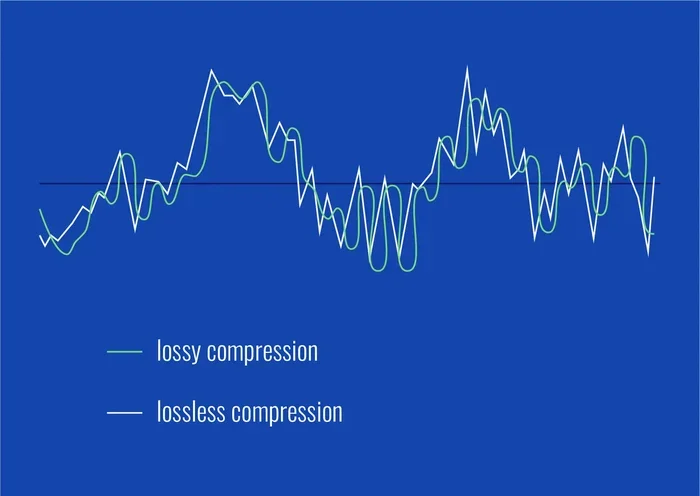
Finding the best free FLAC player for Windows is easier than you think. FLAC files deliver studio-quality sound without the huge file sizes of uncompressed formats. We tested the top free options to help you pick the perfect player for your music collection.
Music sounds better when you hear it the way artists intended. FLAC stands for Free Lossless Audio Codec, and it preserves every tiny detail of the original recording. Unlike MP3 files that compress and lose data, FLAC keeps everything intact. The result is rich, warm, and incredibly detailed sound.
If you are a Windows user looking to enjoy lossless audio, you need the right player. Not all music apps can handle FLAC files. In this guide, we walk you through the best free FLAC player for Windows options. You will learn what makes each one special and how to pick the right fit for your needs.
Whether you are a casual listener or a serious audiophile, there is a free player out there for you. We tested each option on Windows 10 and Windows 11 to make sure everything works smoothly. No hidden costs. No trial periods. Just great-sounding music, completely free.
Key Takeaways
- FLAC offers lossless audio quality: You get CD-quality sound without the massive file sizes of WAV files.
- Multiple free players work great on Windows: Options like VLC, Foobar2000, and Audacious cover every user need.
- Built-in Windows Media Player does not support FLAC: You need a dedicated third-party player to play these files.
- Look for gapless playback and equalizer features: These make a big difference in your listening experience.
- Most players support playlist management: You can organize large music libraries with ease.
- No need to pay for audio software: Free players deliver professional-grade sound quality.
📑 Table of Contents
What Is FLAC and Why Should You Care?
FLAC is a compressed audio format that does not lose any data during compression. Think of it like a zip file for music. You shrink the file size, but every single bit of the original recording stays perfect. This is why music lovers call it lossless audio.
How FLAC Compares to Other Formats
Most people are familiar with MP3 files. MP3 uses lossy compression, which means it throws away audio data to save space. A typical MP3 file might be 3 MB. The same song in FLAC could be 30 MB. But that extra size means so much more detail in the sound.
Here is a quick comparison of popular audio formats:
- MP3: Small files, lossy quality, widely supported
- WAV: Uncompressed, huge file sizes, CD-quality
- AAC: Better than MP3, still lossy, used by Apple
- FLAC: Compressed but lossless, about half the size of WAV
FLAC gives you the best of both worlds. You get near-WAV quality with much smaller file sizes. That is why so many people download music in FLAC format.
Why Lossless Audio Matters
When you listen to lossless audio, you hear things you never noticed before. Subtle background instruments become clearer. Vocals sound more natural. Bass hits deeper without muddying the mix. If you use good headphones or speakers, the difference is night and day.
For music production and critical listening, FLAC is the go-to choice. Producers need to hear every detail. Casual listeners who want the best experience also benefit greatly. Once you start listening to lossless audio, going back to MP3 feels like a step down.
Top Free FLAC Players for Windows
Now let us get to the good stuff. We rounded up the best free FLAC players that work on Windows. Each one has its strengths, so you can pick based on what matters most to you.
VLC Media Player
VLC is the most popular free media player in the world. It plays almost every format you can think of, including FLAC. It is open-source, which means a huge community constantly updates and improves it. You can download it from the official VideoLAN website.
VLC works great for casual listeners. The interface is simple and familiar. You get basic playlist features, audio equalizer settings, and cross-platform support. If you want something that just works out of the box, VLC is a fantastic choice.
One cool feature is VLC’s ability to stream audio from network locations. You can even play FLAC files from a USB drive or network folder without copying them first. This makes it a versatile tool for managing your music.
Foobar2000
Foobar2000 is a favorite among serious audio enthusiasts. It is a lightweight, highly customizable player built for people who care about sound quality. The default interface looks a bit old-school, but you can change it with free components and plugins.
What makes Foobar2000 special is its bit-perfect playback capability. It sends audio to your soundcard without any extra processing or resampling. This means what you hear is exactly what the file contains. For audiophiles, this is a huge deal.
Foobar2000 also supports advanced audio library management. You can organize thousands of tracks with custom tags, playlists, and filters. If you have a large music collection, this player handles it beautifully. It is one of the best options for anyone who takes their audio seriously.
Audacious
Audacious is a free, open-source player that focuses on simplicity and low resource usage. It runs smoothly even on older Windows computers. The interface looks clean and modern, making it easy for anyone to jump right in.
Audacious supports many audio formats beyond FLAC, including MP3, OGG, and WAV. It comes with a built-in equalizer and supports Winamp plugins. If you liked the classic Winamp experience, Audacious will feel very familiar and comfortable.
The player also offers gapless playback, which means no silence between tracks in an album. This is important for live recordings and concept albums where tracks flow into each other. Audacious handles this seamlessly.
MusicBee
MusicBee is a free music player and library manager for Windows. It has a beautiful, modern interface that makes organizing your collection a pleasure. The player supports FLAC and many other formats out of the box.
MusicBee shines in library management. You can auto-organize files, fetch album art, and create smart playlists based on any criteria. It also supports plugins for extra features. If you want a player that doubles as a music organizer, MusicBee is hard to beat.
The audio quality is excellent, and the player includes a built-in equalizer with presets. You can also customize the interface with different skins. It is a great choice for users who want both style and substance.
Features to Look for in a FLAC Player
Not all FLAC players are created equal. Here are the key features you should check before picking one.
Gapless Playback
Gapless playback removes the tiny pauses between tracks. This is essential for live albums and concept albums where songs flow directly into each other. All the players we recommend above support this feature.
Audio Equalizer
A good equalizer lets you adjust the sound to your liking and your equipment. Some players include built-in EQ presets like “Bass Boost” or “Treble Enhancer.” Others allow you to create custom curves. Foobar2000 and MusicBee both offer excellent equalizer options.
Library Management
If you have hundreds or thousands of FLAC files, you need a player that can organize them. Look for features like automatic tag editing, album art fetching, and smart playlists. MusicBee and Foobar2000 excel in this area.
Cross-Platform Support
Even if you use Windows now, you might switch devices later. Players like VLC and Audacious work on Windows, Mac, and Linux. This gives you flexibility if you ever change your setup.
Plugin Support
Plugin support lets you add new features over time. Foobar2000 has a massive plugin library that lets you customize almost everything. MusicBee also supports plugins for extra functionality.
How to Choose the Right FLAC Player for You
With so many great options, how do you pick the right one? It depends on what you value most.
If you want the simplest experience, go with VLC Media Player. It plays everything, requires zero setup, and works perfectly for FLAC files. Most people already have it installed, which makes it the easiest choice.
If you care deeply about audio quality and customization, choose Foobar2000. Its bit-perfect playback and plugin ecosystem make it the top pick for audiophiles. It does take a bit of time to set up, but the results are worth it.
If you want a balance of good looks and strong features, try MusicBee or Audacious. Both are user-friendly and offer solid performance. MusicBee is better for library management, while Audacious is lighter and faster.
You can also try multiple players to see which one feels right. All of these options are completely free, so there is no risk in experimenting.
Setting Up Your FLAC Player on Windows
Getting started with a free FLAC player is quick and easy. Here is a simple step-by-step guide.
- Download the player from its official website. Always use the official source to avoid malware.
- Install the software by following the on-screen prompts. Most installers are straightforward.
- Locate your FLAC files. You can drag and drop them into the player or point it to your music folder.
- Create a playlist of your favorite tracks to start listening right away.
- Adjust the equalizer if your player supports it. Start with a preset and tweak from there.
Once your player is set up, you can explore advanced features. Try organizing your library, fetching album art, or experimenting with different audio settings. The more you use the player, the more you will discover.
For users who also want to convert audio files, a dedicated audio recording software for PC can be a great companion tool. Some players even include basic conversion features built in.
Final Thoughts
Enjoying lossless audio on Windows does not require expensive equipment or subscriptions. The best free FLAC player for Windows is already available at no cost. Whether you choose VLC for its simplicity, Foobar2000 for its audio precision, or MusicBee for its library features, you will get an excellent listening experience.
FLAC files give you the full richness of the original recording. Combined with a great free player, your music will sound better than ever before. Take the time to try a few options and find the one that fits your style.
Start exploring the world of lossless audio today. Your ears will thank you.
Frequently Asked Questions
Can Windows Media Player play FLAC files?
No, the built-in Windows Media Player does not support FLAC natively. You need to install a third-party player like VLC, Foobar2000, or MusicBee to play FLAC files on Windows.
Is FLAC better than MP3?
Yes, FLAC is superior to MP3 in terms of audio quality. FLAC uses lossless compression, meaning no audio data is lost. MP3 uses lossy compression, which removes audio information to reduce file size.
Are free FLAC players safe to download?
Yes, all the players we recommend are safe and trusted. They are open-source or widely used by millions of people. Always download them from the official websites to ensure you get the genuine software.
Do free FLAC players work on Windows 11?
Yes, every player mentioned in this guide works on Windows 11. Most also support Windows 10 and older versions, so you can use them regardless of your Windows edition.
Can I use a free FLAC player for music production?
Absolutely. Players like Foobar2000 offer bit-perfect playback and detailed audio analysis that is useful for music production. However, for full production work, you may also want to explore dedicated audio recording software and digital audio workstations.
Do I need expensive headphones to hear the difference with FLAC?
You do not need expensive headphones, but quality headphones or speakers help you notice the difference more. Even mid-range audio gear can reveal details in FLAC files that are lost in MP3 compression.