11 Free Partition Manager For Windows You Need To Know
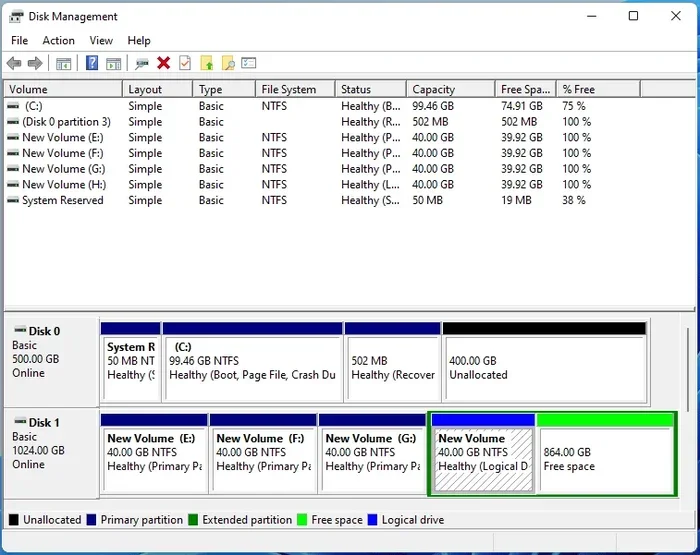
Managing your hard drive partitions doesn’t have to cost a dime. A free partition manager for Windows helps you resize, merge, split, and format partitions without risking your data. In this guide, we walk you through 11 of the best free options so you can pick the right tool for your needs today.
Your hard drive is like a big empty room. You can divide it into separate sections called partitions. Each partition works like its own little storage space. Sometimes you need to resize, merge, or split these sections. That’s where a free partition manager for Windows comes in handy.
You might wonder why you’d need partition management at all. Well, think about this scenario. You buy a new laptop with one big C drive. Over time, you fill it up with games, documents, photos, and apps. Things get messy. A partition manager lets you carve out space without losing anything. It gives you control over your own hard drive.
Whether you’re a student using a Windows 11 laptop, a creative professional, or just someone who wants to keep their PC organized, partition tools are essential. The good news? You don’t need to spend money. There are plenty of excellent free options out there. Let’s dive into the 11 best ones.
Key Takeaways
- Multiple free options exist: You don’t need to pay for partition management software.
- EaseUS Partition Master Free is one of the most popular and user-friendly choices.
- Built-in Windows tools like Disk Management can handle basic partition tasks.
- MiniTool Partition Wizard offers powerful features even in its free version.
- Always back up your data before making any partition changes.
- Choosing the right tool depends on your specific needs and Windows version.
📑 Table of Contents
- What Is a Partition Manager and Why Do You Need One?
- Top Free Partition Managers for Windows
- How to Choose the Right Free Partition Manager
- Step-by-Step: How to Resize a Partition Safely
- Common Mistakes to Avoid When Managing Partitions
- Expert Tips for Better Disk Management
- Free Partition Manager vs Built-in Windows Tools
- Final Thoughts
What Is a Partition Manager and Why Do You Need One?
A partition manager is a software tool that lets you control the divisions on your hard drive. Think of it as the digital equivalent of putting up walls in a room. You decide how big each section is. You decide what goes where.
Here’s what a good partition management tool can do for you:
- Resize partitions to make them bigger or smaller
- Merge partitions to combine two spaces into one
- Split partitions to create new sections from existing ones
- Format partitions with different file systems like NTFS or FAT32
- Create new partitions from unallocated space
- Delete partitions you no longer need
- Clone partitions for backup or migration purposes
Windows actually comes with a built-in tool called Disk Management. It handles basic tasks well. But it has limits. For example, you can’t always extend a partition if the unallocated space isn’t right next to it. That’s where third-party free partition software shines.
Top Free Partition Managers for Windows
Let’s look at the 11 best free options available right now. Each one has its strengths, so pay attention to what matters most to you.
1. EaseUS Partition Master Free
EaseUS Partition Master Free is probably the most well-known option. It offers a clean, intuitive interface that beginners love. You can resize, move, merge, and split partitions with just a few clicks. The free version handles most everyday tasks. It supports Windows 10 and Windows 11. The paid version adds more advanced features, but the free tier is plenty for most users.
2. MiniTool Partition Wizard Free
MiniTool Partition Wizard is a powerhouse. The free version includes many pro-level features. You get partition recovery, disk cloning, and MBR/GPT conversion. It works with all Windows versions including the latest Windows 11 builds. The interface is slightly more technical, but it’s still approachable.
3. AOMEI Partition Assistant Standard
AOMEI Partition Assistant Standard Edition is another strong contender. It offers a nice balance of power and simplicity. You can migrate your operating system to a new drive, which is super helpful when upgrading to a bigger SSD. The free version covers most common partition tasks. It runs smoothly on Windows 10 and Windows 11.
4. DiskGenius Free Edition
DiskGenius has been around for a long time. It’s especially good at data recovery and partition management. The free version gives you solid partition resizing and formatting tools. It also supports virtual disk files, which is a nice bonus. If you work with multiple disk types, DiskGenius handles them well.
5. Samsung Magician
Samsung Magician is designed specifically for Samsung SSDs. If you have a Samsung solid-state drive, this is a great free option. It includes partition management alongside performance optimization and firmware updates. It’s not a general-purpose tool, but for Samsung SSD users, it’s excellent.
6. Kingston SSD Manager
Similar to Samsung Magician, Kingston SSD Manager focuses on Kingston drives. It offers basic partition management along with drive health monitoring. If you own a Kingston SSD, this free tool keeps everything running smoothly.
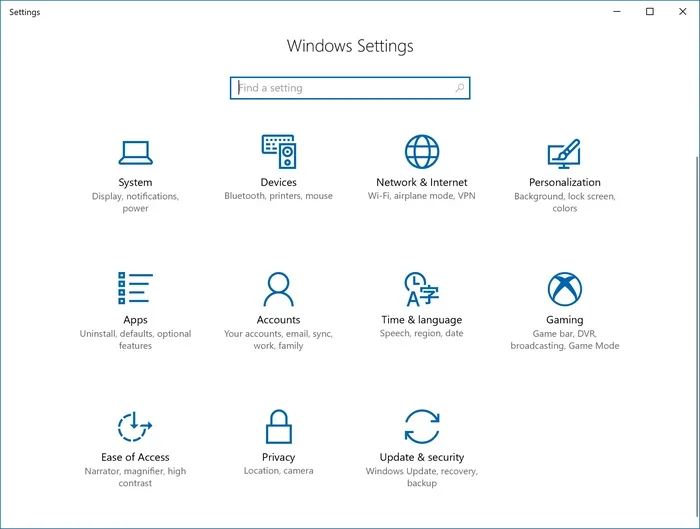
7. Windows Built-in Disk Management
Don’t overlook the tool already on your PC. Windows Disk Management handles many common tasks. You can create, delete, format, and extend partitions. The catch? It has limitations. For instance, extending a volume requires unallocated space directly to the right. For basic needs though, it works fine and costs nothing.
8. GParted (via Live USB)
GParted is a Linux-based tool that runs from a USB drive. It’s open-source and completely free. It supports a huge range of file systems and partition types. The downside is you need to boot from a USB stick. But for advanced users, GParted is incredibly powerful and reliable.
9. IM-Magic Partition Resizer Free
IM-Magic Partition Resizer Free focuses on one thing: resizing. It does that job well. The interface is very simple. You can extend, shrink, move, and copy partitions. It supports Windows 10 and Windows 11. It’s a good choice if you just need basic resize functionality without extra features.
10. Minitool Partition Wizard Bootable
Minitool also offers a bootable version. This is useful when your Windows system won’t start. You can run partition operations from outside the operating system. It’s a safety net that every PC user should consider having.
11. Paragon Hard Disk Manager Free
Paragon Hard Disk Manager Free provides comprehensive disk management. It includes partition management, disk cleanup, and backup features. The interface is polished and professional. It supports all Windows versions and handles complex partition layouts well.
How to Choose the Right Free Partition Manager
Not all partition tools are the same. Your choice should depend on what you actually need to do. Here are some factors to consider:
Your Windows Version. Make sure the tool supports your version of Windows. Most modern tools work with Windows 10 and Windows 11. If you’re running an older system, check compatibility before downloading.
Your Skill Level. Some tools are designed for beginners. Others target advanced users. If you’ve never managed partitions before, start with something simple like EaseUS or AOMEI. You can always move to more complex tools later.
Your Specific Needs. Do you just need to resize? Or do you need partition recovery, cloning, and MBR conversion? Make a list of what you want to accomplish. Then pick the tool that does those tasks best in its free version.
Safety Features. Good partition managers include undo functions and safety checks. These features protect your data if something goes wrong. Always look for tools that let you reverse operations.
Step-by-Step: How to Resize a Partition Safely
Let’s walk through a real example. Resizing a partition is one of the most common tasks. Here’s how to do it safely using a typical free partition manager:
- Download and install your chosen partition manager from the official website.
- Back up your important files. This is critical. Even with safe tools, things can go wrong.
- Open the partition manager and locate the drive you want to resize.
- Right-click the partition and select “Resize/Move.”
- Drag the handles to adjust the partition size.
- Review the changes on the preview screen before applying.
- Click Apply and wait for the operation to complete.
- Restart your PC if prompted by the software.
That’s it. Your partition is now resized. The entire process usually takes just a few minutes. The key step is backing up your data first. Never skip that step.
Common Mistakes to Avoid When Managing Partitions
Partition management is generally safe, but mistakes do happen. Here are some common errors you should avoid:
- Skipping backups. Always back up before making changes. Even the best tools can encounter unexpected issues.
- Using untrusted software. Download only from official websites. Avoid third-party download sites that bundle malware with free tools.
- Shrinking too aggressively. Leave enough space for your operating system and applications. A partition that’s too small will slow down your PC.
- Ignoring file system compatibility. Make sure your partition uses a file system your Windows version supports. NTFS is the standard for modern Windows.
- Forgetting to defragment. After resizing or moving partitions, your drive might benefit from defragmentation. This keeps things running smoothly.
Many of these mistakes are easy to avoid with a little planning. Take your time and don’t rush through the process.
Expert Tips for Better Disk Management
Here are some pro tips that will help you get the most out of your free partition software:
- Keep your system partition at least 100GB. Windows and modern apps need space. A small C drive causes slowdowns and errors.
- Use separate partitions for different purposes. One for your OS, one for games, one for documents. This keeps things organized and makes backups easier.
- Check for updates regularly. Partition tools receive improvements and bug fixes. Running the latest version ensures the best performance.
- Use the built-in Windows tool first. For simple tasks like formatting or deleting a partition, Disk Management might be all you need.
- Consider upgrading your storage. If you constantly run out of space, a new SSD might be a better long-term solution. Check out options like a 2TB NVMe SSD for laptop if you need serious storage.
These tips come from years of experience helping users manage their PCs effectively. Follow them and your disk will stay healthy and organized.
Free Partition Manager vs Built-in Windows Tools
You might be wondering whether you even need third-party software. Windows Disk Management does a lot. Let’s compare the two approaches:
| Feature | Built-in Disk Management | Free Partition Manager |
|---|---|---|
| Resize partitions | Limited | Full control |
| Merge partitions | Not supported | Supported |
| Partition recovery | Not supported | Supported |
| Clone partitions | Not supported | Supported |
| MBR/GPT conversion | Limited | Full support |
| Ease of use | Very simple | Moderate |
| Cost | Free | Free |
As you can see, free partition managers offer significantly more features. The built-in tool is fine for basic tasks. But if you need real control over your disk layout, a dedicated partition tool is the way to go.
Final Thoughts
Managing your hard drive partitions doesn’t have to be complicated or expensive. With these 11 free partition managers for Windows, you have plenty of options to choose from. Whether you need something simple or something powerful, there’s a tool that fits your needs.
Start with the built-in Windows Disk Management for basic tasks. If you need more features, try EaseUS Partition Master Free or MiniTool Partition Wizard Free. Both are excellent starting points. Always remember to back up your data first, and take your time with each operation.
Your hard drive is the heart of your PC. Treat it well with proper partition management, and it will serve you reliably for years to come.
Frequently Asked Questions
Is a free partition manager safe to use?
Yes, most reputable free partition managers are completely safe. Stick to well-known brands like EaseUS, MiniTool, and AOMEI. Always download from the official website to avoid malware. The key is to choose trusted software and follow best practices like backing up your data first.
Can I resize a partition without losing data?
Yes, modern free partition managers can resize partitions without data loss. The software moves your files safely as it adjusts the partition size. However, you should always back up important files before making any changes. This protects you in case of unexpected issues.
Do I need a free partition manager if I use Windows 11?
Windows 11 includes Disk Management, which handles basic tasks. But if you want to merge partitions, recover lost data, or clone disks, you need a dedicated tool. A free partition manager for Windows 11 gives you much more flexibility and control over your disk layout.
What is the difference between MBR and GPT partitions?
MBR (Master Boot Record) is an older partition style that supports drives up to 2TB and four primary partitions. GPT (GUID Partition Table) is newer and supports drives larger than 2TB with many more partitions. Most modern PCs use GPT, especially those running Windows 11. Good partition managers let you convert between the two formats.
Can I use a free partition manager on an external hard drive?
Absolutely. Most free partition tools work with both internal and external drives. You can resize, format, and manage partitions on USB drives, external SSDs, and hard drives just as easily as on your main internal drive. Just make sure the drive is connected properly before starting.
How often should I manage my disk partitions?
You don’t need to manage partitions regularly. Only do it when you have a specific need, like running low on space or reorganizing your files. Most users manage their partitions once or twice a year. The important thing is to do it carefully and always back up first.