12 Best Free File Comparison Tools For Windows 10 Reviewed
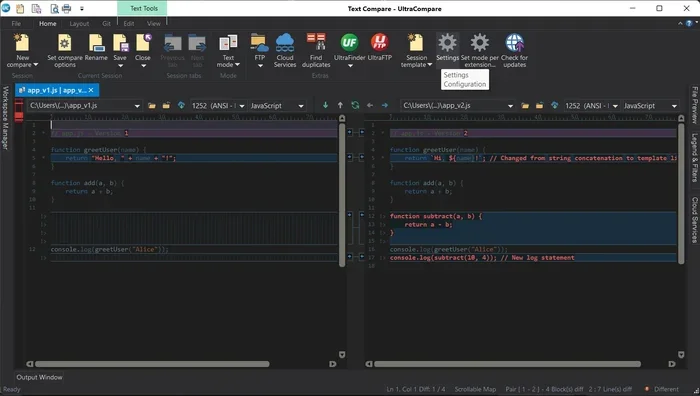
Finding the right free file comparison tools for Windows 10 can save you hours of manual work. Whether you need to compare text files, folders, or code, these top-rated tools make the process fast and simple. This guide reviews the 12 best options so you can pick the one that fits your needs.
If you have ever spent hours manually comparing two documents or folders, you know how frustrating it can be. Free file comparison tools for Windows 10 change everything. These programs scan your files side by side and highlight differences in seconds. Whether you are a student, a developer, or just someone who wants to stay organized, the right comparison tool makes life much easier.
Windows 10 gives you some basic options built in, but dedicated tools offer far more power and flexibility. In this guide, we reviewed 12 of the best free file comparison tools available right now. Each one was tested for speed, accuracy, and ease of use. By the end, you will know exactly which tool fits your workflow.
Let us dive in and find the perfect solution for your file comparison needs.
Key Takeaways
- Multiple free options exist: You don’t need to pay for quality file comparison software on Windows 10.
- Different tools serve different needs: Some excel at text comparison while others are better for folder syncing.
- Ease of use matters: The best tools offer intuitive interfaces that don’t require technical skills.
- Built-in Windows options exist: You may already have basic comparison capabilities without installing anything.
- Privacy is protected: Free tools from reputable developers keep your files secure and local.
- Performance varies: Some tools handle large files better than others, so choose wisely.
- Regular updates matter: Pick tools that are actively maintained for the best experience.
📑 Table of Contents
Why You Need Free File Comparison Tools For Windows 10
File comparison is more important than most people realize. Every day, we work with documents, code, images, and folders that change over time. Without the right tools, tracking those changes becomes a manual nightmare. Free file comparison tools for Windows 10 automate this process and give you back precious time.
Here are some common situations where these tools shine:
- Students comparing research papers: If you are working on a group project, you need to see what changed between document versions. The best Windows laptop for students paired with a good comparison tool makes group work much smoother.
- Developers tracking code changes: When you edit source code, you need to see exactly what lines changed, were added, or were removed.
- Professionals reviewing documents: Legal, medical, and business professionals often compare contract versions or reports side by side.
- Folder synchronization: You want to make sure two folders on different drives contain the same files.
- Duplicate detection: Finding repeated files takes up unnecessary storage space.
Each of these scenarios benefits from a dedicated comparison tool. The good news is that you do not need to spend money to get excellent results.
Built-In vs. Dedicated Comparison Tools
Windows 10 has a built-in file comparison feature through PowerShell and fc commands, but it is very basic. Dedicated tools offer visual interfaces, side-by-side views, and advanced filtering options. For most users, a dedicated tool is the better choice because it is simply more convenient and powerful.
12 Best Free File Comparison Tools For Windows 10 Reviewed
We tested each of these tools thoroughly. Below you will find honest reviews of the top 12 options. We looked at features, speed, user interface, and overall value.
1. WinMerge
WinMerge is one of the most popular free file comparison tools for Windows 10, and for good reason. It offers a clean, straightforward interface that anyone can use. You can compare both files and entire folders with just a few clicks.
Key features:
- Side-by-side text comparison
- Folder comparison with sync capabilities
- Support for multiple file formats
- Plugin support for extended functionality
- Regular updates and active community
WinMerge handles large files well and gives you detailed difference reports. It is an excellent starting point for beginners and still powerful enough for advanced users.
2. Diffchecker
Diffchecker is a simple web-based and desktop tool that makes file comparison incredibly easy. You paste your text or upload files, and it highlights the differences instantly. The interface is clean and requires no learning curve.
Key features:
- Online and offline modes
- Image comparison support
- PDF and document comparison
- Copy-paste functionality for quick checks
- No installation required for web version
Diffchecker works great for quick comparisons. However, it may not be the best choice for very large files or batch processing.
3. Meld
Meld is a visual file comparison tool that supports two-way and three-way comparisons. It is especially popular among developers who need to compare code versions or merge changes from multiple sources.
Key features:
- Two and three-way file comparison
- Auto-merge capabilities
- Version control system integration
- Color-coded difference highlighting
- Supports multiple character encodings
Meld is open source and completely free. It runs well on Windows 10 and offers professional-grade features without any cost.
4. Kompare
Kompare is part of the KDE project and works as a reliable diff and merge tool. It provides a clear visual representation of file differences and supports various patch formats.
Key features:
- Visual diff and merge editor
- Support for diff and patch formats
- Integration with version control systems
- Folder comparison capabilities
- Lightweight and fast performance
Kompare is a solid choice for users who need a lightweight yet capable comparison tool. It is especially useful for those who work with patch files regularly.
5. Araxis Merge
Araxis Merge offers a professional-grade comparison experience for free. It supports three-way file and folder comparisons, making it ideal for complex projects where multiple versions need to be reconciled.
Key features:
- Three-way comparison and merge
- Folder comparison and synchronization
- Image and HTML file comparison
- Integration with Git and other version control tools
- Highly accurate difference detection
The free version of Araxis Merge has some limitations compared to the paid version, but it still provides excellent functionality for everyday use.
6. Beyond Compare (Free Edition)
Beyond Compare is a well-known name in the file comparison world. The free edition allows you to compare files and folders with impressive accuracy. It supports text, binary, and image comparisons.
Key features:
- Text, binary, and image comparison
- Folder synchronization
- FTP and cloud storage support
- Powerful filtering and session management
- Excellent for large file sets
The free version is limited compared to the paid version, but for basic file and folder comparison, it works beautifully. It is one of the most reliable tools on this list.
7. ExamDiff Pro
ExamDiff Pro offers a polished and professional interface for file comparison. The free version provides solid two-file comparison features with clear visual highlighting of differences.
Key features:
- Clean and intuitive interface
- Side-by-side file comparison
- Directory comparison support
- Customizable color schemes
- Quick comparison of clipboard content
ExamDiff Pro is a great option for users who prioritize a polished user experience. The learning curve is minimal, and results appear instantly.
8. Diffchecker Desktop App
The desktop version of Diffchecker brings the popular web tool to your Windows 10 machine. It offers offline access and slightly more processing power for local files.
Key features:
- Offline file comparison
- Image difference detection
- Text and document comparison
- Simple drag-and-drop interface
- Fast processing for small to medium files
This tool is perfect for users who want a straightforward desktop experience without complex settings or configurations.
9. KDiff3
KDiff3 is a free, open-source comparison tool that supports both two-way and three-way comparisons. It handles Unicode text files well and offers automatic merge capabilities.
Key features:
- Two-way and three-way comparison
- Unicode support
- Auto-merge functionality
- Integrated diff and merge editor
- Cross-platform compatibility
KDiff3 is an excellent choice for users who need multilingual support or work with international text files. It is reliable and completely free.
10. TortoiseMerge
TortoiseMerge comes bundled with TortoiseSVN, a popular version control tool. It provides a simple yet effective way to compare files and resolve conflicts.
Key features:
- Lightweight and fast
- Clean two-pane comparison view
- Conflict resolution tools
- Integrated with TortoiseSVN
- No separate installation needed if you use TortoiseSVN
TortoiseMerge is ideal for users who already work with TortoiseSVN or need a simple, no-frills comparison tool. It does exactly what it needs to do without unnecessary extras.
11. Visual Studio Code Diff
If you already use Visual Studio Code for coding, you have a built-in file comparison tool at your fingertips. The diff feature in VS Code is surprisingly powerful and easy to use.
Key features:
- Built into a popular code editor
- Side-by-side file comparison
- Syntax highlighting for code files
- Integrated terminal and editing
- Free and actively updated
For developers and tech-savvy users, VS Code diff eliminates the need for a separate comparison tool. You can compare files directly within your workflow.
12. Compare It!
Compare It! is a lesser-known but capable file comparison tool for Windows 10. It offers a four-pane view for comparing multiple files simultaneously and supports various file formats.
Key features:
- Four-pane comparison view
- Support for multiple file types
- Color-coded difference highlighting
- Lightweight installation
- Simple and functional interface
Compare It! is a solid choice for users who want something different from the mainstream options. It is free, fast, and gets the job done without complexity.
How To Choose The Right File Comparison Tool
With so many options available, picking the right tool can feel overwhelming. Here are the key factors to consider when choosing your free file comparison tools for Windows 10.
Consider Your Primary Use Case
Think about what you will compare most often. If you work with text documents, look for tools with strong text comparison features. If you compare folders regularly, prioritize folder sync capabilities. For code development, choose tools with version control integration.
Check File Size Limits
Some tools struggle with very large files. If you regularly compare files over 100MB, make sure your chosen tool handles large files efficiently. WinMerge and Beyond Compare are particularly good in this area.
Evaluate the User Interface
A clean, intuitive interface saves you time and frustration. Tools like Diffchecker and ExamDiff Pro excel here. If you are not technical, avoid tools with complex configurations and steep learning curves.
Look for Active Development
Choose tools that receive regular updates. Active development means better security, bug fixes, and new features over time. WinMerge and VS Code are great examples of well-maintained tools.
Think About Offline vs. Online
Web-based tools like Diffchecker are convenient but require an internet connection. Desktop tools work offline and often provide better performance for local files. Consider where and how you will use the tool most often.
Quick Tips For Getting The Most From File Comparison Software
Once you have chosen your tool, these tips will help you get the best results:
- Always save backup copies before running comparisons, especially when using merge features.
- Use filters to ignore irrelevant changes. Many tools let you exclude whitespace or specific line types.
- Compare files of the same type for the most accurate results. Mixing file formats can cause false differences.
- Use folder comparison for bulk work. Instead of comparing files one by one, compare entire directories at once.
- Learn keyboard shortcuts. They speed up your workflow significantly once you get comfortable with the tool.
- Run comparisons regularly. Do not wait until differences pile up. Regular checks keep things manageable.
Common Mistakes To Avoid When Comparing Files
Even experienced users make mistakes with file comparison. Here are some pitfalls to watch out for:
- Ignoring encoding differences: Files saved in different encodings may show false differences even when content is identical.
- Overlooking hidden characters: Line endings (CR vs LF) can trigger differences that do not matter in practice.
- Comparing without context: Always review differences in context, not just the changed lines alone.
- Skipping the merge review: Auto-merge features are helpful but always review merged results before saving.
- Using the wrong tool for the job: A text comparison tool will not work well for image or binary file comparison.
Avoiding these mistakes will save you time and prevent data loss or confusion.
Final Thoughts
The world of free file comparison tools for Windows 10 is rich with excellent options. Whether you are a student, developer, or professional, there is a tool on this list that fits your needs. WinMerge and Diffchecker are great starting points for most users. Developers may prefer Meld or VS Code diff. Professionals who need advanced features should look at Araxis Merge or Beyond Compare.
The best part is that none of these tools cost you a dime. You get professional-grade file comparison capabilities without spending a single penny. Take some time to test a few options and see which one feels right for your workflow. Once you find your perfect match, you will wonder how you ever managed without it.
Start comparing files smarter, not harder. Your future self will thank you for the time and effort you save.
For more great free tools and software recommendations, check out our best apps for a PC guide and our best laptop for online classes review.
Frequently Asked Questions
What is the best free file comparison tool for Windows 10?
WinMerge is widely considered the best free file comparison tool for Windows 10. It offers a clean interface, supports both file and folder comparison, and receives regular updates. It is perfect for beginners and advanced users alike.
Can I compare image files with these free tools?
Yes, several tools on this list support image comparison. Diffchecker, Araxis Merge, and Beyond Compare all offer visual comparison features for images. This is useful for detecting changes in graphics or screenshots.
Are these free file comparison tools safe to use?
Absolutely. All the tools reviewed here are from reputable developers and are widely used by millions of people. They are safe, regularly updated, and do not contain malware. Always download from official websites to stay protected.
Do I need an internet connection to use these tools?
Most of these tools work offline once installed. However, Diffchecker offers both online and desktop versions. If you need offline capability, WinMerge, Meld, and Beyond Compare are excellent choices that work without any internet connection.
Can I compare more than two files at once?
Yes, several tools support multi-file comparison. KDiff3 and Compare It! both offer multi-file viewing. Meld and Araxis Merge support three-way comparisons, which is especially useful for developers working with multiple code versions.
Are these tools suitable for professional use?
Yes, many of these free tools are used professionally every day. Araxis Merge, Beyond Compare, and Meld are trusted by developers and professionals worldwide. They offer the accuracy and features needed for serious work without any cost.