Top 10 Best Free Key Mapping Software For Windows 10
Finding the right free key mapping software for Windows 10 can transform how you work and play on your PC. Whether you want to remap keys, create custom shortcuts, or boost productivity with macro tools, there are powerful free options available. In this guide, we break down the top 10 best programs so you can choose the one that fits your needs perfectly.
If you have ever wished you could change what a key on your keyboard does, you are not alone. Key mapping software lets you remap, rebind, and reprogram your keyboard keys in seconds. Whether you are a gamer looking for quick macros, a programmer who needs custom shortcuts, or just someone tired of awkward key layouts, there is a tool for you.
Windows 10 does not offer built-in key remapping for everyone, which is why third-party software becomes essential. The good news? You do not need to spend a dime. Many of the best key mapping tools are completely free. In this article, we have rounded up the top 10 best free key mapping software for Windows 10 so you can find the perfect fit. We tested each one for ease of use, features, and overall performance.
Before we dive in, let us quickly talk about what key mapping actually means. Simply put, it is the process of changing the function of a key on your keyboard. You can swap two keys, assign a macro to a single button, or even create complex shortcut sequences. Now, let us look at the best free options available.
Key Takeaways
- Multiple Free Options Exist: You do not need to pay for quality key mapping software. Several free tools offer powerful features for Windows 10 users.
- AutoHotkey Leads the Pack: It is the most versatile and widely used free key mapping tool, offering deep customization for both beginners and advanced users.
- SharpKeys Is the Simplest Choice: If you want a no-fuss tool to remap keys without any scripting, SharpKeys is the best option.
- Gaming and Productivity Both Covered: Some tools focus on gaming macros, while others excel at productivity keyboard shortcuts.
- Safety Matters: Always download key mapping software from trusted sources and scan with antivirus software before installing.
- Compatibility Varies: Not every tool works the same way on all systems. Check Windows 10 compatibility before downloading.
📑 Table of Contents
- What Is Key Mapping Software and Why Do You Need It?
- Top 10 Best Free Key Mapping Software For Windows 10
- Comparison Table: Quick Overview
- How to Choose the Right Key Mapping Software
- Common Mistakes to Avoid When Using Key Mapping Software
- Expert Tips for Getting the Most Out of Key Mapping Software
- Final Thoughts
What Is Key Mapping Software and Why Do You Need It?
Key mapping software is a program that lets you change how your keyboard inputs work. Instead of pressing a key and getting the default result, you can assign any action, shortcut, or command to any key you choose.
Here are some common reasons people use keyboard customization tools:
- Remapping broken or unused keys: If a key on your keyboard stopped working, you can map its function to another key.
- Creating gaming macros: Assign complex combos to a single button for faster gameplay.
- Boosting productivity: Set up custom keyboard shortcuts for frequently used apps and actions.
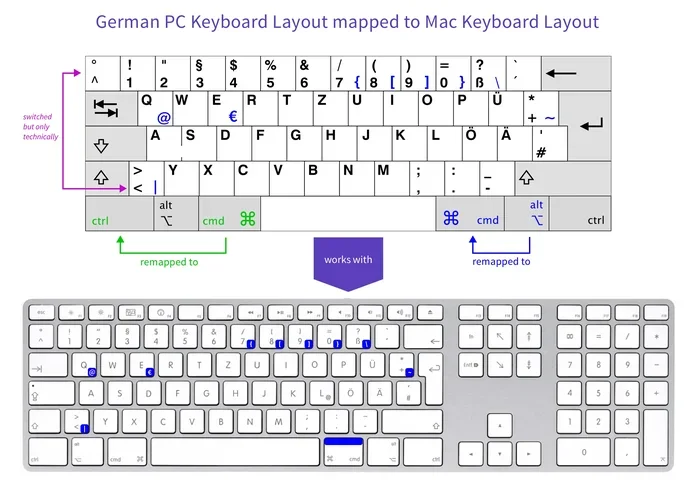
- Fixing layout issues: Switch between different keyboard layouts without changing your system settings.
- Accessibility needs: Make keys easier to reach or reduce the strain on your hands.
Most of the tools on our list work with Windows 10 and support both physical keyboards and external input devices. Some even allow you to create profiles for different tasks, so your keyboard changes depending on what you are doing.
Top 10 Best Free Key Mapping Software For Windows 10
1. AutoHotkey
AutoHotkey is the gold standard when it comes to free key mapping software for Windows 10. It is open-source, incredibly powerful, and has a massive community of users. With AutoHotkey, you can remap keys, create hotstrings, build macros, and automate almost any task on your PC.
Here is what makes AutoHotkey stand out:
- Script-based customization: You write simple scripts to define what each key does.
- Macro creation: Record or write macros for repetitive tasks.
- Hotstring support: Type a short abbreviation and AutoHotkey expands it into full text.
- Active community: Thousands of scripts and tutorials are available online.
- Lightweight: It runs in the background without slowing down your system.
The learning curve can be a bit steep if you have never used scripting before. But once you get the hang of it, AutoHotkey is unmatched in power. If you are serious about keyboard customization, this is the tool to start with.
2. SharpKeys
SharpKeys is the simplest and most beginner-friendly key rebinding utility on this list. It does not require any scripting or coding. You just open the app, select a key, and assign a new function to it. That is it.
Key features of SharpKeys include:
- No scripting required: Everything is done through a clean, simple interface.
- Persistent mappings: Your changes stay even after you restart your PC.
- Easy to undo: You can reset all changes with one click.
- Lightweight and fast: SharpKeys uses almost no system resources.
SharpKeys is perfect for people who just want to swap a few keys or fix a broken key. It does not support macros or complex automation, but for basic key remapping, it works beautifully.
3. KeyTweak
KeyTweak is another excellent free tool that has been around for years. It offers a simple grid-based interface where you can see all your keys and remap them with a few clicks. KeyTweak supports Windows 10 and works well for both basic and intermediate keyboard shortcut customization.
Some highlights of KeyTweak:
- Visual keyboard layout: See all keys and drag-and-drop to remap them.
- Restore defaults: Easily reset to the original keyboard layout.
- Supports special keys: Remap function keys, media keys, and modifier keys.
- Portable version available: Run it from a USB drive without installation.
KeyTweak is a solid choice if you want something between SharpKeys and AutoHotkey in terms of complexity and power.
4. PowerToys (Keyboard Manager)
Microsoft PowerToys is a free official tool from Microsoft that includes a Keyboard Manager module. This module lets you remap keys and create custom keyboard shortcuts without any third-party software. Since it comes directly from Microsoft, it is very safe and well-integrated with Windows 10.
Why use PowerToys for key mapping?
- Officially supported by Microsoft: No security concerns or compatibility issues.
- Easy to use: Simple point-and-click interface.
- Additional tools: PowerToys includes other useful utilities like a color picker and window manager.
- Regular updates: Microsoft actively maintains and improves the tool.
The downside is that PowerToys offers fewer customization options compared to AutoHotkey. But for most everyday users, it is more than enough. If you want a safe and official keyboard customization tool, PowerToys is a great choice.
5. Mini Mouse Macro
Mini Mouse Macro is a lightweight tool focused on macro recording and playback. While it is primarily a mouse macro tool, it also supports keyboard macros. You can record a series of keystrokes and mouse clicks, then replay them with a single hotkey.
This tool is ideal for:
- Gamers: Create quick combo macros for fighting games or MMOs.
- Repetitive tasks: Automate data entry or form filling.
- Light users: People who need simple macros without the complexity of AutoHotkey.
Mini Mouse Macro is small, fast, and easy to set up. It does not have the deep customization of AutoHotkey, but for straightforward macro creation, it gets the job done.
6. FreeKey
FreeKey is a simple hotkey configuration tool that lets you assign keyboard shortcuts to launch programs, open files, or run commands. It is great for people who want quick access to their favorite apps without digging through menus.
FreeKey features:
- Program launcher: Assign any app to a custom key combination.
- File opener: Open specific files with a single keystroke.
- Command runner: Execute system commands with custom shortcuts.
- Minimal interface: No clutter, just straightforward functionality.
If your main goal is to speed up your workflow by launching apps faster, FreeKey is a handy little tool. It works well alongside other key mapping software if you need more advanced features.
7. MapKeyboard
MapKeyboard is another no-fuss tool designed specifically for remapping keys on Windows 10. It provides a list of all keys on your keyboard and lets you reassign each one to a different key or function. The interface is clean and straightforward.
What makes MapKeyboard worth trying:
- Simple and clean design: No learning curve whatsoever.
- Full key list: See every key and its current mapping at a glance.
- Save and load profiles: Switch between different key mappings easily.
- Portable option: Use it without installing anything on your PC.
MapKeyboard is a solid choice for basic key rebinding tasks. It does not support macros or automation, but for simple remapping, it works well.
8. X-Mouse Button Control
X-Mouse Button Control is a specialized tool that focuses on remapping mouse buttons, but it also includes keyboard shortcut features. It is especially popular among gamers and power users who want fine-grained control over their input devices.
Key features include:
- Per-application profiles: Different mappings for different apps.
- Mouse and keyboard support: Remap both input devices.
- Scroll wheel customization: Change scroll speed and behavior.
- Window-specific rules: Set different behaviors for specific windows.
While it is not purely a keyboard mapper, X-Mouse Button Control deserves mention because many users pair it with other tools for a complete input customization setup.
9. Pinnacle Game Profiler
Pinnacle Game Profiler is a tool designed mainly for gamers. It lets you create custom key bindings and macros for your favorite games. It comes with pre-built profiles for thousands of games, so you can get started quickly.
Why gamers love this tool:
- Pre-built game profiles: No need to set up mappings from scratch.
- Macro recording: Create and save complex in-game combos.
- Multi-device support: Works with keyboards, mice, and gamepads.
- Easy profile switching: Switch between game profiles with one click.
Pinnacle Game Profiler is a great option if you mainly want gaming keyboard software that works out of the box. The free version has some limitations, but it covers most basic needs well.
10. Keyboard Manager (Built into Windows 11/10)
Microsoft has quietly added a Keyboard Manager feature to Windows 10 through the Settings app. This built-in tool lets you remap keys and create custom shortcuts without downloading any third-party software.
Benefits of using the built-in Keyboard Manager:
- No installation required: It is already part of your operating system.
- Safe and secure: No need to download anything from the internet.
- Simple to use: Built right into Windows Settings.
- Regularly updated: Microsoft improves it with each Windows update.
The built-in Keyboard Manager is limited compared to tools like AutoHotkey, but for basic key remapping, it is a convenient and safe option. If you are a casual user who just wants to swap a couple of keys, this is worth trying first.
Comparison Table: Quick Overview
Here is a quick comparison of the top tools we covered:
- AutoHotkey: Most powerful, scripting required, best for advanced users.
- SharpKeys: Simplest option, no scripting, perfect for beginners.
- KeyTweak: Visual interface, good balance of features and ease of use.
- PowerToys: Official Microsoft tool, safe and reliable.
- Mini Mouse Macro: Best for simple macro recording.
- FreeKey: Best for launching apps with custom shortcuts.
- MapKeyboard: Clean interface, good for basic remapping.
- X-Mouse Button Control: Best for mouse and keyboard combo customization.
- Pinnacle Game Profiler: Best for gamers with pre-built profiles.
- Built-in Keyboard Manager: No download needed, basic remapping.
How to Choose the Right Key Mapping Software
With so many options, choosing the right tool can feel overwhelming. Here are some tips to help you decide:
Think about what you need. If you just want to swap two keys, SharpKeys or the built-in Keyboard Manager will do the job. If you want to create complex macros and automate tasks, go with AutoHotkey. For gaming, Pinnacle Game Profiler or Mini Mouse Macro are great choices.
Consider your skill level. If you are not comfortable with scripting, avoid AutoHotkey and go with a point-and-click tool like SharpKeys or KeyTweak. On the other hand, if you enjoy tinkering and learning new tools, AutoHotkey will open up a world of possibilities.
Check compatibility. Make sure the tool you choose works with Windows 10. Most tools on our list do, but it is always a good idea to check the system requirements before downloading.
Stay safe. Always download software from the official website or a trusted source like best apps for a PC. After downloading, scan the file with reliable antivirus software before installing it on your system. This is especially important with free software downloaded from the internet.
Think about portability. Some tools like KeyTweak and MapKeyboard offer portable versions that you can run from a USB drive. This is useful if you use multiple computers or do not have admin rights on your PC.
Common Mistakes to Avoid When Using Key Mapping Software
Even though key mapping is straightforward, there are a few common mistakes to watch out for:
- Forgetting to back up your mappings: If you make a lot of changes, save a backup so you can restore them if something goes wrong.
- Using too many tools at once: Running multiple keyboard mapper programs simultaneously can cause conflicts. Stick to one tool for each type of task.
- Not testing your mappings: Always test your remapped keys before relying on them for important work or gaming.
- Ignoring updates: Keep your software updated to get the latest features and security patches.
- Overcomplicating things: You do not need 50 macros on your keyboard. Start simple and add more as you get comfortable.
Expert Tips for Getting the Most Out of Key Mapping Software
Start small. Do not try to remap your entire keyboard on day one. Change a few keys, get used to the new layout, and then make more adjustments over time.
Use profiles for different tasks. If you game and work on the same PC, create separate profiles. One for gaming with your macros and quick binds, and another for work with productivity shortcuts.
Learn basic scripting if you use AutoHotkey. Even a little bit of scripting knowledge goes a long way. There are hundreds of tutorials and community scripts available online that you can adapt to your needs.
Combine tools if needed. Some users pair SharpKeys for basic remapping with AutoHotkey for macros. This gives you the best of both worlds without overcomplicating things.
Explore online communities. Sites like Reddit and GitHub have active communities around tools like AutoHotkey and PowerToys. You can find ready-made scripts, tips, and troubleshooting help from experienced users.
Final Thoughts
Whether you are a gamer, a programmer, a student, or just someone who wants to get more out of your keyboard, there is a free key mapping software for Windows 10 that fits your needs. From the powerful scripting capabilities of AutoHotkey to the simple plug-and-play ease of SharpKeys, you have plenty of great options.
Start with the tool that matches your skill level and needs. You can always explore more advanced options later as you get comfortable. The beauty of these free tools is that you can experiment without any risk. So go ahead, remap a few keys, set up some shortcuts, and see how much more productive and efficient your workflow can become.
Remember to always download from trusted sources and keep your software updated. With the right key mapping software, your keyboard can become the most powerful tool on your desk.
Frequently Asked Questions
What is the best free key mapping software for Windows 10?
AutoHotkey is widely considered the best free key mapping software for Windows 10. It offers the most features and customization options, though it does require some basic scripting knowledge. For beginners, SharpKeys is the easiest and most straightforward option.
Is key mapping software safe to use on Windows 10?
Yes, key mapping software is generally safe as long as you download it from official or trusted sources. Always scan downloaded files with antivirus software before installing. Tools like PowerToys are officially supported by Microsoft and are completely safe.
Can I use key mapping software for gaming?
Absolutely. Many gamers use key mapping software to create macros, remap keys for specific games, and set up quick bindings. Pinnacle Game Profiler and Mini Mouse Macro are especially popular among gamers for their pre-built profiles and easy macro recording.
Do I need technical skills to use free key mapping tools?
Not necessarily. Tools like SharpKeys and KeyTweak are designed for beginners and require no technical skills. You just click, select a key, and assign a new function. AutoHotkey is more advanced and does involve some scripting, but there are plenty of tutorials to help you get started.
Can I undo key mappings if I make a mistake?
Yes, most key mapping tools include an undo or reset feature. SharpKeys and KeyTweak both let you restore default key mappings with a single click. AutoHotkey scripts can be edited or deleted easily if you need to change your setup.
Will key mapping software work with external keyboards?
Most key mapping software works with both built-in laptop keyboards and external USB or wireless keyboards. However, some gaming keyboards with proprietary software may have their own built-in remapping features. Check the compatibility of your specific keyboard with the software before setting up custom mappings.
=== CONCLUSION ===
Finding the right free key mapping software for Windows 10 does not have to be a daunting task. As we have seen, there are excellent options for every skill level and use case. Whether you choose the powerful AutoHotkey, the simple SharpKeys, or the official Microsoft PowerToys, you are sure to find a tool that enhances your keyboard experience.
Take some time to explore these tools, experiment with different setups, and find what works best for you. The right keyboard customization can save you time, boost your productivity, and even make gaming more fun. Start today and discover how much better your keyboard can work for you.