Windows 10 End of Life Why It Matters and Whats Next

Windows 10 End of Life marks the date when Microsoft stops supporting the operating system, meaning no more security updates or patches. After October 14, 2025, users face serious security risks if they continue using Windows 10. Upgrading to Windows 11 or exploring alternatives is the safest path forward for your PC and personal data.
Key Takeaways
- Windows 10 End of Life arrives on October 14, 2025: Microsoft will stop all support, including security updates and patches.
- Security risks increase significantly: Without updates, your PC becomes vulnerable to new malware and cyber threats.
- Windows 11 is the primary upgrade path: Check your PC’s compatibility before committing to the switch.
- You have options beyond Windows 11: Linux distributions and extended security updates offer alternatives.
- Preparation is key: Back up your data, check system requirements, and plan your transition early.
- Businesses face bigger risks: Organizations need a clear migration strategy to avoid compliance and security issues.
📑 Table of Contents
- Windows 10 End of Life: Why It Matters and Whats Next
- What Does Windows 10 End of Life Actually Mean?
- Why Windows 10 End of Life Should Concern You
- Your Options After Windows 10 End of Life
- How to Prepare for Windows 10 End of Life
- Common Mistakes People Make With Windows 10 End of Life
- Expert Insights on the Windows 10 End of Life Transition
- Conclusion
Windows 10 End of Life: Why It Matters and Whats Next
Microsoft has been clear about one thing. Windows 10 End of Life is coming. On October 14, 2025, the company will stop supporting Windows 10 entirely. This means no more security patches, no more bug fixes, and no more free updates. For millions of users worldwide, this is a big deal. Your computer will still turn on, but it will be increasingly exposed to threats.
You might be wondering what this means for you. Maybe you have an older Windows 10 laptop that still runs fine. Maybe you are putting off the upgrade because it feels like too much hassle. Whatever your reason, understanding Windows 10 end of life is essential. This article breaks down everything you need to know. We will cover the timeline, the risks, and the best options available to you.
The goal here is simple. Help you make an informed decision before the deadline hits. No panic, no confusion. Just clear, practical guidance you can act on right away.
What Does Windows 10 End of Life Actually Mean?
When Microsoft says a product has reached end of life, it means they are done supporting it. For Windows 10, this is a two-phase process that has already begun.
The Two Phases of Windows 10 Support
Mainstream support ended on October 14, 2020. During this phase, Microsoft provided free updates, new features, and non-security patches. Extended support continued until October 14, 2025. This is the phase we are in now. During extended support, Microsoft still released security updates but no new features.
After October 14, 2025, Windows 10 end of life officially begins. Here is what stops:
- Security updates — No more patches for newly discovered vulnerabilities.
- Technical support — Microsoft will not help with Windows 10 issues.
- Bug fixes — Known problems will remain unfixed.
- Free feature updates — Already stopped, but worth noting.
- Compliance requirements — Businesses may face audit issues.
Think of it like a car that is no longer covered by warranty. It still drives, but one broken part could cost you a lot more to fix. The same logic applies to your operating system.
Why Windows 10 End of Life Should Concern You
Some people think, “My PC works fine right now, so why worry?” That is a natural feeling. But ignoring Windows 10 end of life can lead to real problems down the road.
Growing Security Vulnerabilities
Every day, hackers discover new ways to exploit operating systems. Microsoft constantly releases patches to close these gaps. Once Windows 10 reaches end of life, those gaps stay open. Cybercriminals know this too. They actively target unsupported systems because they are easy prey.
Even if your Windows 10 laptop with 8GB RAM runs smoothly today, tomorrow’s unpatched flaw could put your personal data at risk. Passwords, banking details, photos — all of it becomes more exposed.
Software and Hardware Compatibility
Software developers design their apps for supported operating systems. Over time, new versions of browsers, office suites, and other tools will drop Windows 10 support. You may find that apps simply stop working or refuse to update. The same goes for hardware drivers. New printers, graphics cards, and peripherals may not have Windows 10 drivers anymore.
No More Microsoft Defender Updates
Even your built-in antivirus, Microsoft Defender, will eventually stop receiving definition updates for Windows 10. This leaves your system defenseless against the latest malware and ransomware.
Your Options After Windows 10 End of Life
The good news is you are not stuck. You have several paths forward. Let us look at each one.
Option 1: Upgrade to Windows 11
The most straightforward choice is upgrading to Windows 11. Microsoft designed it as the successor to Windows 10, and it comes with improved security, a refreshed interface, and better performance.
Before you jump in, check your PC’s requirements:
- Processor: 1 GHz or faster with 2 or more cores on a compatible 64-bit CPU.
- RAM: At least 4 GB (though 8 GB is recommended for smooth performance).
- Storage: 64 GB or more.
- TPM: Trusted Platform Module version 2.0.
- Secure Boot: UEFI firmware with Secure Boot capability.
If your current Windows 10 8 GB RAM laptop meets these specs, you are in good shape. Many modern laptops with Windows 10 and 8GB RAM can run Windows 11 without issues. Use the PC Health Check app from Microsoft to verify compatibility.
If your PC is older and does not support Windows 11, do not panic. There are still other options.
Option 2: Extended Security Updates (ESU)
Microsoft offers Extended Security Updates for Windows 10. These are paid updates that keep your system protected for up to three years after end of life. ESU is available for both home and business users. However, it is a temporary fix, not a permanent solution. You will still need to plan a full migration eventually.
Option 3: Switch to Linux
If you want a free, secure, and fully supported operating system, consider Linux. Distributions like Ubuntu, Linux Mint, and Fedora are user-friendly and excellent for everyday tasks. Many people worry Linux is too technical, but modern versions are just as easy to use as Windows. Plus, Linux is naturally resistant to most Windows-based malware.
Option 4: Buy a New PC
Sometimes the best move is a fresh start. New laptops with a lot of RAM come preloaded with Windows 11 and offer far better performance. If your current machine is slow or outdated, replacing it might save you time and frustration. Look for Windows 11 laptops with 16GB RAM for a future-proof setup that will last years.
How to Prepare for Windows 10 End of Life
Waiting until the last minute is risky. Here is a simple plan to get ready.
Step 1: Back Up Your Data
Before anything else, back up everything. Use an external hard drive, cloud storage, or both. If you ever need to reinstall your operating system or switch to a new one, you want your files safe and sound.
Step 2: Check System Requirements
Run the PC Health Check app or visit Microsoft’s website to see if your PC qualifies for Windows 11. If it does not, look into ESU or Linux as alternatives.
Step 3: Update Everything Now
Make sure your Windows 10 system is fully updated while support is still active. Install every pending update. This reduces your exposure to known vulnerabilities.
Step 4: Plan Your Transition
Decide which path you are taking. Whether it is upgrading to Windows 11, switching to Linux, or purchasing a new laptop with 8GB RAM and Windows 11, having a plan reduces stress and keeps you on track.
Common Mistakes People Make With Windows 10 End of Life
Avoid these pitfalls that trip up many users:
- Ignoring the deadline: Thinking “it will be fine” is the most common mistake. It rarely is.
- Skipping backups: Without a backup, any transition carries the risk of data loss.
- Not checking compatibility: Assuming your PC can run Windows 11 without verifying leads to frustration.
- Relying on antivirus alone: Even the best antivirus cannot fully protect an unsupported operating system.
- Delaying the upgrade: Every day you use Windows 10 after end of life increases your risk.
Expert Insights on the Windows 10 End of Life Transition
Cybersecurity experts consistently warn against staying on unsupported operating systems. According to industry analysts, unpatched systems are the number one entry point for ransomware attacks. The Windows 10 end of life deadline is not just a Microsoft milestone — it is a real security boundary.
For businesses, the stakes are even higher. Compliance frameworks like GDPR and HIPAA require up-to-date systems. Running Windows 10 after end of life could lead to fines, data breaches, and reputational damage. Experts recommend starting the migration process at least six months before the deadline.
For home users, the advice is simpler but equally important. Upgrade now, or switch to a supported alternative. The cost of prevention is always lower than the cost of recovery after a breach.
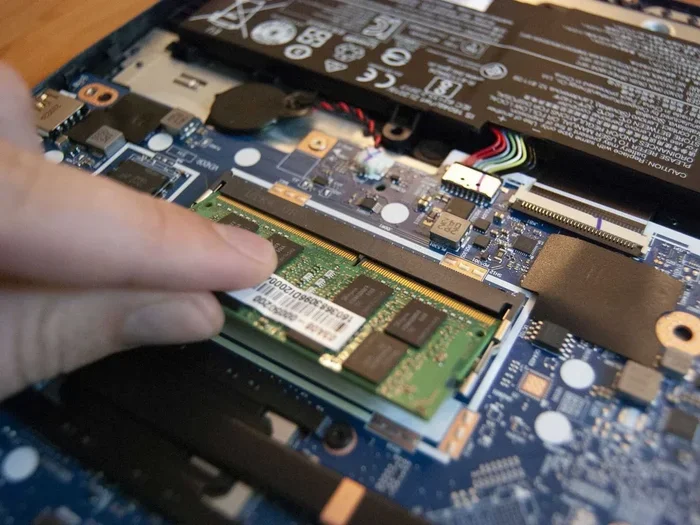
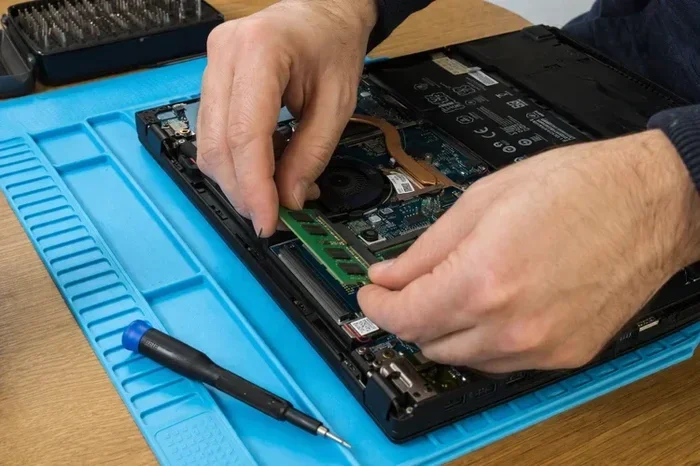
If you are unsure about your current setup, check your system specs. You might be surprised to find that your existing Windows 10 laptop is more capable than you think. A simple RAM upgrade can also breathe new life into older machines, making the transition smoother. Consider exploring how to upgrade the RAM of a laptop if your system is running low on memory.
Conclusion
Windows 10 End of Life is not something to fear. It is something to prepare for. With the right plan, you can upgrade smoothly, stay secure, and keep your PC running at its best. The key is to act now rather than react later.
Whether you choose Windows 11, a Linux distribution, or a new machine, the most important step is the first one. Decide today. Your future self — and your data — will thank you.
Do not let Windows 10 end of life catch you off guard. Take control of your PC’s future. Start your transition today and enjoy a safer, faster, and more supported computing experience.
Frequently Asked Questions
What happens when Windows 10 reaches end of life?
Microsoft stops providing all support, including security updates, bug fixes, and technical assistance. Your system becomes increasingly vulnerable to cyber threats and malware. Software and hardware compatibility may also decline over time.
Can I keep using Windows 10 after October 2025?
Yes, you can still use Windows 10 after the deadline. However, doing so exposes your PC to serious security risks since Microsoft will no longer release patches. It is strongly recommended to upgrade or switch to a supported alternative.
Is upgrading to Windows 11 free?
For most users with a genuine Windows 10 license and a compatible PC, upgrading to Windows 11 is free. You can use the PC Health Check app to confirm eligibility and initiate the upgrade through Windows Update.
What if my PC does not support Windows 11?
You have several options. You can purchase Extended Security Updates from Microsoft, switch to a Linux distribution, or buy a new PC that meets the Windows 11 requirements. Each option has its own pros and cost considerations.
How do I back up my data before upgrading?
You can use an external hard drive, a USB flash drive, or cloud services like OneDrive or Google Drive. Make sure to back up all important files, documents, photos, and application data before starting any major system change.
Should businesses be more worried about Windows 10 end of life than home users?
Yes, businesses face higher stakes. They must comply with data protection regulations, manage multiple devices, and protect sensitive customer data. A clear migration plan with a timeline is essential for organizations to avoid security breaches and compliance violations.
=== META TITLE ===
Windows 10 End of Life: Why It Matters and Whats Next
=== URL SLUG ===
windows-10-end-of-life-why-it-matters-and-whats-next
=== SEO TITLE ===
Windows 10 End of Life: Why It Matters and Whats Next