Onedrive Sync Problem In Windows 10 And How To Fix It

Onedrive sync problem in Windows 10 can be frustrating, but it is usually fixable with a few simple steps. This guide walks you through the most common causes of OneDrive sync failures and gives you clear, actionable fixes you can try right away. We cover everything from checking your account settings to resetting the OneDrive app, so you can get your files back in sync quickly and easily.
Key Takeaways
- Restart OneDrive First: A simple restart often resolves minor sync glitches and gets your files moving again.
- Check Your Account Settings: Incorrect account or sync settings are a leading cause of OneDrive sync problems in Windows 10.
- Clear the Cache: Deleting the OneDrive cache can fix stuck or frozen sync issues effectively.
- Reinstall if Needed: Uninstalling and reinstalling OneDrive is a powerful fix for persistent sync errors.
- Keep Windows Updated: Outdated Windows updates can cause compatibility issues with OneDrive syncing.
- Check Storage Space: Low disk space on your PC can prevent OneDrive from syncing properly.
- Use the Sync Troubleshooter: Windows 10 has a built-in troubleshooter that can identify and fix common sync issues automatically.
📑 Table of Contents
Onedrive Sync Problem In Windows 10 And How To Fix It
Nothing is more annoying than waiting for your files to sync, only to see the OneDrive icon spinning endlessly. If you are dealing with an Onedrive sync problem in Windows 10, you are not alone. Thousands of users run into this issue every day, and the good news is that most fixes are simple and quick. Whether your files are stuck, not uploading, or showing error messages, this guide has you covered.
OneDrive is Microsoft’s cloud storage service. It keeps your files safe and lets you access them from any device. But when the sync breaks, it can feel like your workflow comes to a halt. You cannot access your latest files, and you might worry about losing important work. That is why understanding the root causes and fixes matters so much.
In this article, we will explore every major reason your OneDrive sync might fail in Windows 10. We will also walk you through each fix step by step. You will learn how to troubleshoot like a pro, even if you are not very technical. Let us dive in and get your OneDrive working again.
Why Does OneDrive Sync Fail In Windows 10?
Before you start fixing anything, it helps to understand what is going wrong. The OneDrive sync problem in Windows 10 can come from several different sources. Knowing the cause makes the fix much easier. Here are the most common reasons your OneDrive sync might be acting up.
Network Connectivity Issues
OneDrive needs a stable internet connection to sync your files. If your Wi-Fi is weak or your connection keeps dropping, the sync process will stall. Sometimes a simple router restart fixes everything. Other times, your ISP might be having issues on their end.
Insufficient Storage Space
Your PC needs free space to download and sync files from the cloud. If your hard drive is nearly full, OneDrive will pause syncing. This is one of the most overlooked causes of sync failures. Make sure you have enough room before blaming OneDrive itself.
Outdated OneDrive Or Windows Version
Microsoft regularly updates OneDrive and Windows 10 to fix bugs and improve performance. Running an older version can cause compatibility problems. When the OneDrive sync not working Windows 10 issue pops up, an outdated app or OS might be to blame.
Corrupted OneDrive Cache
OneDrive stores temporary files on your PC to speed up syncing. Sometimes these cached files become corrupted. When that happens, the sync process gets stuck or shows incorrect status. Clearing the cache is often the solution here.
Account Or Permission Problems
If your Microsoft account has sync restrictions or if OneDrive does not have the right permissions, files will not sync. This can happen after a Windows update or if you recently changed your account password.
How To Fix Onedrive Sync Problem In Windows 10
Now that you know the common causes, let us get into the fixes. Try these solutions in order. Most people find that one of the first few steps resolves the issue. If not, keep going through the list until your OneDrive sync problem in Windows 10 is solved.
Fix 1: Restart OneDrive And Your PC
The simplest fix is often the most effective. Start by restarting OneDrive and your computer. This clears temporary glitches and refreshes the sync connection.
- Right-click the OneDrive icon in your system tray.
- Click “Quit OneDrive” or “Pause Syncing.”
- Wait about 30 seconds.
- Restart your PC.
- Sign back into OneDrive and check if syncing resumes.
This fix works for many users because it resets the sync connection without losing any files or settings. If you have a windows 10 laptop with 8gb ram, restarting is even more effective since your system has enough memory to handle a clean restart smoothly.
Fix 2: Check Your Internet Connection
Make sure your internet is working properly. Try loading a website or running a speed test. If your connection is slow or unstable, OneDrive will struggle to sync.
- Restart your router or modem.
- Switch from Wi-Fi to a wired connection if possible.
- Check if other cloud services are syncing properly.
- Disable any VPN temporarily and try again.
A stable connection is essential for OneDrive cloud sync to work correctly. If you are using a shared network at work or school, the firewall might be blocking OneDrive traffic. Check with your IT department if that is the case.
Fix 3: Free Up Disk Space
If your hard drive is running low on space, OneDrive will stop syncing. Windows needs free space to download files and manage the sync process.
- Delete temporary files using Disk Cleanup.
- Empty your Recycle Bin.
- Move large files to an external drive.
- Uninstall apps you no longer use.
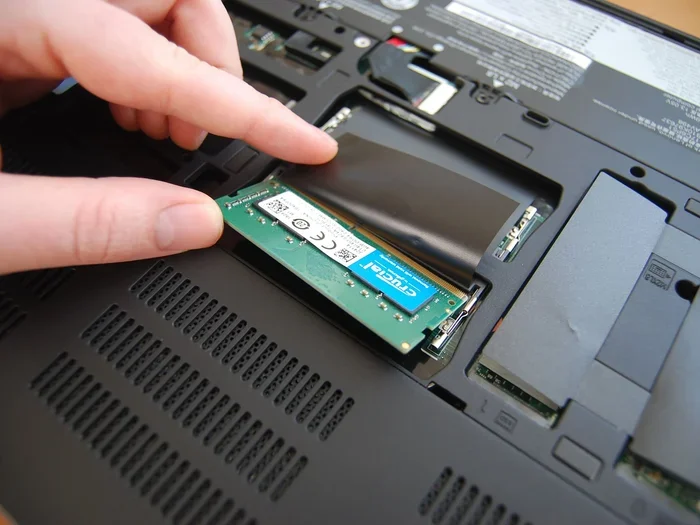
After freeing up space, right-click the OneDrive icon and select “Sync Once” to restart the process. If your laptop has limited storage, consider upgrading your RAM. Having enough ram in your laptop helps Windows manage file operations more efficiently, including cloud sync tasks.
Fix 4: Reset OneDrive App Settings
Sometimes the OneDrive app settings get corrupted. Resetting them can fix persistent sync issues without affecting your actual files.
- Press Windows Key + I to open Settings.
- Go to “Accounts” and then “Email & accounts.”
- Find your OneDrive account and click “Manage.”
- Select “Unlink this PC.”
- Restart your computer.
- Sign back into OneDrive and re-link your account.
This process does not delete your files from the cloud. It only removes the PC connection. Your files will sync again once you re-link your account. This fix works wonders for cases where OneDrive not syncing Windows 10 is caused by a bad configuration.
Fix 5: Clear The OneDrive Cache
Deleting the OneDrive cache is a more advanced fix, but it resolves many stubborn sync issues. The cache stores temporary data that OneDrive uses during syncing.
- Press Windows Key + R to open the Run dialog.
- Type `%localappdata%\Microsoft\OneDrive` and press Enter.
- Find the “OneDriveTemp” folder.
- Delete all files inside this folder.
- Restart your PC and check if syncing works.
Be careful not to delete the wrong folder. Only delete files in the “OneDriveTemp” folder. Do not delete the main OneDrive folder or your actual synced files. This fix is especially helpful when your OneDrive sync is stuck on a particular file or folder.
Fix 6: Reinstall OneDrive
If none of the above fixes work, reinstalling OneDrive is a powerful next step. This gives you a fresh installation with no corrupted files or settings.
- Open Settings and go to “Apps.”
- Find “Microsoft OneDrive” in the list.
- Click “Uninstall” and confirm.
- Restart your PC.
- Download the latest OneDrive version from Microsoft’s website.
- Install and sign back into your account.
After reinstalling, check if your files start syncing. This fix resolves most persistent OneDrive sync problems in Windows 10. If you are running low on system resources, make sure your laptop with Windows 10 and 8GB RAM can handle the fresh installation without performance issues.
Prevent OneDrive Sync Problems In The Future
Once you get your OneDrive syncing again, you want to keep it that way. Prevention is always better than fixing problems after they happen. Here are some simple habits that keep your OneDrive sync running smoothly on Windows 10.
Keep Windows And OneDrive Updated
Microsoft releases regular updates that fix bugs and improve sync performance. Go to Settings, then “Update & Security,” and check for updates frequently. Keeping your system current prevents many sync issues before they start.
Maintain Enough Free Disk Space
Make it a habit to keep at least 10-15% of your hard drive free. This gives OneDrive enough room to download files and manage the sync process without interruptions. If you find your storage running low often, consider using an external drive or upgrading your laptop storage.
Use A Stable Internet Connection
Avoid syncing important files on unstable or public Wi-Fi networks. A reliable connection ensures that files upload and download without errors. If your connection drops frequently, consider using a wired connection for large sync operations.
Monitor Your OneDrive Storage
OneDrive gives you 5 GB of free storage. If you exceed this limit, syncing will stop. Keep an eye on your storage usage and consider upgrading to a Microsoft 365 subscription if you need more space.
Regularly Restart Your PC
A weekly restart clears out temporary files and refreshes system processes. This simple habit keeps everything running smoothly, including your OneDrive sync. If you have a powerful windows 10 8 GB RAM laptop, regular restarts help maintain optimal performance for all your apps, including OneDrive.
When To Seek Professional Help
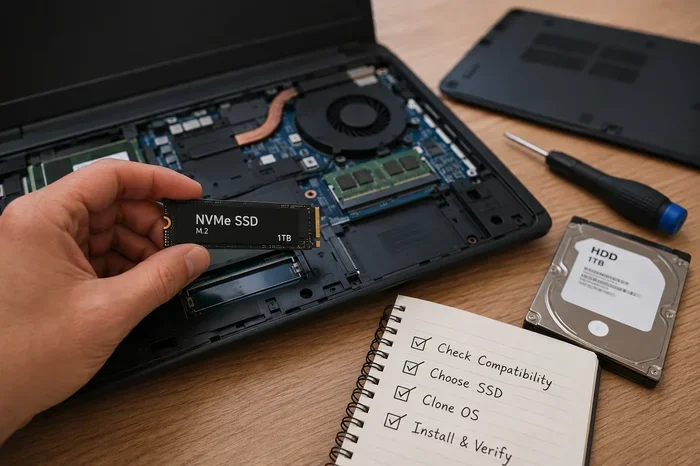
Most OneDrive sync problems in Windows 10 can be fixed at home using the steps above. However, there are times when you need expert help. If you have tried every fix and your OneDrive still will not sync, it might be a deeper system issue. This could be related to your laptop hardware or a complex registry problem.
Also, if you notice that your laptop mouse pad not working Windows 10 or other system issues alongside your OneDrive problem, there might be a broader Windows issue at play. In such cases, running a full system diagnostic or consulting a professional technician is a smart move.
Do not let OneDrive sync problems slow you down for too long. The sooner you address the issue, the less risk you have of losing access to important files. Use the fixes in this guide and get back to working with your cloud files seamlessly.
Final Thoughts
Dealing with an Onedrive sync problem in Windows 10 does not have to be a headache. With the right approach, you can diagnose and fix most sync issues in just a few minutes. Start with the simple fixes like restarting OneDrive and checking your connection. Then move to more advanced solutions like resetting settings or reinstalling the app if needed.
Prevention is the best medicine. Keep your system updated, maintain enough storage space, and use a stable internet connection. These habits will keep your OneDrive running smoothly for the long haul. If you ever find yourself stuck, come back to this guide and work through the fixes one by one. Your files will be back in sync before you know it.
Frequently Asked Questions
Why is my OneDrive not syncing on Windows 10?
OneDrive may not sync on Windows 10 due to network issues, insufficient storage space, corrupted cache, or outdated app versions. Try restarting OneDrive, checking your internet connection, and clearing the cache before moving to more advanced fixes like resetting or reinstalling the app.
How do I reset OneDrive on Windows 10?
To reset OneDrive, go to Settings, select Accounts, then Email and accounts. Find your OneDrive account, click Manage, and choose “Unlink this PC.” Restart your computer and sign back into OneDrive to re-link your account. This does not delete your cloud files.
Can a lack of disk space cause OneDrive sync problems?
Yes, low disk space is a common cause of OneDrive sync failures. Windows needs free space to download and manage synced files. Make sure you have at least 10-15% of your hard drive free to keep OneDrive syncing without interruptions.
Is it safe to delete the OneDrive cache files?
Yes, it is safe to delete files in the OneDriveTemp cache folder. These are temporary files that OneDrive recreates automatically. Be careful not to delete your actual synced files or other OneDrive folders. Only delete files inside the “OneDriveTemp” folder.
Does reinstalling OneDrive delete my files?
No, reinstalling OneDrive does not delete your files. Your files are stored safely in the cloud on Microsoft’s servers. Uninstalling and reinstalling OneDrive only removes the app from your PC. When you sign back in, your files will sync again automatically.
How can I prevent OneDrive sync problems in the future?
Keep Windows and OneDrive updated, maintain enough free disk space, use a stable internet connection, and monitor your OneDrive storage usage. Regularly restarting your PC also helps clear temporary issues and keeps the sync process running smoothly.