Open Settings In Windows 11 Using These Simple Methods
Opening settings in Windows 11 is easy once you know the right methods. You can use the Start menu, keyboard shortcuts, the Run dialog, or even the taskbar search to quickly access your PC settings. This guide covers every simple way to open settings in Windows 11 so you can find what you need fast.
Have you ever sat in front of your laptop and thought, “Where did all the settings go?” You are not alone. Windows 11 changed the way we access our pc settings, and many people find themselves searching for simple options they used to find in seconds.
The good news is that opening settings in Windows 11 is actually quite simple. There are several easy methods you can use, and once you find the one that works best for you, you will wonder how you ever managed without it. Whether you are a complete beginner or someone who just needs a quick refresher, this guide has you covered.
Let us walk through every practical way you can open settings in Windows 11. No confusing jargon. No complicated steps. Just clear, simple methods you can start using right away. If you have ever struggled to find your system settings or wanted to change your display settings without hassle, keep reading.
Key Takeaways
- Multiple Methods: You can open settings in Windows 11 using the Start menu, keyboard shortcuts, Run dialog, taskbar search, and more.
- Keyboard Shortcuts Save Time: The Windows key + I shortcut is the fastest way to access settings on any Windows 11 PC.
- Taskbar Search Works Great: Simply type “settings” in the search bar and press Enter to open settings in Windows 11 instantly.
- Control Panel Still Works: You can use the Control Panel to access some settings even in Windows 11.
- Power User Methods Exist: Advanced users can use Command Prompt, PowerShell, or the Run dialog to open settings quickly.
📑 Table of Contents
- Why Opening Settings in Windows 11 Matters
- Method 1: Use the Start Menu
- Method 2: Use Keyboard Shortcuts
- Method 3: Use the Taskbar Search
- Method 4: Use the Run Dialog
- Method 5: Use Command Prompt or PowerShell
- Method 6: Use the Control Panel
- Comparison of Methods
- Common Problems When Opening Settings
- Tips for Making the Most of Windows 11 Settings
- Final Thoughts
Why Opening Settings in Windows 11 Matters
Before we dive into the methods, let us talk about why this matters so much. Your settings control everything on your laptop. From display brightness to network connections, from sound preferences to privacy controls, the settings menu is your command center.
When you know how to open settings quickly, you save time and frustration. You do not have to dig through menus or guess where things are hidden. You just open settings and go straight to what you need. This is especially helpful when you are troubleshooting problems or trying to customize Windows to fit your workflow.
Plus, Windows 11 introduced a cleaner, more modern design to the settings app. It is easier to navigate than older versions, but you still need to know how to get there first. Let us fix that right now.
Method 1: Use the Start Menu
The Start menu is the most obvious and beginner-friendly way to open settings in Windows 11. Almost everyone knows about the Start menu, but not everyone realizes how quickly it gets you to your settings.
Step-by-Step Instructions
- Click the Start button in the bottom-left corner of your screen. You can also press the Windows key on your keyboard.
- Look for the gear icon on the left side of the Start menu. This is the Settings shortcut.
- Click the gear icon, and your settings will open immediately.
That is it. Three simple clicks, and you are in. This method works on every Windows 11 laptop, whether you have an HP, Dell, Lenovo, or any other brand. If your wireless mouse for HP laptop Windows 11 is connected, you can use it just as easily to click the Start button and navigate to settings.
Quick Tip: If you cannot find the gear icon in the Start menu, try clicking on your profile picture at the top of the Start menu. Settings is often listed there as well.
Method 2: Use Keyboard Shortcuts
If you want the fastest way to open settings in Windows 11, keyboard shortcuts are your best friend. They work instantly and require no mouse movement at all.
The Best Keyboard Shortcut
Press Windows Key + I on your keyboard. That is all you need. Your settings window will pop up right away, no matter what you are doing on your screen.
This shortcut works in every version of Windows 11. It does not matter if you are on a home screen, inside an app, or browsing the web. Just press those two keys together, and your settings open instantly.
Here are a few other useful shortcuts related to settings:
- Windows Key + A: Opens the Quick Settings panel (for Wi-Fi, Bluetooth, volume, and brightness).
- Windows Key + X: Opens the Power User Menu, which includes a link to Settings.
- Alt + F4: Closes any open window, including Settings, if you need to exit quickly.
Once you get comfortable using Windows Key + I, you will never go back to clicking through menus. It is a small habit that saves you a lot of time every single day.
Method 3: Use the Taskbar Search
The taskbar search bar in Windows 11 is a powerful tool. You can use it to open settings in seconds without clicking through any menus at all.
How to Use Search to Open Settings
- Click on the search bar at the top of your taskbar. You can also press Windows Key + S to open it directly.
- Type the word “settings” using your keyboard.
- Click on the Settings result that appears at the top of the search menu.
This method is especially helpful if your Start menu is not responding or if you have customized your taskbar and the Start button is harder to find. The search bar is always there, ready to help you open settings in Windows 11 with just a few keystrokes.
Quick Tip: You can also ask Windows 11 using voice search. Click the microphone icon in the search bar and say “Open Settings.” Your PC will do the rest. This is a great hands-free option if you are multitasking.
Method 4: Use the Run Dialog
The Run dialog is a favorite among power users. It is a small, quick window that lets you open almost anything on your PC with a simple command.
How to Use Run to Open Settings
- Press Windows Key + R on your keyboard. The Run dialog box will appear.
- Type ms-settings: into the text box.
- Press Enter or click OK.
Your settings will open right up. This method is fast, clean, and works every time. It is especially useful if you are already working at your keyboard and do not want to reach for your mouse.
You can also use specific commands to open particular settings pages directly. For example, type ms-settings:display to jump straight to your display settings, or ms-settings:network for network settings. This trick saves you from scrolling through menus once you are inside the settings app.
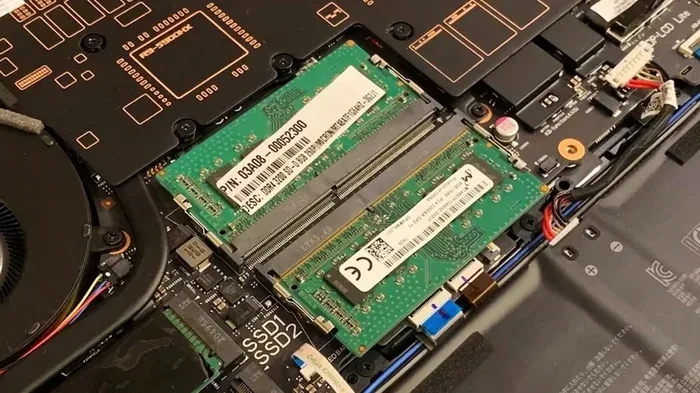
If you are curious about other ways to access your laptop’s configuration, you might also want to learn how to open laptop RAM for hardware-related tasks. It is a related skill that helps you troubleshoot performance issues.
Method 5: Use Command Prompt or PowerShell
For those who love working with the command line, Windows 11 lets you open settings directly from Command Prompt or PowerShell. This might sound technical, but it is actually quite simple once you try it.
Using Command Prompt
- Press Windows Key + X and select Terminal or Command Prompt from the menu.
- Type start ms-settings: and press Enter.
- The Settings app will open immediately.
Using PowerShell
- Right-click the Start button and select Terminal or PowerShell.
- Type start ms-settings: and press Enter.
- Settings will open just like before.
This method is great if you prefer the command line or if you are writing scripts to automate tasks on your PC. It also works well if the normal Start menu is not responding. Just open your terminal and type the command.
Quick Tip: You can also open specific settings pages from the command line. Just add the page name after the command, like start ms-settings:network-status for your network status page.
Method 6: Use the Control Panel
Even though Windows 11 pushes you toward the modern Settings app, the classic Control Panel is still there. Some settings are only available through the Control Panel, so it is worth knowing how to access it.
How to Open Control Panel
- Press Windows Key + R to open the Run dialog.
- Type control panel and press Enter.
- The Control Panel window will open with all its categories.
From the Control Panel, you can access many of the same settings found in the modern Settings app. You can change your display settings, manage network connections, update device drivers, and much more. Some advanced users actually prefer the Control Panel because it offers more detailed options.
You can also search for “Control Panel” using the taskbar search method described earlier. Just type “Control Panel” and click the result.
Keep in mind that some features in the Control Panel may redirect you to the modern Settings app in Windows 11. This is normal and part of Microsoft’s plan to merge the two experiences over time.
Comparison of Methods
Not all methods are created equal. Some are faster, some are easier to remember, and some work better in certain situations. Here is a quick comparison of the methods we covered.
| Method | Speed | Difficulty | Best For |
|---|---|---|---|
| Start Menu | Fast | Very Easy | Beginners and casual users |
| Keyboard Shortcut (Win + I) | Fastest | Easy | Power users and quick access |
| Taskbar Search | Fast | Very Easy | When Start menu is not working |
| Run Dialog | Very Fast | Moderate | Advanced users and quick commands |
| Command Prompt / PowerShell | Very Fast | Moderate | Scripting and automation |
| Control Panel | Moderate | Easy | Accessing legacy settings |
As you can see, each method has its place. The best approach is to learn a few of them so you always have a backup plan. If one method fails, you will know exactly what to try next.
Common Problems When Opening Settings
Sometimes, even with the right method, you might run into issues trying to open settings in Windows 11. Here are the most common problems and how to fix them.
Settings Won’t Open at All
If clicking on Settings does nothing or gives you an error message, try restarting your PC first. A simple restart often fixes temporary glitches. If that does not work, you can try running the Windows 11 Settings troubleshooter from the System section of the Control Panel.
Settings Opens but Is Blank
This can happen if the Settings app files get corrupted. You can fix this by resetting the app. Go to Settings > Apps > Installed Apps, find Settings, click the three dots, and select Advanced Options. Then click the Reset button.
Keyboard Shortcut Does Not Work
If Windows Key + I stops working, check your keyboard settings. Sometimes third-party software or keyboard utilities can override default shortcuts. You can also try restarting the Explorer process through Task Manager to refresh the system shortcuts.
Expert Insight: If you are having persistent issues with your laptop’s configuration or performance, it might be related to your hardware. For example, upgrading your RAM can improve overall system responsiveness. Check out our guide on Windows 11 8GB RAM Laptop for tips on optimizing your system memory.
Tips for Making the Most of Windows 11 Settings
Now that you know how to open settings in Windows 11, let us make sure you get the most out of it. Here are some practical tips to help you navigate like a pro.
- Pin Settings to the Taskbar: Right-click the Settings app in your Start menu and select More > Pin to taskbar. This gives you one-click access every time.
- Use Search Inside Settings: Once settings is open, use the search bar at the top to find specific options quickly. You do not need to scroll through every category.
- Check for Updates Regularly: Go to Windows Update inside Settings to keep your system running smoothly and securely.
- Explore the Accessibility Section: Windows 11 has excellent accessibility options. You can adjust text size, narrator settings, and contrast to make your PC more comfortable to use.
- Customize Your Notifications: Settings > System > Notifications lets you control which apps can alert you, so you stay focused.
These small habits can make a big difference in how smoothly your PC runs every day. The more you explore your settings, the more you will discover features you did not even know existed.
Final Thoughts
Opening settings in Windows 11 should never be a frustrating experience. With the methods we covered in this guide, you now have at least six different ways to get to your settings quickly and easily. Whether you prefer the simplicity of the Start menu, the speed of keyboard shortcuts, or the power of the Run dialog, there is a method that fits your style.
Remember, the fastest method for most people is Windows Key + I. Bookmark that shortcut and use it every day. It takes one second and works every time. Over time, you will find yourself opening settings without even thinking about it.
Take some time today to explore your settings and customize your Windows 11 experience. Change your display settings, check your privacy options, update your system, and make your laptop feel truly yours. The more you use your settings, the more comfortable you will become with them.
If you are running into performance issues on your laptop, your settings might not be the only thing you need to check. Make sure your hardware is up to the task. A well-configured system with enough RAM and storage makes everything feel faster. For more tips on optimizing your laptop, check out our Windows 11 16GB RAM Laptop guide for help choosing the right setup.
Now go ahead and open your settings. Try a few of these methods right now. You will be surprised at how quickly you can get to exactly what you need. Happy computing!
Frequently Asked Questions
What is the fastest way to open settings in Windows 11?
The fastest way is to press Windows Key + I on your keyboard. This shortcut opens the Settings app instantly from anywhere on your PC. It works on every Windows 11 device, whether you are using a laptop or a desktop.
Can I open settings in Windows 11 without using the mouse?
Yes, you can. Use the keyboard shortcut Windows Key + I or press Windows Key + X and then press S to open Settings from the Power User Menu. You can also use the taskbar search by pressing Windows Key + S, typing “settings,” and hitting Enter.
Why won’t my Settings app open in Windows 11?
This can happen if the app files are corrupted or if there is a temporary system glitch. Try restarting your PC first. If that does not work, go to Settings > Apps > Installed Apps, find Settings, and click Reset. You can also try running the Windows troubleshooter to fix the issue.
Can I open specific settings pages directly in Windows 11?
Yes, you can. Use the Run dialog by pressing Windows Key + R and typing commands like ms-settings:display for display settings or ms-settings:network for network settings. You can also use these commands in Command Prompt or PowerShell.
Is the Control Panel still available in Windows 11?
Yes, the Control Panel is still available in Windows 11. You can open it by pressing Windows Key + R and typing “control panel.” Some settings are still only available through the Control Panel, so it remains a useful tool for advanced users.
How do I pin Settings to my taskbar in Windows 11?
Click the Start button, find the Settings app (gear icon), right-click it, and select More > Pin to taskbar. This gives you quick one-click access to Settings every time you need it. It is a great way to save time if you use settings frequently.