How to Open Laptop Ram
Learning how to open laptop ram is simpler than most people think. With just a few basic tools and a little patience, you can access your laptop’s memory modules in minutes. This guide walks you through every step, from preparation to safely removing and handling your RAM.
Your laptop runs slower than it used to. Apps take forever to load. And you keep getting that annoying low-memory warning. Sound familiar? The good news is that learning how to open laptop ram can fix all of these problems.
RAM, or Random Access Memory, is the short-term memory your laptop uses to handle everyday tasks. More RAM means smoother multitasking, faster app switching, and better overall performance. And the best part? You do not need to be a tech expert to access it.
In this guide, we will show you exactly how to open laptop ram step by step. Whether you want to check your current memory, replace old modules, or add more RAM, this article has you covered. Let us get started.
Key Takeaways
- Easy Process: Opening your laptop ram requires only a screwdriver and a few minutes of your time.
- Safety First: Always disconnect power and ground yourself before touching any internal components.
- Know Your Laptop: Different laptop brands have slightly different access panels and RAM slot locations.
- Handle with Care: RAM modules are sensitive to static and physical damage, so proper handling is essential.
- Upgrade Ready: Once you know how to open your laptop ram, you can upgrade memory for better performance.
- Check Compatibility: Verify your RAM type and capacity limits before purchasing new memory.
📑 Table of Contents
Why You Need to Know How to Open Laptop Ram
Understanding your laptop memory gives you real control over its performance. Many people buy new laptops when their current one feels slow. But often, the real fix is a simple RAM upgrade. Opening your laptop to access the RAM slots can save you hundreds of dollars.
Here are some common reasons people need to open their laptop ram:
- Upgrade memory: Add more RAM for better speed and multitasking.
- Replace faulty RAM: Remove damaged memory sticks causing crashes.
- Check current RAM: See what type and amount of memory you already have.
- Clean dust buildup: Remove dust that can affect memory module performance.
- Troubleshoot issues: Test different RAM sticks to find problems.
Before you do anything, make sure you know what type of RAM your laptop uses. Most modern laptops use DDR4 SODIMM modules, but older models may use DDR3. You can check this by searching your laptop model number online or by referring to your laptop manual.
Tools You Will Need
Gathering the right tools before you start makes the whole process much smoother. You do not need anything fancy. Here is a simple list of what you will need:
Essential Tools
- Small Phillips-head screwdriver: Most laptops use Phillips screws. A size #0 or #1 works best.
- Anti-static wrist strap: This protects your RAM from static electricity damage. It is cheap and very effective.
- Soft cloth or microfiber towel: Use this to wipe down your laptop before opening it.
- Small container or tray: Keep your screws organized so you do not lose them.
Optional but Helpful Tools
- Plastic spudger or pry tool: Helps open stubborn access panels without scratching.
- Compressed air can: Useful for blowing out dust around the RAM slots.
- Camera or phone: Take photos during disassembly to remember where everything goes.
Having these tools ready means you can focus on the task at hand without stopping to hunt for a screwdriver. Trust me, it makes a big difference.
Step-by-Step Guide on How to Open Laptop Ram
Now for the main event. Follow these steps carefully, and you will have your laptop ram open in no time.
Step 1: Power Down and Unplug
Start by shutting your laptop completely down. Do not just put it to sleep. Turn it off fully. Then unplug the power adapter and disconnect any external devices like USB drives, mice, or monitors.
This is the most important safety step. Working on a powered laptop can damage both your memory and other internal components. Never skip this step.
Step 2: Remove the Battery (If Possible)
Some laptops have removable batteries. If yours does, take it out now. This provides extra protection against electrical shorts. If your battery is built-in, do not worry. Just make sure the laptop is completely powered off and unplugged.
For laptops with internal batteries, you can still work safely as long as the power is disconnected. Just be gentle and avoid touching any exposed circuitry.
Step 3: Locate the RAM Access Panel
Flip your laptop over and look at the bottom. The RAM access panel is usually a small rectangular cover, often marked with a small icon that looks like two memory sticks. It is typically located near the center or side of the laptop base.
Not all laptops have a dedicated RAM panel. Some models require you to remove the entire bottom cover. Check your laptop model online if you are unsure. You can also search for “how to open laptop ram for [your laptop brand]” to find model-specific instructions.
Step 4: Remove the Access Panel Screws
Use your Phillips-head screwdriver to remove the screws holding the access panel in place. Place each screw in your small container or tray. Keep them organized so you can find them later.
Be gentle when removing screws. If a screw feels stuck, do not force it. Try applying a little downward pressure while turning slowly. Forcing screws can strip them or damage the laptop chassis.
Step 5: Open the Panel and Locate the RAM
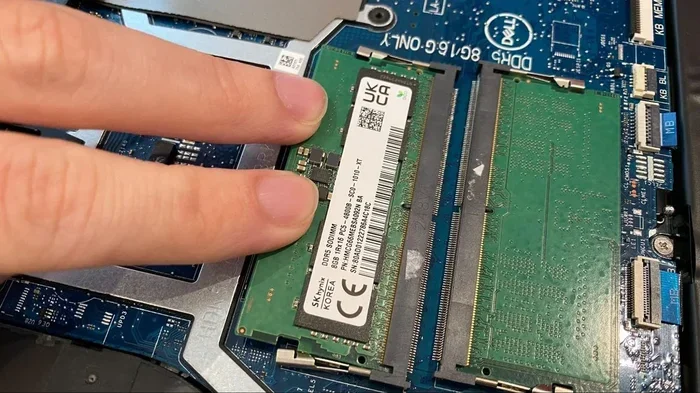
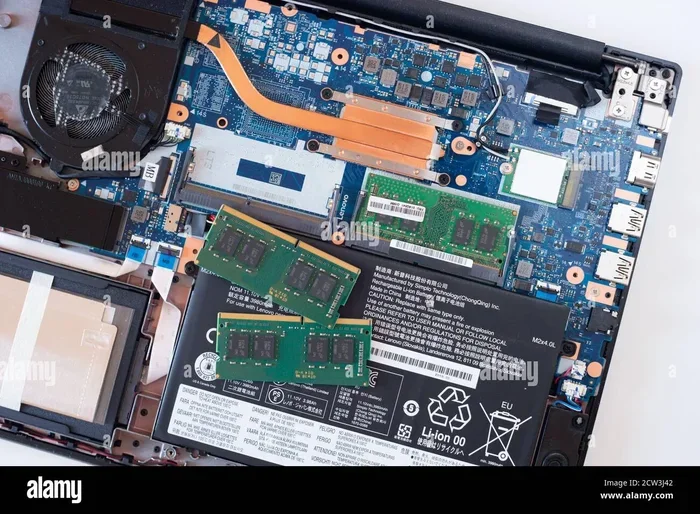
Once the screws are out, carefully lift off the access panel. You should see your RAM modules now. They are long, thin circuit boards that slide into slots on the motherboard.
Take a moment to look at how the RAM is seated. Notice the metal clips on each side of the module. These clips hold the RAM in place. You will need to release them to remove the modules.
If your laptop has multiple RAM slots and some are already filled, take note of which slots are occupied. This helps when you want to add more RAM later.
Step 6: Remove the Existing RAM Modules
To remove a RAM module, gently push the metal clips outward. They will release the module at an angle. Let the module slide out slowly. Do not pull it straight up or force it.
Hold the module by its edges. Never touch the gold connectors on the bottom. Oils from your fingers can cause connection problems over time. If you need to handle the module more than necessary, consider wearing anti-static gloves.
Place the removed module on a clean, flat surface. If you are replacing it, keep the old module in an anti-static bag for safe disposal or recycling.
Common Mistakes to Avoid
Even simple tasks can go wrong if you are not careful. Here are the most common mistakes people make when opening laptop ram:
- Skipping the power-off step: This is dangerous and can damage your laptop. Always fully shut down and unplug.
- Touching the gold contacts: The gold connectors on RAM are sensitive. Finger oils can cause memory errors.
- Forcing the RAM module: If it does not come out easily, check that the clips are fully released. Do not pull hard.
- Using the wrong screwdriver: A stripped screw can ruin your access panel. Use the correct size Phillips head.
- Ignoring static electricity: Always ground yourself before touching internal components. An anti-static wrist strap is your best friend.
- Mixing up RAM types: DDR3 and DDR4 RAM look similar but are not interchangeable. Always verify compatibility before buying new memory.
Tips for a Smooth RAM Upgrade
Once you know how to open laptop ram, you might want to upgrade your memory. Here are some expert tips to make your upgrade a success:
Check Your Laptop’s Maximum RAM Capacity
Every laptop has a maximum RAM capacity. This is set by the motherboard and BIOS. Check your laptop manufacturer’s website or manual to find this number. Buying RAM beyond your laptop’s limit will not work.
Match RAM Speed and Type
For the best performance, use RAM that matches your existing modules. If you have DDR4-3200 sticks, try to add DDR4-3200 as well. Mixing different speeds can work, but your laptop will run at the slower speed.
Install RAM in Pairs for Dual Channel
If your laptop supports dual-channel memory, installing RAM in matching pairs can boost performance. Check your laptop manual to see which slots work together for dual channel mode.
Test Your RAM After Installation
After installing new or replaced RAM, boot up your laptop and check that the system recognizes the full amount of memory. You can do this by searching for “how to check the ram on my laptop” for detailed instructions on verifying your memory.
For more detailed guidance on the installation process, you can also check out our guide on how to install RAM in HP laptop for brand-specific tips and troubleshooting.
How to Know if Your RAM Needs Upgrading
Not sure if your laptop ram upgrade is worth it? Here are clear signs that your memory is holding you back:
- Your laptop takes more than a few seconds to wake from sleep mode.
- You get “low memory” warnings even when you are not running many apps.
- Your laptop freezes or crashes when you open multiple browser tabs.
- Applications take longer to load than they used to.
- Your task manager shows memory usage consistently above 80 percent.
If you notice these signs, it is time to open your laptop and check your RAM. You might be surprised at how much difference a memory upgrade can make. For a quick check of your current memory status, you can refer to our article on how to check the RAM of a laptop.
Most modern laptops come with 4GB to 8GB of RAM. For everyday tasks like browsing, streaming, and office work, 8GB is usually enough. But if you do video editing, gaming, or run heavy software, 16GB or more will make a noticeable difference.
Final Thoughts on Opening Laptop RAM
Opening your laptop ram is one of the easiest and most rewarding things you can do as a laptop user. It does not require expensive tools or advanced technical skills. With a basic screwdriver and a little confidence, you can access your memory modules in under ten minutes.
Remember to always power down your laptop first, ground yourself to prevent static damage, and handle RAM modules by their edges. Take your time, follow the steps in this guide, and you will be fine.
Once you open your laptop and see those RAM slots, you will realize how straightforward the whole process is. Whether you are upgrading, replacing, or just checking your current memory, knowing how to open laptop ram gives you the power to keep your laptop running at its best.
So go ahead. Grab your screwdriver. Open your laptop. And give your machine the memory boost it deserves. Your laptop will thank you for it.
Frequently Asked Questions
Can I open my laptop ram without any tools?
Most laptops require a small Phillips-head screwdriver to remove the RAM access panel. However, some ultra-thin laptops have tool-less access designs that use push pins or sliding mechanisms. Check your laptop model online to see if tools are needed.
Is it safe to touch the RAM modules with my hands?
Yes, it is safe as long as you handle them by the edges and avoid touching the gold connectors. The gold contacts are sensitive to oils and moisture from your skin. Using an anti-static wrist strap adds an extra layer of protection.
How do I know which RAM is compatible with my laptop?
Check your laptop’s user manual or visit the manufacturer’s website. Look for the RAM type (DDR3 or DDR4), maximum capacity, and supported speeds. You can also use system information tools to check your current RAM specifications.
What happens if I accidentally bend the RAM pins?
Bent pins can prevent the RAM from making proper contact with the slot. If the pins are slightly bent, you can carefully straighten them with a thin tool. However, severely damaged pins may require replacing the entire RAM module.
Can I mix different brands of RAM in my laptop?
Yes, you can mix RAM brands as long as the type, speed, and voltage match. However, for the best performance and stability, it is recommended to use matching RAM sticks from the same brand and model.
How often should I upgrade my laptop RAM?
There is no set schedule for RAM upgrades. Upgrade when your laptop starts struggling with your daily tasks. As software becomes more demanding, you may need to increase your memory every few years to keep up with performance needs.