Fixed No Battery Detected Error In Windows 10 Solutions

The No Battery Detected Error In Windows 10 is a frustrating but fixable problem. This guide walks you through every solution from simple driver updates to hardware checks. You will learn how to reset your battery, update drivers, and adjust power settings quickly. Most fixes take less than 10 minutes and require no technical skills. Follow along and get your laptop running on battery power again.
Have you ever opened your laptop and seen the dreaded No Battery Detected Error In Windows 10 message? It is scary, especially when you are working away from a wall outlet. Your laptop suddenly feels like a desktop stuck to the desk. The good news is that this error is very common and usually easy to fix.
This error means Windows 10 cannot talk to your battery properly. It might show up after an update, a driver crash, or even a simple restart. Sometimes the battery is fine, but Windows just lost the connection. Other times, the battery itself has worn out and needs replacing. Either way, you have options. In this guide, we will walk through every practical fix step by step.
You do not need to be a tech expert to follow along. We will start with the simplest solutions and work our way up to more advanced steps. By the end, you will know exactly what to do and why it works. Let us get your laptop powered up again.
Key Takeaways
- Update or reinstall the ACPI battery driver: This is the most common fix and solves the problem for most users.
- Check Device Manager for hidden errors: Windows often hides battery devices that need manual enabling.
- Calibrate your laptop battery: A full charge-discharge cycle can reset false battery readings.
- Reset power settings via Command Prompt: A quick command can restore proper battery detection.
- Hardware issues may need a physical check: Loose connections or a dead battery could be the real cause.
- BIOS updates can resolve detection problems: Outdated firmware sometimes fails to recognize the battery.
📑 Table of Contents
- What Causes the No Battery Detected Error In Windows 10?
- Quick Fixes to Try First
- Update or Reinstall the Battery Driver
- Reset Battery Settings Using Command Prompt
- Calibrate Your Laptop Battery
- Check Device Manager for Hidden Battery Devices
- When to Replace the Battery
- Prevent the No Battery Detected Error In Windows 10 From Returning
- Expert Tips for Troubleshooting Battery Issues on Windows 10 Laptops
- Conclusion
What Causes the No Battery Detected Error In Windows 10?
Before jumping into fixes, it helps to understand what triggers this error. When Windows 10 cannot read your battery status, it usually means one of a few things went wrong. The error message might say “No battery is installed” or “Battery not detected.” Both mean the same thing: Windows lost contact with the battery.
Here are the most common causes:
- Outdated or corrupted battery drivers: Drivers are the software that let Windows talk to hardware. When they break, Windows forgets the battery exists.
- Power management glitches: Windows updates sometimes reset power settings and disrupt battery communication.
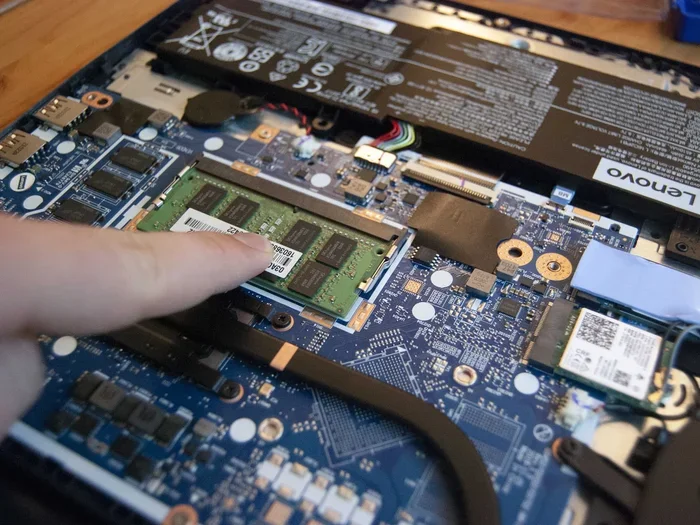
- Loose battery connection: On removable batteries, the connector can shift over time. On built-in batteries, the internal cable may come loose.
- Dead or aging battery: Lithium-ion batteries wear out after years of use. A worn-out battery may stop communicating entirely.
- BIOS or firmware issues: The BIOS is the first software that runs when you turn on your laptop. If it is outdated, it might not detect the battery.
- ACPI conflicts: ACPI (Advanced Configuration and Power Interface) manages power in Windows. Conflicts here can hide the battery from the system.
Knowing the cause helps you pick the right fix. Most of the time, it is a simple driver issue that takes just a few minutes to solve.
Quick Fixes to Try First
Before diving into advanced steps, try these quick solutions. Many users fix the No Battery Detected Error In Windows 10 with just one of these methods.
Restart Your Laptop
This sounds too simple, but it works more often than you think. A restart clears temporary glitches in the power management system. Save your work, shut down completely, wait 30 seconds, and turn it back on. Check if the battery icon appears on your taskbar.
Check the Physical Battery Connection
If your laptop has a removable battery, take it out and put it back in. Make sure the connector clicks into place firmly. For laptops with built-in batteries, you can try holding the power button for 30 seconds without the charger connected. This drains residual power and often resets the battery detection circuit.
Check Your Power Adapter
Sometimes the problem is not the battery but the charger. A faulty adapter can cause Windows to think no battery is present. Try a different charger if you have one available. If the battery shows up with a different charger, you know the original adapter was the problem.
Update or Reinstall the Battery Driver
The battery driver is the bridge between Windows 10 and your physical battery. When this driver gets corrupted or outdated, Windows stops seeing the battery. Reinstalling it almost always fixes the No Battery Detected Error In Windows 10.
How to Update the Battery Driver
Follow these steps carefully:
- Right-click the Start button and choose Device Manager.
- Click the arrow next to Batteries to expand the list.
- Right-click on Microsoft ACPI-Compliant Control Method Battery.
- Select Update driver and choose Search automatically for drivers.
- Follow the on-screen instructions and restart your laptop.
How to Reinstall the Battery Driver
If updating does not work, try a clean reinstall:
- Open Device Manager again.
- Expand the Batteries section.
- Right-click on Microsoft ACPI-Compliant Control Method Battery and select Uninstall device.
- Check the box that says Delete the driver software for this device.
- Click Uninstall and restart your laptop.
- Windows will automatically reinstall the driver when it boots back up.
This method forces Windows to build a fresh battery driver from scratch. It resolves most hidden driver conflicts that cause the No Battery Detected Error In Windows 10.
Reset Battery Settings Using Command Prompt
Windows 10 has a built-in power reset tool that can fix battery detection problems. This method uses Command Prompt to restore default power settings. It is safe and does not delete any personal files.
Step-by-Step Power Reset
- Click the Start menu and type cmd.
- Right-click on Command Prompt and choose Run as administrator.
- Type the following command and press Enter:
powercfg /restoredefaultschemes
This command resets all power plans to their default settings. Next, type this command and press Enter:
powercfg /batteryreport
This generates a battery health report and saves it as an HTML file. You can open the file to see detailed information about your battery’s condition, including its design capacity and current health. If the report shows the battery is physically present but not charging, the issue is likely software-related rather than hardware.
After running these commands, restart your laptop and check if the battery icon returns. This fix works well when the No Battery Detected Error In Windows 10 appears after a power plan change or a Windows update.
Calibrate Your Laptop Battery
Battery calibration fixes false readings that make Windows think the battery is missing. Over time, the battery sensor inside your laptop can lose track of the actual charge level. Calibration resets this sensor and often solves detection errors.
How to Calibrate Your Battery
- Charge your laptop to 100% while plugged in.
- Unplug the charger and let the laptop run until it shuts down on its own.
- Leave the laptop turned off for at least 2 hours.
- Plug the charger back in and charge to 100% again without turning it on.
- Turn on the laptop and check if the battery is now detected.
This full cycle recalibrates the battery’s internal meter. It is especially helpful for older laptops or those that have been plugged in constantly for months. If calibration does not work, the battery may be too old and need replacement.
Check Device Manager for Hidden Battery Devices
Sometimes Windows hides the battery device from Device Manager to prevent user errors. You can force it to show hidden devices and re-enable the battery. This method is powerful and fixes many cases of the No Battery Detected Error In Windows 10.
Steps to Show Hidden Battery Devices
- Open Device Manager.
- Click on View in the top menu.
- Select Show hidden devices.
- Expand the Batteries section.
- Look for any grayed-out battery entries.
- Right-click on them and select Uninstall device.
- Restart your laptop and let Windows reinstall the driver.
If you see a battery entry with a yellow triangle or error icon, that is a clear sign of a driver problem. Uninstalling it and restarting forces Windows to rebuild the connection fresh.
When to Replace the Battery
Not all battery problems can be fixed with software. If you have tried every method above and the No Battery Detected Error In Windows 10 still appears, your battery might be physically damaged. Here are signs that replacement is needed:
- The battery swells or the laptop case bends slightly.
- The laptop only works while plugged in and dies immediately on unplugging.
- The battery report shows zero or very low design capacity.
- The laptop is more than 3 years old and the battery has never been replaced.
- You notice a burning smell or excessive heat from the battery area.
Before buying a new battery, check your laptop model number and search for a compatible replacement. Most major brands like HP, Dell, Lenovo, and Asus sell official replacement batteries on their websites. You can also find third-party options, but stick with reputable sellers to avoid safety risks.
If your laptop has a built-in battery, replacement usually requires a technician unless you are comfortable opening the chassis. Some newer laptops have batteries that are easier to swap than others. Check YouTube tutorials specific to your laptop model before attempting any disassembly.
Prevent the No Battery Detected Error In Windows 10 From Returning
Once you fix the error, you want to keep it from coming back. Here are simple habits that protect your battery and keep Windows 10 running smoothly:
- Keep Windows 10 updated: Updates include driver fixes and power management improvements that prevent battery detection issues.
- Avoid extreme temperatures: Heat and cold damage lithium-ion batteries faster than anything else.
- Do not drain the battery to zero regularly: Try to keep the charge between 20% and 80% for longer battery life.
- Use the original charger: Third-party chargers can deliver inconsistent power and confuse the battery sensor.
- Run the battery report monthly: The
powercfg /batteryreportcommand gives you early warning when battery health starts declining.
These small habits add up over time. They keep your laptop battery healthy and your Windows 10 system running without annoying error messages. A well-maintained battery can last several years longer than a neglected one.
Expert Tips for Troubleshooting Battery Issues on Windows 10 Laptops
Here are some extra insights from experienced technicians that go beyond the basic fixes:
Check your BIOS settings first. Some laptops have a BIOS option that controls battery detection. If this setting gets toggled off, Windows will never see the battery. Access your BIOS by pressing F2, F10, or Del during startup (the key varies by brand). Look for any power or battery settings and make sure they are enabled.
Try a BIOS update. Manufacturers release BIOS updates that fix hardware detection bugs. Visit your laptop manufacturer’s support page, enter your model number, and download the latest BIOS update. Be careful during the update process and do not turn off your laptop while it flashes.
Use the Windows 10 built-in troubleshooter. Go to Settings > Update & Security > Troubleshoot > Additional Troubleshooters > Power. Run the troubleshooter and let Windows attempt to find and fix the issue automatically. This is a quick check that can save you time.
Check for Windows 10 known issues. Sometimes a specific Windows 10 version has a bug that affects battery detection. Search for your exact Windows build number online to see if others are experiencing the same problem. Microsoft usually addresses these in later updates.
Conclusion
The No Battery Detected Error In Windows 10 can feel like a major problem, but most of the time it is a simple software glitch with a straightforward fix. Start with the quick methods like restarting, checking connections, and updating drivers. If those do not work, move on to the Command Prompt reset and battery calibration. Only consider hardware replacement when all software solutions have been exhausted.
Remember that prevention is the best medicine. Keep your drivers updated, calibrate your battery regularly, and maintain good charging habits. Your laptop battery will last longer and work more reliably. If the error persists after trying everything in this guide, it is worth visiting a certified technician who can diagnose deeper hardware issues. You now have the knowledge and tools to tackle this problem head-on. Get back to using your laptop freely, whether plugged in or not.
Frequently Asked Questions
Why does my laptop say no battery detected even though the battery is installed?
This usually happens because the battery driver is corrupted or Windows lost communication with the battery. Try uninstalling the battery driver from Device Manager and restarting your laptop. Windows will reinstall the driver automatically and the battery should be detected again.
Can a dead battery cause the no battery detected error in Windows 10?
Yes, a completely dead battery may stop communicating with the laptop entirely. If your battery is more than three years old and has never been replaced, it might have reached the end of its lifespan. A battery health report from the Command Prompt can confirm this.
Is it safe to update my BIOS to fix the no battery detected error?
Yes, BIOS updates are generally safe and can fix hardware detection bugs. However, you should never interrupt a BIOS update. Make sure your laptop is plugged in and has a stable power connection before starting the update process.
How do I know if my laptop battery needs to be replaced?
Run the battery report command in Command Prompt and check the design capacity versus the full charge capacity. If the full charge capacity is significantly lower than the design capacity, your battery has degraded and likely needs replacement. Physical signs like swelling also indicate a failing battery.
Will resetting power settings delete my files or installed programs?
No, resetting power settings only affects your power plans and battery configuration. It does not touch your personal files, documents, or installed applications. It is a completely safe procedure that often fixes battery detection errors.
Can a faulty power adapter cause the no battery detected error?
Yes, a faulty power adapter can confuse Windows into thinking no battery is present. The adapter provides power to the laptop and signals the battery status. If the adapter is damaged or incompatible, it may fail to communicate properly, causing Windows to hide the battery from the system.
=== INTERNAL LINKS ===
If you are dealing with other laptop issues, check out these helpful guides. For instance, if your Windows 10 laptop with 8GB RAM is running slow, we have tips to speed it up. Also, if you have experienced the frustrating issue where your mouse disappeared on your Lenovo laptop running Windows 10, our troubleshooting guide can help you get it back. Finally, if you are wondering whether you can upgrade RAM in your laptop, we cover everything you need to know about laptop memory upgrades.