Best Ram For Nas The Complete Guide To Memory Upgrades
Choosing the right RAM for your NAS is one of the smartest upgrades you can make. This guide covers everything from DDR4 compatibility to capacity planning, so you can pick the perfect memory for your network attached storage. Whether you run a home server or a business NAS, you will find clear, practical advice to get the most out of your setup.
Your NAS is only as fast as the memory it uses. If you have ever wondered why your network attached storage feels slow when multiple devices access files at once, the answer might be RAM. The right memory upgrade can transform a sluggish storage box into a responsive, high-performance server.
In this guide, we break down everything you need to know about choosing the best RAM for NAS. From understanding memory types to picking the right capacity, you will find clear answers backed by real-world advice. Let us dive in and help you get the most from your storage setup.
Key Takeaways
- Right RAM matters: The correct memory type and capacity directly impacts your NAS speed and reliability.
- DDR4 is the standard: Most modern NAS systems use DDR4 RAM, offering great speed and efficiency.
- Capacity depends on use: Light file sharing needs less RAM, while media streaming and virtualization demand more.
- ECC RAM adds protection: Error-correcting code memory helps prevent data corruption on critical storage systems.
- Upgrades are easy: Adding or swapping RAM modules is one of the simplest ways to breathe new life into your NAS.
- Check compatibility first: Always verify your NAS model supports the RAM type and maximum capacity before buying.
📑 Table of Contents
Why RAM Matters for Your NAS
Think of your NAS as a small computer dedicated to storing and serving files. Just like any computer, it relies on memory to handle tasks quickly. When you stream a movie, run backups, or host a database, your NAS pulls data into RAM before sending it to your devices.
The more RAM your NAS has, the more tasks it can juggle at once. With enough memory, you will notice faster file transfers, smoother streaming, and fewer delays when multiple users connect. Without sufficient memory, your system starts swapping data to the hard drive, which slows everything down.
So how much RAM do you actually need? The answer depends on what you use your NAS for. For basic file sharing, 4GB to 8GB often works fine. But if you run media servers, virtual machines, or machine learning tasks, you will want 16GB or more. You can check out our guide on whether 8GB RAM is enough for machine learning to understand how memory-heavy workloads can be.
How RAM Affects NAS Performance
RAM affects your NAS in several key ways. Here is a quick look at what memory does behind the scenes:
- File caching: RAM stores frequently accessed files so they load faster.
- Multi-user support: More memory lets your NAS serve multiple devices without lag.
- App performance: Apps like Plex, Docker, and Nextcloud run better with extra RAM.
- Data integrity: Memory helps your NAS process checks and corrections on the fly.
Understanding these roles helps you choose the right amount of memory for your specific needs. A simple home NAS and a busy office server have very different requirements.
Types of RAM for NAS Systems
Not all memory modules are the same. When shopping for RAM, you will encounter different types, speeds, and form factors. Here is what you need to know.
DDR4 vs DDR3 vs DDR5
DDR4 is the most common RAM type found in modern NAS devices. It offers a great balance of speed, power efficiency, and cost. DDR3 is older but still found in some legacy NAS systems. DDR5 is the newest standard, but it is still making its way into NAS-compatible hardware.
For most users, DDR4 is the sweet spot. It is widely available, affordable, and delivers solid performance for file serving and media streaming. If your NAS supports DDR5, you may see even better speeds, but the real-world difference for a home setup is often small.
ECC vs Non-ECC RAM
ECC stands for Error-Correcting Code. This type of memory can detect and fix small data errors automatically. For a NAS that stores important files or runs business applications, ECC RAM adds a valuable layer of protection.
Non-ECC RAM is fine for casual home use where data integrity is less critical. But if you are running a server-grade NAS, ECC memory is worth the small price difference. It helps prevent silent data corruption, which is every storage lover’s nightmare.
UDIMM vs RDIMM
UDIMM (Unbuffered DIMM) is the standard memory type found in most consumer NAS devices. RDIMM (Registered DIMM) is used in enterprise servers and offers better stability under heavy loads. For a typical home or small office NAS, UDIMM is all you need.
How Much RAM Do You Need for a NAS?
Picking the right capacity is one of the most important decisions you will make. Too little RAM causes slowdowns, and too much wastes money. Here is a simple breakdown to help you decide.
| NAS Use Case | Recommended RAM | Why |
|---|---|---|
| Basic file sharing | 4GB – 8GB | Handles 1-3 users with light workloads |
| Media streaming (Plex, Jellyfin) | 8GB – 16GB | Transcoding video needs extra memory |
| Virtualization (Docker, VMs) | 16GB – 32GB | Each container or VM uses its own RAM |
| Business server with databases | 32GB+ | Handles heavy queries and many users |
Keep in mind that your NAS operating system also uses a portion of your memory. DSM, TrueNAS, and other NAS operating systems typically need 2GB to 4GB just to run smoothly. So if you plan to use 8GB total, your apps will have about 4GB to 6GB available.
Want to understand more about how memory affects everyday computing? Our article on what more RAM does for a laptop explains the basics in a way that applies to NAS systems too.
Best RAM Modules for NAS Builds
Not all RAM modules are created equal. Some brands and models stand out for NAS use because of their reliability, compatibility, and value. Here are some top picks to consider.
Top RAM Brands for NAS
- Crucial: Known for wide compatibility and solid performance. Crucial offers both UDIMM and ECC options.
- Kingston: A trusted name with server-grade memory that works well in NAS enclosures.
- Corsair: Offers reliable DDR4 modules at competitive prices.
- Samsung: Samsung produces high-quality memory chips used in many NAS-specific modules.
What to Look For When Buying
Before you buy any RAM module, check these three things. First, confirm your NAS supports the RAM type (DDR4, DDR3, etc.). Second, check the maximum capacity your NAS can handle. Third, verify the form factor matches your NAS slots.
Most NAS systems use standard 288-pin DDR4 UDIMMs. But some brands like Synology and QNAP have specific compatibility lists. Always check your NAS manufacturer’s website before purchasing. This simple step saves time, money, and frustration.
How to Upgrade RAM in Your NAS
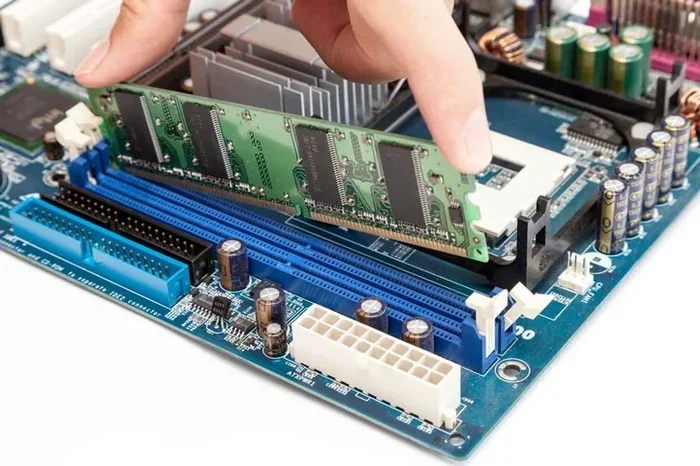
Upgrading your NAS memory is one of the easiest and most cost-effective improvements you can make. Most NAS devices have accessible RAM slots on the bottom or back panel. Here is a step-by-step guide.
Step-by-Step RAM Upgrade Process
- Power off your NAS: Shut it down completely and unplug it from the wall.
- Open the enclosure: Remove the side panel or access cover according to your model’s manual.
- Locate the RAM slots: They are usually near the CPU and clearly labeled.
- Remove old modules (if needed): Push the clips outward and the module will pop up at an angle.
- Insert new modules: Align the notch and press firmly until the clips click into place.
- Close the enclosure: Replace the panel and plug your NAS back in.
- Power on and verify: Check your NAS settings to confirm the new memory is recognized.
If you are new to hardware upgrades, do not worry. Installing RAM is one of the simplest PC tasks you can do. Just handle the modules by the edges and avoid touching the gold contacts. For more detailed instructions on general RAM upgrades, check out our RAM upgrade guide which covers the basics that apply to NAS systems as well.
Common Upgrade Mistakes to Avoid
- Mixing RAM speeds (always use the same speed for all modules).
- Buying RAM that exceeds your NAS maximum capacity.
- Forgetting to ground yourself before handling modules.
- Ignoring your NAS manufacturer’s compatibility list.
How Much Does NAS RAM Cost?
One of the best things about RAM upgrades is how affordable they are. A single 8GB DDR4 UDIMM typically costs between $30 and $50. A 16GB module runs about $50 to $80. For most NAS users, spending under $100 on memory can deliver a noticeable performance boost.
If you are on a tight budget, start with 8GB and add more later as your needs grow. RAM prices have stayed quite stable in recent years, making now a great time to upgrade. You can also check current prices and options in our 8GB RAM for laptop price guide for a general price reference.
Common Mistakes When Choosing RAM for NAS
Even experienced users sometimes make mistakes when selecting memory for their NAS. Here are the most common pitfalls to watch out for.
- Buying the wrong RAM type: DDR3 and DDR4 slots are not interchangeable. Always double-check your NAS specifications.
- Ignoring ECC needs: If you run a business NAS, skipping ECC RAM can lead to silent data corruption over time.
- Overbuying capacity: More RAM is not always better. If your NAS only supports 16GB, buying 32GB is wasted money.
- Mixing brands carelessly: While mixing brands can work, using identical modules from the same manufacturer ensures the best stability.
Taking a few minutes to research your NAS model’s requirements can save you from all of these issues. Compatibility is king when it comes to memory upgrades.
Expert Tips for Maximizing NAS Memory Performance
Want to squeeze every bit of performance from your NAS memory? Here are some expert-backed tips that make a real difference.
- Use matched pairs: Install RAM in matching pairs to enable dual-channel mode, which doubles memory bandwidth.
- Keep your NAS firmware updated: Manufacturers often optimize memory handling in firmware updates.
- Monitor your RAM usage: Most NAS operating systems let you check memory usage in the control panel. If you are regularly above 80% usage, it is time to add more.
- Consider your workload: If you mainly store files, you need less RAM. If you run apps, transcode video, or host databases, prioritize more memory.
These small steps can make your NAS feel faster and more responsive without spending a dime extra. Memory optimization is often overlooked, but it pays off in the long run.
Final Thoughts
Choosing the best RAM for your NAS does not have to be complicated. Start by understanding your workload, pick the right type and capacity, and choose a reliable brand. Whether you are running a simple home file server or a busy office storage system, the right memory upgrade makes a huge difference.
RAM is one of the most affordable upgrades you can make. For under $100, you can turn a sluggish NAS into a fast, responsive storage powerhouse. Do not underestimate the power of good memory. Your files, your apps, and your users will thank you.
Take a moment today to check your NAS memory specs. You might be surprised at how easy and rewarding a simple RAM upgrade can be. Happy building!
Frequently Asked Questions
Can I use laptop RAM in a NAS?
In most cases, no. NAS systems typically use server-grade or desktop RAM modules, not laptop SO-DIMM memory. Always check your NAS model’s specifications to confirm the correct RAM type and form factor before purchasing.
Is 8GB RAM enough for a NAS?
For basic file sharing and light use, 8GB is usually sufficient. But if you run media servers, virtual machines, or multiple user accounts, you will likely benefit from 16GB or more. Your workload determines the right amount.
Does more RAM speed up my NAS?
Yes, more RAM can significantly speed up your NAS, especially when handling multiple tasks or users. It allows your system to cache more data and run applications smoothly without relying on slower hard drive swapping.
Can I mix different RAM brands in my NAS?
You can mix brands, but it is best to use identical modules for maximum stability. Matching the speed, capacity, and timings ensures your NAS runs reliably without memory conflicts or errors.
What is the difference between ECC and non-ECC RAM for NAS?
ECC RAM can detect and correct small memory errors automatically, protecting your data from corruption. Non-ECC RAM does not have this feature. For business or critical storage NAS systems, ECC is highly recommended.
How do I know if my NAS supports RAM upgrades?
Check your NAS manufacturer’s website or user manual for memory upgrade information. Most NAS models list supported RAM types, maximum capacity, and slot locations. If your NAS has accessible RAM slots, an upgrade is usually possible.