Ram Speed On Your Windows 11 And How To Make It Faster

Ram Speed On Your Windows 11 plays a big role in how smoothly your computer runs. Slow RAM can cause lag, long load times, and frustrating delays. This guide shows you how to check your current RAM speed and make it faster with simple, proven methods. Whether you have 8GB or 16GB, these tips will help your Windows 11 laptop run like new again.
Is your Windows 11 laptop feeling slow? Do apps take forever to open, and your browser tabs keep freezing? The answer might be sitting right inside your machine. Ram Speed On Your Windows 11 could be the bottleneck holding everything back.
Memory speed affects almost every task you do on a computer. From opening a simple Word document to running heavy software, your RAM works hard behind the scenes. When it runs slowly, everything else slows down too. The good news is that you can fix this without spending a lot of money or being a tech expert.
In this guide, I will walk you through everything you need to know about RAM speed on Windows 11. You will learn how to check your current speed, why it matters, and exactly how to make it faster. Whether you are a student, a gamer, or someone who just wants a snappier PC, this article has you covered.
Key Takeaways
- RAM speed directly impacts Windows 11 performance: Faster memory means smoother multitasking and quicker app launches.
- You can check your RAM speed easily: Use Task Manager, Command Prompt, or third-party tools to see your current speed.
- Enabling XMP profiles in BIOS boosts RAM speed: This is one of the easiest and most effective ways to unlock faster memory speeds.
- Dual channel mode doubles memory bandwidth: Matching RAM sticks in pairs can significantly improve speed.
- Virtual memory and startup programs affect RAM: Tweaking these settings helps Windows 11 use memory more efficiently.
- Upgrading RAM is simple and affordable: Adding more memory is one of the best upgrades you can make for speed.
📑 Table of Contents
What Is RAM Speed And Why Does It Matter?
RAM stands for Random Access Memory. Think of it as your computer’s short-term memory. When you open an app or a browser tab, Windows 11 stores that data in RAM so it can access it quickly. The faster your RAM, the quicker your computer can read and write that data.
RAM speed is measured in megahertz (MHz). A higher MHz number means faster data transfer. For example, DDR4 RAM running at 3200 MHz is noticeably quicker than DDR4 at 2400 MHz. But speed is not the only thing that matters. Latency, also called CAS latency, plays a role too. Lower latency means your RAM responds faster to requests.
How RAM Speed Affects Daily Tasks
Here is what RAM speed on Windows 11 affects in your everyday use:
- App loading times: Faster RAM opens programs quicker.
- Multitasking: Switching between tabs and apps feels smoother.
- Gaming performance: Games load faster and run more stably.
- Video editing: Rendering times drop when memory is fast.
- Browser performance: Multiple tabs stay responsive longer.
If you have ever noticed your laptop lagging when you have many tabs open, your RAM speed could be the reason. This is especially true if you are running Windows 11 with 8GB RAM or less. The system struggles to keep up when memory is both slow and limited.
How To Check Your Current RAM Speed On Windows 11
Before you can make your RAM faster, you need to know what speed it is currently running at. Windows 11 makes this easy with built-in tools. You do not need to download anything fancy to get started.
Method 1: Use Task Manager
Task Manager gives you a quick look at your RAM speed. Here is how to find it:
- Press Ctrl + Shift + Esc to open Task Manager.
- Click on the Performance tab.
- Select Memory from the left sidebar.
- Look at the top right corner. You will see your speed in MHz.
This method works great for a quick check. It shows you the current speed your RAM is running at in real time.
Method 2: Use Command Prompt
If you want more detailed information, try Command Prompt:
- Press Windows Key + R to open the Run dialog.
- Type cmd and press Enter.
- In the black window, type wmic memorychip get speed and press Enter.
- You will see the speed of each RAM stick installed.
This method is helpful when you want to check each individual stick. Sometimes one RAM module runs at a different speed than another, which can cause issues.
Method 3: Use Third-Party Tools
Tools like CPU-Z and Speccy give you the most detailed RAM information. They show you speed, latency, timings, and even the exact model number. These tools are free and very popular among PC users who want to know exactly what is happening with their memory.
How To Make Ram Speed On Your Windows 11 Faster
Now that you know how to check your speed, let us talk about how to actually make it faster. There are several methods you can try, ranging from simple software tweaks to BIOS adjustments.
Enable XMP Profiles In Your BIOS
Most modern RAM sticks are capable of running faster than what Windows 11 sets by default. This is because the motherboard defaults to a safe, lower speed. XMP stands for Extreme Memory Profile, and it unlocks your RAM’s true potential.
Here is how to enable XMP:
- Restart your computer and press the BIOS key (usually F2, F12, Del, or Esc).
- Look for an XMP or DOCP setting in the BIOS menu.
- Enable the profile that matches your RAM’s rated speed.
- Save and exit. Your PC will restart with faster RAM.
This single step can boost your RAM speed on Windows 11 by several hundred MHz. It is the most effective thing you can do if your RAM supports XMP but it is not enabled.
Switch To Dual Channel Mode
Dual channel mode doubles the data pathway between your RAM and the processor. If you have two RAM sticks, they can work together to move data faster. This is one of the easiest ways to improve memory bandwidth without buying anything new.
To check if you are in dual channel mode:
- Open Task Manager.
- Go to the Performance tab.
- Look under Memory. It will say Dual or Single next to Channels.
If it says Single, you may need to rearrange your RAM sticks. Match sticks of the same size and speed in the correct slots on your motherboard. Your manual will tell you which slots to use.
Adjust Virtual Memory Settings
Virtual memory is a file on your hard drive that Windows 11 uses when physical RAM gets full. It acts as a backup, but it is much slower than real RAM. Adjusting these settings can help your system run more efficiently.
Here is how to tweak virtual memory:
- Press Windows Key + I to open Settings.
- Go to System > About > Advanced system settings.
- Under the Advanced tab, click Settings under Performance.
- Go to the Advanced tab again and click Change under Virtual Memory.
- Uncheck “Automatically manage.”
- Set a custom size. Set the initial size to your RAM amount in MB and the maximum to double that.
- Click Set and restart your PC.
Proper virtual memory settings prevent Windows 11 from constantly swapping data to your slow hard drive. This keeps your system responsive even when RAM usage is high.
Reduce Startup Programs
Many programs start automatically when you boot up Windows 11. These apps eat up your RAM before you even open anything. Disabling unnecessary startup programs frees up memory for the tasks that matter.
Here is what to do:
- Open Task Manager (Ctrl + Shift + Esc).
- Click the Startup tab.
- Right-click programs you do not need at startup.
- Select Disable.
Common culprits include Spotify, Skype, and Adobe updaters. Keep only the essentials running at startup. This simple change can free up hundreds of megabytes of RAM and make your PC feel much snappier.
Run A Memory Diagnostic
Sometimes slow RAM is caused by errors or corruption. Windows 11 has a built-in tool to check for these issues. Running a memory diagnostic can identify problems and help your system run more efficiently.
To run it:
- Press Windows Key + R.
- Type mdsched.exe and press Enter.
- Choose Restart now and check for problems.
- Your PC will restart and run a full memory scan.
If the tool finds errors, you may need to replace your RAM sticks. Faulty memory causes all kinds of performance problems, from slowdowns to random crashes.
How Much RAM Speed Do You Actually Need?
Not everyone needs the fastest RAM available. The right speed depends on what you use your computer for. Here is a simple breakdown to help you decide.
| Usage Type | Recommended RAM | Recommended Speed |
|---|---|---|
| Basic browsing and office work | 8GB | 2400 – 3200 MHz |
| Gaming | 16GB | 3200 – 3600 MHz |
| Video editing and design | 16GB – 32GB | 3200 – 4000 MHz |
| Heavy multitasking | 16GB+ | 3200+ MHz |
For most users, 3200 MHz DDR4 RAM strikes a great balance between speed and price. If you are on a budget, you can find great 8GB RAM Windows 11 laptops that still deliver solid performance for everyday tasks.
If you are wondering whether your current setup is enough, check out What Amount Of Ram Is Good On A Laptop for a detailed guide. You can also explore options to increase RAM on your laptop if you find you need more memory.
Common Mistakes That Slow Down Your RAM
Many people unknowingly do things that hurt their RAM performance. Avoiding these mistakes can make a big difference in how fast your Windows 11 feels.
Mistake 1: Running too many heavy apps at once. Each open app uses a chunk of RAM. If you have 20 browser tabs, Spotify, a game, and a video editor open, your memory will max out fast. Close apps you are not using.
Mistake 2: Ignoring BIOS updates. Motherboard manufacturers release BIOS updates that improve memory compatibility and speed. Check for updates from your PC or motherboard manufacturer regularly.
Mistake 3: Mixing different RAM sticks. Using mismatched RAM can cause your system to run at the slower stick’s speed. Always try to match RAM sticks by brand, size, speed, and timings.
Mistake 4: Not enabling XMP. As I mentioned earlier, most RAM runs slower than its rated speed by default. Forgetting to enable XMP means you are leaving free performance on the table.
Mistake 5: Overlooking background processes. Malware and poorly optimized background apps can consume huge amounts of RAM. Run a trusted antivirus scan and check your Task Manager regularly for suspicious activity.
When Should You Upgrade Your RAM?
Sometimes tweaking settings is not enough. You may need to add more physical RAM to your system. Here are clear signs that an upgrade is due:
- Your PC takes more than a few seconds to wake from sleep.
- You get “Low Memory” warnings frequently.
- Apps crash or freeze when you open multiple things.
- Your Task Manager shows RAM usage above 90% during normal use.
- Games stutter or drop frames even on low settings.
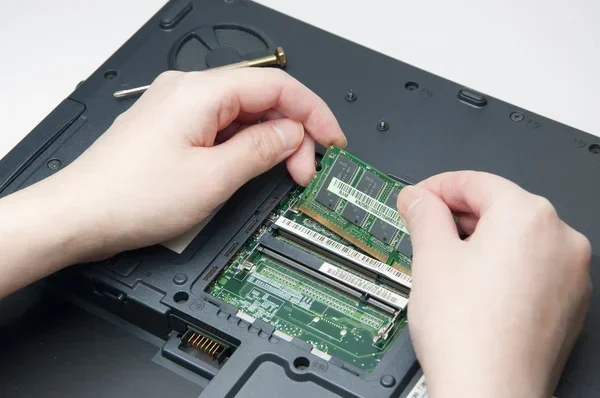
If you are running Windows 11 with 8GB RAM, upgrading to 16GB is one of the most noticeable improvements you can make. For heavy users, 32GB provides future-proofing and smooth performance even with demanding workloads.
Before buying new RAM, check if your laptop supports upgrades. Some slim laptops have soldered RAM that cannot be changed. In that case, focus on optimizing the RAM you already have using the tips above. If your laptop does allow upgrades, Can I Upgrade Ram On Laptop is a great resource to help you figure out what is compatible.
Final Thoughts
Ram Speed On Your Windows 11 is one of the most overlooked factors in PC performance. A simple BIOS change or startup cleanup can make your computer feel dramatically faster. You do not always need to buy new hardware to get better speed.
Start by checking your current RAM speed with Task Manager. Then try enabling XMP, switching to dual channel, and reducing startup programs. These free steps alone can make a huge difference. If your RAM is old or too small for your needs, consider an upgrade.
Remember, your computer is only as fast as its slowest component. By paying attention to RAM speed, you are investing in a smoother, more enjoyable Windows 11 experience. Try these tips today and feel the difference for yourself.
Frequently Asked Questions
How do I check my RAM speed on Windows 11?
You can check your RAM speed by opening Task Manager, clicking on the Performance tab, and selecting Memory. The speed in MHz is displayed at the top right. You can also use Command Prompt with the command “wmic memorychip get speed” for detailed information about each RAM stick.
Does faster RAM really make Windows 11 faster?
Yes, faster RAM improves how quickly your computer processes data. It makes apps load faster, multitasking smoother, and gaming more responsive. However, the difference is most noticeable when you are running memory-intensive tasks or using a system with limited RAM.
What is XMP and how do I enable it?
XMP stands for Extreme Memory Profile. It is a BIOS setting that allows your RAM to run at its rated speed instead of the default slower speed. To enable it, restart your PC, enter BIOS settings, find the XMP option, and enable the profile that matches your RAM’s speed.
How much RAM do I need for Windows 11?
For basic tasks like browsing and office work, 8GB is sufficient. For gaming and multitasking, 16GB is recommended. Power users who run video editing or design software should aim for 32GB or more. Check out How Much Ram Do You Need On A Laptop for a more detailed breakdown.
Can I upgrade RAM on my laptop?
Many laptops allow RAM upgrades, but some slim models have soldered memory that cannot be changed. Check your laptop’s specifications or manual to confirm. If upgrades are possible, adding more RAM is one of the easiest and most affordable ways to boost performance.
Why is my RAM running slow even though I have fast sticks?
This usually happens because XMP is not enabled in your BIOS. Your motherboard defaults to a lower safe speed. Other causes include running single channel mode, having too many background apps, or using mismatched RAM sticks that force all modules to run at the slowest speed.