Windows 11 Search Not Working Try These Simple Fixes

Windows 11 search not working can be frustrating, especially when you need to find files or apps fast. This guide walks you through simple, proven fixes that restore your Windows 11 search functionality quickly. From rebuilding the search index to checking system settings, these solutions cover the most common causes.
Windows 11 search not working is one of the most annoying problems you can face. You type a file name or app name, and nothing happens. Or worse, the search bar just sits there doing nothing while you wait. It happens to thousands of users every day, and the good news is that most fixes are simple and quick.
Whether your Windows 11 search bar is completely unresponsive or just returning wrong results, this guide has you covered. We will walk through every practical solution step by step. No technical degree required, just a willingness to try a few things.
Let us get started with the easiest fixes first and work our way up to the more advanced solutions. By the end of this article, your Windows 11 search should be working like it did on day one.
Key Takeaways
- Rebuilding the search index is the most effective fix for most users experiencing Windows 11 search issues.
- Restarting the Windows Search service can resolve temporary glitches that stop your search bar from responding.
- Updating Windows 11 often patches bugs that cause search problems.
- Checking system resources like RAM and storage can reveal why search is slow or unresponsive.
- Running the Search and Indexing troubleshooter automates the diagnostic process for stubborn issues.
- Resetting the Start menu fixes corrupted components that affect the search box.
- Creating a new user profile solves search problems caused by corrupted user settings.
📑 Table of Contents
- Why Windows 11 Search Stops Working
- Fix 1: Rebuild the Windows Search Index
- Fix 2: Restart the Windows Search Service
- Fix 3: Run the Search and Indexing Troubleshooter
- Fix 4: Update Windows 11
- Fix 5: Reset the Start Menu and Search Components
- Fix 6: Create a New User Profile
- Preventing Search Problems in the Future
- When to Seek Professional Help
- Conclusion
Why Windows 11 Search Stops Working
Before diving into fixes, it helps to understand what causes the problem. The Windows 11 search feature relies on several background services and index files. When any part of that system breaks, your search stops working. Here are the most common reasons:
- Corrupted search index – The index file that powers search can become damaged over time.
- Stopped Windows Search service – A background service that handles search may have stopped unexpectedly.
- Outdated Windows version – Bugs in older builds can interfere with search functionality.
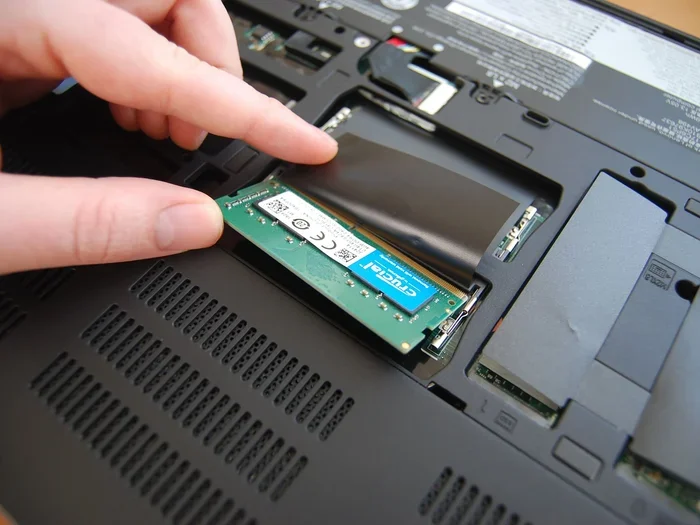
- Low system resources – If your Windows 11 8GB RAM laptop is running low on memory, search may freeze or fail.
- Corrupted user profile – Your user settings might have errors that affect the search box.
- Third-party software conflicts – Some apps can interfere with Windows search operations.
Each of these causes has a straightforward fix. Let us go through them one by one.
Fix 1: Rebuild the Windows Search Index
This is the single most effective fix for Windows 11 search not working. The search index is like a catalog that Windows uses to find files quickly. When it gets corrupted, search breaks. Rebuilding it fixes the problem for most users.
How to Rebuild the Search Index
- Open the Start menu and type “Indexing Options.”
- Click on the Indexing Options result to open it.
- Click the “Advanced” button at the bottom.
- Under the Troubleshooting section, click “Rebuild.”
- Confirm the action and wait for the process to complete.
This process can take anywhere from a few minutes to over an hour, depending on how many files you have. Your Windows 11 search may not work during the rebuild, but it will be much better once it finishes.
Fix 2: Restart the Windows Search Service
Sometimes the simplest fix works best. The Windows Search service runs in the background and handles all search queries. If it stops for any reason, your search bar will not work. Restarting it is quick and easy.
Steps to Restart the Search Service
- Press Win + R to open the Run dialog box.
- Type “services.msc” and press Enter.
- Scroll down the list until you find “Windows Search.”
- Right-click on it and select “Restart.”
- If the service is stopped, right-click and select “Start” instead.
After restarting the service, try searching again. You should see results appearing as you type. If the service keeps stopping, it might be worth checking for Windows updates, which often address service stability issues.
Users running a laptop Windows 11 Pro 16GB RAM configuration should not experience search service issues as often, since the system has plenty of resources. However, even powerful machines can encounter this problem after major updates.
Fix 3: Run the Search and Indexing Troubleshooter
Windows 11 has a built-in troubleshooter designed specifically for search and indexing problems. This tool automatically detects common issues and applies fixes for you. It is a great option if you want a hands-off approach.
How to Access the Troubleshooter
- Go to Settings and click on “System.”
- Select “Troubleshoot” from the left sidebar.
- Click on “Other troubleshooters.”
- Find “Search and Indexing” and click “Run.”
- Follow the on-screen prompts and let the tool do its work.
The troubleshooter will check your indexing status, search settings, and service configuration. It then applies any fixes it finds automatically. This is one of the fastest ways to resolve search not responding Windows 11 issues without digging through settings yourself.
Fix 4: Update Windows 11
Microsoft regularly releases updates that fix bugs and improve performance. Many Windows 11 search problems are caused by known bugs that have already been patched. Keeping your system updated is one of the best ways to prevent search issues.
How to Check for Updates
- Open Settings and go to “Windows Update.”
- Click “Check for updates.”
- Install any available updates.
- Restart your computer after updates are installed.
After your PC restarts, test the search bar again. You may find that the update resolved the problem entirely. If you have been ignoring updates for a while, there is a good chance one of them contains a fix for your search issue.
For users with a Windows 11 8GB RAM laptop, updates are especially important because they often include performance improvements that help search run more smoothly on systems with limited memory.
Fix 5: Reset the Start Menu and Search Components
Sometimes the Start menu itself becomes corrupted, which directly affects the search box. Resetting the Start menu components can restore normal search functionality. This fix is slightly more advanced but still very safe.
Steps to Reset the Start Menu
- Right-click the Start button and select “Terminal (Admin)” or “Windows PowerShell (Admin).”
- Copy and paste the following command and press Enter:
Get-AppXPackage -AllUsers | Foreach {Add-AppxPackage -DisableDevelopmentMode -Register "$($_.InstallLocation)\AppXManifest.xml"}
- Wait for the process to complete. It may take a few minutes.
- Restart your computer.
- Test the search bar after your PC boots up.
This command re-registers all Start menu and search components. It does not delete any of your personal files or settings. It simply refreshes the system files that power the search feature.
Fix 6: Create a New User Profile
If none of the above fixes work, the problem might be tied to your user profile. Corrupted user settings can prevent the search bar from functioning properly. Creating a new user profile is a reliable way to rule out this cause.
How to Create a New User Profile
- Go to Settings and click “Accounts.”
- Select “Other users” and click “Add account.”
- Follow the prompts to create a new local account.
- Sign out and sign in with the new account.
- Test the search bar in the new profile.
If search works in the new profile, you know the problem was with your old profile settings. You can then migrate your files to the new account and start fresh. This fix has resolved search not finding files problems for many users who were about to give up.
Keep in mind that some users with a laptop Windows 11 Pro 16GB RAM setup have reported that creating a new profile was the fix that finally solved their persistent search problems after trying everything else.
Preventing Search Problems in the Future
Once you get your Windows 11 search working again, you will want to keep it that way. Prevention is always better than fixing a broken system. Here are some habits that help keep search running smoothly:
- Keep Windows updated – Updates patch bugs that can break search functionality.
- Maintain at least 20% free disk space – The search index needs room to operate efficiently.
- Avoid force-shutting your PC – Sudden shutdowns can corrupt the search index file.
- Run disk cleanup regularly – This removes temporary files that can interfere with system services.
- Monitor system resources – If your mouse speed is not changing in laptop Windows 11 or other settings act up, it could signal deeper system issues affecting search.
These simple habits go a long way. They keep your system healthy and your search bar responsive day after day.
When to Seek Professional Help
Most Windows 11 search not working problems are resolved with the fixes above. However, there are times when you should consider professional help. If you have tried every solution and search still does not work, there may be a deeper hardware or system corruption issue at play.
Also, if you notice other problems alongside the search issue, such as frequent crashes or slow performance across the board, it might be time to consult a technician. Sometimes a failing hard drive or corrupted operating system installation causes multiple symptoms that individual fixes cannot address.
Conclusion
Windows 11 search not working is a common but fixable problem. You have several powerful solutions at your fingertips, from rebuilding the search index to creating a new user profile. Start with the simplest fixes and work your way up. Most users find that one of the first three solutions resolves their issue completely.
Do not let a broken search bar slow you down. Try these fixes today and get back to finding your files, apps, and settings in seconds. Your Windows 11 search will be back to full strength before you know it.
Frequently Asked Questions
Why is my Windows 11 search bar not responding at all?
The most common reason is a corrupted search index or a stopped Windows Search service. Try rebuilding the index first, as this fixes the problem for most users. If that does not work, restart the Windows Search service through the Services app.
How long does it take to rebuild the Windows 11 search index?
It depends on how many files you have. For most users, it takes between 15 minutes and one hour. During the rebuild, search may not return results, but this is normal and temporary.
Can a lack of RAM cause Windows 11 search to stop working?
Yes, low system resources can affect search performance. If you are using a Windows 11 8GB RAM laptop and running many programs at once, search may become slow or unresponsive. Closing unused apps can help free up resources.
Does resetting the Start menu delete my files?
No, resetting the Start menu components does not delete any personal files. It only refreshes system files related to the Start menu and search. Your documents, photos, and apps remain safe.
How do I know if my search index is corrupted?
Signs of a corrupted index include search returning no results, slow search performance, or the search bar not responding. Running the Search and Indexing troubleshooter can also detect index problems automatically.
What should I do if none of these fixes work for Windows 11 search?
If all six fixes fail, the issue may be related to a deeper system problem or hardware failure. Consider running a full system file check using the SFC command, or consult a professional technician for further diagnosis.