Pcie Nvme M 2 Ssd Drives represent the current pinnacle of consumer storage technology. They bypass older, slower interfaces to connect directly to your motherboard’s high-speed PCIe lanes, delivering staggering read/write speeds that transform system responsiveness. Their compact, gumstick-shaped M.2 form factor saves space and simplifies installation in modern desktops and laptops. Upgrading to one is the single most effective way to eliminate storage bottlenecks, drastically reducing game load times, application launches, and file transfers for a truly fluid computing experience.
Key Takeaways
- Direct PCIe Connection: Unlike SATA SSDs, NVMe M.2 drives use the PCIe bus, accessing data through a much faster, dedicated pathway with minimal latency.
- Form Factor & Interface: “M.2” refers to the physical size and connector shape, while “NVMe” is the high-speed communication protocol designed specifically for flash memory over PCIe.
- Massive Speed Leap: They offer sequential read/write speeds 5-6 times faster than top SATA SSDs, with exceptional random I/O performance for multitasking.
- Compatibility is Key: Your motherboard must have a free M.2 slot that supports PCIe (not just SATA) and the correct PCIe generation (3.0, 4.0, or 5.0) for optimal performance.
- Thermal Management Matters: High-performance NVMe drives can generate significant heat. A motherboard heatsink or an aftermarket drive heatsink is often recommended for sustained peak speeds.
- Not Just for Desktops: Many modern laptops use M.2 NVMe SSDs, making them a common and impactful upgrade for mobile computing as well.
📑 Table of Contents
- The Storage Revolution: Why Your Next Drive Must Be NVMe
- Demystifying the Jargon: PCIe, NVMe, and M.2 Explained
- The M.2 Advantage: More Than Just Speed
- Performance Deep Dive: What the Speeds Really Mean
- Your Ultimate Buying Guide: What to Look For
- Installation and Optimization: Getting the Most Out of Your Drive
- The Future of NVMe: What’s Next on the Horizon?
- Conclusion: The Clear-Cut Choice for Modern Computing
The Storage Revolution: Why Your Next Drive Must Be NVMe
Remember the days of hearing your computer’s hard drive whir and click, waiting forever for Windows to boot or a large file to copy? That was the era of the mechanical Hard Disk Drive (HDD). Then came the SATA SSD, a revelation that made those noises and waits a thing of the past for most users. But technology never stops. Today, the undisputed champion for mainstream performance is the PCIe NVMe M.2 SSD drive. If you’re building a new PC, buying a laptop, or even considering an upgrade on a system from the last five years, understanding this technology is crucial. It’s not just an incremental upgrade; it’s a fundamental shift in how your computer accesses its most important data.
The magic of the PCIe NVMe M.2 SSD lies in its direct line to the heart of your system. Think of it like this: a SATA SSD is like taking a fast highway (SATA III) to a warehouse. An NVMe M.2 drive is like having a private, ultra-high-speed rail line (PCIe) that goes straight into the factory floor (your CPU and RAM). The difference in latency and raw throughput is monumental. For everyday tasks like web browsing and office work, you might not *feel* the difference from a good SATA SSD. But the moment you start loading a modern game with massive open worlds, editing 4K video, working with huge datasets, or simply wanting your entire system to feel instantaneously responsive, that direct connection becomes indispensable. This article will demystify the jargon, explain what makes these drives so special, and give you the practical knowledge you need to choose, install, and optimize the perfect PCIe NVMe M.2 SSD for your needs.
Demystifying the Jargon: PCIe, NVMe, and M.2 Explained
To truly understand what you’re buying, we need to separate three terms that are often bundled together: PCIe, NVMe, and M.2. They describe different things—a bus, a protocol, and a form factor—that work in perfect harmony.
Visual guide about Pcie Nvme M 2 Ssd Drives
Image source: verbatim-europe.com
PCIe: The Superhighway
Peripheral Component Interconnect Express (PCIe) is the high-speed communication backbone of your computer. Your graphics card, high-speed network cards, and now your fastest storage all plug into PCIe lanes. These lanes come in generations (PCIe 3.0, 4.0, 5.0, etc.), each doubling the bandwidth of the previous. A PCIe 4.0 x4 link (the standard for NVMe SSDs) offers about 8 GB/s of raw bandwidth, while PCIe 5.0 x4 doubles that to 16 GB/s. The drive uses this direct pathway, avoiding the bottlenecks of older interfaces.
NVMe: The Ultra-Efficient Language
Non-Volatile Memory Express (NVMe) is the software protocol, the set of rules that tells the drive how to communicate over the PCIe highway. It was built from the ground up for flash memory (SSDs), unlike the older AHCI protocol designed for slow, spinning hard drives. NVMe has massively reduced latency, supports far more parallel command queues (thousands vs. one for AHCI), and is incredibly efficient. This is why an NVMe drive on the same PCIe generation will significantly outperform a SATA drive using the older AHCI protocol, even if both used the same underlying NAND flash memory.
M.2: The Sleek, Modern Connector
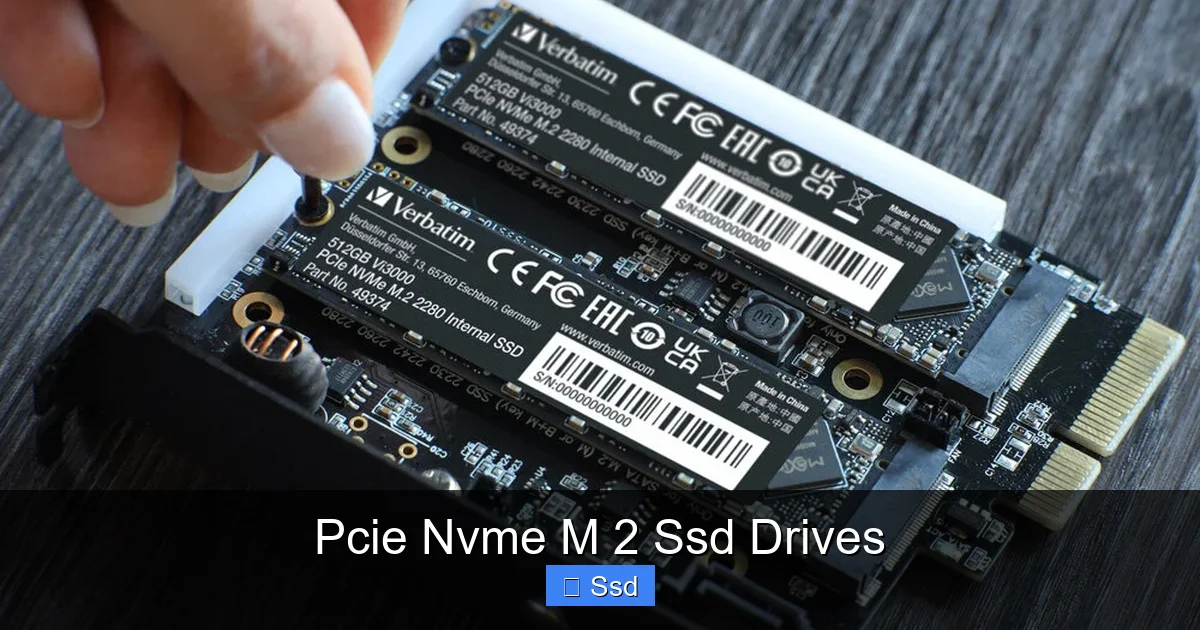
M.2, formerly known as NGFF (Next Generation Form Factor), is the physical specification. It’s a small, slender card, typically 22mm wide and either 42mm, 60mm, 80mm, or 110mm long (the “2280” size is the most common). It plugs directly into a dedicated M.2 slot on your motherboard, secured by a single screw. The M.2 slot can support different “keys” (notches in the connector). For storage, you’ll almost always use the “M” key, which aligns with the PCIe x4 (and often SATA) lanes on your motherboard. This form factor is what allows for such a compact, cable-free installation.
Putting It All Together: When you buy a PCIe NVMe M.2 SSD, you are getting a small card (M.2 form factor) that uses the modern, lightning-fast NVMe communication protocol to talk directly to your system via the high-bandwidth PCIe bus. It’s the complete, optimized package for speed.
The M.2 Advantage: More Than Just Speed
While the raw speed is the headline act, the M.2 form factor brings several other critical benefits that make it the default choice for modern systems.
Visual guide about Pcie Nvme M 2 Ssd Drives
Image source: m.media-amazon.com
Space Efficiency and Cable-Free Simplicity
Traditional 2.5-inch SATA SSDs require a mounting bay in your case and a SATA data cable plus a power cable from the PSU. An M.2 SSD eliminates both. It slots directly into the motherboard, secured by one tiny screw. This is a godsend for Small Form Factor (SFF) builds like Mini-ITX, where space is at a premium. No more tangled SATA cables cluttering your case interior. It also means one less cable to manage during your build, making the process cleaner and potentially improving airflow by removing an obstruction.
Weight and Vibration Resistance
An M.2 SSD is a lightweight circuit board with chips on it. It has no heavy metal casing like many 2.5″ drives. This reduces overall system weight, which can be a consideration for portable or LAN party rigs. With no moving parts whatsoever, it’s completely immune to vibration or shock—a key reason it’s standard in laptops that get moved around constantly.
Direct Motherboard Integration
Being soldered directly onto the motherboard’s circuit board (via the M.2 slot) means the shortest possible signal path. This reduces electrical interference and latency compared to a longer cable run. The motherboard’s own PCB traces are highly optimized for signal integrity, ensuring the drive operates at its peak potential right out of the gate.
Performance Deep Dive: What the Speeds Really Mean
Manufacturer specs are great, but what do those numbers—like 7,000 MB/s read and 5,000 MB/s write—actually mean for you? Let’s break down the two main types of performance.
Visual guide about Pcie Nvme M 2 Ssd Drives
Image source: content.crucial.com
Sequential vs. Random: The Crucial Distinction
Sequential Read/Write Speed is what you see advertised. It measures how fast the drive can read or write one massive, contiguous file, like copying a 100GB video project or loading a single, enormous game texture pack. This is where the PCIe 4.0 and 5.0 drives truly shine, with numbers that can make a SATA SSD’s 550 MB/s look glacial. If your work involves large, single files, this is the metric to watch.
Random Read/Write Speed (IOPS – Input/Output Operations Per Second) is arguably more important for general system responsiveness. It measures how many small, scattered files (like operating system files, game assets, application code) the drive can access per second. This affects boot times, application launch speeds, level loading in games, and how snappy your system feels when multitasking. NVMe drives have a colossal advantage here due to their massively parallel architecture and low latency. A drive with excellent random performance will make your entire OS feel faster, even if you’re not moving huge files around constantly.
Real-World Impact: From Your Desk to Your Game
What does this translate to? Boot Times: Windows 11 can go from power-on to desktop in 5-10 seconds on a fast NVMe drive, versus 15-25 on a SATA SSD. Game Loading: In titles like “Cyberpunk 2077” or “Microsoft Flight Simulator,” you’ll shave seconds off load screens. In competitive games, you might be the first into a match. Content Creation: Importing footage, applying effects, and rendering timelines in DaVinci Resolve or Adobe Premiere Pro happens noticeably faster. Scrubbing through 4K/8K video becomes buttery smooth. Productivity: Opening massive Excel files, searching through thousands of emails, or compiling code happens with near-instant feedback. The difference isn’t just about waiting less; it’s about maintaining flow and focus.
The Bottleneck Hierarchy
It’s important to note that your storage is rarely the only component in play. For sequential tasks, a PCIe 4.0 NVMe drive is often fast enough that the next bottleneck becomes your CPU’s ability to process that data or your RAM’s capacity. For random tasks, the drive’s own controller and NAND quality become the limiting factor. This is why two PCIe 4.0 drives can have different real-world performance—the quality of the controller, the type and arrangement of NAND flash (TLC, QLC), and the size of the cache (DRAM or HMB) all play a role.
Your Ultimate Buying Guide: What to Look For
Walking into a store or browsing online, you’ll see a dizzying array of PCIe NVMe M.2 SSDs with confusing model numbers and specs. Here’s your checklist.
Step 1: Check Your Motherboard’s PCIe Generation
This is the most important compatibility check. Find your motherboard model and look up its specifications. Identify the M.2 slots. What PCIe generation do they support? A PCIe 4.0 drive will work in a PCIe 3.0 slot (and vice versa), but it will be limited to the slower generation’s speed. If you have a Ryzen 3000/5000/7000 series or Intel 10th Gen (and newer) CPU with a compatible motherboard, you almost certainly have PCIe 4.0. For the latest builds (Ryzen 7000/Intel 13th/14th Gen), PCIe 5.0 support is becoming common. Buy the highest generation your board supports for future-proofing.
Step 2: Understand NAND Type and Layers
NAND flash memory is where your data lives. TLC (3-bit per cell) is the current mainstream standard, offering a great balance of performance, endurance, and cost. QLC (4-bit per cell) is cheaper and allows for higher capacities at lower prices, but its write performance can slow down significantly once its small SLC cache is exhausted, and its endurance (TBW) is lower. For a primary OS/game drive, TLC is highly recommended. For a secondary bulk storage drive where speed isn’t critical, QLC can be a value play. The number of layers (e.g., 128L, 176L, 232L) indicates technology density; newer, higher-layer NAND is generally more efficient.
Step 3: The DRAM Cache Question
A dedicated DRAM cache on the SSD acts as a fast buffer for the drive’s mapping table (the “address book” of where data is stored). Drives with DRAM (e.g., Samsung 980 Pro, WD Black SN850X) often have more consistent performance, especially under heavy, sustained workloads. Many modern DRAM-less drives (e.g., Samsung 980, Crucial P3) use a technology called Host Memory Buffer (HMB) to borrow a small amount of your system RAM for this task. For most general users and gamers, a good HMB implementation is perfectly fine and offers better value. For professional, sustained-workload users, a drive with its own DRAM is still preferable.
Step 4: Heatsinks: Not Always Optional
High-performance PCIe 4.0 and 5.0 NVMe drives can get very hot (80°C+), and thermal throttling will slow them down to protect themselves. Many motherboards now include an M.2 heatsink—a metal plate that screws onto the drive. Always use it if provided. If your motherboard doesn’t have one, consider buying a drive that comes with a heatsink (many do) or purchasing an aftermarket one. Ensure the heatsink doesn’t interfere with other components like your GPU. Good airflow over the M.2 slot is also crucial.
Step 5: Capacity and Endurance (TBW)
For a primary drive in 2024, 1TB is the practical sweet spot. 500GB fills up too fast with modern games and software. 2TB offers great breathing room. Endurance is measured in Total Bytes Written (TBW). A 1TB TLC drive will typically have a TBW of 600-1200 TBW. This means you’d have to write 600-1200 Terabytes of data to wear it out. For a typical user, this is a non-issue; you’ll likely upgrade the drive for more space long before you wear it out. Don’t stress over TBW unless you’re doing extreme, constant write workloads.
Installation and Optimization: Getting the Most Out of Your Drive
Installing an M.2 SSD is simple, but a few steps ensure it runs perfectly.
Physical Installation: A Few Minutes of Work
1. Power Down: Completely shut down your PC and unplug the power cable.
2. Locate the Slot: Find the M.2 slot on your motherboard (often near the PCIe slots or under a heatsink cover).
3. Remove the Standoff/Screw: There is usually a tiny standoff (a raised screw hole) and a securing screw. Unscrew and remove them.
4. Insert at an Angle: Hold the SSD by the edges. Align the keying notch on the drive with the key in the slot. Insert it at a ~30-degree angle until it clicks into place.
5. Secure It: Lay the drive flat and screw it down to the standoff with the provided screw. Do not overtighten! Snug is enough.
6. Reattach Heatsink: If your motherboard has a heatsink cover, reattach it now, ensuring it makes firm contact with the drive’s label (which often contains a thin thermal pad).
First-Time Setup in BIOS/UEFI and OS
After installation, power on and enter your BIOS/UEFI (usually by pressing Del or F2). You should see your new drive listed. Ensure the M.2 slot is enabled. For modern systems, you may want to enable Resizable BAR (SAM for AMD/RSR for Intel) if your GPU and drive support it; this allows the CPU to access the entire GPU memory at once, providing a small performance boost in some games. Save and exit.
Boot into your operating system (Windows 10/11, Linux, macOS). The drive will appear as unallocated space in Disk Management. You need to initialize and format it (use GPT partition style). Assign a drive letter, and you’re ready to go! For the best performance, ensure your motherboard’s chipset drivers and the SSD manufacturer’s management software (like Samsung Magician, WD Dashboard, or Crucial Storage Executive) are installed. This software can check firmware, run diagnostics, and enable performance modes.
Thermal Management Best Practices
Even with a heatsink, case airflow matters. Ensure your case has good intake and exhaust. If your M.2 slot is sandwiched between a hot GPU and the backplane, consider a motherboard with a heatsink that has a heatpipe to dissipate heat elsewhere, or an aftermarket heatsink with a larger surface area. Some high-end drives have their own integrated heatsinks with large surface areas. Monitor your drive’s temperature with software like HWiNFO64. Sustained temps above 80°C under load are a sign you may need better cooling.
The Future of NVMe: What’s Next on the Horizon?
The evolution of PCIe NVMe M.2 SSDs is far from over. While PCIe 4.0 is the current mainstream king, PCIe 5.0 drives are here, offering theoretical speeds up to 14,000 MB/s. However, they require the latest Intel 13th/14th Gen or AMD Ryzen 7000 series platforms and come with a significant heat and cost penalty. For now, PCIe 4.0 offers the best price-to-performance ratio for 99% of users.
Beyond raw speed, innovation is happening in NAND. QLC is becoming more refined, with better controllers and SLC caches minimizing its performance drawbacks for mainstream use. PLC (Penta-Level Cell, 5-bit) is on the horizon, promising even higher densities and lower costs, but will require even more sophisticated controllers to manage endurance and performance. We’re also seeing the rise of hybrid drives that combine fast NAND with a small amount of faster SLC or even Optane-like memory for superior caching.
On the software side, DirectStorage is a game-changer. This Windows API (already supported in some form) allows game engines to bypass the CPU and decompress assets directly from the NVMe SSD to the GPU. This means games can stream incredibly detailed worlds without CPU bottlenecks, and it’s designed to take full advantage of the massive bandwidth of NVMe drives. As more games adopt it, the value of a fast NVMe SSD for gaming will become even more tangible. The line between system storage and real-time asset streaming is blurring, and PCIe NVMe M.2 SSDs are the key that unlocks it.
Conclusion: The Clear-Cut Choice for Modern Computing
The PCIe NVMe M.2 SSD is no longer a luxury component for enthusiasts; it is the essential foundation for a responsive, future-ready PC or laptop. Its combination of blistering speed, compact design, and plug-and-play simplicity makes it the single most impactful upgrade you can make today. The days of tolerating storage-induced stutters, long load times, and sluggish file operations are over. By understanding the core concepts—PCIe as the highway, NVMe as the language, and M.2 as the sleek vehicle—you can navigate the market with confidence. Prioritize compatibility with your motherboard’s PCIe generation, choose TLC NAND for a primary drive, don’t neglect thermal management, and you will unlock a level of system fluidity that once seemed impossible. Whether you’re a gamer, a creator, a professional, or just someone who values their time, the upgrade to a PCIe NVMe M.2 SSD is one of the easiest and most rewarding decisions you can make for your digital life.
Frequently Asked Questions
Can I use a PCIe NVMe M.2 SSD in an older motherboard that only has SATA M.2 slots?
No. You must check your motherboard’s specifications. Some older M.2 slots only support the SATA protocol (at ~550 MB/s), not PCIe/NVMe. An NVMe drive will not work in a SATA-only M.2 slot. You need a slot that explicitly states support for PCIe (and ideally, the specific generation like PCIe 3.0/4.0).
Do I really need a heatsink for my NVMe SSD?
For PCIe 3.0 drives, it’s often optional. For PCIe 4.0 and especially PCIe 5.0 drives, a heatsink is strongly recommended. These drives throttle (slow down) to manage heat. If your motherboard includes an M.2 heatsink, use it. If not, buying a drive with an included heatsink or an aftermarket one is a smart investment to maintain peak performance during extended tasks like gaming or rendering.
What’s the real difference between a PCIe 4.0 and a PCIe 5.0 NVMe SSD for gaming?
In most current games, the difference is minimal. Game engines are not yet optimized to saturate PCIe 4.0’s bandwidth (~7,000 MB/s). You might see 1-2 seconds shaved off load times in some titles, but it’s not transformative. PCIe 5.0 drives are significantly hotter and more expensive. The real benefit of PCIe 5.0 will be realized with future games leveraging Microsoft’s DirectStorage API, which is designed for ultra-fast storage streams.
Which brand of PCIe NVMe M.2 SSD is best?
There is no single “best” brand, but several top-tier manufacturers consistently produce excellent drives. Samsung, Western Digital (WD), and SK Hynix (including their Solidigm brand) are known for their in-house controllers and NAND, offering top-tier performance and reliability. Crucial (Micron) and Kingston offer exceptional value with very good performance. For most users, any of these brands’ current-gen PCIe 4.0 TLC drives (e.g., Samsung 980 Pro, WD Black SN850X, SK Hynix Platinum P41, Crucial P5 Plus) are fantastic choices.
Will a PCIe NVMe M.2 SSD work with my old Windows 7 or 8.1 PC?
Technically, no for proper NVMe boot support. Windows 7 and 8.1 lack native drivers for NVMe storage. You can sometimes get it working with community patches, but it’s unstable and not recommended. For a boot drive, you need Windows 10 (version 1511 or later) or Windows 11. However, you could install an NVMe SSD as a secondary storage drive in an older PC with a compatible M.2 slot, but you would need to install those custom NVMe drivers.
I have a laptop with an M.2 slot. Can I easily upgrade it myself?
Often, yes! Many modern ultrabooks and gaming laptops use M.2 NVMe SSDs and make them user-accessible. You’ll need to consult your laptop’s service manual (or a reputable teardown video online) to see if there’s a removable bottom panel granting access to the M.2 slot. Be aware that some ultra-thin laptops solder the SSD directly to the motherboard, making an upgrade impossible. Also, check the existing SSD’s length (e.g., 2280) to buy a compatible replacement.