An M.2 PCIe NVMe SSD is a high-speed storage drive that plugs directly into your motherboard, bypassing slow cables. It uses the PCIe bus and NVMe protocol to deliver blazing-fast read/write speeds, far exceeding traditional SATA SSDs. This makes it the essential upgrade for modern PCs, laptops, and workstations to eliminate loading times and boost overall system responsiveness.
Key Takeaways
- Form Factor & Interface: M.2 is a small, gumstick-sized physical form factor. PCIe (Peripheral Component Interconnect Express) is the high-speed highway it uses to connect to the motherboard. NVMe (Non-Volatile Memory Express) is the super-efficient software protocol designed specifically for flash storage.
- Speed King: NVMe SSDs are exponentially faster than SATA SSDs. While SATA maxes out around 550 MB/s, modern PCIe 4.0 NVMe drives can exceed 7,000 MB/s, and PCIe 5.0 doubles that again.
- Direct Motherboard Connection: Unlike 2.5″ SATA SSDs that require power and data cables, M.2 NVMe SSDs screw directly into a dedicated slot on the motherboard, saving space and improving airflow.
- Compatibility is Key: You need a motherboard with an M.2 slot that supports PCIe (not all do, especially older ones). The slot must also match the drive’s “key” (usually M key) and length (e.g., 2280).
- Heatsinks Matter: High-performance NVMe drives can get very hot under sustained workloads, leading to thermal throttling (speed drops). Many drives now come with built-in heatsinks, or you can add one.
- Not Just for Desktops: M.2 NVMe is the standard for high-performance laptops and ultrabooks, where its compact size and lack of cables are a major advantage.
- Future-Proofing: Investing in a PCIe 4.0 or 5.0 NVMe SSD prepares your system for future software and game demands that will leverage faster storage for quicker asset loading.
📑 Table of Contents
- What Exactly Is an M.2 PCIe NVMe SSD?
- How It Works: The High-Speed Pipeline Inside Your PC
- Why You Absolutely Need One: The Tangible Benefits
- Buying Your First M.2 NVMe SSD: A Practical Guide
- Installation and Optimization: Getting It Running
- The Heat Issue: Understanding Thermal Throttling
- The Future and Conclusion: Is NVMe the End of the Road?
What Exactly Is an M.2 PCIe NVMe SSD?
Let’s break down that mouthful of a name, because each part is crucial. Think of building a super-fast data pipeline from your storage to your computer’s brain, the CPU. M.2 describes the physical shape—a slim, flat stick of circuitry, about the size of a piece of gum. It’s a form factor, not a speed standard. PCIe (Peripheral Component Interconnect Express) is the actual electrical highway it uses. This is the same high-bandwidth bus your graphics card uses. NVMe (Non-Volatile Memory Express) is the rulebook, the communication protocol. It’s a set of instructions written from the ground up to manage the immense speed of flash memory, replacing the older, clunkier AHCI protocol used by hard drives and early SATA SSDs.
So, an M.2 PCIe NVMe SSD is a tiny stick that uses the graphics card’s superhighway with a brand-new, optimized language to talk to your system. This combination is what unlocks stratospheric speed. It’s not just a “faster SATA drive.” It’s a fundamentally different, more direct, and more efficient way to store and access your data.
The Evolution from SATA to NVMe: A Leap, Not a Step
To appreciate NVMe, you must understand its predecessor. For years, the SATA (Serial ATA) interface was the standard. Even the first SSDs used SATA because it was everywhere. But SATA was designed for spinning hard drives in the 2000s. Its maximum theoretical speed is 600 MB/s. A great SATA SSD hits about 550 MB/s in real-world use. That was revolutionary compared to a 100 MB/s hard drive, but it created a bottleneck.
PCIe, however, was evolving. PCIe 3.0 x4 (four lanes) offered a theoretical ceiling of ~4,000 MB/s. PCIe 4.0 x4 doubled that to ~8,000 MB/s. PCIe 5.0 x4 is now pushing ~16,000 MB/s. NVMe was created to harness this raw bandwidth. It has vastly lower latency (the delay before data transfer begins) and can handle thousands more simultaneous commands than AHCI. For your PC, this means programs launch instantly, games load textures in a blink, large video files scrub smoothly, and your entire system feels snappier.
How It Works: The High-Speed Pipeline Inside Your PC
Imagine your computer’s CPU is a master chef in a kitchen. The RAM is the countertop where ingredients are prepped and ready. The storage drive is the pantry where all the ingredients are kept long-term. For years, the pantry (SATA SSD) was connected to the kitchen (CPU) by a single, narrow hallway (SATA cable). The chef could only fetch one thing at a time, slowly.
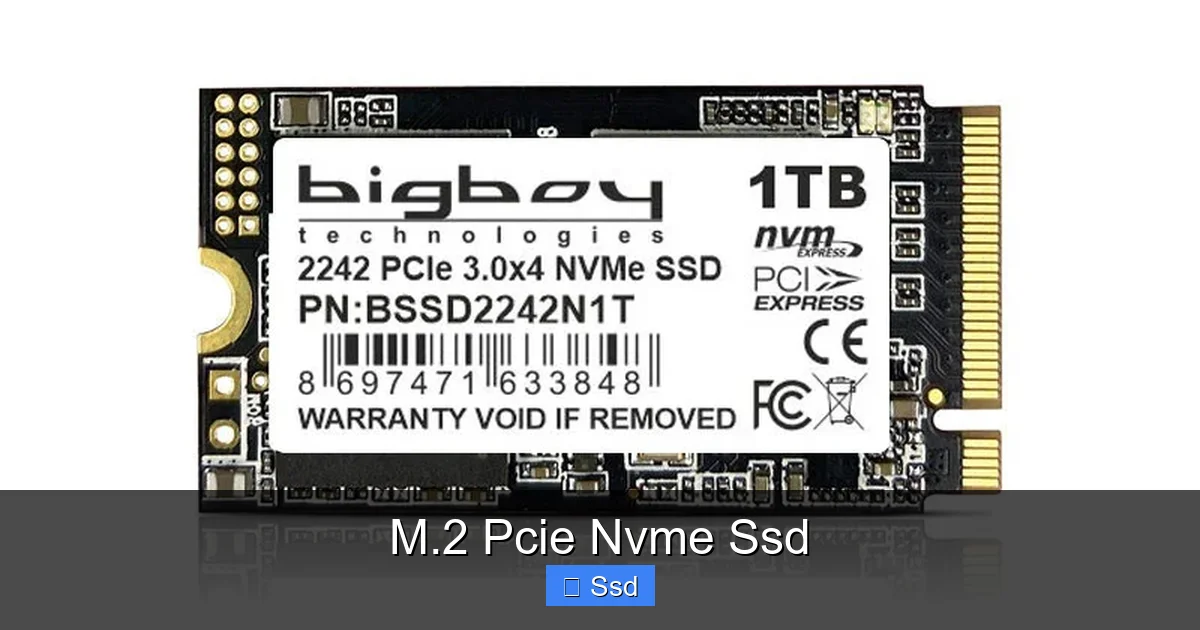
Visual guide about M.2 Pcie Nvme Ssd
Image source: asnet.com.tr
Now, install an M.2 NVMe SSD. That’s like building a wide, direct freight elevator (PCIe lanes) from the pantry straight to the countertop. The chef (CPU) can now request dozens of ingredients (data blocks) at once, and they arrive almost instantly. The elevator operator (NVMe protocol) is incredibly efficient, understanding exactly what the chef needs and prioritizing the most urgent requests. This is the core magic: a direct, high-bandwidth, low-latency connection.
PCIe Lanes: The Width of Your Highway
Not all M.2 slots are created equal. The speed depends on how many PCIe “lanes” your slot provides and which PCIe generation your motherboard and CPU support. Most consumer M.2 slots are x4, meaning four lanes. A PCIe 4.0 x4 slot can handle about 8 GB/s (gigabytes per second) of raw throughput. But here’s a critical real-world detail: your CPU and chipset share a finite number of PCIe lanes. Installing a GPU in a PCIe x16 slot and an NVMe drive in an M.2 slot might share lanes. On some motherboards, using certain M.2 slots can even disable SATA ports or other PCIe slots. Always check your motherboard manual to understand your specific lane allocation.
The Role of the Controller and NAND Flash
Inside that M.2 stick are two key components. The controller is the drive’s own mini-processor. It’s the brains that manage the NAND flash memory chips, handle error correction, run the NVMe protocol, and manage data traffic. A sophisticated controller is what separates a slow, budget NVMe drive from a top-tier performer. The NAND flash is where your data is actually stored. The type (SLC, MLC, TLC, QLC) and number of layers (e.g., 176-layer, 232-layer) affect speed, endurance, and cost. Modern TLC and QLC with advanced controllers are incredibly fast for consumer use.
Why You Absolutely Need One: The Tangible Benefits
So, it’s fast. But what does that *feel* like in day-to-day use? The difference is most dramatic in specific tasks, but the overall system “feel” improves everywhere.
Boot Times and Application Launches
This is the most noticeable win. A Windows 11 boot from a quality NVMe drive can be under 10 seconds. Launching complex applications like Adobe Photoshop, Visual Studio, or modern games? We’re talking 1-3 seconds versus 5-10 on a SATA SSD. Your operating system and core apps live on the NVMe drive, and that instant access changes your workflow. No more staring at a loading icon while you wait for your creative tool to start.
Game Loading and Asset Streaming
This is where next-gen consoles and PCs are converging. Modern games, especially open-world titles, are built with incredibly detailed environments. The game engine constantly streams textures, models, and audio from storage into RAM and VRAM as you move. A fast NVMe SSD means that streaming is seamless. You’ll notice shorter load screens between areas, and critically, fewer “pop-in” moments where low-resolution textures suddenly snap into high-res detail. Games like “Cyberpunk 2077,” “Microsoft Flight Simulator,” and “Ratchet & Clank: Rift Apart” are designed around NVMe speeds. For competitive gamers, getting into the match faster is a pure advantage.
Professional Workloads: Video, 3D, and Data
For professionals, time is money. If you work with 4K/8K video, high-resolution photo batches, large 3D scenes, or massive datasets, an NVMe SSD is non-negotiable. Scrubbing through 8K footage in DaVinci Resolve? It requires reading multiple video streams simultaneously. Moving a 100GB project folder? That transfer might finish in a minute instead of five. Rendering scenes that pull assets from storage? Faster storage can shave minutes or even hours off a render farm’s total time. The ability to handle high queue depths (many read/write requests at once) is where NVMe truly destroys SATA.
Buying Your First M.2 NVMe SSD: A Practical Guide
Walking into a store or browsing online is overwhelming. Let’s simplify it into a checklist.
Step 1: Check Your Motherboard’s M.2 Slot(s)
This is the first and most important step. Open your case or look up your motherboard model online. Find the specifications page. You need to know:
- How many M.2 slots do you have? Many modern boards have two or three.
- What PCIe generation do they support? PCIe 4.0 is standard on AMD Ryzen 3000+/Intel 11th Gen+ platforms. PCIe 3.0 is still common and very fast for most users. PCIe 5.0 is new and requires a newer CPU/motherboard (Intel 12th/13th/14th Gen, AMD Ryzen 7000 series).
- What lengths are supported? The most common is 2280 (22mm wide, 80mm long). Some support 22110 (110mm long) for drives with extra NAND for higher capacities. Measure the space you have.
- Does the slot share lanes? As mentioned, using one M.2 slot might disable SATA ports 3 & 4 or a PCIe x1 slot. Know the trade-offs.
Step 2: Understand PCIe Generations & Real-World Speeds
Don’t get lost in theoretical numbers. Here’s a practical breakdown:
- PCIe 3.0 NVMe: Speeds up to ~3,500 MB/s read. Still incredibly fast. Perfect for general use, gaming, and most professional work if you’re on a budget or an older platform (Intel 10th Gen, AMD Ryzen 2000/5000 non-G). The price/performance is often excellent.
- PCIe 4.0 NVMe: Speeds up to ~7,000 MB/s read. The current sweet spot. Ideal for high-end gaming PCs, content creation workstations, and future-proofing. You’ll pay a moderate premium over PCIe 3.0.
- PCIe 5.0 NVMe: Speeds beyond 10,000-14,000 MB/s read. The bleeding edge. Currently, only a handful of drives are available, they run very hot (often requiring a bulky heatsink), and they are expensive. For 99% of users, the real-world benefit over a top-tier PCIe 4.0 drive is minimal *today*. It’s for early adopters and specific, extreme professional workloads. Expect this to change as software catches up.
Step 3: Capacity, Endurance, and the DRAM Question
Capacity: 1TB is the new practical minimum for a primary drive. 2TB offers great value. 4TB+ is for professionals or enthusiasts with massive libraries. A 512GB drive fills up fast with modern games and software.
Endurance (TBW – Terabytes Written): This is the total amount of data the manufacturer guarantees you can write over the drive’s life. For a 1TB consumer drive, 600 TBW is common. That’s *hundreds of gigabytes written every single day for five years*. For almost all home users, endurance is a non-issue. Don’t stress it unless you’re doing constant, heavy video rendering or scientific data logging.
DRAM Cache: Some NVMe drives have a small, fast DRAM chip to act as a cache for the drive’s mapping table (which tells it where data is stored). DRAM-less designs use a portion of the main NAND flash and system RAM (via Host Memory Buffer) for this task. For most sequential workloads (large file transfers), a good DRAM-less drive like the Crucial P3/P5 Plus or WD Blue SN580 performs nearly identically to a DRAM drive. For heavy random read/write workloads (like database work), a dedicated DRAM cache can still provide an edge. Don’t make this your sole deciding factor.
Installation and Optimization: Getting It Running
Installing an M.2 NVMe SSD is one of the easiest upgrades in PC building. But there are crucial steps.
The Physical Installation: Simple but Specific
1. Power Down: Completely shut down your PC and unplug the power cable.
2. Locate the Slot: Find the M.2 slot on your motherboard. It’s usually near the CPU or below the GPU.
3. Remove the Standoff/Screw: There will be a small screw and possibly a standoff (a tiny metal spacer) at the far end of the slot. Unscrew and remove them.
4. Insert at an Angle: Hold the SSD by the edges. Align the notch on the SSD’s gold contacts with the key in the slot (it’s usually an M key, which is slightly offset). Insert it firmly but gently at a ~30-degree angle.
5. Press Down and Secure: Push the SSD down flat against the motherboard. Place the screw you removed back through the slot’s mounting hole and into the SSD’s standoff hole. Tighten it snugly—do not overtighten.
6. Heatsink Consideration: If your drive or motherboard has a heatsink, install it now according to its instructions, often with a thermal pad between the drive and the heatsink base.
That’s it. No cables. Just a secure screw connection.
The Software Setup: Formatting and Drivers
When you first boot with a new, empty NVMe drive, your operating system (Windows 11/10) will almost certainly detect it automatically. You’ll see a notification that a new disk has been found. You must then:
1. Open Disk Management (type it in the Windows search bar).
2. You’ll see your new drive listed as “Unallocated.”
3. Right-click on it and choose New Simple Volume.
4. Follow the wizard. Assign it a drive letter, and most importantly, format it. For Windows, use NTFS. For a drive you’ll use with both Windows and macOS, exFAT is an option.
5. Regarding drivers: Modern NVMe drives use the standard Microsoft NVMe driver built into Windows 10/11. It’s perfectly fine. You generally do not need to install the manufacturer’s driver unless they offer a specific utility for drive management (like Samsung Magician or WD Dashboard) which can include firmware updates and drive health monitoring. Those utilities are helpful but not mandatory for the drive to function.
The Heat Issue: Understanding Thermal Throttling
This is the #1 practical consideration with modern, high-performance NVMe SSDs, especially PCIe 4.0 and 5.0 models. Under sustained heavy workloads (like copying a 100GB folder or rendering a long video), the NAND flash and the controller can generate significant heat. If the drive gets too hot (often above 70-80°C), it will intentionally slow down—this is called thermal throttling—to protect itself. This can cause your speeds to drop from 7,000 MB/s to 2,000 MB/s or lower until it cools down.
Solutions: Heatsinks and Airflow
Motherboard Heatsinks: Many modern motherboards, especially higher-end ones, have metal shields/heat spreaders over the M.2 slots. These are often connected to the motherboard’s VRM heatsinks and are very effective. Use them!
Drive-Integrated Heatsinks: Drives like the Samsung 980 Pro, WD Black SN850X, and Crucial T500 often come with a heatsink pre-attached. This is the easiest solution. Just ensure your case has airflow to pull heat away from the heatsink.
Aftermarket Heatsinks: You can buy standalone M.2 heatsinks that clamp onto the drive. These are great for budget drives that lack one, but be mindful of clearance with your GPU or other components.
Case Airflow: Ultimately, the best heatsink is good case airflow. Ensure you have intake fans bringing cool air into the case and exhaust fans pulling hot air out. An M.2 drive located under a GPU, with no direct airflow, is the most likely to throttle. A simple fan bracket blowing air across the M.2 area can work wonders.
The Future and Conclusion: Is NVMe the End of the Road?
The storage landscape is always moving. PCIe 5.0 is here, with drives like the Crucial T705 and Samsung 990 Pro hitting mind-bending speeds. But as of now, the software and game ecosystems haven’t fully caught up to leverage that raw bandwidth over a great PCIe 4.0 drive in most scenarios. The immediate future is about refinement: better power efficiency, more layers of NAND for higher capacities at lower costs, and smarter controllers that manage heat and performance even more dynamically.
For you, the buyer, the advice is clear and simple. An M.2 PCIe NVMe SSD is no longer a luxury; it’s the standard for any new PC build or major upgrade. If you’re buying a new laptop, it almost certainly has one. For a desktop, choose a reputable brand (Samsung, WD, Crucial, SK Hynix, Sabrent) with a good controller (Phison, Samsung, Silicon Motion, WD) that fits your motherboard’s capabilities and your budget. A good PCIe 4.0 drive like the WD Black SN850X, Samsung 980 Pro, or Crucial P5 Plus offers phenomenal performance that will feel fast for years. Don’t overpay for PCIe 5.0 unless you have a specific, proven need. Install it correctly, mind the heat, and enjoy the blistering speed. Your patience with loading screens is officially over.
Frequently Asked Questions
Is an M.2 NVMe SSD compatible with my old desktop?
Not necessarily. You need a motherboard with an available M.2 slot that supports PCIe (not just SATA). Many motherboards from around 2017 onward have them, but you must check your specific model’s specs. An older board with only PCIe 2.0 or 3.0 will still work with a newer NVMe drive, but it will be limited to that older, slower generation’s speed.
What’s the real difference between an NVMe SSD and a SATA SSD?
The difference is night and day in speed. A top SATA SSD maxes out around 550 MB/s. A good PCIe 3.0 NVMe SSD starts at 3,500 MB/s, and PCIe 4.0 goes to 7,000 MB/s+. This means file transfers, game loads, and boot times are dramatically faster on NVMe. For most everyday tasks, you’ll feel the system is more responsive. The only advantage SATA has is lower cost per gigabyte for very large capacities and no potential for thermal throttling.
Do I need a heatsink for my M.2 NVMe SSD?
For PCIe 3.0 drives, a heatsink is rarely needed. For PCIe 4.0 drives, it’s highly recommended, especially for sustained workloads. Many motherboards have built-in M.2 heatsinks. For PCIe 5.0 drives, a heatsink is absolutely mandatory. If your drive or motherboard doesn’t have one, consider an inexpensive aftermarket heatsink or ensure your case has excellent airflow directly over the M.2 slot.
Can I use an M.2 NVMe SSD as a secondary drive?
Absolutely. You can have your operating system and main programs on one NVMe drive (e.g., 1TB) and use a second, larger NVMe or SATA SSD for games and media files. Just ensure your motherboard has a second M.2 slot. Using multiple NVMe drives is the best way to maximize storage performance across your entire system.
Will an NVMe SSD improve my FPS in games?
Not directly. FPS (frames per second) is determined primarily by your GPU and CPU. However, an NVMe SSD will eliminate or drastically reduce stuttering caused by the game streaming assets from storage. It will also get you into matches faster and reduce loading screen times. In games explicitly designed for fast storage (like those mentioned earlier), the world loads more seamlessly, which is a form of performance improvement.
How long do M.2 NVMe SSDs last?
Very long. Modern NAND flash has excellent endurance. A typical 1TB consumer NVMe drive has a rated endurance (TBW) of 600-1,200 TBW. That means you could write 200 GB of data every single day for 5-10 years before reaching that limit. Most users will never come close to wearing one out. The drive will likely become obsolete from capacity or speed needs before it fails from wear. Regular backups are still essential, as any drive can fail unexpectedly.