M.2 Nvme Ssd 1tb
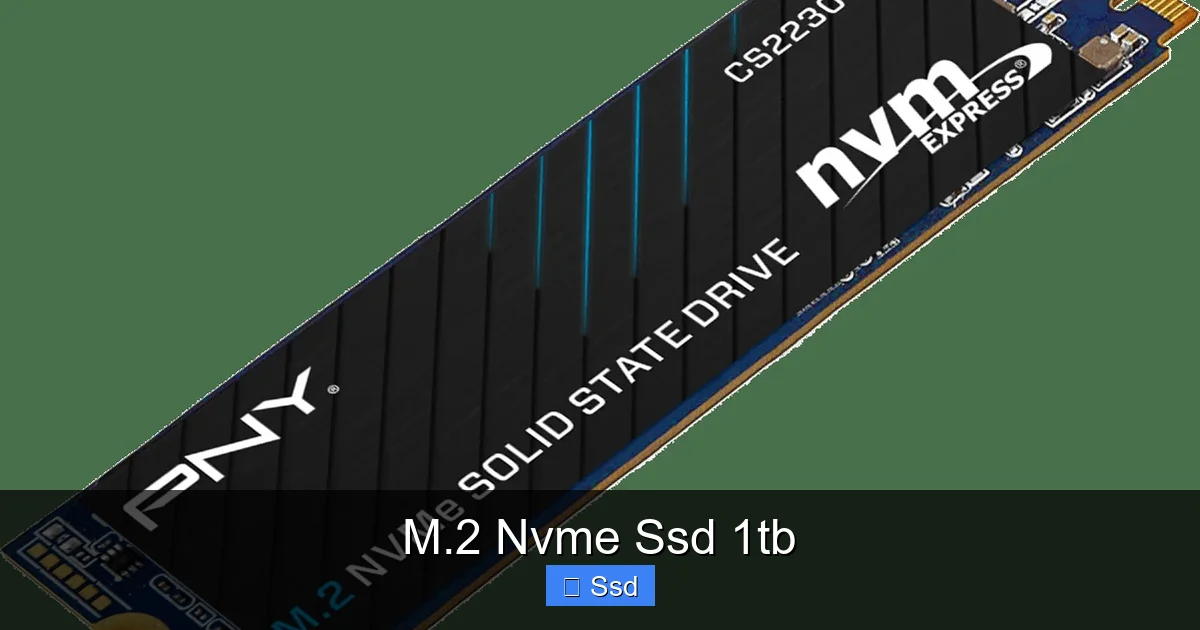
An M.2 NVMe SSD 1TB is a high-performance storage drive that connects directly to your motherboard via the PCIe bus, offering vastly superior speeds to traditional SATA SSDs and hard drives. This 1-terabyte capacity provides ample space for your operating system, applications, games, and media files, eliminating storage bottlenecks. It’s the definitive upgrade for modern PCs, laptops, and even some PS5 consoles, delivering near-instant load times and a dramatically smoother overall computing experience.
Let’s talk about one of the single best upgrades you can make to a modern computer. I’m not talking about a new graphics card or more RAM, though those are great too. I’m talking about the heart of your system’s responsiveness: the storage drive. Specifically, the M.2 NVMe SSD 1TB. If your computer still runs on a hard drive or even an older SATA SSD, you are living in the past—a slow, loading, waiting past. Swapping in one of these little powerhouses is like trading in a bicycle for a sports car. The difference in everyday use is that profound. In this guide, we’re going to dive deep into everything you need to know about the M.2 NVMe SSD 1TB. We’ll cut through the jargon, explain why it matters, who needs it, and how to choose the right one for your setup. By the end, you’ll be a confident expert ready to transform your PC’s speed.
Key Takeaways
- Unmatched Speed: M.2 NVMe SSDs use the PCIe interface, offering read/write speeds 5-7x faster than SATA SSDs, with top models exceeding 7,000 MB/s.
- 1TB is the Sweet Spot: This capacity balances ample space for OS, software, and a large game/media library with a reasonable price point, making it ideal for most users.
- Form Factor & Compatibility: The M.2 “gumstick” form factor saves space and cables. Crucially, your motherboard must have an M.2 slot that supports NVMe (PCIe) protocol, not just SATA.
- Direct PCIe Connection: Unlike SATA, NVMe drives communicate directly with the CPU over PCIe lanes, resulting in lower latency and higher throughput for real-world performance gains.
- Ideal for Demanding Tasks: Perfect for gaming, 4K video editing, 3D rendering, large file transfers, and as a primary drive for a lag-free operating system experience.
- Heat Management Matters: High-performance NVMe SSDs can generate heat. Many come with heatsinks, and motherboard M.2 slots often include shielding. Ensure adequate airflow for sustained peak performance.
- Future-Proof Investment: As software and games grow larger, a fast 1TB NVMe SSD is a foundational upgrade that will keep your system responsive for years, outlasting many other components.
📑 Table of Contents
- What Exactly is an M.2 NVMe SSD? Demystifying the Jargon
- The Staggering Performance Advantage: Why Speed Matters
- Is 1TB the Right Capacity for You? The Sweet Spot Analysis
- Installation & Compatibility: What You Need to Check Before Buying
- Market Landscape: Top Contenders for Best M.2 NVMe SSD 1TB
- Thermals, Endurance, and the Fine Print: What Specs Don’t Tell You
- Beyond the Desktop: Where Else Can You Use an M.2 NVMe SSD 1TB?
- Future-Proofing Your Investment: What’s Next?
- Conclusion: The No-Brainer Upgrade
What Exactly is an M.2 NVMe SSD? Demystifying the Jargon
Before we get into the 1TB capacity, let’s break down the name. “M.2 NVMe SSD” is actually three technologies packed into one tiny package. Understanding each part is key to knowing what you’re buying.
The “M.2” Form Factor: The Physical Shape
Think of this as the physical connector and size. M.2 is a specification for a small, rectangular card that plugs directly into a dedicated slot on your motherboard. It’s about the size of a stick of gum. This is a huge advantage over the old 2.5-inch SATA SSDs, which require a power cable and a data cable, taking up space in your case. The M.2 form factor is cleaner, simpler, and allows for much thinner laptop and PC designs. There are different M.2 lengths (like 2242, 2260, 2280—the most common for storage—and 22110). The numbers refer to width and length in millimeters. A standard 1TB NVMe SSD will almost always be 22mm wide and 80mm long (2280). Always check your motherboard’s manual to see what lengths it supports.
The “NVMe” Protocol: The Brain & Speed
This is the magic sauce. NVMe stands for Non-Volatile Memory Express. It’s a communication protocol, a set of rules for how data moves between the SSD and the rest of your computer. Previous SATA SSDs used a protocol designed for much slower hard drives. NVMe was built from the ground up for flash memory. It uses the high-speed PCI Express (PCIe) lanes on your motherboard, bypassing the slower SATA controller entirely. The result? Drastically higher speeds and much lower latency (the delay before data transfer begins). It’s like the difference between a country road (SATA) and a multi-lane superhighway (NVMe). For an M.2 NVMe SSD 1TB, this protocol is what enables those staggering sequential read/write numbers you see advertised.
The “SSD” & “1TB”: The Storage Itself
SSD means Solid-State Drive. It has no moving parts; it stores data on NAND flash memory chips. This makes it immune to shock, silent, and vastly faster than any spinning hard disk drive (HDD). The “1TB” part is the capacity—one terabyte, or about 1,000 gigabytes. This is a fantastic capacity for a primary drive. It’s enough to comfortably install Windows 11/macOS, all your essential programs (Microsoft Office, Adobe Suite, Steam), and still have room for a healthy library of modern games (which can be 50-150GB each) or a significant collection of photos and videos. It strikes the perfect balance for enthusiasts and professionals who need speed without immediately jumping to the much higher cost of 2TB or 4TB models.
The Staggering Performance Advantage: Why Speed Matters
Numbers on a spec sheet are one thing, but what does that speed actually mean for you? Let’s compare a typical SATA SSD (max ~550 MB/s) to a modern M.2 NVMe SSD 1TB (genuine speeds from 3,000 MB/s to 7,000+ MB/s). That’s a 5x to 13x difference in theoretical bandwidth. But real-world impact is even more noticeable in specific tasks.
Boot Times & System Responsiveness
This is the most immediate feel-good upgrade. With an NVMe drive as your system drive, Windows 11 or macOS will boot to a usable desktop in 10-15 seconds from pressing the power button. Applications launch almost instantly. There’s no “spinning beach ball” or “circle of doom” while you wait for large programs like Photoshop or Visual Studio to start. Your entire computing experience feels snappy and immediate. Menus scroll smoothly, files open without pause. This reduces friction and frustration in your daily workflow.
Game Loading Times & Open World Streaming
For gamers, this is huge. Load screens become significantly shorter or disappear entirely in optimized titles. More importantly, modern open-world games (like *Cyberpunk 2077*, *Red Dead Redemption 2*, *Horizon Forbidden West*) constantly stream assets from storage as you move through the world. A fast NVMe SSD eliminates pop-in (textures and objects appearing late), reduces stuttering, and creates a vastly more immersive experience. Some games are even being designed with NVMe speeds as a minimum requirement for their intended experience. With a 1TB drive, you can keep your most-played games installed directly on this ultra-fast drive, while larger, less-played titles can live on a secondary, slower SSD or HDD.
Professional Workloads: Video, 3D, and Large Files
If you work with media, the benefits are professional-grade. Editing 4K or even 8K video? An NVMe drive allows for smooth, real-time timeline scrubbing and rapid project loading. Rendering a 3D scene in Blender? Your system can read texture and geometry files far quicker. Transferring a 100GB project folder from one location to another? That’s a matter of minutes, not tens of minutes. For data scientists, software developers, or anyone dealing with massive datasets or virtual machines, the I/O (input/output) performance of an NVMe SSD is a non-negotiable productivity booster. The 1TB capacity ensures your current projects are always on the fast lane.
Is 1TB the Right Capacity for You? The Sweet Spot Analysis
Capacity is a personal choice, but for an M.2 NVMe SSD 1TB, the market consensus is clear: it’s the best all-around size for a primary drive. Let’s break down why.
The Space Equation: OS, Apps, and Games
Windows 11 with updates and core files uses about 40-60GB. macOS is similar. Your main applications—a full Adobe Creative Cloud suite, a few AAA games, your office suite—can easily consume 200-300GB on their own. A single modern game like *Call of Duty: Modern Warfare III* or *Starfield* can take up 150GB+. A 512GB NVMe SSD fills up alarmingly fast once you factor in temporary files, system restore points, and your personal documents. A 1TB drive gives you breathing room. It’s the capacity where you stop constantly monitoring free space and can just install what you need to be productive or have fun. You can comfortably have your OS, your core creative suite, and 5-10 large games installed simultaneously with room to spare.
Cost per Gigabyte: The Value Proposition
Price per gigabyte has been dropping steadily. While 2TB and 4TB drives offer more space, the cost-per-GB for a 1TB NVMe SSD is often the most competitive in the product stack. You get a massive performance leap from a smaller drive, but the 1TB model gives you that performance without the immediate storage anxiety. It represents the point where you pay a reasonable premium for double the space of a 512GB model, making it the logical “buy once, cry once” choice for a primary drive. For many, a 1TB NVMe as the main system drive, paired with a larger, cheaper SATA SSD or HDD for bulk media storage, is the perfect cost-effective, high-performance setup.
Who Should Consider More or Less?
If you are a pure gamer with a massive existing library and you only want one drive for your top 3-4 games plus the OS, a fast 512GB might suffice, but you’ll be managing space constantly. If you are a professional video editor working with 8K RAW footage, you’ll likely need 2TB, 4TB, or even 8TB as your primary scratch disk, as project files are enormous. For the vast majority of enthusiasts, content creators, and general power users, the M.2 NVMe SSD 1TB is the Goldilocks zone: not too small, not too expensive, just right for a transformative system drive.
Installation & Compatibility: What You Need to Check Before Buying
This is the most critical section. Buying the drive is only half the battle. You must ensure your computer can actually use it. Here is your pre-purchase checklist.
Motherboard M.2 Slot: The Prerequisite
Your motherboard must have an M.2 slot. This is a small, flat connector, usually located between the PCIe slots and the CPU socket on modern boards. Check your motherboard’s manual or product page. Critical: Not all M.2 slots are created equal. Some support only the slower SATA protocol (for M.2 SATA SSDs), some support only NVMe (PCIe), and some support both. For your M.2 NVMe SSD 1TB, you need a slot that explicitly supports “PCIe NVMe” or “M.2 PCIe.” Most motherboards from the last 5-6 years (Intel 6th Gen+ / AMD Ryzen+) have at least one NVMe-capable slot. If you have an older system (pre-2015), you likely do not have this slot.
PCIe Generation: Gen3 vs. Gen4 vs. Gen5
The PCIe generation your motherboard and CPU support determines the maximum speed ceiling. An NVMe SSD is backward and forward compatible, but it will run at the speed of the slowest link in the chain.
- PCIe 3.0: Max theoretical speed ~4,000 MB/s. Still incredibly fast and perfectly adequate for 99% of users. Drives like the Samsung 970 EVO Plus or WD Black SN750 are Gen3 champions.
- PCIe 4.0: Max theoretical speed ~8,000 MB/s. This is the current mainstream standard for new builds (Intel 11th Gen+, AMD Ryzen 3000+). Drives like the Samsung 980 Pro, WD Black SN850X, and Crucial P5 Plus are Gen4.
- PCIe 5.0: Max theoretical speed ~16,000 MB/s. The newest standard (Intel 12th Gen+, AMD Ryzen 7000+). Drives are available but expensive and require robust cooling. The real-world benefit over Gen4 for most tasks is minimal right now.
A Gen4 drive will work in a Gen3 slot (at Gen3 speeds), and a Gen3 drive will work in a Gen4 slot (at Gen3 speeds). Buy the drive that matches or is below your platform’s generation for best value.
Physical Installation: A 2-Minute Process
Installing an M.2 NVMe SSD is beautifully simple.
- Power down and unplug your PC. Ground yourself or use an anti-static wrist strap.
- Locate the M.2 slot. It’s usually held down by a small screw.
- Remove the screw. The drive will be at a slight angle.
- Insert the drive. Hold it by the edges. The notch on the drive’s connector must align with the key in the slot (usually a “M” key for NVMe). Gently but firmly push it in at a ~30-degree angle until it clicks into place.
- Lower the drive flat. Press it down gently.
- Secure it with the screw. Do not overtighten. Hand-tight is sufficient.
- That’s it! No cables to run. Reassemble and power on.
Your BIOS/UEFI should automatically detect the new drive. You’ll then need to initialize and format it in your operating system’s disk management utility before use.
Laptop Upgrades: Special Considerations
Upgrading a laptop with an M.2 NVMe SSD 1TB is possible in many models, but you must verify two things: 1) Does your specific laptop model have an accessible M.2 slot (some solder the SSD in place)? 2) What is the maximum supported capacity? Some older laptops may have a 512GB limit due to BIOS constraints. Consult your laptop’s service manual or community forums (like Reddit’s r/thinkpad or specific model subreddits) for definitive upgrade guides. The physical installation is the same, but access often requires removing the bottom panel.
Market Landscape: Top Contenders for Best M.2 NVMe SSD 1TB
The market is crowded, but a few brands consistently lead in performance, reliability, and value. Here’s a breakdown of the top tiers as of late 2023/early 2024.
The Performance Kings (Gen4)
These drives push the limits of PCIe 4.0. They are for enthusiasts, professionals, and owners of high-end systems (like Intel 12th/13th Gen or AMD Ryzen 7000) who want every last megabyte per second. They often require a heatsink.
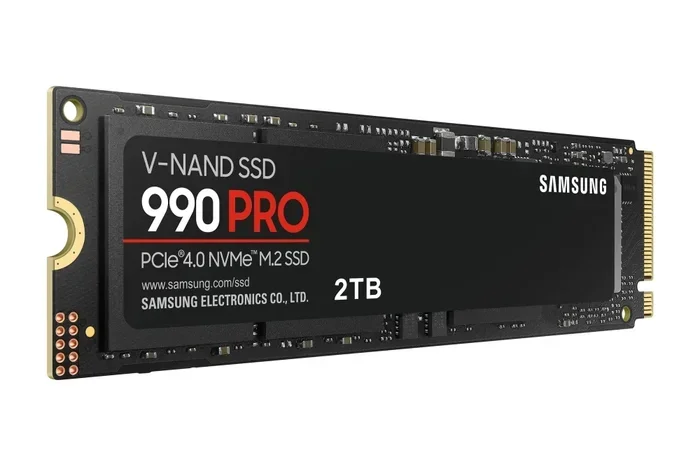
- Samsung 990 Pro: The perennial flagship. Consistently tops sequential and random read/write charts. Excellent all-around performance and Samsung’s renowned reliability and Magician software suite. The go-to for no-compromise builds.
- WD Black SN850X: Samsung’s closest rival. Often matches or beats the 990 Pro in game loading benchmarks. Features a cool, optional heatsink version perfect for PlayStation 5 expansion (which requires a PCIe 4.0 drive with a heatsink). Incredibly consistent performance.
- Solidigm P44 Pro: A relative newcomer (from Intel’s former storage division), but it punches way above its weight. It often trades blows with the Samsung and WD flagships in performance while frequently being available at a lower price. Excellent choice for value-conscious performance seekers.
The Value Champions (Gen3 & Gen4)
These drives offer 90-95% of the performance of the flagships for 70-80% of the price. They are the smart choice for the vast majority of users.
- Crucial P5 Plus (Gen4): A long-time favorite. It offers excellent Gen4 speeds, great endurance, and Micron’s quality control at a very attractive price. Often the best “bang for buck” in the Gen4 space.
- WD Blue SN580 (Gen4): The mainstream workhorse. It’s a DRAM-less design but uses fast HMB (Host Memory Buffer) technology. For general use, gaming, and light creative work, you will not notice the difference compared to a flagship. Its price is frequently superb.
- Samsung 970 EVO Plus (Gen3): If your motherboard is PCIe 3.0, this is arguably the best Gen3 drive ever made. It’s still an incredibly fast drive by any measure and can often be found on sale for a song. A perfect match for a Gen3 platform.
- SK Hynix Gold P31 (Gen3): Another Gen3 legend. Known for exceptional power efficiency (great for laptops) and top-tier Gen3 performance. Sometimes outperforms even some early Gen4 drives in real-world application loads.
Key Brands & What They Mean
Stick with major, reputable brands: Samsung, Western Digital (WD), Crucial (Micron), Solidigm, SK Hynix, Seagate, and Kingston. These companies have their own NAND flash and controller designs or use high-quality components from partners. Avoid unknown, ultra-cheap brands on Amazon or eBay. They often use recycled or inferior NAND, poor controllers, and lack proper firmware support, leading to data loss, slowdowns, and premature failure. Your data is worth the investment in a known brand.
Thermals, Endurance, and the Fine Print: What Specs Don’t Tell You
Don’t just look at the sequential read/write numbers. Two other factors are crucial for long-term satisfaction and performance: heat and endurance.
Heat is the Silent Throttler
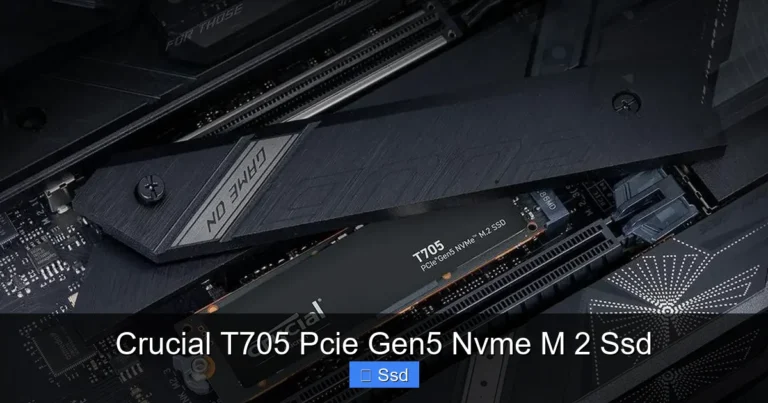
High-speed NVMe SSDs generate significant heat, especially during sustained large file transfers or heavy workloads. When the drive’s internal temperature controller (throttling) kicks in to prevent damage, it will deliberately slow down to cool off. This can cause your once-blazing fast drive to drop to SATA SSD speeds mid-transfer. Solution: Many Gen4 drives come with an integrated heatsink (like the WD SN850X). If yours doesn’t, check if your motherboard’s M.2 slot has a built-in metal heatsink/heatspreader. If not, consider buying a cheap, adhesive M.2 heatsink. Ensure your case has good airflow over the motherboard area. For most users in a well-ventilated case, throttling isn’t a daily issue, but it’s a real factor in sustained workloads.
TBW (Terabytes Written) & Endurance
Every NAND cell has a limited number of write cycles before it wears out. TBW is the manufacturer’s warranty guarantee—the total amount of data you can write to the drive over its lifespan before it’s likely to fail. For a consumer M.2 NVMe SSD 1TB, a TBW of 600-1,200 TBW is typical. What does that mean? If your TBW is 600, you could write 100GB to the drive every single day for over 16 years before hitting the warranty limit. For the vast majority of home users, even heavy gamers and writers, you will never reach the TBW limit. The drive will become obsolete due to capacity or technology long before it wears out. Don’t stress about this number unless you are doing professional, 24/7 video surveillance or massive database writes. Focus on the warranty period (usually 5 years) as a general quality indicator.
DRAM vs. DRAM-Less: Does It Matter?
High-end NVMe SSDs have a small, fast DRAM cache chip. This cache stores the mapping table (a directory of where all your data is physically stored on the NAND), speeding up random read/write performance. DRAM-less drives use a portion of your system’s RAM (via the HMB feature in the NVMe spec) for this mapping table. For sequential large-file transfers, the difference is negligible. For heavy multitasking with many small files (like booting an OS with hundreds of processes), a DRAM cache can provide slightly more consistent performance. However, modern DRAM-less controllers (like Phison’s E21T used in many value drives) are very good. For most users, the performance difference in everyday tasks is imperceptible. You’re better off saving money and choosing a well-reviewed DRAM-less drive than overspending for a marginal spec.
Beyond the Desktop: Where Else Can You Use an M.2 NVMe SSD 1TB?
The use cases for this versatile drive extend far beyond a traditional desktop PC tower.
The Ultimate Laptop Upgrade
If you have a laptop with an M.2 slot (and many from the last 5 years do), replacing a slow 256GB or 512GB NVMe SSD with a M.2 NVMe SSD 1TB is the single best upgrade you can make. It’s a 5-minute job that will make an old laptop feel brand new—faster boot, quicker app launches, more responsive overall. Just ensure the physical size (2280) and the interface (PCIe NVMe) match. This is a huge perk for productivity laptops, ultrabooks, and gaming laptops.
PlayStation 5 & Xbox Series X/S Expansion
Both next-gen consoles support adding extra storage via an M.2 NVMe SSD slot. For the PS5, the requirements are specific: it must be a PCIe 4.0 NVMe SSD with a heatsink (or you add one) of at least 1TB capacity (officially, though 1TB works) and meet Sony’s speed requirements (5500 MB/s minimum read). A M.2 NVMe SSD 1TB like the WD Black SN850X with heatsink is a perfect, certified-for-PS5 option. It expands your game library without sacrificing load times. Xbox Series X uses a proprietary expansion card format, so standard M.2 NVMe SSDs are not compatible there.
External Enclosures & Portable Drives
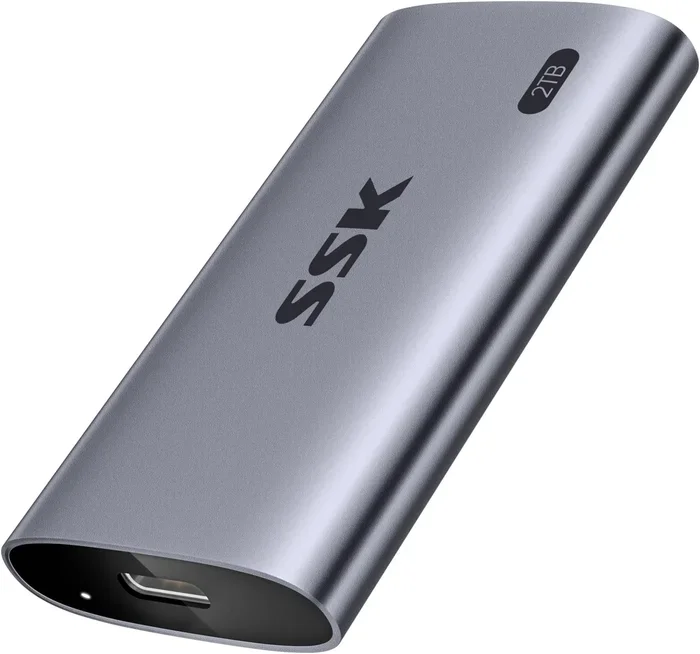
You can buy an inexpensive USB 3.2 Gen 2 or Thunderbolt 3/4 external enclosure for an M.2 NVMe SSD. Pop your new 1TB drive in, and you have a blisteringly fast portable SSD that can rival or beat commercial solutions like the Samsung T7 Shield or SanDisk Extreme Portable. This is great for photographers, videographers, or anyone who needs to move large files between computers quickly. A Thunderbolt enclosure will let the drive approach its full internal speeds.
Small Form Factor (SFF) & HTPC PCs
The M.2 form factor is a godsend for compact mini-ITX builds, Home Theater PCs (HTPCs), and ultra-small form factor (USFF) office PCs. It eliminates the need for a 2.5-inch drive bay and power cables, saving precious space and simplifying cable management in cramped cases. A M.2 NVMe SSD 1TB provides all the storage needed for a media center or a compact office workstation without any performance compromise.
Future-Proofing Your Investment: What’s Next?
Technology never stands still. Is buying an NVMe SSD today a waste if PCIe 5.0 and 6.0 are coming? Absolutely not.
The PCIe 5.0 Reality Check
Yes, PCIe 5.0 drives are here, with theoretical speeds double that of PCIe 4.0. But here’s the catch: for the vast majority of consumer workloads—gaming, general computing, even 4K video editing—you cannot saturate a good PCIe 4.0 drive. The bottleneck is rarely the storage’s maximum sequential speed; it’s the game engine, the video codec, or the CPU’s ability to process data. PCIe 5.0 drives also run extremely hot, require large, expensive heatsinks, and command a significant price premium. For now, a high-quality M.2 NVMe SSD 1TB on the PCIe 4.0 platform is the pinnacle of practical performance. PCIe 5.0 will become relevant for specialized enterprise and professional workloads first.
The Importance of Good NAND & Controllers
Future speed gains will come from advancements in NAND technology (like more layers in 3D NAND, new cell types like PLC) and smarter, more efficient controllers. Buying from a top-tier brand today means you’re getting a drive with firmware that can be updated, and a design that will age well. These companies are already developing their next-gen controllers and will have upgrade paths for their existing platforms.
Your Upgrade Path is Secure
The beauty of the M.2 slot is that it’s a standard. In 3-5 years, when you feel like a boost, you can buy a new, faster PCIe 5.0 or 6.0 M.2 NVMe SSD 1TB (or 2TB), pop it in, and clone your old drive. The physical interface will be the same. Your investment in a quality motherboard with a good M.2 slot today protects your future upgrade path. The 1TB capacity will likely feel smaller in the future, but as a primary system drive, it will remain a highly functional size for years to come. You are buying into a stable, long-term ecosystem.
Conclusion: The No-Brainer Upgrade
Let’s bring it home. If you are still using a hard drive, the move to any SSD is revolutionary. If you are using a SATA SSD, the move to an M.2 NVMe SSD 1TB is the next logical, massive leap in perceived system speed. The 1TB capacity hits that perfect sweet spot of providing generous space for your digital life without breaking the bank. The installation is simpler than plugging in a USB drive. The performance gains are immediately tangible in everything you do, from booting up to loading games to editing videos.
Do your homework on compatibility—check that M.2 slot and PCIe generation. Then, pick a reputable brand from the value or performance tier that fits your budget. You will not regret it. This isn’t just an incremental upgrade; it’s a fundamental improvement to the responsiveness of your entire computing experience. It’s the upgrade that makes you wonder how you ever tolerated the old way. So, do yourself a favor. Choose a great M.2 NVMe SSD 1TB, install it, and get ready to be amazed at how fast your computer can truly be.
Frequently Asked Questions
Will an M.2 NVMe SSD 1TB work in an older desktop or laptop?
It will only work if your motherboard or laptop has an M.2 slot that specifically supports the PCIe NVMe protocol. Many older systems (pre-2015 for desktops, pre-2017 for laptops) lack this slot. You can check your motherboard manual or use a system information tool. If there’s no M.2 slot, you cannot use this type of drive.
Do I need to buy a heatsink for my M.2 NVMe SSD 1TB?
It depends. Many Gen4 drives come with a heatsink pre-attached, which is ideal. Many motherboards also have metal M.2 heatsinks built into the slot. If your drive and motherboard both lack heatsinks, and you have a Gen4 drive in a system with poor airflow, you might experience thermal throttling during heavy sustained workloads. For most general gaming and productivity use in a well-ventilated case, a heatsink is recommended but not always strictly necessary.
What’s the real-world difference between a PCIe 3.0 and PCIe 4.0 M.2 NVMe SSD 1TB?
In everyday tasks like booting Windows, launching applications, and loading most games, the difference is often negligible—both feel instant. The gap becomes visible in large, sustained file transfers (e.g., moving 100GB of video files) and in professional applications that can leverage the extra bandwidth, like 4K/8K video editing or large dataset compilation. For the average user, a good PCIe 3.0 drive is still incredibly fast.
How long will a 1TB NVMe SSD last? Is the write endurance a concern?
For normal consumer use, endurance is not a concern. A typical 1TB consumer NVMe SSD has a warranty for 5 years or 600-1,200 TBW (Terabytes Written). To reach that TBW, you’d have to write 100+ gigabytes to the drive every single day for over a decade. The drive will likely be obsolete due to capacity or technology long before it wears out from normal use.
Can I clone my old hard drive/SATA SSD to the new M.2 NVMe SSD 1TB?
Yes, absolutely. You’ll need cloning software (like Samsung Data Migration for Samsung drives, Macrium Reflect Free, or Clonezilla). You typically connect both drives (old and new NVMe) to your PC simultaneously. The software copies everything from the old drive to the new one. After cloning, you go into the BIOS/UEFI and change the boot order to prioritize the new NVMe drive, then boot from it. Always back up your important data before cloning.
Is a 1TB NVMe SSD worth the extra cost over a 512GB model?
For a primary system drive, almost certainly yes. The price per gigabyte is usually better on the 1TB model compared to the 512GB. More importantly, 512GB fills up very quickly with a modern OS, essential software, and a few games. The 1TB capacity provides essential breathing room, preventing you from constantly managing storage and uninstalling games to make space. It’s the recommended minimum for a hassle-free, high-performance main drive in 2024.