The WD Blue NVMe SSD is Western Digital’s value-focused entry into the high-speed M.2 storage market. It delivers a significant performance leap over traditional SATA SSDs for common tasks like booting, loading applications, and general system responsiveness, all at a competitive price point. While it may not compete with top-tier enthusiast drives in sustained sequential speeds, its real-world performance for mainstream users is excellent, backed by WD’s reliability and a 5-year warranty. It’s an ideal, no-fuss upgrade for boosting the speed of an older laptop or desktop.
So, you’ve heard about NVMe SSDs. That blazing-fast storage that makes your old computer feel like a new one. You know you want one, but looking at prices, your wallet starts to sweat. Then you see it: the WD Blue NVMe SSD. It’s from Western Digital, a name you trust, but it’s not the fancy “Black” or “SN850” series. What is this thing? Is it the real deal, or just a cheap trick? Let’s pull back the curtain and take a friendly, detailed walk through everything you need to know about this popular drive. Think of this as your coffee chat with a tech-savvy friend who’s done the research.
For years, if you wanted a fast SSD, you got a SATA drive. They were (and still are) great—way faster than old hard drives. But then came the M.2 slot and the NVMe protocol. It was a revolution. Instead of a cable and a 2.5-inch box, you get a tiny stick that slides directly into your motherboard, talking to the CPU at lightning speed. The WD Blue NVMe SSD is Western Digital’s answer to the question: “How do we bring this NVMe magic to regular folks without the premium price?” It’s not about being the absolute fastest on the planet. It’s about being the smartest, most sensible upgrade for the vast majority of us.
Key Takeaways
- Value-Driven Performance: It offers a massive speed upgrade over SATA SSDs for boot times and app loading at a budget-friendly NVMe price.
- Targeted for Mainstream Use: Optimized for everyday computing, general productivity, and light gaming, not extreme professional workloads.
- Reliability & Warranty: Backed by Western Digital’s reputation, with a 5-year limited warranty and solid TBW (Total Bytes Written) endurance ratings.
- Simple M.2 Form Factor: Uses the common 2280 size (22mm wide, 80mm long), ensuring compatibility with most modern motherboards and laptops.
- No DRAM Cache Design: Employs a host memory buffer (HMB) technology, which is common in value NVMe drives and works well for its intended use cases.
- Easy Installation: A straightforward screw-in installation process for desktops; often a simple clip-in for laptops (varies by model).
- Not for Peak Sequential Demands: Its sequential read/write speeds, while fast, are lower than premium NVMe drives, which matters most for large, sustained file transfers.
📑 Table of Contents
- What Exactly Is the WD Blue NVMe SSD?
- Under the Hood: Specs, Tech, and What It Means for You
- Real-World Performance: Benchmarks and Daily Use
- Who Is This Drive For? (And Who Should Look Elsewhere?)
- How to Install Your WD Blue NVMe SSD: A Simple Guide
- WD Blue NVMe vs. The Competition: Where Does It Stand?
- Future-Proofing and Long-Term Value
- Conclusion: The Verdict on the WD Blue NVMe SSD
What Exactly Is the WD Blue NVMe SSD?
Let’s get our definitions straight. “NVMe” stands for Non-Volatile Memory Express. It’s a communication protocol designed from the ground up for flash memory (like SSDs), unlike the older AHCI protocol used for SATA drives that was originally for spinning hard disks. “M.2” refers to the physical form factor—a small, gumstick-shaped module that plugs into an M.2 slot on your motherboard. The WD Blue NVMe SSD is Western Digital’s consumer-grade, value-oriented drive that uses this M.2 form factor and the NVMe protocol.
It’s crucial to understand where it lives in WD’s family tree. They have the high-performance WD Black SN850X (often with a heatsink) for gamers and pros. They have the ultra-reliable, high-endurance WD Gold for servers and workstations. The Blue NVMe sits squarely in the mainstream consumer segment. It’s the spiritual successor to the incredibly popular 2.5-inch WD Blue SATA SSD, but now on the faster NVMe highway. Its goal is simple: provide a noticeable, day-to-day speed boost for a price that doesn’t require a second mortgage.
The Philosophy of “Good Enough” Performance
The magic of the WD Blue NVMe isn’t in its peak benchmark numbers on a spec sheet. It’s in its real-world application. For tasks like booting your operating system, launching programs, loading game levels, or opening large documents, the difference between a good SATA SSD and a good NVMe SSD like the Blue is often seconds shaved off your wait time. That feels magical. That feels like a upgrade.
Where you won’t see a night-and-day difference is when you’re moving a single, massive 100GB video file from one folder to another. In that specific, sustained sequential workload, a premium NVMe drive with higher write speeds and a DRAM cache will pull ahead. But how often do you, the average user or even the enthusiastic gamer, do that? The WD Blue NVMe is engineered to excel at the workloads you actually do 95% of the time. It’s a pragmatic performance choice.
Under the Hood: Specs, Tech, and What It Means for You
Numbers tell a story, but you have to know how to read them. Let’s break down the key specs of the WD Blue NVMe SSD and translate them from tech jargon to practical meaning.
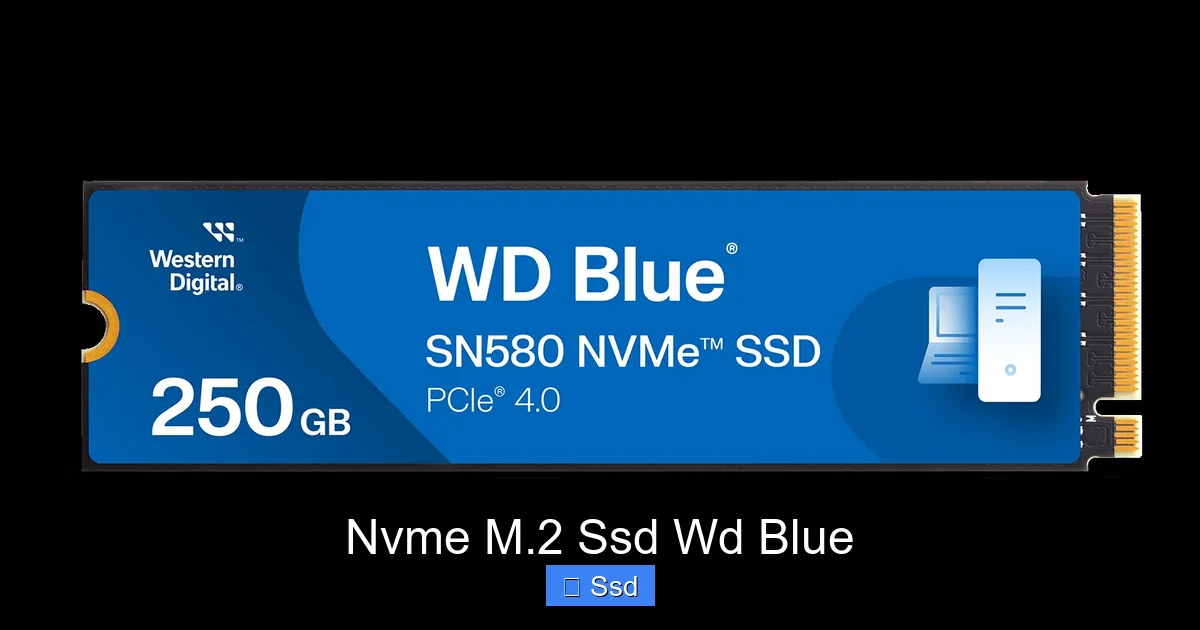
Visual guide about Nvme M.2 Ssd Wd Blue
Image source: shop.sandisk.com
- Interface & Form Factor: PCIe Gen3 x4, M.2 2280. This means it uses the third generation of the PCIe bus (still the most common and cost-effective for mainstream drives) and fits in any standard M.2 slot that supports NVMe. It’s not compatible with the older, slower M.2 SATA slots (though physically, the keying is different, so you usually can’t plug it in wrong).
- Sequential Speeds: Up to ~3,900 MB/s read and ~1,500 MB/s write (varies by capacity). Compare this to a top SATA SSD maxing out at ~550 MB/s. That’s a huge theoretical leap. In practice, you’ll see massive gains in OS boot, game load screens, and app launches.
- Random Read/Write (IOPS): This is arguably more important for overall system “snappiness” than sequential speeds. The Blue NVMe offers strong 4K random read/write performance (e.g., 600K/500K IOPS), which handles thousands of small file operations—exactly what an OS does constantly.
- DRAM & HMB: This is a key differentiator. High-end drives have a dedicated DRAM cache on the PCB to store the flash translation layer (FTL) map. The WD Blue NVME does not have a DRAM cache. Instead, it uses Host Memory Buffer (HMB) technology. It borrows a small slice (up to 64MB) of your system’s RAM to perform that mapping function. For its target use case, HMB works very well and is a standard cost-saving measure in the value NVMe segment. Don’t fear it; it’s a smart design choice here.
- Endurance (TBW) & Warranty: WD rates these drives for between 300 TBW (500GB) and 600 TBW (1TB). TBW stands for Terabytes Written—the total amount of data you can write before the drive is likely to wear out. For a general user, 300-600 TBW is an astronomically high number. You’d have to write over 50GB of data every single day for 5 years to hit 300 TBW. It comes with a 5-year limited warranty, which is excellent and builds confidence in its longevity.
- Controller & NAND: It typically uses a Silicon Motion SM2263EN or similar controller and WD’s own 64-layer 3D TLC NAND flash memory. TLC (Triple-Level Cell) is the standard for consumer drives, offering a good balance of cost, speed, and endurance.
Real-World Performance: Benchmarks and Daily Use
Specs are one thing. How does it actually feel? We need to separate synthetic benchmarks (what a tool like CrystalDiskMark reports) from the lived experience of using your computer.
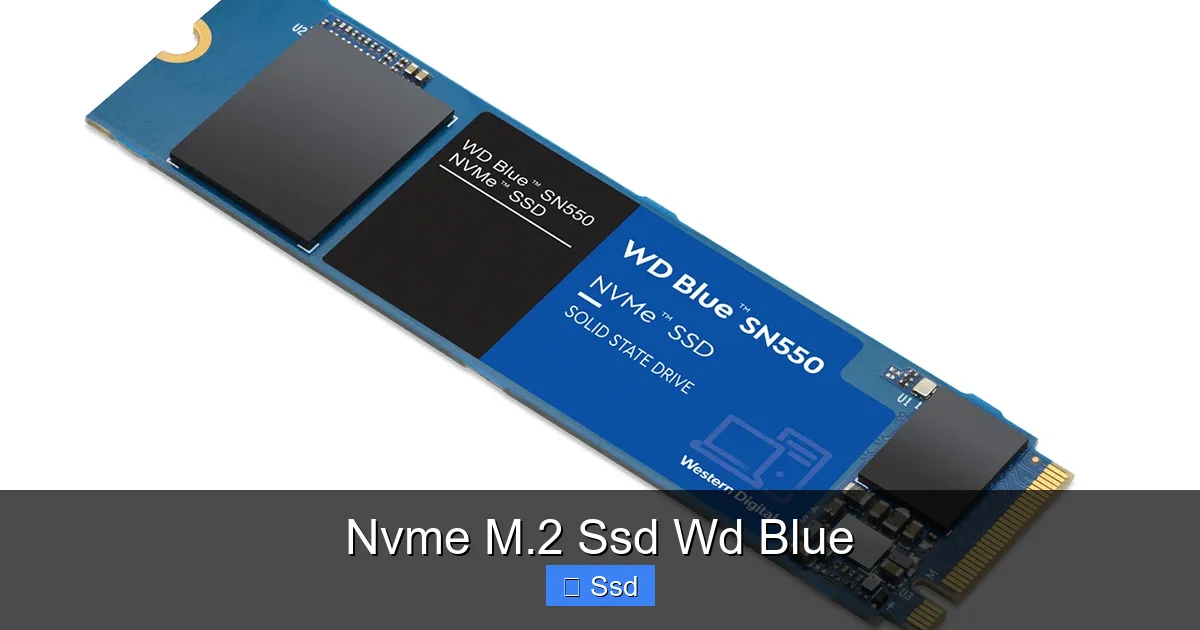
Visual guide about Nvme M.2 Ssd Wd Blue
Image source: umsindisitech.co.za
The “Boot and Load” Test
This is the most visceral test. With a fresh Windows 11 install on a WD Blue NVMe 1TB, a cold boot (from power-on to desktop) typically takes in the 8-12 second range on a modern system. That’s comparable to much more expensive drives. Launching a large application like Adobe Photoshop or a modern AAA video game? The difference between a SATA SSD and the Blue NVMe is often 2-5 seconds. That’s the upgrade you’ll feel every single day. It’s the difference between “I’ll go make coffee while it loads” and “Oh, it’s ready.”
File Transfers and Productivity
Moving a folder of mixed small files (documents, images, code projects) is snappy. The high random read/write speeds shine here. For a creative professional moving multi-gigabyte video project files, the write speed will feel fast, but you might notice a premium drive sustaining a higher speed for longer. For a student or office worker moving spreadsheets and PDFs? It’s instantaneous.
In productivity suites like Microsoft Office or Google Workspace, the benefit is less about raw file open speed and more about the overall system feeling responsive while multiple apps are running. That’s where the low latency of NVMe, even in a value drive, makes the entire experience smoother.
Gaming: The Load Screen Lottery
This is a hot topic. Does an NVMe SSD make you a better gamer? No. Does it make loading into matches in Call of Duty: Warzone or Cyberpunk 2077 faster? Absolutely. You’ll hit the play button and be in the action sooner. Open-world games with frequent area streaming benefit the most. However, once the level is loaded, your frame rate is dictated by your GPU and CPU, not your storage. The WD Blue NVMe is a fantastic gaming upgrade from a hard drive or old SATA SSD, getting you into the game faster.
Who Is This Drive For? (And Who Should Look Elsewhere?)
This is the most important section. The perfect drive for one person is the wrong drive for another. Let’s match the WD Blue NVMe SSD to the right user.
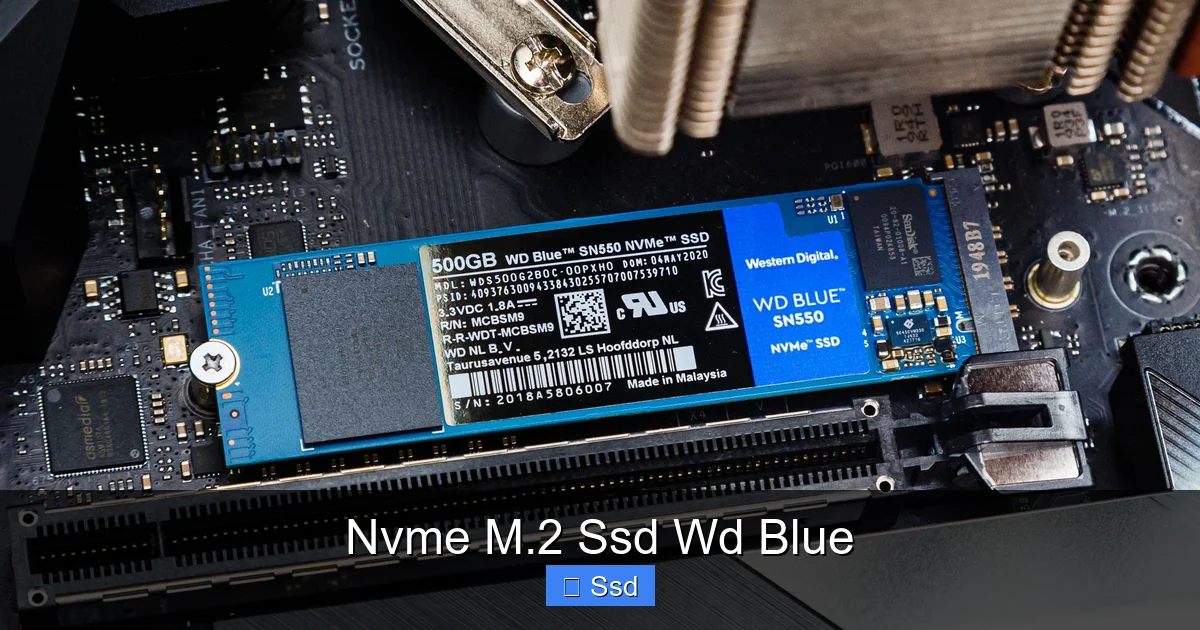
Visual guide about Nvme M.2 Ssd Wd Blue
Image source: cdn.mos.cms.futurecdn.net
The Ideal WD Blue NVMe Owner:
- The Mainstream Upgrader: You have a desktop or laptop from the last 4-5 years with an old hard drive or a SATA SSD. You want a simple, significant speed boost for booting, loading programs, and general use without spending a fortune.
- The Budget-Conscious Builder: You’re building a new PC on a tight budget but don’t want to compromise on storage speed. You’d rather put more money into a better GPU or CPU and get a reliable, fast NVMe boot drive.
- The Laptop Refresher: Your laptop feels slow, and you’ve confirmed it has an available M.2 slot (or you’re replacing the existing 2.5” drive with an M.2 adapter). The Blue NVMe is a top contender for breathing new life into an older machine.
- The Casual Gamer & General User: You play games, do some school or office work, browse the web, and stream media. You want fast load times but don’t do professional video editing or massive database work.
Who Should Consider a Different Drive?
- The Enthusiast/Performance Seeker: If you want the absolute highest sequential speeds for constant, large file transfers (e.g., 4K/8K video editing, working with massive datasets), look at PCIe 4.0 drives like the WD Black SN850X or Samsung 980 Pro. They are faster in sustained writes and often have DRAM caches.
- The Professional with High Endurance Needs: If you write hundreds of gigabytes to your drive every single day (heavy video editing, virtual machines, server work), look at higher TBW drives like the WD Gold or Samsung 870 EVO (SATA) for sheer endurance, or prosumer NVMe drives like the Samsung 990 Pro.
- The User with a PCIe 3.0 M.2 Slot: This is actually the Blue NVMe’s perfect home. But if you have a PCIe 4.0 or 5.0 motherboard and want to use that full bandwidth, a Gen4 drive will be faster (though often more expensive and can run hotter).
- Someone Needing a 2.5” SATA Form Factor: Obviously, if your system only has a 2.5” bay and no M.2 slot, you need a SATA SSD like the standard WD Blue SATA.
How to Install Your WD Blue NVMe SSD: A Simple Guide
Don’t be intimidated. Installing an M.2 SSD is one of the easiest upgrades you can do. Here’s a step-by-step for a desktop. Laptop steps are similar but may require removing the bottom panel.
Step 1: Safety First. Shut down your computer completely. Unplug the power cable. Press the power button for a few seconds to discharge any residual power. Ground yourself by touching the metal chassis or use an anti-static wrist strap. Static electricity can kill electronics.
Step 2: Find the M.2 Slot. On your motherboard, look for a long, narrow slot, usually labeled “M.2” or “NVMe.” It’s often located between the PCIe slots or near the CPU. Consult your motherboard manual if unsure.
Step 3: Prepare the Slot. You’ll see a small screw holding a standoff (a tiny metal pillar) at the far end of the slot. Unscrew and remove it. Keep the screw safe.
Step 4: Install the SSD. Hold the WD Blue NVMe by the edges. Align the notch on the gold contacts (the key) with the key in the M.2 slot. It only fits one way. Gently but firmly push it in at a slight angle (about 30 degrees) until it clicks into place. Then, lay it flat onto the standoff location.
Step 5: Secure It. Place the screw you removed earlier through the hole in the SSD’s label and screw it down into the standoff. Don’t overtighten; snug is fine. That’s it!
Step 6: First Boot & Setup. Power on your PC. Enter your BIOS/UEFI (usually by pressing Del or F2 during boot). You should see the new drive listed. You may need to enable NVMe in the BIOS if it’s not already. Save and exit. In Windows, go to Disk Management, initialize the new disk, and create a new simple volume. Follow the wizard, and you’re ready to install games or clone your old drive.
WD Blue NVMe vs. The Competition: Where Does It Stand?
The value NVMe segment is crowded. Let’s see how the WD Blue NVMe SSD stacks up against its main rivals.
vs. Samsung 980 (non-Pro)
The Samsung 980 is a direct competitor. Both are DRAM-less Gen3 drives using HMB. Performance is very similar in real-world use. Samsung often has a slight edge in sustained writes due to its more advanced controller. Prices fluctuate, but they are usually neck-and-neck. The WD Blue often has a slightly higher TBW rating for the same capacity. It’s essentially a toss-up based on current sale price.
vs. Crucial P3 / P3 Plus
Crucial (Micron) is another giant. The P3 is their Gen3 value drive, and the P3 Plus is Gen4. The P3 is a very close competitor to the WD Blue NVMe, often priced aggressively. Performance is comparable. The P3 Plus, being Gen4, has higher sequential speeds on paper, but in many real-world tasks, the difference from a good Gen3 drive is minimal unless you’re doing large, sustained transfers. If the price gap is small, the P3 Plus is a great future-proof choice.
vs. WD Black SN570
This is an interesting internal comparison. The WD Black SN570 is WD’s slightly more performance-oriented Gen3 drive (also DRAM-less). It typically has higher sequential write speeds than the Blue NVMe. The Blue NVMe often has a better warranty/TBW. The SN570 might be a few dollars more. For most users, the Blue is the better value. For someone doing more creative work, the SN570’s extra write speed might be worth it.
The Bottom Line in Comparisons
In this price bracket, you’re getting 95% of the everyday NVMe experience from any of these drives. The differences in boot times and game loads are measured in fractions of a second. Choose based on: 1) Current Price. 2) Warranty/TBW. 3) Brand preference/trust. The WD Blue NVMe SSD consistently ranks at the top of this list thanks to its strong balance of performance, warranty, and WD’s brand reliability.
Future-Proofing and Long-Term Value
Is buying a PCIe 3.0 drive in 2024 a mistake with PCIe 4.0 and 5.0 around? For the target user of the WD Blue NVMe, the answer is a confident no.
Think about your computer’s bottleneck. For the vast majority of tasks—browsing, office work, gaming (where the GPU is king)—a PCIe 3.0 NVMe drive is already so far beyond the speed of SATA that you’re in “more than enough” territory. The jump from SATA to PCIe 3.0 NVMe is monumental. The jump from PCIe 3.0 to PCIe 4.0 is significant on paper (roughly double the bandwidth) but less perceptible in daily use for most.
Furthermore, the WD Blue NVMe SSD’s 5-year warranty is a statement of confidence in its longevity. By the time you might realistically need to upgrade for speed reasons (likely 4-6 years from now), PCIe 5.0 and 6.0 will be mainstream, and prices for current-gen drives will be even lower. You’re not buying a dead-end product; you’re buying a high-value, high-performance component that will serve you excellently for the useful life of your current PC build or laptop.
Its value proposition is this: you get 90% of the NVMe experience for 70% of the price of a top-tier drive. That’s smart spending. That’s future-proofing your wallet as much as your computer.
Conclusion: The Verdict on the WD Blue NVMe SSD
So, after all this, should you buy the WD Blue NVMe SSD? If your needs align with the “Ideal Owner” profile we discussed—you want a simple, fast, reliable upgrade for a desktop or laptop without overspending—then the answer is a resounding yes.
It’s not the flashiest, fastest, or most extreme product on the market. But it doesn’t try to be. It is a masterclass in targeted engineering. It delivers the core promise of NVMe—blistering speed for your operating system and applications—at a price that makes sense for the mainstream user. The lack of a DRAM cache is a non-issue for its intended purpose, the HMB technology works beautifully, and the 5-year warranty provides peace of mind.
When you boot up your computer and it’s ready before you can finish your first sip of coffee; when your favorite game loads into the world in what feels like half the time; when you’re moving files around and nothing feels sluggish—that’s the WD Blue NVMe SSD doing its job. It’s the workhorse that quietly makes your computer feel fast every single day. In a market full of hype and sky-high specs, that kind of sensible, effective performance is worth its weight in gold. For your next storage upgrade, give the WD Blue NVMe a very serious look. It’s very likely the exactly-right drive you’ve been searching for.
Frequently Asked Questions
Is the WD Blue NVMe SSD good for gaming?
Yes, absolutely. It significantly reduces game load times compared to SATA SSDs and hard drives. While top-tier NVMe drives may load a few seconds faster in some titles, the WD Blue provides an excellent, noticeable improvement for most gamers at a great price.
Does the WD Blue NVMe SSD need a heatsink?
For most users in a case with decent airflow, a heatsink is not necessary. The drive is designed to operate within safe thermal limits without one. However, if your motherboard’s M.2 slot has a built-in heatsink or you have poor case airflow, adding a heatsink can help maintain peak performance during very long, sustained writes.
Can I use the WD Blue NVMe SSD in my laptop?
Yes, if your laptop has an available M.2 slot that supports NVMe (PCIe). Many modern ultrabooks and gaming laptops use this form factor. Check your laptop’s specifications or service manual to confirm compatibility before purchasing.
What’s the difference between the WD Blue NVMe and the WD Black SN570?
The WD Black SN570 is a slightly more performance-oriented sibling with higher sequential write speeds. The WD Blue NVMe often has a higher TBW (endurance) rating for the same capacity. For most everyday users, the performance difference is negligible, and the Blue often represents better value.
Is a DRAM-less SSD like the WD Blue NVMe bad?
No, it’s not “bad.” For mainstream use (OS boot, app loading, gaming), the Host Memory Buffer (HMB) technology it uses is highly effective and a standard cost-saving measure in the value NVMe segment. It’s a smart design choice for this price point and does not meaningfully hurt real-world performance for its target audience.
Will the WD Blue NVMe SSD work on a PCIe 4.0 motherboard?
Yes. NVMe SSDs are backward and forward compatible within the PCIe specification. A PCIe 3.0 drive like the WD Blue NVMe will work perfectly in a PCIe 4.0 or 5.0 M.2 slot. It will simply operate at PCIe 3.0 speeds, which is its maximum capability.