Nvme M.2 Ssd Wd Blue Driver Download
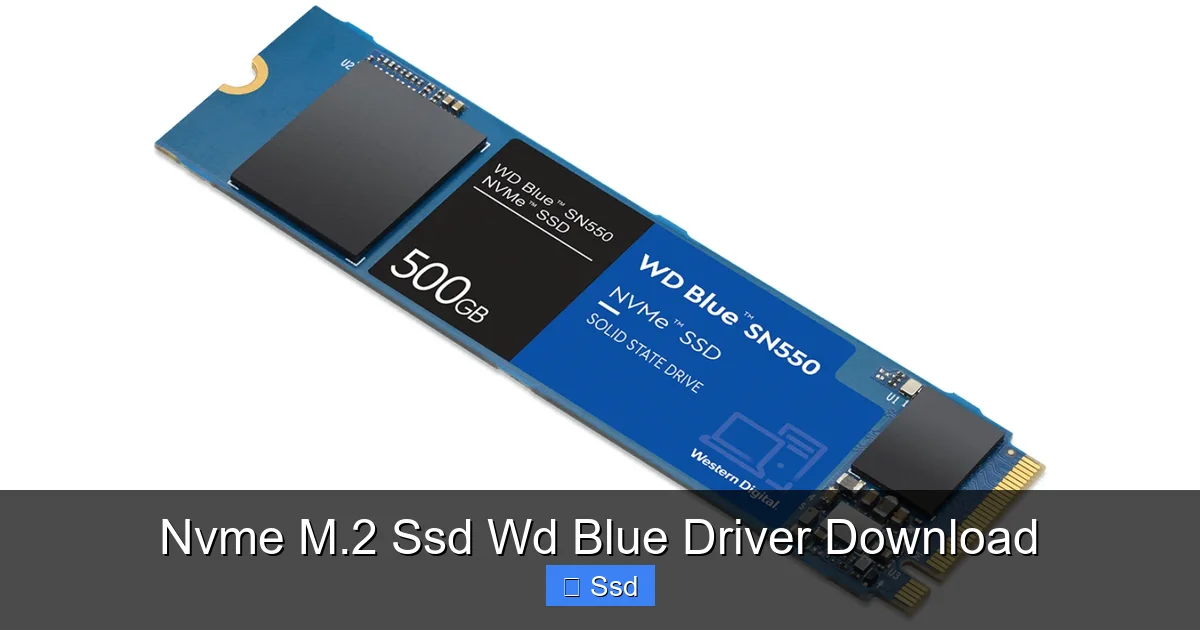
Most users do not need to manually download a driver for a WD Blue NVMe SSD. Modern operating systems like Windows 10 and 11 include native NVMe drivers that work perfectly. The primary software from Western Digital is the WD Dashboard, a utility for drive health monitoring, firmware updates, and performance optimization. You only need a specific driver in rare cases of compatibility issues with older systems or specific motherboard chipsets. Always get software directly from WD’s official support site to ensure safety and compatibility.
So you’ve just unboxed your shiny new WD Blue NVMe SSD. You’ve screwed it into your motherboard’s M.2 slot, closed up your PC, and… it’s not showing up? Or maybe you’re just a proactive planner, wanting to “get all the drivers” before you begin. Your search for “nvme m.2 ssd wd blue driver download” has led you here, and you’re likely feeling a mix of excitement and confusion. Let’s clear the air immediately: for the vast majority of users, you do not need to manually download and install a specific driver for your WD Blue NVMe SSD. The process is far simpler—and largely automatic—than that search query implies. This article will walk you through exactly what software you do need, where to get it, and how to ensure your new drive is running perfectly.
The confusion is understandable. For decades, installing a new hard drive often meant hunting for a manufacturer’s disk or website to find a driver, especially for older IDE or SATA drives. The world of NVMe (Non-Volatile Memory Express) SSDs, which connect via the PCIe bus, operates on a different, more modern principle. The foundation of this principle is standardization. The NVMe specification is a universal standard, and major operating systems have baked native, high-performance support for it directly into the kernel. When you boot your system with a WD Blue NVMe SSD installed, Windows 10, Windows 11, or a recent version of Linux will almost certainly detect it, load its generic NVMe driver, and have it ready to initialize and format in minutes. The “driver” you’re looking for is already inside your OS.
So, what is the “nvme m.2 ssd wd blue driver download” really about? It’s about the supplemental software package that Western Digital provides to enhance your ownership experience. This package is centered around the WD Dashboard. Think of the built-in OS driver as the basic engine that makes the car move. WD Dashboard is the advanced diagnostic suite, the maintenance scheduler, and the firmware update mechanic all rolled into one. This guide will dismantle the driver myth, point you to the correct official download page, explain exactly what the WD Dashboard does, and provide a step-by-step troubleshooting flowchart for when things don’t go as planned. By the end, you’ll be an expert on getting the most from your WD Blue NVMe SSD, with zero unnecessary driver hunting.
Key Takeaways
- Native OS Support: Windows 10/11 and modern Linux kernels have built-in, generic NVMe drivers that automatically detect and operate WD Blue SSDs without any manual installation.
- WD Dashboard is Key: The essential Western Digital software is the “WD Dashboard” utility, not a standalone driver. It provides drive health (S.M.A.R.T.), firmware updates, and drive diagnostics.
- Driver Download is Rare: Manually downloading a specific “.inf” driver is typically only necessary for legacy systems (e.g., Windows 7) or to resolve a specific conflict identified in troubleshooting.
- Download from Official Sources Only: Always obtain software from the official Western Digital support page for your exact SSD model (e.g., WDS500G2B0C) to avoid malware and ensure compatibility.
- Firmware vs. Driver: Firmware is the SSD’s internal software; updating it via WD Dashboard can fix bugs and improve performance. A driver is the software that lets the operating system communicate with the hardware.
- Check BIOS/UEFI First: Before seeking drivers, ensure your motherboard BIOS/UEFI is updated and that the M.2 slot is enabled and operating in NVMe mode (not SATA mode).
- Performance is OS-Dependent: The SSD’s maximum speed depends on your system’s PCIe generation (3.0 vs. 4.0) and CPU, not just the drive itself. The generic driver handles this bandwidth negotiation automatically.
📑 Table of Contents
- Understanding the Technology: NVMe, M.2, and the WD Blue
- The Great Driver Myth: Why You (Probably) Don’t Need One
- The Real Download: WD Dashboard and Official Software
- Step-by-Step: Initial Installation and Setup of Your WD Blue NVMe SSD
- Troubleshooting: What to Do If Your SSD Isn’t Showing Up
- Optimizing Performance and Longevity Beyond the Driver
- Conclusion: Simplify Your SSD Setup
Understanding the Technology: NVMe, M.2, and the WD Blue
Before we talk software, we must clarify the hardware. The term “WD Blue NVMe M.2 SSD” is a triple descriptor, and misunderstanding any part of it leads to software confusion.
Decoding “NVMe” vs. “SATA”
This is the most critical distinction. WD Blue SSDs come in two primary interface types for the M.2 form factor:
- WD Blue NVMe SSD: Uses the PCIe (Peripheral Component Interconnect Express) bus and the NVMe protocol. It looks like an M.2 stick of gum. It is significantly faster (up to 5,000 MB/s read) than SATA. This is the drive you’re asking about. It requires an M.2 slot that supports PCIe (most do).
- WD Blue SATA SSD (in M.2): Some WD Blue M.2 SSDs are actually SATA drives that use the M.2 connector. They are capped at SATA III speeds (~550 MB/s). They use the SATA protocol, which also has native OS support. The keying (the notch) on the drive is different: SATA M.2 uses the B+M key, while NVMe uses the M key. Your motherboard’s M.2 slot compatibility will dictate which you can use.
Why does this matter for drivers? NVMe and SATA are different protocols. The OS uses a generic NVMe driver for the fast PCIe drives and a generic SATA AHCI driver for SATA drives. You don’t need a “WD-branded” driver for either; the standard works perfectly.
The M.2 Form Factor
M.2 is simply a physical shape and connector type. It can carry PCIe/NVMe signals, SATA signals, or even Wi-Fi/Bluetooth signals. Again, the OS identifies the protocol (NVMe or SATA) once the drive is electrically connected and loads the appropriate generic driver.
The WD Blue Lineup
WD Blue is Western Digital’s mainstream, value-oriented consumer SSD line. The NVMe versions (like the popular WDS500G2B0C for 500GB) are designed for everyday gaming, general computing, and content creation. They are not their highest-performance models (that’s the WD Black SN850X), but they are excellent, reliable drives where the generic NVMe driver is more than sufficient to achieve their advertised speeds on a compatible PCIe 3.0 or 4.0 system.
The Great Driver Myth: Why You (Probably) Don’t Need One
Let’s put this myth to bed with absolute certainty. The search for a specific “WD Blue NVMe driver” is a digital ghost hunt for 99% of users.
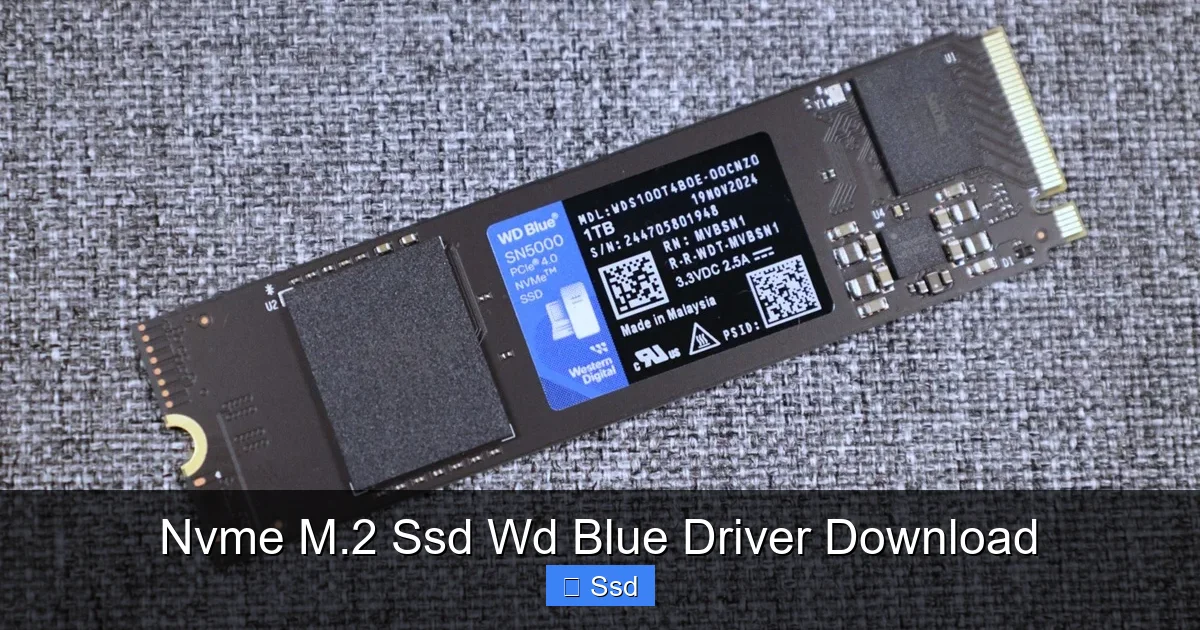
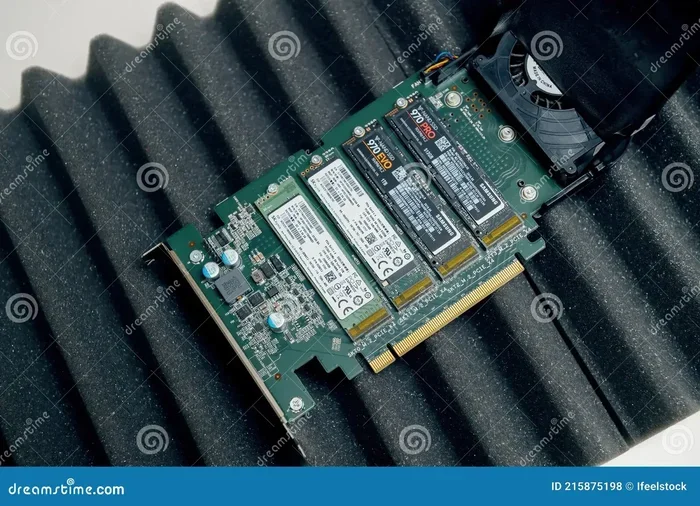
Visual guide about Nvme M.2 Ssd Wd Blue Driver Download
Image source: servethehome.com
The Magic of Native NVMe Support
Starting with Windows 8.1 and fully integrated into Windows 10 and 11, Microsoft has included a high-performance, standards-compliant NVMe driver in the operating system itself. This driver is:
- Universal: It works with any NVMe-compliant SSD from any manufacturer—WD, Samsung, Crucial, Sabrent, etc.
- Optimized: It supports all key NVMe features like multiple queues, interrupt coalescing, and power management.
- Automatic: The OS detects the new PCIe storage device during boot or hot-plug, loads the driver from its driver store, and the drive becomes available. No user intervention is required.
This is by design. The NVMe standard was created to eliminate the need for vendor-specific storage stack drivers that were common with older SAS/SATA setups. The goal was a simple, plug-and-play experience. It has succeeded.
When *Might* You Need a Specific Driver?
There are a few, niche scenarios where you might manually install a driver:
- Legacy Operating Systems: If you are installing the drive on an older system running Windows 7 (without the official NVMe hotfix) or Windows 8.0, the OS lacks a native NVMe driver. In this case, you would need a driver from your motherboard manufacturer (Intel, AMD, ASUS, Gigabyte, etc.), not from WD. WD does not provide legacy OS NVMe drivers.
- Specific Chipset/Platform Issues: Very rarely, a specific motherboard chipset or OEM system (like a Dell or HP business desktop) might have a buggy implementation of the generic driver. In these cases, the solution is often a chipset driver update from the motherboard/system vendor, or occasionally, a driver from the SSD manufacturer if they have a customized one for that platform. These cases are exceptional, not the rule.
- Feature Enablement: Some very specific, advanced enterprise features (outside the scope of a WD Blue) might require a vendor driver. This does not apply to consumer WD Blue drives.
Bottom Line: If you are on Windows 10 or 11, you can stop looking for a driver. It’s already there, working. Your focus should be on the correct software utility.
The Real Download: WD Dashboard and Official Software
Now we get to the heart of the “nvme m.2 ssd wd blue driver download” query. The primary, legitimate software you should download for your WD Blue SSD is the WD Dashboard.
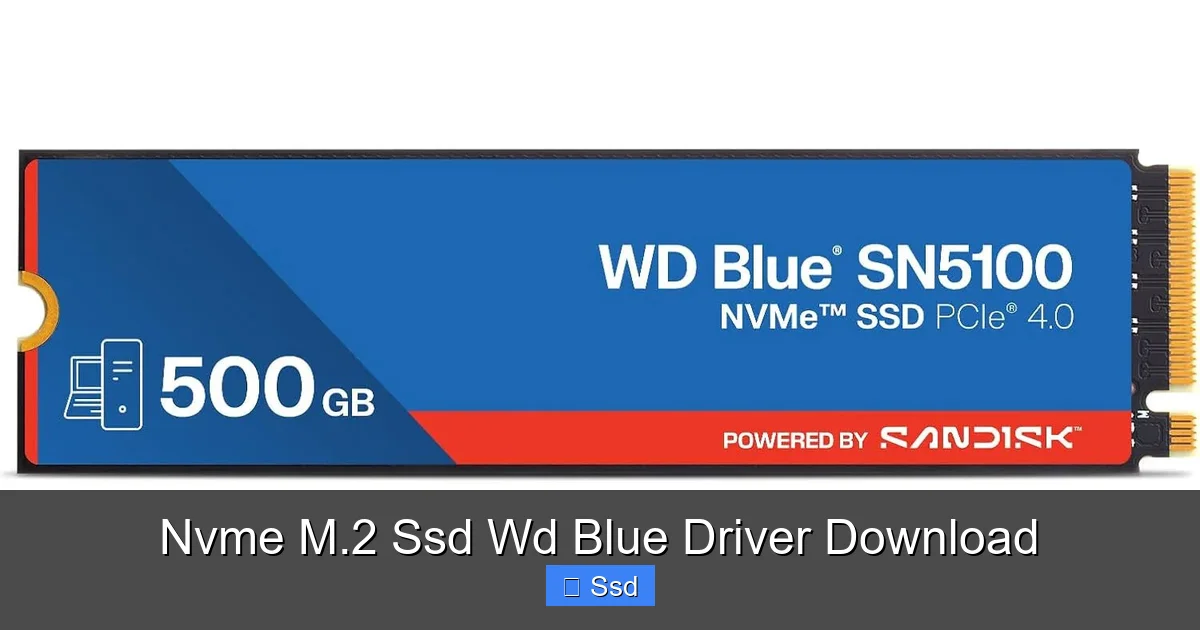
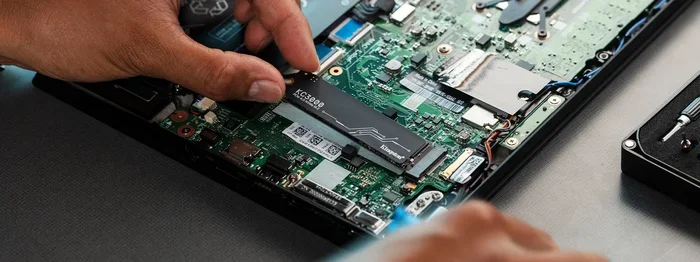
Visual guide about Nvme M.2 Ssd Wd Blue Driver Download
Image source: techpowerup.com
What is WD Dashboard?
WD Dashboard is a free, lightweight application from Western Digital. It is not a driver. It is a management and monitoring utility that sits on top of the operating system’s generic driver. Its core functions are:
- Drive Health Monitoring: It reads the drive’s S.M.A.R.T. (Self-Monitoring, Analysis, and Reporting Technology) data, showing you critical metrics like temperature, wear leveling count, total bytes written, and any reported errors. This is its most valuable feature.
- Firmware Updates: It can check for and install firmware updates for your WD SSD. Firmware is the low-level software on the drive’s controller chip. Updates can fix bugs, improve compatibility, stability, and sometimes even performance. This is a key reason to install WD Dashboard.
- Drive Diagnostics: It includes a quick full scan tool to test the drive for read/write errors.
- Performance Mode (on some models): For higher-end WD drives (like the SN850X), it can toggle a higher-power mode for maximum performance. The WD Blue typically runs at its rated speed without this toggle.
How to Download WD Dashboard (The Correct Way)
This is the only “download” you should actively seek. Follow these steps to avoid fake download sites and malware:
- Go to the Official Source: Open your browser and type: support.wdc.com. This is Western Digital’s global support portal.
- Find Your Product: Use the search bar or navigate through the “Products” > “Storage” > “SSDs” > “WD Blue SN550 / SN570” (or your specific model number, which is on the drive’s label, e.g., WDS500G2B0C).
- Select Your OS: On the product support page, you’ll see a “Downloads” section. Select your operating system (Windows 10 64-bit, Windows 11, etc.).
- Download WD Dashboard: Look for the software named “WD Dashboard”. The file is usually named something like `WD_Dashboard_Setup.exe`. Do not download files named “Driver,” “Firmware Update Utility” separate from Dashboard, or anything from third-party sites.
- Install: Run the installer, follow the on-screen prompts (it’s a standard Next/Next/Finish install), and reboot if prompted. The process is straightforward.
Important: The WD Dashboard installer will automatically detect your compatible WD SSDs. It does not require you to point it to a driver file.
Step-by-Step: Initial Installation and Setup of Your WD Blue NVMe SSD
Let’s assume you have the physical SSD installed. Here is the correct, driver-free software workflow.
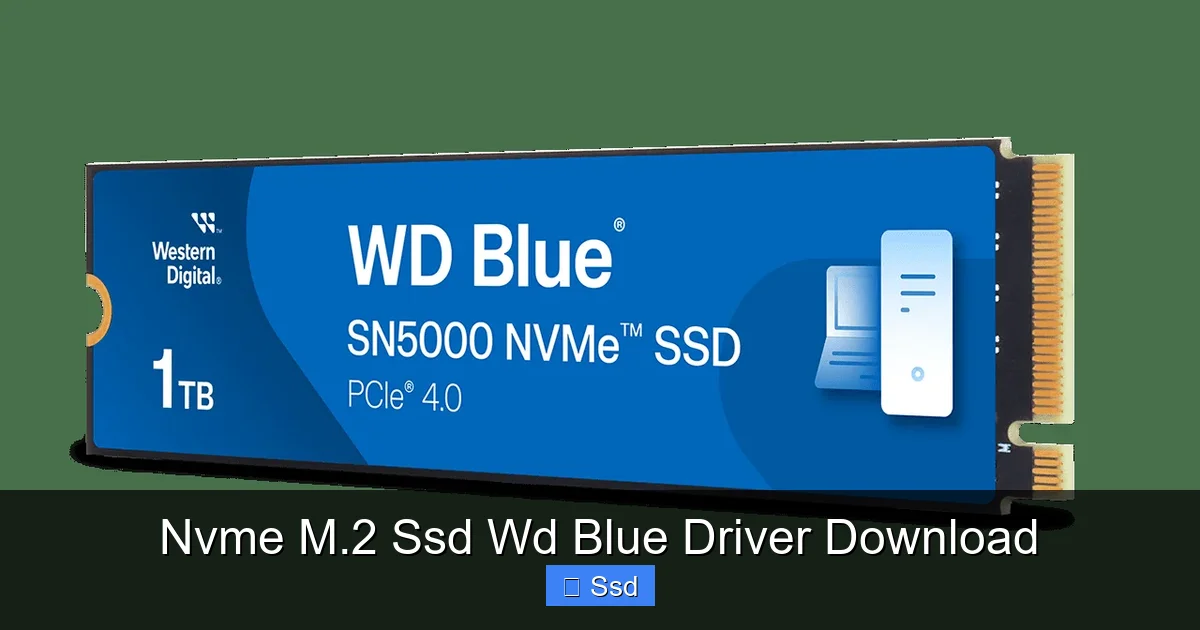
Visual guide about Nvme M.2 Ssd Wd Blue Driver Download
Image source: shop.sandisk.com
1. First Boot and OS Detection
Power on your PC. Enter your BIOS/UEFI (usually by pressing Del or F2 during boot) and confirm:
- The M.2 slot is enabled.
- It is set to operate in PCIe/NVMe mode, not SATA mode. (This is the default on modern boards).
Save and exit. Windows will boot. Go to Disk Management (right-click Start > Disk Management). You should see a new disk labeled “Disk 1” (or similar) with a black bar saying “Unallocated.” This means the OS’s generic NVMe driver has already found the drive. The drive is working; it just needs to be initialized and formatted.
2. Initialize and Format (No WD Software Needed)
In Disk Management, right-click the unallocated space on your new WD Blue disk and select:
- Initialize Disk: Choose GPT (GUID Partition Table). This is required for booting on modern UEFI systems and is standard for data drives.
- New Simple Volume: Follow the wizard. Assign a drive letter, choose NTFS as the file system, use default allocation unit size, and give it a volume label (e.g., “Games” or “Storage”).
Windows will format the drive. Once complete, it appears in File Explorer, ready for use. At this stage, your SSD is fully functional at its base level using only the OS’s built-in driver.
3. Install WD Dashboard for Monitoring and Maintenance
Now, download and install WD Dashboard from the official site as described above. Launch it. You should see your WD Blue SSD listed with its capacity, model, and health status (a green checkmark). Use it to:
- Check for Firmware Updates: Click on the drive, then look for a “Firmware” tab or button. If an update is available, follow the on-screen instructions. Do not interrupt this process.
- Monitor Health: Periodically check the “Health” tab for any warnings.
That’s the complete, correct software setup. No separate driver download was required.
Troubleshooting: What to Do If Your SSD Isn’t Showing Up
If after installation your WD Blue NVMe SSD is not visible in Disk Management, the problem is almost certainly not a missing driver. Follow this diagnostic tree.
Step 1: Physical and BIOS Check
- Reseat the Drive: Power down, unplug, open the case, and remove the SSD. Reinstall it firmly, ensuring the screw is snug but not overtightened.
- Check the M.2 Slot: Consult your motherboard manual. Does the slot share bandwidth with other SATA ports or PCIe slots? You may need to disable a SATA port or another PCIe slot in the BIOS for the M.2 slot to become active.
- Update BIOS/UEFI: An outdated motherboard BIOS is a common cause of M.2/NVMe detection issues. Go to your motherboard manufacturer’s website (ASUS, MSI, Gigabyte, ASRock), find your exact model, and download/install the latest BIOS.
- Confirm Mode: In BIOS, ensure the storage configuration for the M.2 slot is set to “NVMe” or “PCIe,” not “SATA.”
Step 2: Windows Disk Management & Device Manager
- Disk Management: As above, is it there but unallocated? If so, initialize it.
- Device Manager: Right-click Start > Device Manager. Expand “Disk drives.” Do you see an unknown device, a yellow exclamation mark, or the WD Blue listed? If it’s listed without an exclamation, the driver is fine.
- Storage Controllers: In Device Manager, expand “Storage controllers.” You should see an entry like “Standard NVM Express Controller” or your chipset’s PCIe storage controller. If you see a yellow mark here, right-click it, select “Update driver,” and choose “Search automatically for drivers.” Windows will find the correct generic NVMe driver.
Step 3: The Nuclear Option (Last Resort)
If the drive is completely invisible in both Disk Management and Device Manager:
- Test in Another System: Install the WD Blue NVMe SSD in a different, known-good PC. If it’s detected there, the problem is your original motherboard’s slot or BIOS.
- Drive Failure: If it’s not detected in any system, the SSD itself may be defective. Contact Western Digital support for an RMA (Return Merchandise Authorization).
Never, ever download a “WD Blue NVMe driver” from a random driver-update website. These are almost always bundled with adware or malware, and they won’t solve a hardware/BIOS detection problem.
Optimizing Performance and Longevity Beyond the Driver
With the drive now recognized and formatted, here’s how to maximize its speed and lifespan. Remember, the generic driver is already optimal.
Enable AHCI? (For NVMe, It’s Irrelevant)
For SATA SSDs, ensuring the SATA mode in BIOS is set to AHCI (not IDE) is crucial for performance. For NVMe SSDs, this setting does not apply. The NVMe driver communicates directly with the PCIe bus. The relevant BIOS setting is simply ensuring the M.2 slot is enabled and in PCIe mode.
Windows Settings for SSDs
- TRIM: Windows automatically enables TRIM for SSDs, which is essential for maintaining performance over time. You can verify it by opening Command Prompt as Administrator and typing `fsutil behavior query DisableDeleteNotify`. If the result is `0`, TRIM is ON.
- Disable Disk Defragmentation: Windows 10/11 is smart enough to detect SSDs and will not schedule traditional defragmentation. The “Optimize Drives” utility will run TRIM instead. Leave this as is.
- Power Plan: Use the “Balanced” power plan. The “High Performance” plan can prevent the drive from entering low-power states, slightly increasing power draw and heat with minimal real-world benefit for most users.
4K Alignment and Partitioning
Modern Windows versions (10 and 11) automatically create partitions that are 4K-aligned when you use Disk Management as described. This is optimal for NAND flash performance. There is no need for third-party alignment tools.
Leave Free Space
SSDs need free space to operate efficiently. Never fill a WD Blue NVMe SSD to 100%. Keep at least 10-15% of the total capacity free to allow the controller’s garbage collection and wear leveling algorithms to work effectively. This maintains consistent write speeds and extends the drive’s lifespan.
Conclusion: Simplify Your SSD Setup
The journey for “nvme m.2 ssd wd blue driver download” ends not with a downloaded file, but with a fundamental understanding of modern computing architecture. Your Western Digital WD Blue NVMe SSD, like all compliant NVMe devices, is designed to be a true plug-and-play component. The sophisticated, universal driver it needs is an integral part of Windows 10, Windows 11, and modern Linux distributions. Your only necessary action is to ensure your motherboard’s BIOS is up-to-date and the M.2 slot is enabled.
The true value-add from Western Digital is the WD Dashboard. Think of it as your SSD’s personal health monitor and maintenance scheduler. By downloading this single, official utility from support.wdc.com, you gain visibility into your drive’s well-being and a simple path to critical firmware updates. Forget the driver hunt. Focus on the dashboard, keep your drive’s capacity from filling completely, and enjoy the blistering speed of your new NVMe storage. You’ve made a fantastic upgrade; now let it work for you with minimal fuss.
Frequently Asked Questions
Is there a specific driver I need to download for my WD Blue NVMe SSD on Windows 11?
No. Windows 11 includes a native, high-performance NVMe driver that automatically detects and operates your WD Blue SSD. You do not need to install any additional driver from Western Digital or your motherboard manufacturer for basic functionality.
What is the WD Dashboard, and is it necessary?
WD Dashboard is a utility for monitoring drive health (S.M.A.R.T.), checking for firmware updates, and running diagnostics. It is not a driver and is not required for the drive to work, but it is highly recommended. Firmware updates delivered through Dashboard can fix bugs and improve performance and reliability.
My WD Blue NVMe SSD isn’t showing up in Windows. Should I look for a driver?
Probably not. First, ensure the SSD is properly seated and your motherboard BIOS is updated. Check that the M.2 slot is enabled and set to PCIe/NVMe mode in BIOS. Then look in Disk Management. If it’s not there, check Device Manager for hardware errors. Driver issues are extremely rare on Windows 10/11; the problem is usually physical or BIOS-related.
Where is the safest place to download software for my WD SSD?
>Always download software directly from the official Western Digital support website at support.wdc.com. Enter your exact SSD model number (found on the drive’s label) to access the correct, virus-free versions of WD Dashboard and any available firmware.
Will installing a third-party “driver update” software help my SSD?
Absolutely not. These programs are notorious for bundling adware, showing false positives, and potentially destabilizing your system. They will not provide a better driver than the one already built into Windows for your NVMe SSD. Avoid them entirely.
Does my motherboard need a specific driver for the M.2 slot to work with a WD Blue NVMe?
Your motherboard needs its chipset drivers installed for all its components to function optimally. These are available from your motherboard manufacturer’s website (e.g., ASUS, Gigabyte). However, these chipset drivers include the generic PCIe/NVMe support. You do not need a separate “M.2 driver” from WD. Installing your motherboard’s latest chipset drivers is good practice but not usually the fix for a non-detecting SSD.