A Solid State Drive PCIe 3.0 TLC NVMe M.2 SSD is the ultimate value-packed storage upgrade for systems a few years old. It delivers massive speed boosts over old hard drives and even SATA SSDs, using efficient TLC memory and the compact M.2 form factor. While not the absolute newest, its performance for gaming, creative work, and general use remains excellent and highly cost-effective.
So, your computer feels a little sluggish. You’ve heard that swapping your old, spinning hard drive for a Solid State Drive (SSD) is the single best upgrade you can make. But then you start shopping and get hit with a wall of acronyms: SATA, NVMe, PCIe, M.2, TLC, QLC. It’s enough to make your head spin! Let’s cut through the jargon. If you have a desktop or laptop from the last 5-8 years, there’s a very good chance that the perfect, high-value upgrade is a Solid State Drive PCIe 3.0 TLC NVMe M.2 SSD. This isn’t the bleeding-edge tech of today, but it’s the sweet spot of yesterday that delivers 90% of the speed at 50% of the price of the newest stuff. This guide will unpack exactly what that mouthful of a name means, why it matters for you, and how to choose the right one.
Key Takeaways
- TLC Memory (3-bit): Offers the best balance of cost, performance, and longevity for mainstream users, with sufficient endurance for typical daily use.
- PCIe 3.0 Limit: Has a maximum theoretical bandwidth of ~4 GB/s, which is still incredibly fast for nearly all applications and far exceeds SATA SSD limits.
- M.2 Form Factor: A small, gumstick-sized drive that plugs directly into the motherboard, saving cables and space inside laptops and small-form-factor PCs.
- NVMe Protocol: The communication standard that allows these drives to bypass slower SATA layers, achieving much lower latency and higher throughput.
- Ideal Upgrade Target: Perfect for revitalizing desktops/laptops from approximately 2015-2020 that have an M.2 slot, offering a night-and-day performance difference.
- Real-World Sweet Spot: For most users, 1TB models provide the best value per gigabyte, with speeds that make OS booting, game loading, and file transfers feel instantaneous.
- Heatsink Consideration: High-end PCIe 3.0 drives can get warm under sustained workloads; a motherboard heatsink or a drive with a built-in heatsink can help maintain peak performance.
📑 Table of Contents
- Decoding the Jargon: What “PCIe 3.0 TLC NVMe M.2 SSD” Actually Means
- Real-World Performance: How Fast Is “Fast Enough”?
- TLC Deep Dive: Durability, Performance, and the SLC Cache
- The M.2 Advantage: Simplify Your Build
- Who Is This Drive For? Perfect Use Cases
- Buying Guide: What to Look For in a PCIe 3.0 TLC NVMe M.2 SSD
- Installation: A Simple but Important Process
Decoding the Jargon: What “PCIe 3.0 TLC NVMe M.2 SSD” Actually Means
Let’s break this down piece by piece, like peeling an onion. Each term tells you something critical about the drive’s capabilities, form factor, and technology.
SSD: The Foundation
First, the basics. An SSD stores data on flash memory chips, with no moving parts. This makes them dramatically faster, quieter, more shock-resistant, and more power-efficient than traditional Hard Disk Drives (HDDs). That’s the core benefit: speed and reliability.
M.2: The Physical Form Factor
Think of this as the drive’s shape and size. M.2 is a standard that defines a small, rectangular card (about the size of a stick of gum) that plugs directly into a dedicated slot on your motherboard. This is different from the older 2.5-inch “brick” style SATA SSDs. The M.2 form factor saves space, eliminates the need for power and data cables, and allows for a cleaner build inside your PC. It’s especially common in modern laptops and small-form-factor desktops. Crucially, an M.2 slot can support either SATA-based drives (slower) or NVMe-based drives (faster), so you need to check your motherboard’s specifications.
NVMe: The Super-Fast Communication Protocol
This is the secret sauce for speed. NVMe (Non-Volatile Memory Express) is a communication interface/protocol designed specifically for flash storage. Older SATA SSDs, even in an M.2 form factor, still use the older AHCI protocol, which was originally designed for slow hard drives and has inherent bottlenecks. NVMe talks directly to the CPU over the PCIe bus, with vastly more command queues and lower latency. It’s like comparing a narrow, winding country road (SATA/AHCI) to a multi-lane superhighway (NVMe). The result? Sequential read/write speeds that can be 4-6 times faster.
PCIe 3.0: The Highway’s Generation
PCIe (Peripheral Component Interconnect Express) is the high-speed “lane” or bus that connects components like your graphics card and, in this case, your NVMe SSD to the CPU. Each generation doubles the bandwidth per lane. PCIe 3.0, introduced in 2010, has a maximum bandwidth of about 1 GB/s per lane. An NVMe SSD typically uses 4 lanes (x4), giving a theoretical maximum of ~4 GB/s. That’s still blisteringly fast. The newer PCIe 4.0 (2019, ~8 GB/s per x4) and PCIe 5.0 (2022, ~16 GB/s per x4) are faster, but for the vast majority of everyday tasks and even most games, the difference between PCIe 3.0 and 4.0 is barely noticeable in real-world use. PCIe 3.0 is mature, stable, and incredibly cost-effective.
TLC: The Type of Flash Memory
This refers to the NAND flash memory cell technology. “TLC” stands for Triple-Level Cell, meaning each cell stores 3 bits of data. It’s the current mainstream standard for consumer SSDs. Compared to SLC (1 bit, incredibly expensive/endurant) and MLC (2 bits, older, more expensive), TLC offers the best balance of cost, performance, and endurance for typical users. QLC (4 bits) is cheaper still but has lower endurance and slower write speeds under heavy loads. For a general-purpose SSD, TLC is the recommended sweet spot. The drive’s controller and cache (more on this later) manage TLC’s quirks to deliver excellent everyday performance.
So, put it all together: A Solid State Drive PCIe 3.0 TLC NVMe M.2 SSD is a gumstick-sized drive that uses fast, modern flash memory (TLC) and communicates via the super-efficient NVMe protocol over the mature, high-bandwidth PCIe 3.0 highway. It’s the definition of proven, practical performance.
Real-World Performance: How Fast Is “Fast Enough”?
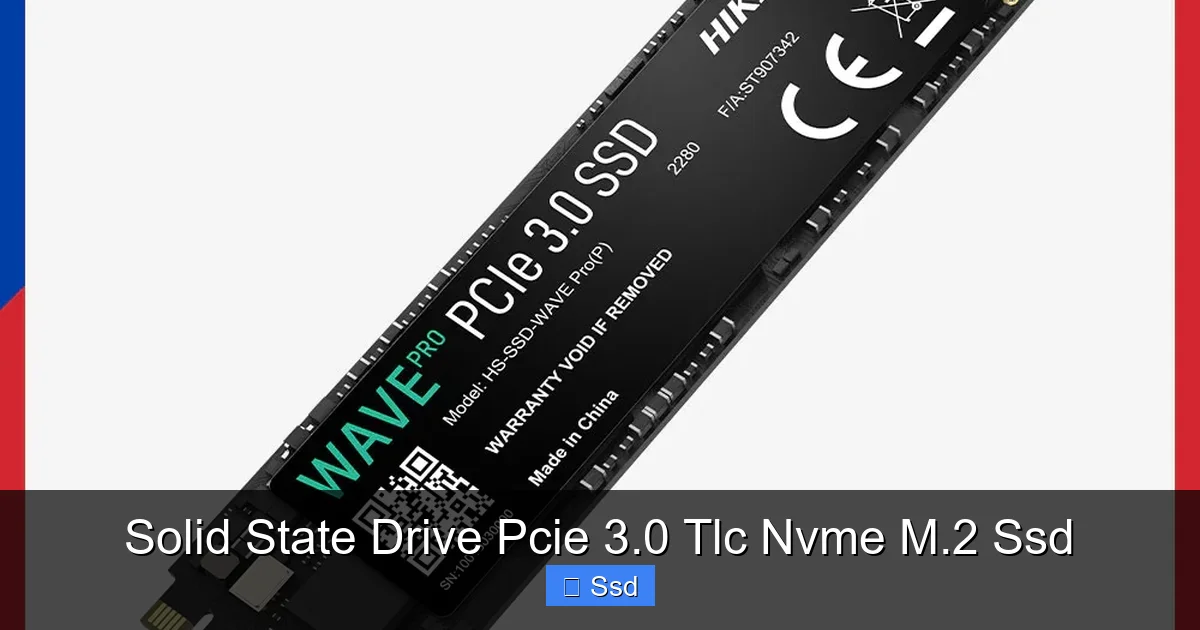
Spec sheets love to throw out massive sequential read/write numbers like 3,500 MB/s and 3,000 MB/s. While impressive, these are best-case scenarios with large, uncompressed files. Your daily computing life is made of small, random 4K reads and writes—loading game textures, opening applications, booting your OS. This is where NVMe shines, and where the jump from SATA is most dramatic.
Visual guide about Solid State Drive Pcie 3.0 Tlc Nvme M.2 Ssd
Image source: pcx.com.ph
Boot Times and Application Launches
This is the most noticeable upgrade for most people. A good PCIe 3.0 NVMe drive can boot Windows 10 or 11 to the login screen in 8-12 seconds, compared to 20-30+ seconds on a HDD and 15-20 on a SATA SSD. Launching heavy applications like Adobe Photoshop, Visual Studio, or a modern AAA game? You’ll shave several seconds off every single time. That might not sound like much, but it adds up to a feeling of instant responsiveness that reduces frustration and waiting.
Game Loading Screens: The Ultimate Test
Gamers, take note. Loading screens exist because your storage can’t feed data to the CPU and GPU fast enough. An NVMe SSD drastically reduces these wait times. In games like “Cyberpunk 2077,” “Red Dead Redemption 2,” or “Call of Duty,” you’ll see load times drop from 45-60 seconds on a HDD to 15-25 seconds on a PCIe 3.0 NVMe SSD. Some games, especially those built for the latest consoles with custom SSDs, are starting to leverage even faster storage for dynamic world streaming, but for now, PCIe 3.0 provides a massively superior experience to any HDD and a clear, tangible benefit over SATA.
File Transfers and Creative Workflows
If you work with large files—video editing, 3D rendering, massive photo libraries—sequential speeds matter. Moving a 100GB project folder from one drive to another? A PCIe 3.0 NVMe drive will complete that task in a fraction of the time a SATA SSD would. For a video editor scrubbing through 4K footage, the faster random read speeds of NVMe can also provide a smoother preview experience. While a PCIe 4.0 drive might save you 10-15 seconds on a massive file copy, the PCIe 3.0 drive is already doing the job so fast that the real-world difference for a single user is often marginal.
The “Good Enough” Ceiling
Where does PCIe 3.0 start to feel the pinch? Primarily in sustained, professional workloads that involve writing hundreds of gigabytes of data continuously, like a data scientist processing massive datasets or a studio rendering 8K video streams 24/7. For these extreme, enterprise-level tasks, the higher bandwidth of PCIe 4.0/5.0 and drives with more DRAM cache become meaningful. For the enthusiast gamer, the content creator working on a few projects at a time, and the general user, PCIe 3.0 is more than sufficient. Its performance is so far beyond what HDDs offer that the upgrade feels transformative, and it’s close enough to newer standards that the price premium is hard to justify.
TLC Deep Dive: Durability, Performance, and the SLC Cache
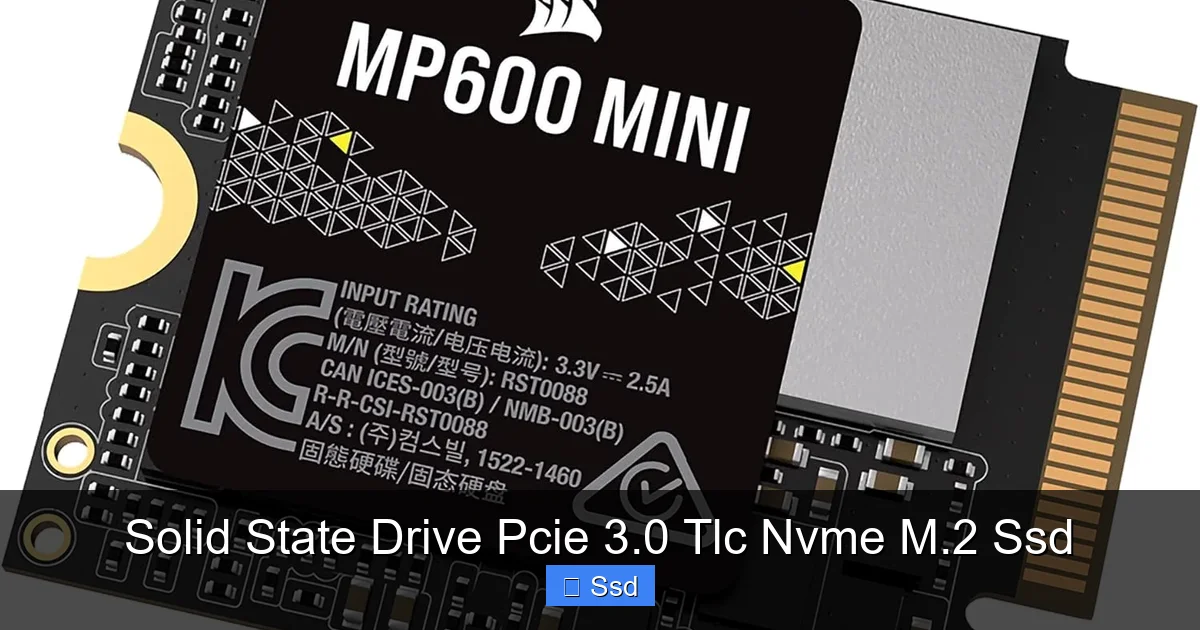
Understanding TLC is key to understanding modern SSD value. TLC’s lower endurance (how much data you can write before cells wear out) and slower native write speeds are managed by clever engineering.
Visual guide about Solid State Drive Pcie 3.0 Tlc Nvme M.2 Ssd
Image source: m.media-amazon.com
Endurance: You Won’t Wear It Out
TLC NAND has a lower program/erase (P/E) cycle count than MLC or SLC. However, for a consumer, the numbers are still astronomical. A typical 1TB PCIe 3.0 TLC drive has a rated endurance (TBW – Terabytes Written) of 300-600 TBW. What does that mean? If you wrote 100 GB of data to your drive every single day, it would take you 8-17 years to hit that limit. Most users will write 20-40 GB *per month*. You will upgrade your entire system long before you wear out a modern TLC SSD. For the vast majority, endurance is a non-issue.
The SLC Cache: The Performance Trick
To combat TLC’s slower native write speed, all modern SSDs use a portion of their capacity as an SLC (Single-Level Cell) cache. SLC is faster and more durable. When you copy a large file, the drive first writes it to this fast cache at very high speeds (often near the drive’s max sequential spec). Once the cache fills up (its size varies, often 10-50GB), the write speed drops to the native, slower TLC speed. This is why you see benchmark results where the first 20GB of a file copy is lightning-fast, and then it slows down. For most user actions—installing a game, copying a folder of documents, writing a video project—the operation will either fit entirely in the cache or be fast enough that the slowdown isn’t perceptible. Only in professional, sustained write workloads (like constant video recording to the SSD) does this cache exhaustion become a regular concern.
DRAM vs. DRAM-less: Is It a Dealbreaker?
Many budget PCIe 3.0 drives are “DRAM-less.” This means they don’t have a dedicated DRAM cache chip to store the flash translation layer (FTL) table, which maps where your data is physically stored on the NAND. Instead, they use a portion of the main TLC memory (HMB – Host Memory Buffer) with help from your system RAM. For general use and gaming, the performance difference between a good DRAM-less drive and a DRAM-equipped drive is often negligible in real-world tasks. The drive’s controller and SLC cache have a much larger impact. DRAM provides a slight edge in consistent performance, especially with heavy multitasking or specific professional applications, but it’s not the make-or-break spec it once was for a mainstream user. You can get excellent value from a DRAM-less PCIe 3.0 TLC drive.
The M.2 Advantage: Simplify Your Build
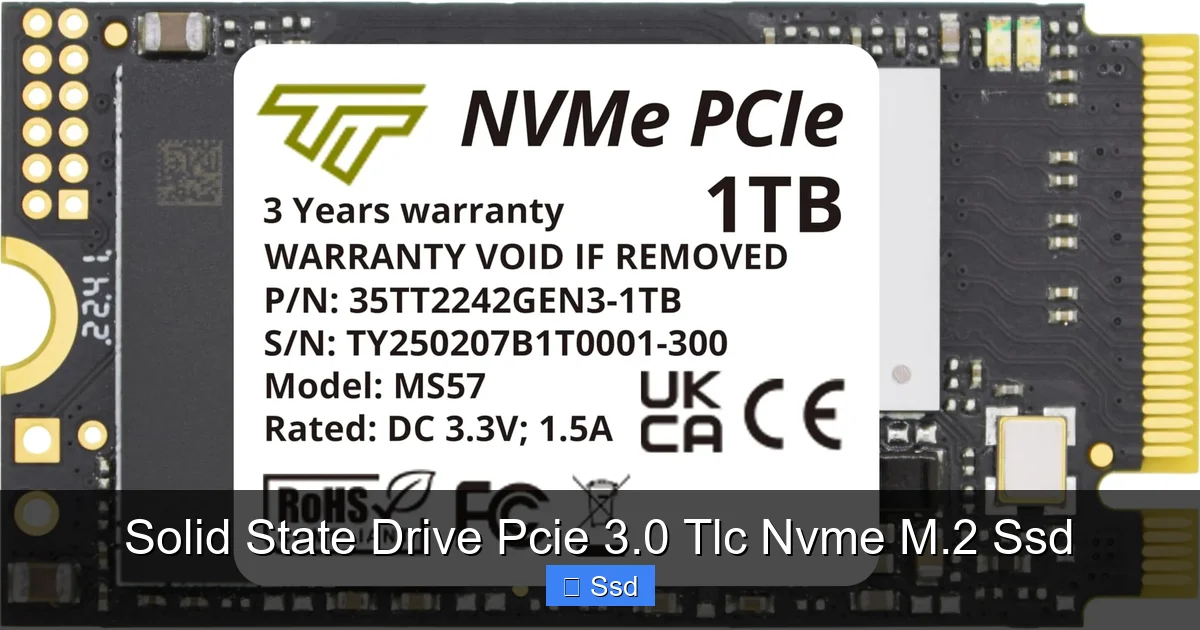
The shift from 2.5” SATA to M.2 is about more than just speed. It’s about aesthetics and simplicity.
Visual guide about Solid State Drive Pcie 3.0 Tlc Nvme M.2 Ssd
Image source: m.media-amazon.com
Space-Saving and Cable-Free
An M.2 SSD mounts directly to the motherboard with a single screw. There are no power cables or SATA data cables to route. This is a godsend for small-form-factor (SFF) builds like Mini-ITX, where cable management is a constant puzzle. It also makes for a much cleaner, less cluttered look inside a case with a window. In a laptop, it saves precious space and weight compared to a 2.5” drive plus caddy.
Compatibility Check: The Crucial First Step
Before you buy, you MUST verify your motherboard (or laptop) has an M.2 slot that supports NVMe. Some older M.2 slots only support SATA. Look up your motherboard model’s specifications. Key things to note:
- M.2 Slot Length: Common lengths are 2242, 2260, 2280 (most common), and 22110. 2280 is the standard. Ensure your case/motherboard has the screw hole for your drive’s length.
- PCIe Generation Support: An M.2 slot wired for PCIe 3.0 will work with a PCIe 4.0 drive, but it will be limited to 3.0 speeds. Conversely, a PCIe 3.0 drive will work in a PCIe 4.0 slot (downwards compatible).
- SATA M.2 Conflict: On some motherboards, using an M.2 SATA drive disables one or more of the rear SATA ports. Check your manual.
For laptops, consult the manufacturer’s specs or a service manual. Many ultrabooks from 2016 onward have an M.2 slot, but some very thin models may have the storage soldered to the motherboard (not upgradeable).
Thermals: The Silent Performance Killer
This is an often-overlooked aspect. NVMe SSDs, even PCIe 3.0 models, can get warm under sustained workloads (50-70°C is common). Excessive heat can cause thermal throttling, where the controller slows down to protect itself, leading to a drop in performance. This is more likely on a motherboard without an M.2 heatsink or in a case with poor airflow. Solutions:
- Motherboard Heatsink: Many modern boards include a metal heatsink with a thermal pad for the M.2 drive. Use it!
- Aftermarket Heatsinks: Simple aluminum or copper heatsinks that stick on with thermal pads are cheap and effective.
- Drive with Heatsink: Some drives (like the Samsung 970 EVO Plus with heatsink version) come with one pre-installed.
- Case Airflow: Ensure your case has good airflow. A drive tucked behind a large GPU with no airflow will run hotter.
For typical desktop and laptop use, thermal throttling on a good PCIe 3.0 drive is rare, but it’s a good practice to ensure some airflow over the drive.
Who Is This Drive For? Perfect Use Cases
Not every upgrade needs to be the latest and greatest. This segment is about value and impact.
The Budget-Conscious Gamer with an Older Rig
This is the #1 target. You have a gaming PC from 2015-2018 with a HDD or maybe an old SATA SSD. Your motherboard likely has an M.2 slot (even budget B350/B450 boards did). A 1TB PCIe 3.0 TLC NVMe drive (like a Crucial P3, WD Blue SN570, or Samsung 970 EVO Plus) will transform your experience. Game load times plummet, the OS feels snappy, and you’ve spent a fraction of what a top-tier PCIe 4.0 drive costs. The money saved can go to a better GPU or more RAM.
The General User and Home Office Worker
For web browsing, Office apps, video calls, and media consumption, the difference between a HDD and any SSD is monumental. The difference between a SATA and NVMe SSD is less dramatic but still noticeable in system “feel.” If your laptop feels slow, and it has an upgradeable M.2 slot, this is the single best upgrade you can make. It will feel like a new machine. For a home office desktop, it’s a no-brainer for productivity.
The Entry-Level Content Creator
If you dabble in photo editing (Lightroom, Photoshop), 1080p/1440p video editing (Premiere Pro, DaVinci Resolve), or music production, storage speed matters. Loading large project files, applying filters, and playing back timelines all benefit from faster storage. While a professional would benefit from PCIe 4.0 and higher-end drives, a solid PCIe 3.0 TLC NVMe drive provides a huge leap from a HDD and a clear advantage over SATA, making it an excellent starting point on a budget.
Who Should Look Elsewhere?
If you are building a brand-new, high-end PC in 2024 with a latest-gen Ryzen 7000 or Intel 13th/14th Gen CPU and a compatible X670/B760/Z790 motherboard, you have the option of PCIe 4.0/5.0. In that specific case, buying a PCIe 3.0 drive might be leaving performance on the table, though the real-world difference is still small for gaming. However, for a mainstream new build on a budget (e.g., Ryzen 5 5600 or Core i5-12400F on a B550/B660 board), a PCIe 3.0 NVMe drive remains an excellent, cost-effective choice that will pair perfectly with the system’s capabilities.
Buying Guide: What to Look For in a PCIe 3.0 TLC NVMe M.2 SSD
The market for these drives is mature and competitive. Here’s what separates a good buy from a great one.
Capacity: The Golden Rule
Never, ever buy a 256GB SSD for a Windows PC in 2024. The OS and updates alone can eat 60-80GB. Your capacity sweet spot is 1TB. You get the best price-per-gigabyte, enough space for the OS, a healthy suite of applications, several modern games (which can be 80-150GB each), and a media library. 500GB is the absolute bare minimum for a dedicated boot/game drive, but 1TB is the recommended starting point. 2TB models offer great value if your budget allows.
Performance Specs: Reading Between the Numbers
Don’t just look at the max sequential read/write numbers (e.g., 3,500/3,200 MB/s). All good PCIe 3.0 drives are in this ballpark. Instead, look for:
- Random 4K Read/Write IOPS: This measures performance with small files, which is what your OS and games use. Higher is better. A good drive will have 400K+ IOPS read and 300K+ IOPS write.
- Real-World Reviews: Check out trusted tech sites (Tom’s Hardware, TechPowerUp, AnandTech) for their benchmark suites, which include game loading, file copy, and application launch tests. These are more meaningful than pure sequential speeds.
Key Brands and Model Lines (Examples)
Stick with reputable brands with good warranties and support.
- Samsung 970 EVO Plus / 980 (non-Pro): The perennial favorite. Excellent all-around performance, great software (Magician), and reliability. The 980 is a newer, DRAM-less design but still excellent for most.
- WD Blue SN570 / SN580: Western Digital’s mainstream value line. The SN570 is a proven, DRAM-less PCIe 3.0 performer. The SN580 is technically PCIe 4.0 but performs similarly to top PCIe 3.0 drives and is often similarly priced.
- Crucial P3 / P3 Plus: Micron’s (who makes memory for everyone) value-focused line. The P3 is a solid, no-frills PCIe 3.0 drive. The P3 Plus is PCIe 4.0 but again, often in the same price bracket as PCIe 3.0 competitors.
- SK hynix Gold P31 / P41: SK hynix is a major memory manufacturer. The P31 (PCIe 3.0) was a legendary value king for years, known for great efficiency and performance. The P41 is its PCIe 4.0 successor.
- Sabrent Rocket Q / Q4: Often offer excellent value, sometimes with a heatsink included. QLC-based (Rocket Q) but still very capable for general use due to a large SLC cache.
Tip: Prices fluctuate daily. Use a price comparison tool. Often, a last-gen PCIe 4.0 drive (like the SN580 or P3 Plus) will be on sale for the same price as a PCIe 3.0 drive. In that case, buy the PCIe 4.0 drive—it’s future-proof and will work perfectly in your PCIe 3.0 slot at 3.0 speeds, but you get a newer, often more efficient controller.
Warranty and Support
Look for a minimum 5-year warranty. This is standard for TLC drives. Also, check the TBW (Terabytes Written) rating for your capacity. A 1TB drive with a 300 TBW warranty is standard and more than enough. Good brands also offer useful software tools for drive health monitoring, firmware updates, and cloning your old drive to the new one.
Installation: A Simple but Important Process
Desktop Installation Steps
- Power Down: Shut down your PC and unplug the power cable.
- Ground Yourself: Use an anti-static wrist strap or touch the metal case to discharge static.
- Find the Slot: Locate the M.2 slot on your motherboard (usually near the CPU or PCIe slots). Check the manual if unsure.
- Remove the Standoff/Screw: There is usually a small screw and standoff (a tiny metal spacer) holding the end of the drive down. Unscrew and remove it.
- Insert the Drive: Hold the drive by the edges. Align the notch on the drive’s connector with the keying in the M.2 slot (usually a M key). Insert at a ~30-degree angle until it’s seated firmly.
- Secure the Drive: Push the drive down flat against the motherboard and screw it into the standoff you removed earlier. Don’t overtighten—snug is fine.
- Heatsink (Optional): If using a separate heatsink, apply thermal pads as per its instructions and attach it.
- Boot Up: Reconnect power, turn on your PC. You may need to go into BIOS/UEFI to ensure the drive is detected and set as a boot device if it’s your new OS drive.
Laptop Installation
This varies wildly. Often, you need to remove the bottom cover (usually 8-10 screws). Look for a small, rectangular card about the size of a stick of gum, held by a single screw. The process is identical to step 4-6 above. Crucially: Before opening a laptop, check if the storage is soldered. If you see a card with a label and a screw, it’s upgradeable. If you see no such card, it’s likely soldered and not upgradeable. Always consult your specific laptop’s service manual online first.
Initial Setup: Formatting and Cloning
A new SSD arrives unformatted. You need to initialize, partition, and format it in Windows Disk Management (diskmgmt.msc). If it’s your new boot drive, you’ll need to install Windows from a USB installer. If it’s a secondary drive, just format it as NTFS.
To move your old OS and files, use cloning software (like Crucial’s free tool, Macrium Reflect, or Samsung Data Migration). Connect both old HDD/SSD and new SSD to the PC (you may need a USB-to-M.2 adapter for the new drive during cloning), clone the old drive to the new one, then physically swap the drives. This is the easiest way to migrate everything without reinstalling programs.
Frequently Asked Questions
Is a PCIe 3.0 NVMe SSD still worth it in 2024?
Absolutely. For upgrading a system from the last 5-8 years, it offers a phenomenal price-to-performance ratio. The real-world speed difference between a good PCIe 3.0 and PCIe 4.0 SSD is minimal for gaming and general use, making PCIe 3.0 the smart value choice.
What’s the real benefit of TLC NAND for me?
TLC provides the best balance for consumers. It’s significantly cheaper than MLC while offering far more endurance and consistent performance than QLC. The drive’s controller and SLC cache manage TLC’s characteristics so effectively that you won’t notice any downside in daily use, and the drive will easily last the life of your PC.
Will my old motherboard’s PCIe 3.0 M.2 slot limit a modern drive?
No, it’s a perfect match. A modern PCIe 4.0 drive is fully backward compatible and will run at PCIe 3.0 speeds in your slot. You get all the benefits of the newer, often more efficient controller, just capped at the ~4 GB/s limit of PCIe 3.0, which is still extremely fast.
Is installing an M.2 SSD difficult?
It’s one of the easiest PC upgrades. It involves finding the slot, aligning the drive at an angle, pressing it down, and securing it with one screw. No cables to connect. The main challenge is ensuring your motherboard/laptop actually has an available, compatible M.2 slot before you buy.
Should I get NVMe or just a SATA M.2 SSD?
Always get NVMe if your M.2 slot supports it. NVMe drives are 3-5 times faster than SATA M.2 drives in real-world use. There’s almost never a price advantage to choosing the slower SATA M.2 drive anymore. The NVMe option is the clear winner for performance.
How long will a TLC NVMe SSD last?
Extremely long. A 1TB drive with a 300-600 TBW rating means you’d have to write 100+ GB per day for over 8 years to reach its rated endurance. Most users will write less than that in 5 years. The drive will likely be obsolete due to capacity or technology before you wear it out from normal use.