Solid State Drive Pcle 3.0 Tlc Nvme M.2 Ssd
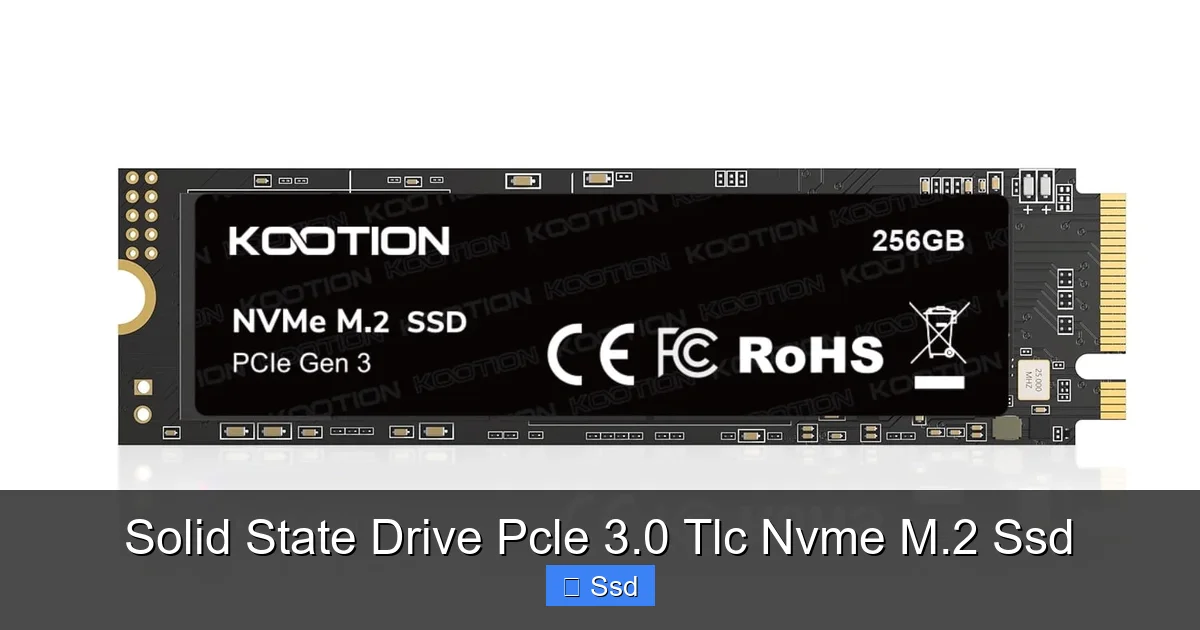
A Solid State Drive PCIe 3.0 TLC NVMe M.2 SSD is a high-performance storage upgrade that combines blistering speed, a tiny footprint, and excellent value. Using the NVMe protocol over a PCIe 3.0 connection, it dramatically outpaces older SATA SSDs and hard drives. The TLC (Triple-Level Cell) NAND memory offers a great balance of cost, speed, and endurance for most users. Its M.2 form factor allows for a clean, cable-free installation directly onto your motherboard, making it the ideal choice for boosting boot times, game loads, and application responsiveness in modern PCs and laptops.
Remember the days of waiting for your computer to boot? The iconic spinning hourglass or the endless swirl of dots? Those were the days of hard disk drives (HDDs), where your PC felt more like a patient waiting room than a productivity powerhouse. Then came the first SATA SSDs, which were a revelation—snappy, quiet, and fast. But today, we’re talking about the next leap, the current sweet spot of performance and value: the Solid State Drive PCIe 3.0 TLC NVMe M.2 SSD. It’s a mouthful of tech jargon, but once you break it down, you’ll understand why this little stick of silicon is the single best upgrade you can make to breathe new life into almost any computer built in the last decade.
Let’s be clear: this isn’t some obscure, future-tech component. This is the workhorse of modern storage. If you’re building a new budget-to-mid-range gaming PC, upgrading an older desktop, or even buying a new laptop, chances are extremely high you’ll encounter or benefit from this exact type of drive. It represents the perfect intersection where cutting-edge speed meets real-world affordability. We’re going to slice through each part of that name—PCIe 3.0, TLC, NVMe, M.2—to show you exactly what it is, how it works, and why it’s almost certainly the right storage choice for you. By the end, you’ll be able to shop with confidence, knowing you’re getting the best bang for your buck.
Key Takeaways
- It’s the Perfect Performance/Cost Balance: A PCIe 3.0 NVMe M.2 SSD with TLC NAND provides a massive speed leap over SATA SSDs without the premium price of newer PCIe 4.0/5.0 drives or the lower endurance of cheaper QLC NAND.
- NVMe is the Key to Speed: Unlike SATA SSDs that use an older interface, NVMe drives communicate directly via the PCIe bus, cutting latency and enabling sequential read/write speeds often exceeding 2,000 MB/s.
- TLC NAND is the Sweet Spot: Triple-Level Cell memory stores 3 bits per cell. It’s slower and less durable than SLC or MLC but far more affordable and sufficiently durable for typical consumer use, offering a great longevity-to-price ratio.
- M.2 Means Simplicity: This gumstick-sized form factor plugs directly into a dedicated M.2 slot on your motherboard, eliminating SATA and power cables for a cleaner build and easier installation, especially in small form factor PCs and laptops.
- PCIe 3.0 is Still Highly Relevant: While PCIe 4.0/5.0 exists, PCIe 3.0 offers more than enough performance for gaming, general productivity, and even most content creation tasks, making it the best value for the vast majority of users.
- Check Compatibility First: You need a motherboard with an available M.2 slot that supports PCIe (not just SATA) and NVMe. Many modern boards have this, but always verify in your motherboard’s manual before purchasing.
- Ideal for Specific Upgrades: This drive is perfect for boot drives, game libraries, and OS installations. For constant, heavy write workloads (like professional video surveillance), a higher-endurance drive might be considered.
📑 Table of Contents
- Demystifying the Jargon: What’s in a Name?
- The Heart of Speed: PCIe 3.0 & NVMe Unleashed
- TLC Memory: The Sweet Spot of Durability and Value
- M.2 Form Factor: Small Size, Big Impact
- Real-World Performance & What Benchmarks Really Mean
- Who Needs This SSD? Perfect Use Cases & Buyer Personas
- Installation & Optimization: Getting It Running in Minutes
- The Verdict: Why This is the Go-To Storage Solution
Demystifying the Jargon: What’s in a Name?
“Solid State Drive PCIe 3.0 TLC NVMe M.2 SSD” sounds like a secret code from a tech spy movie. But each part tells a crucial story about the drive’s capabilities, physical shape, and underlying technology. Let’s decode it piece by piece.
SSD: The Foundation
At its core, it’s an SSD—a Solid State Drive. Unlike an HDD with spinning platters and a moving read/write head, an SSD has no moving parts. It stores data on flash memory chips, making it silent, shock-resistant, and vastly faster. This is the fundamental shift that started it all.
NVMe: The High-Speed Protocol
NVMe stands for Non-Volatile Memory Express. Think of it as a special, optimized language designed specifically for talking to flash storage over the PCIe bus. The older SATA interface was originally designed for hard drives. NVMe was built from the ground up for SSDs. It has way more command queues (64,000 vs. 1) and can handle thousands of commands per queue. This drastically reduces latency—the delay between your system asking for data and the drive starting to deliver it. It’s the reason NVMe drives feel so instant.
PCIe 3.0: The Highway
PCIe (Peripheral Component Interconnect Express) is the high-speed expansion bus in your computer. Your graphics card, Wi-Fi card, and this SSD all plug into it. The “3.0” refers to the generation. PCIe 3.0 x4 (the standard for M.2 NVMe drives) offers a maximum theoretical bandwidth of about 4 GB/s (gigabytes per second) per direction. PCIe 4.0 doubles that, and PCIe 5.0 doubles it again. But here’s the key: for the vast majority of everyday tasks and even most games, the real-world speed of a good PCIe 3.0 drive is already more than sufficient. You pay a premium for PCIe 4.0/5.0 that you often won’t feel.
M.2: The Form Factor
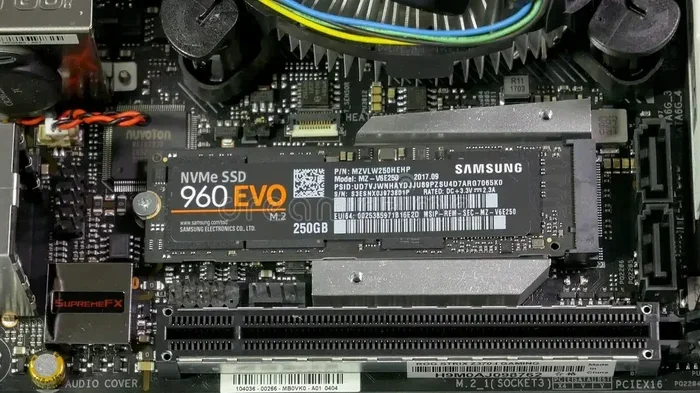
This describes the physical shape and connector. M.2 is a small, flat, gumstick-shaped card that plugs directly into a dedicated slot on your motherboard. It’s a huge win for clean builds. No more bulky 2.5-inch SATA SSDs and no more SATA data and power cables snaking through your case. It’s especially critical for laptops and small form factor PCs where space is at a premium. Not all M.2 slots are the same—some support SATA-based M.2 drives (slower, limited to ~550 MB/s), but the ones we care about support PCIe/NVMe. The most common length is 2280 (22mm wide, 80mm long). Always check your motherboard’s supported lengths.
TLC: The Memory Type
This refers to the NAND flash memory cells. TLC stands for Triple-Level Cell, meaning each cell stores 3 bits of data. It’s the current industry standard for mainstream consumer SSDs. It’s cheaper to produce than SLC (1 bit) or MLC (2 bits), and it’s significantly more durable and faster than QLC (4 bits). TLC offers the best overall balance of cost, performance, and endurance (how long it lasts) for typical users. Modern TLC drives with plenty of spare cache are incredibly fast, often matching or exceeding the speeds of early MLC drives.
So, put it all together: You have a small M.2 card (form factor) that uses the fast NVMe protocol (software) over a PCIe 3.0 connection (hardware bus) to talk to TLC NAND chips (the actual storage memory). It’s a recipe for excellence.
The Heart of Speed: PCIe 3.0 & NVMe Unleashed
To truly appreciate this drive, you need to feel the difference. Let’s talk numbers, but more importantly, what those numbers mean for your experience.
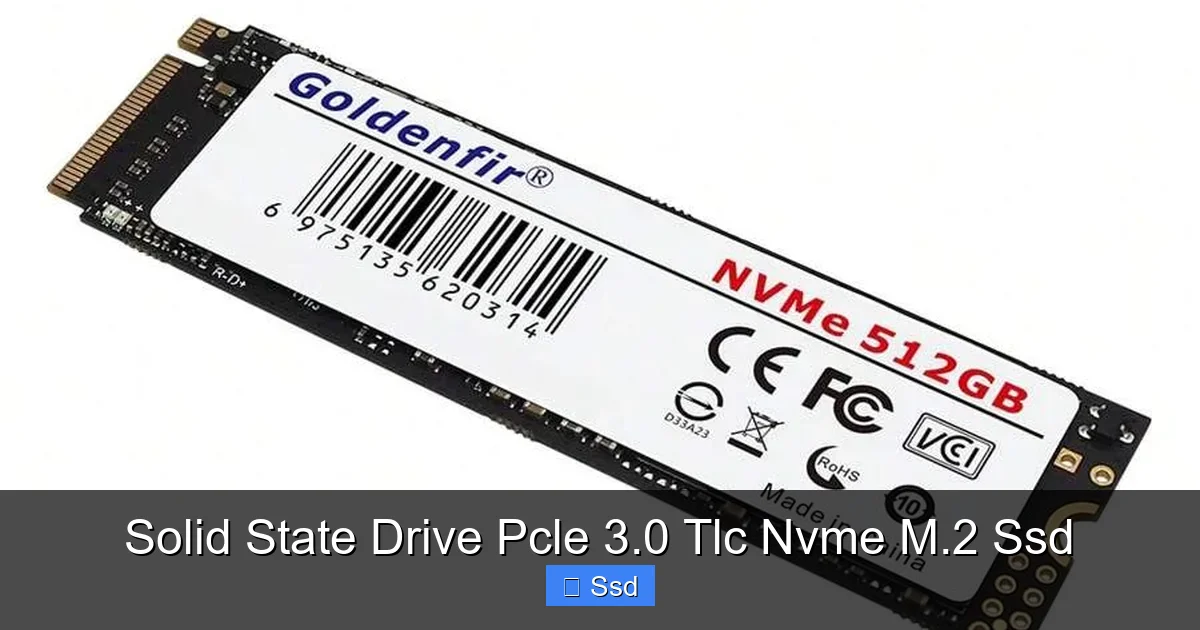
Visual guide about Solid State Drive Pcle 3.0 Tlc Nvme M.2 Ssd
Image source: img.ltwebstatic.com
Speed Showdown: SATA vs. NVMe PCIe 3.0
A top-tier SATA III SSD maxes out at around 550 MB/s read and write. That’s fast—it will make your old HDD feel like a relic. But a good PCIe 3.0 x4 NVMe drive? We’re talking sequential read speeds of 2,500 MB/s to 3,500 MB/s. That’s 5 to 6 times faster on paper. But sequential speeds (moving one huge file) are only part of the story.
The magic is in the random read/write speeds (4K speeds). This measures how quickly the drive can access thousands of small files—the exact kind of operation your operating system does constantly. Loading an OS, opening a program with many small DLL files, or browsing a complex web page all rely on 4K performance. Here, NVMe drives are in a different league. A SATA SSD might do 80-100K IOPS (Input/Output Operations Per Second). A good PCIe 3.0 NVMe drive can easily hit 400K-500K IOPS. This is why your PC feels so much more responsive. Clicks are instant, apps launch in a blink, and the desktop is always ready.
Real-World Examples You’ll Feel
- Booting Your PC: From pressing the power button to a usable desktop, a PCIe 3.0 NVMe drive can shave 5-10 seconds off a SATA SSD boot time. It goes from “grab coffee” to “already?”
- Game Loading Screens: In titles like Cyberpunk 2077, Red Dead Redemption 2, or Call of Duty, open world games with massive asset streams, the difference is stark. You’ll see environments pop in faster and spend less time staring at a loading icon. For competitive games, getting into the match faster is a real advantage.
- File Transfers: Moving a 50GB game folder or a large video project? That transfer will complete in a fraction of the time. While you won’t see 3,500 MB/s with many small files, large, contiguous files (like video footage) will fly.
- Creative Work: For photo editors in Lightroom or video editors working with proxy files, scrubbing through timelines and applying effects is smoother because assets load from storage faster.
Is PCIe 3.0 “Slow” in 2024?
This is the most common misconception. Marketing pushes PCIe 4.0 and 5.0 as “must-haves.” But for a boot drive, game library, or general productivity, PCIe 3.0 is not the bottleneck. Your CPU, RAM, and even the game engine itself will limit you long before a 3,500 MB/s SSD becomes a problem. The jump from SATA (~550 MB/s) to PCIe 3.0 NVMe (~3,500 MB/s) is earth-shattering. The jump from PCIe 3.0 to 4.0 (~7,000 MB/s) is incremental in 99% of real-world uses. You pay a significant premium for that extra paper speed that you will not perceptibly feel. PCIe 3.0 NVMe is the performance sweet spot.
TLC Memory: The Sweet Spot of Durability and Value
NAND flash memory is the actual storage medium on the SSD chips. The “bit per cell” technology determines its cost, speed, and how many times it can be written to before wearing out (endurance).
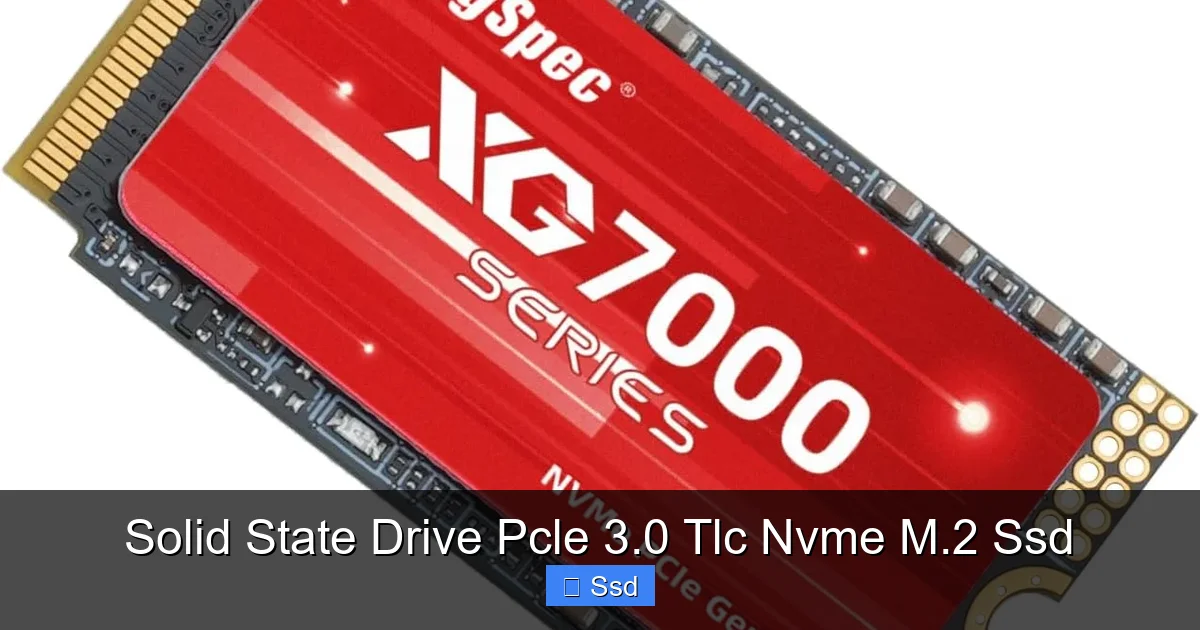
Visual guide about Solid State Drive Pcle 3.0 Tlc Nvme M.2 Ssd
Image source: m.media-amazon.com
SLC, MLC, TLC, QLC: A Quick Primer
SLC (1-bit): The fastest, most durable, and most expensive. Used in enterprise servers. Not for consumers.
MLC (2-bit): The former king of high-performance consumer SSDs. Excellent endurance and speed, but more costly than TLC. Rare in new mainstream drives now.
TLC (3-bit): The current mainstream champion. Offers a fantastic balance. Modern TLC with advanced controllers and large SLC cache buffers can be nearly as fast as older MLC in everyday tasks.
QLC (4-bit): The budget champion. Cheapest per gigabyte, but significantly slower in sustained writes (once the cache fills up) and has lower endurance. Great for read-heavy, bulk storage, but not ideal as a primary drive where you write lots of data frequently.
Why TLC is the Goldilocks Choice for You
For a primary drive where you install your OS, programs, and games, TLC is perfect. Let’s talk about the big worry: endurance. Endurance is measured in TBW (Terabytes Written). A typical 1TB PCIe 3.0 TLC NVMe drive might have a TBW rating of 600 TBW. What does that mean?
Imagine you write 100GB of data to that drive every single day. That’s a huge amount for a typical home user (games, downloads, etc.). It would take you over 16 years to reach the 600 TBW warranty limit. The average user will never write enough data to wear out a modern TLC drive. The drive will become obsolete from a capacity/speed standpoint long before the memory cells fail. You are buying peace of mind and excellent performance at a rational price. TLC is the “just right” for 95% of consumers.
M.2 Form Factor: Small Size, Big Impact
The move from 2.5-inch SATA SSDs to the M.2 form factor is one of the best things to happen to PC building and laptop design.
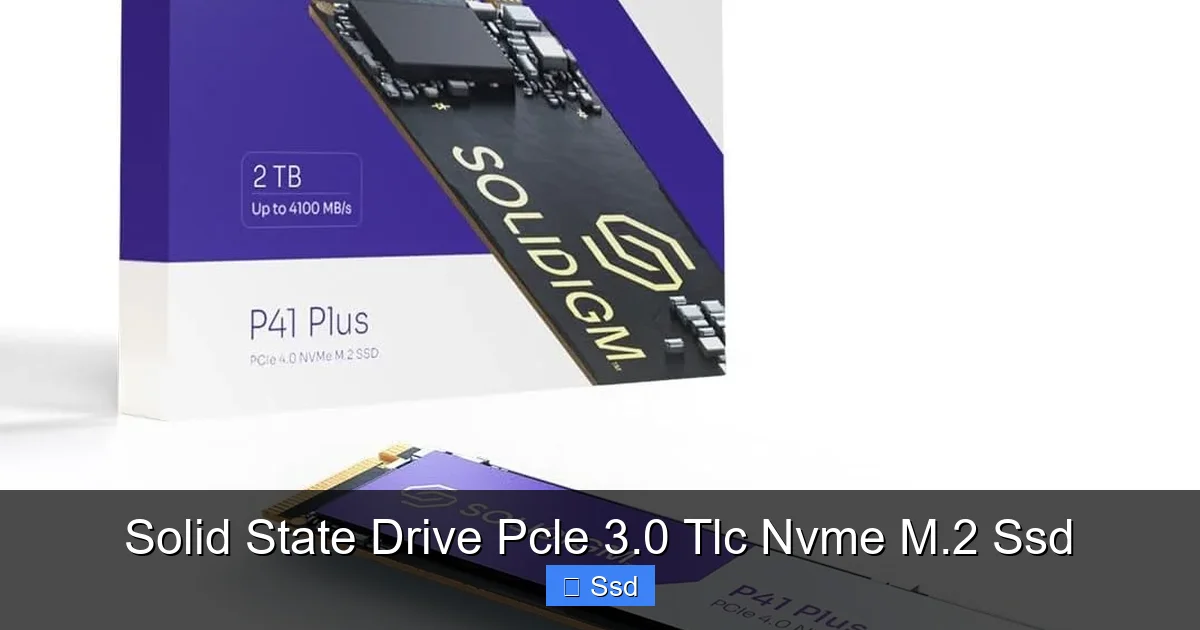
Visual guide about Solid State Drive Pcle 3.0 Tlc Nvme M.2 Ssd
Image source: m.media-amazon.com
The Physical and Practical Advantages
- Space Savings: It’s tiny. A 2280 M.2 drive is about the size of a stick of gum. This frees up space in your case, improves airflow, and makes cable management a dream. No more finding a spot for a 2.5-inch drive and running a SATA cable.
- Direct Motherboard Connection: It plugs straight into the motherboard. This means one less cable to connect (no SATA data or power cable). It’s a simpler, cleaner, and more reliable connection.
- Laptop Revolution: This is huge for laptops. Thin-and-light notebooks almost exclusively use M.2 SSDs because they take up minimal space and weight. Upgrading an old laptop’s storage is often as simple as removing a screw and swapping an M.2 card.
- Weight Reduction: For portable devices and small form factor builds, every gram counts. An M.2 drive weighs just a few grams.
Compatibility Checklist: Don’t Assume, Verify
This is the most important step before buying. Not every M.2 slot is created equal. You must check your motherboard’s manual or specifications page. Look for:
- Keying: The notch on the connector. M.2 slots for NVMe (PCIe) are usually “M” keyed. SATA-based M.2 slots are “B” keyed or “B+M”. Most modern boards support both in the same slot, but PCIe/NVMe is what you want.
- Supported Protocols: Does the slot support PCIe? NVMe? Some cheaper boards have M.2 slots that only support SATA. You want one that says “PCIe 3.0 x4” or “NVMe”.
- Length Support: Check if your board supports 2280 (the most common). Some support shorter (2242) or longer (22110) lengths too.
- Bandwidth Sharing: Be aware that on many motherboards, using an M.2 slot can disable one or more SATA ports. If you have multiple SATA drives, check the manual to see which SATA ports get disabled.
- Heatsink Consideration: High-performance NVMe drives can get warm under sustained loads. Some motherboards come with an M.2 heatsink shield. If yours doesn’t, and you plan on heavy workloads (constant video encoding), a cheap aftermarket heatsink can help maintain performance. For gaming and general use, it’s usually not necessary.
Real-World Performance & What Benchmarks Really Mean
You’ll see ads screaming “7,000 MB/s!” but that’s often PCIe 4.0. For our PCIe 3.0 TLC drive, expect 2,500-3,500 MB/s sequential reads and 1,500-3,000 MB/s writes. But benchmarks are just numbers. Let’s translate them.
Understanding Benchmark Types
- Sequential Read/Write: Reading or writing one huge, contiguous file (like a 100GB video file). This is where you see the highest numbers. Important for large file transfers.
- Random 4K Read/Write: Reading or writing thousands of tiny files. This is the most important metric for OS responsiveness and program loading. A drive with high 4K speeds will feel snappier even if its sequential speed is “only” 3,000 MB/s.
- IOPS (Input/Output Operations Per Second): How many individual read/write commands the drive can handle per second. High IOPS in 4K equals a fast-feeling system.
Practical Testing Scenarios
When reviewing or comparing drives, look for tests that mimic real use:
- Boot Time: Time from power-on to desktop. Differences of 1-2 seconds are common between a SATA SSD and a PCIe 3.0 NVMe drive.
- Game Level Load: Measure the time from selecting “Load Game” to gaining control. Final Fantasy XV, Assassin’s Creed Odyssey, and other open-world games are great for this.
- Application Launch: Time to open Adobe Photoshop, Visual Studio, or a browser with 50 tabs. The difference is noticeable.
- File Copy: Copy a 50GB folder of mixed files (games, ISOs, videos). A good NVMe drive will maintain a much higher average speed than a SATA SSD, especially as the folder contains many subdirectories.
Don’t get lost in the spec sheet. A drive with a slightly lower max sequential speed but a powerful controller and good DRAM cache will often feel faster in daily use than a drive that peaks higher but falls off in sustained performance. Look for reviews that test sustained write performance (after the SLC cache fills up). Some budget QLC drives slow to HDD speeds after a few hundred GB. TLC drives maintain much better speeds.
Who Needs This SSD? Perfect Use Cases & Buyer Personas
This isn’t a one-size-fits-all, but it fits a very large size. Here’s who should be clicking “add to cart.”
The Budget-Conscious Gamer & Builder
This is the #1 audience. You’re building a gaming PC where the GPU and CPU eat up the budget. You want every frame per second and every second of load time you can get. A 1TB or 2TB PCIe 3.0 TLC NVMe SSD is the best value upgrade. It’s faster than a SATA SSD for often the same price or a small premium. Your games load faster, your system boots instantly, and you didn’t have to downgrade your graphics card to afford it. It’s the ultimate “performance per dollar” storage buy.
The Laptop Upgrader
Have an older laptop (3-5 years old) that feels sluggish? If it has an old HDD or even a small, slow SATA SSD, swapping in a modern M.2 NVMe drive (if the laptop has an M.2 slot) is a transformation. The entire system becomes snappier. It’s often the single most effective upgrade for an aging laptop, extending its useful life by years. Just make sure your laptop’s M.2 slot supports PCIe, not just SATA.
The General User & Home Office Pro
You use your PC for web browsing, Office suites, Zoom calls, and light photo editing. You hate waiting for anything. This drive makes your entire computing experience feel smooth and modern. Programs open instantly, files save quickly, and your PC is ready the second you hit the power button. It’s a quality-of-life upgrade that removes daily frustration.
The Aspiring Content Creator (Entry-Level)
If you’re editing 1080p video, working with large Photoshop projects, or doing music production, the fast random read speeds help with loading assets and projects. The high sequential write speeds help when exporting your final video or rendering. For 4K/8K professional workflows with multiple streams, you might eventually need a PCIe 4.0 drive or a RAID array, but for learning and entry-level work, a PCIe 3.0 TLC drive is excellent and cost-effective.
Who Should Look Elsewhere?
- The Extreme Professional: If you’re dealing with uncompressed 8K RAW video, massive databases, or constant, heavy write workloads 24/7, look at enterprise-grade SSDs with higher endurance (higher TBW) or consider a PCIe 4.0/5.0 drive for the absolute maximum sustained throughput.
- The Ultra-Budget Bulk Storage Seeker: If you just need 4TB of game storage and speed isn’t critical, a large capacity SATA SSD or even a high-capacity QLC NVMe drive might be cheaper per gigabyte. Use a fast TLC NVMe for your OS and favorite games, and a slower, larger drive for the backlog.
- The Owner of an Ancient PC: If your motherboard only has PCIe 2.0 or no M.2 slot, you’re limited to a SATA SSD. That’s still a massive upgrade over an HDD, but you can’t use this specific type of drive.
Installation & Optimization: Getting It Running in Minutes
Swapping in an M.2 NVMe SSD is one of the simplest upgrades you can do. Here’s a quick guide.
Step-by-Step Installation
- Power Down & Unplug: Shut down your PC completely and unplug the power cable. For a laptop, ensure it’s off and unplugged, and remove the bottom panel.
- Ground Yourself: Touch a metal part of the case or use an anti-static wrist strap to prevent electrostatic discharge.
- Locate the M.2 Slot: On a desktop motherboard, it’s usually near the PCIe slots, often labeled “M2_1” or similar. On a laptop, it’s under a panel, often near the battery or Wi-Fi card.
- Remove the Mounting Screw: There’s a small screw holding the drive in place at the far end of the slot. Unscrew it and set it aside.
- Insert the Drive: Hold the drive by the edges. Align the notch on the drive’s connector with the key in the M.2 slot. Insert it at a slight angle (about 30 degrees) until it’s seated firmly.
- Secure It: Gently push the drive down flat against the motherboard/laptop chassis and secure it with the mounting screw you removed earlier. Don’t overtighten—snug is fine.
- Reassemble and Power On: Put your case/laptop back together, plug in the power, and turn it on.
First-Time Setup & Optimization
When you first boot, your system’s BIOS/UEFI should detect the new drive. You’ll need to:
- Initialize & Format: Go to Disk Management in Windows. You’ll see the new drive as “unallocated.” Right-click and initialize it (GPT is standard), then create a new simple volume and format it (use NTFS for Windows).
- Enable AHCI Mode: Ensure your SATA mode in BIOS is set to AHCI (not IDE or RAID). This is standard for modern systems and required for NVMe drives to work optimally.
- Update Firmware: Check the manufacturer’s website (Samsung, WD, Crucial, etc.) for a firmware update tool. Firmware updates can improve stability, performance, and power management. It’s a quick, safe process.
- Install Your OS (Optional): If this is your new boot drive, you’ll need to install Windows from a USB installation media. During installation, select this drive as the destination. After installation, download all motherboard chipset and storage drivers from the manufacturer’s site.
- Disable Windows Defragmentation: Windows 10/11 automatically detects SSDs and disables defragmentation, but it’s good to ensure “Optimize Drives” is set to “TRIM” (which it will be). Never defragment an SSD.
- Consider Moving Folders: For maximum performance, install your most-used games and programs directly onto this drive. You can also move your Documents, Downloads, and Desktop folders to it via Properties > Location.
The Verdict: Why This is the Go-To Storage Solution
The Solid State Drive PCIe 3.0 TLC NVMe M.2 SSD isn’t the absolute fastest thing on the market. That title belongs to its PCIe 4.0 and 5.0 siblings. But it is the smartest, most practical, and best value storage upgrade for the overwhelming majority of computer users today. It delivers a quantum leap in performance over SATA SSDs and hard drives at a price that is now accessible to everyone.
You get the blistering speed of NVMe, the proven durability of TLC NAND, and the elegant simplicity of the M.2 form factor. It’s the component that makes your computer feel new again. The boot times, the application launches, the game load screens—all those tiny moments of waiting add up to significant frustration over time. Eliminating them with this drive is a pure upgrade to your daily computing experience. It’s reliable, it’s mature technology (so bugs are ironed out), and it’s incredibly easy to install.
When shopping, focus on reputable brands like Samsung (970 EVO Plus, 980), WD Black (SN750, SN770*), Crucial (P5, P5 Plus), SK Hynix (Gold P31), and Sabrent (Rocket Q). Compare prices per gigabyte for the capacity you need (500GB, 1TB, 2TB). Read a few reviews that look at sustained performance and real-world apps. And most importantly, check your motherboard’s M.2 slot compatibility. Do that, and you’re guaranteed a fantastic, transformative upgrade.
In a world of ever-increasing specs, the PCIe 3.0 TLC NVMe M.2 SSD stands out as a masterpiece of balanced engineering. It provides 90% of the high-end storage performance for 70% of the price, in a package that fits almost anywhere. It is, without a doubt, the storage sweet spot.
Frequently Asked Questions
Is a PCIe 3.0 NVMe SSD still worth buying in 2024?
Absolutely. For gaming, general use, and most creative work, the real-world speed difference between a good PCIe 3.0 and PCIe 4.0 SSD is negligible. PCIe 3.0 offers massive performance over SATA at a much lower cost, making it the best value choice for most users.
What’s the real difference between TLC and QLC NAND in an NVMe SSD?
TLC (3-bit) offers better sustained write speeds and higher endurance (TBW) than QLC (4-bit). QLC is cheaper but can slow down significantly once its cache is full during large file writes. TLC is the recommended choice for a primary OS/game drive, while QLC is better suited for secondary, read-heavy bulk storage.
Will a PCIe 3.0 NVMe SSD work in a motherboard with a PCIe 4.0 slot?
Yes, completely. PCIe is backward and forward compatible. A PCIe 3.0 SSD will work perfectly in a PCIe 4.0 or 5.0 slot, but it will operate at PCIe 3.0 speeds. You don’t need to do anything special; it will just work.
How difficult is it to install an M.2 NVMe SSD?
It’s one of the easiest PC upgrades. It involves locating the M.2 slot on your motherboard, removing one small screw, inserting the drive at an angle, and securing it with that screw. No cables to connect. The entire process takes 2-3 minutes with a screwdriver.
Can I use this type of SSD to upgrade my laptop?
You can, but only if your laptop has an available M.2 slot that supports PCIe/NVMe. Many modern ultrabooks and gaming laptops do. You must check your laptop’s specific model specifications or open it up to confirm the existing storage type and available slot before purchasing.
How long will a TLC NVMe SSD last?
For a typical home user, “longer than the drive will be relevant.” Modern 1TB TLC drives often have TBW ratings of 600 TBW or more. If you wrote 100GB every single day, it would still take over 16 years to reach that limit. The drive will be obsolete due to capacity and speed long before the memory wears out.