Choosing a good RAM for a laptop means prioritizing capacity first (16GB is the new sweet spot), understanding the difference between DDR4 and DDR5, and ensuring compatibility with your specific model. More RAM lets you run more apps smoothly, while speed (MHz) offers minor gains for specific tasks. Always check if your laptop’s RAM is upgradeable or soldered before buying.
Key Takeaways
- Capacity is King: For most users in 2024, 16GB is the recommended minimum for good performance. 8GB is only sufficient for very basic tasks, while 32GB+ is for professional workloads.
- DDR4 vs. DDR5: DDR5 is the newer, faster standard but often costs more and may not be supported by older laptops. DDR4 remains excellent and cost-effective for most.
- Speed (MHz) Matters Less: RAM speed (e.g., 3200MHz vs. 4800MHz) provides diminishing returns for general use. Capacity upgrades yield far more noticeable improvements.
- Compatibility is Crucial: You must match the RAM type (DDR4/DDR5), form factor (SO-DIMM for laptops), and supported speed to your laptop’s motherboard. Soldered RAM cannot be upgraded.
- Dual-Channel Performance: Using two matching sticks (e.g., 2x8GB) enables dual-channel mode, significantly boosting performance over a single stick (1x16GB) at the same capacity.
- Future-Proofing: Consider your software needs 2-3 years ahead. If you do photo/video editing or virtual machines, invest in 32GB now to avoid feeling limited later.
- Check Before You Buy: Use tools like CPU-Z or your laptop’s manual to find exact RAM specifications (type, max capacity, slots) before purchasing any upgrade kit.
[FEATURED_IMAGE_PLACEHOLDER]
📑 Table of Contents
- What Is a Good Ram for a Laptop? A Complete Guide
- The Golden Rule: Capacity Comes First
- DDR4 vs. DDR5: Understanding the Generation Gap
- Decoding RAM Speed and Timings: MHz and CL
- Compatibility: The Non-Negotiable Checklist
- Practical Examples: What “Good” Means for You
- Upgrading vs. Buying New: Making the Smart Move
- Conclusion: Your Action Plan for Good Laptop RAM
What Is a Good Ram for a Laptop? A Complete Guide
You’ve got a laptop. It’s running a bit slow when you have too many browser tabs open, or maybe your video export feels sluggish. The big question pops up: “What is a good RAM for a laptop?” It’s a fantastic question, because RAM, or Random Access Memory, is the short-term workspace your laptop uses to run applications and process data. More and better RAM can feel like giving your laptop a fresh start. But “good” is a tricky word. It’s not about buying the most expensive, highest-numbered stick you can find. It’s about finding the right balance of capacity, type, speed, and compatibility for your specific machine and how you use it. This guide will cut through the jargon and give you a clear, actionable answer.
Think of your laptop’s RAM like a physical desk. A bigger desk (more RAM) lets you spread out more documents and tools (apps and files) without having to constantly put things away and fetch them again (slowing down to use the much slower storage drive). The speed of your RAM is like how quickly you can grab a tool from your desk. But if your desk is too small, no matter how fast you are, you’ll constantly be shuffling things around. That’s why we start with size.
The Golden Rule: Capacity Comes First
When answering “what is a good RAM for a laptop,” the single most important factor is capacity, measured in gigabytes (GB). This is the raw amount of workspace your laptop has. For years, 8GB was the standard recommendation. But in 2024, software and websites are more demanding than ever. A modern web browser with a few dozen tabs can easily consume 4-6GB on its own. Your operating system needs 2-4GB just to breathe. So, the landscape has shifted.
Visual guide about What Is a Good Ram for a Laptop
Image source: product.hstatic.net
8GB: The Bare Minimum, Not “Good”
An 8GB configuration is now the absolute entry-level baseline. It will let you run a lightweight operating system, a few basic applications like Microsoft Office, and a limited number of browser tabs. If your computing is extremely simple—email, web browsing with 2-3 tabs, and very light document work—8GB might suffice. However, you will likely experience slowdowns, stuttering, and feel the constraints quickly. For anyone who multitasks, 8GB is not a “good” RAM amount; it’s a restrictive one.
16GB: The Sweet Spot for Most Users
This is the answer for “what is a good RAM for a laptop” for the vast majority of people. 16GB provides a comfortable, future-proof buffer. You can have dozens of browser tabs open, run your primary applications (like Photoshop, Lightroom, or Visual Studio Code), and easily switch between them without the system grinding to a halt. It’s ideal for students, office professionals, casual content creators, and even moderate gamers. A laptop with 16GB of RAM feels responsive, smooth, and capable. It eliminates the constant anxiety of closing apps to free up memory. For a general-use laptop bought today, 16GB should be your target.
32GB and Beyond: For Professionals and Power Users
When does 16GB stop being “good” and 32GB become necessary? When your work involves large, memory-hungry applications. This includes:
- Video Editing: Working with 4K or higher resolution footage in DaVinci Resolve, Premiere Pro, or Final Cut Pro.
- 3D Rendering & Animation: Using Blender, Maya, or Cinema 4D with complex scenes.
- Software Development: Running multiple virtual machines, Docker containers, or large integrated development environments (IDEs).
- Data Science & Analysis: Manipulating massive datasets in Python with Pandas or R.
- High-End Gaming + Streaming: Playing modern AAA games at high settings while simultaneously streaming or running other background software.
For these users, 32GB is the new professional standard. 64GB or more is reserved for extreme workloads like scientific simulation or working with massive, uncompressed media files.
DDR4 vs. DDR5: Understanding the Generation Gap
Capacity isn’t the only spec. The “type” of RAM—DDR4 or DDR5—is the next critical piece of the puzzle. This is the generation or technology standard. You cannot mix them; your laptop’s motherboard supports one or the other. DDR5 is the newer standard, but is it automatically better for you?

Visual guide about What Is a Good Ram for a Laptop
Image source: cdnb.artstation.com
DDR4: The Reliable, Cost-Effective Workhorse
DDR4 has been the dominant standard for nearly a decade. It’s mature, widely available, and incredibly cost-effective. For most real-world tasks—web browsing, office apps, even many games—the performance difference between fast DDR4 and early DDR5 is minimal. The key advantage of DDR4 today is value. You can often find high-capacity (e.g., 32GB) DDR4 kits for the same price or less than a 16GB DDR5 kit. If your laptop only supports DDR4, don’t fret. You’re not getting an obsolete product. A good kit of DDR4 RAM (e.g., 3200MHz CL16) is still excellent.
DDR5: The New Standard with Higher Potential
DDR5 arrived with higher base speeds (starting around 4800MHz) and a new architecture that allows for faster future scaling. Its primary benefits are:
- Higher Bandwidth: More data can move between the RAM and CPU per second, which helps in specific, data-intensive applications like certain scientific computing tasks and integrated graphics.
- Better Efficiency: DDR5 operates at a lower voltage (1.1V vs 1.2V/1.35V for DDR4), which can slightly improve battery life in laptops.
- Future-Proofing: All new laptops and CPUs moving forward will use DDR5. Buying a DDR5 laptop now means its RAM platform will be relevant for longer.
The Catch: Early DDR5 had higher latency (CL timings), which could offset raw speed gains in some games and applications. However, DDR5 has matured quickly. Modern DDR5 kits (6000MHz CL30/CL32) offer a much better balance. The real-world performance uplift for average users over good DDR4 is still often in the single-digit percentages. The cost per GB is typically higher.
Which One Should You Choose?
This is not a choice you make in a vacuum. Your laptop’s motherboard dictates the choice. If you’re buying a new laptop today and have the budget, a DDR5 configuration is the smarter long-term buy. If you’re upgrading an older laptop, it almost certainly uses DDR4. If you’re choosing between two otherwise identical laptops, one with DDR4 and one with DDR5, the DDR5 model might be slightly more future-proof, but don’t overpay for it. The capacity difference (e.g., 16GB DDR4 vs. 8GB DDR5) is far more important. Always match what the laptop supports.
Decoding RAM Speed and Timings: MHz and CL
Once you know the capacity and generation (DDR4/DDR5), you’ll see specs like “3200MHz” or “DDR5-6000 CL30.” These refer to speed and latency. This is where things get nuanced for the average buyer.

Visual guide about What Is a Good Ram for a Laptop
Image source: newtechmart.in
What Does MHz (MT/s) Mean?
The megahertz (MHz) rating, more accurately called mega-transfers per second (MT/s), indicates how many times the RAM can send and receive data per second. Higher numbers (e.g., 3200, 4800, 6000) are faster. However, the CPU and motherboard also need to support these speeds. RAM will default to the highest speed both the RAM kit and the system’s memory controller (in the CPU) agree upon, called the “JEDEC” speed. To reach the advertised high speed, you often need to enable an XMP (Intel) or EXPO (AMD) profile in the BIOS. Most laptop BIOSes do not allow this manual tuning; they run at JEDEC speeds. So, a “6000MHz” kit in a laptop might only run at 4800MHz if that’s the JEDEC standard for that DDR5 generation.
What Do CL Timings Mean?
CL (CAS Latency) is the delay between the RAM receiving a command and executing it. It’s represented as a number, like CL16 or CL30. Lower is better. However, timing must be considered alongside speed. A DDR4-3200 CL16 kit has a true latency of (CL / Frequency) * 2000. (16 / 3200) * 2000 = 10 nanoseconds. A DDR5-6000 CL30 kit: (30 / 6000) * 2000 = 10 nanoseconds. They have the same actual latency! The DDR5 kit just moves more data per cycle. When comparing within the same generation (e.g., two DDR4 kits), a lower CL at the same MHz is faster. Across generations, the comparison is more complex.
Practical Advice on Speed
For a laptop user, obsessing over RAM speed is usually a mistake. Here’s why:
- Laptop Limitations: Most laptops have locked BIOSes that prevent you from enabling XMP/EXPO profiles. You get the JEDEC speed, which is conservative.
- Diminishing Returns: The performance difference between, say, a 2666MHz and a 3200MHz kit in everyday tasks is often imperceptible. You might see a 1-5% boost in some games or specific benchmarks, but it won’t transform your experience.
- Capacity > Speed: Upgrading from 8GB to 16GB will feel like a night-and-day transformation. Upgrading from 3200MHz to 4800MHz at the same capacity will feel like nothing. Always prioritize capacity.
Bottom Line: Buy RAM with a speed rating that is standard for its generation (e.g., 3200-3466MHz for DDR4, 4800-5600MHz for DDR5). Don’t pay a significant premium for “extreme” speeds unless you know your specific laptop and workload (like some integrated graphics gaming) will benefit. Let compatibility and capacity guide your purchase.
Compatibility: The Non-Negotiable Checklist
This is the most technical but most critical section. You can have the perfect capacity and speed in mind, but if it doesn’t physically or electrically fit your laptop, it’s useless. Here is your pre-purchase checklist.
1. Form Factor: SO-DIMM
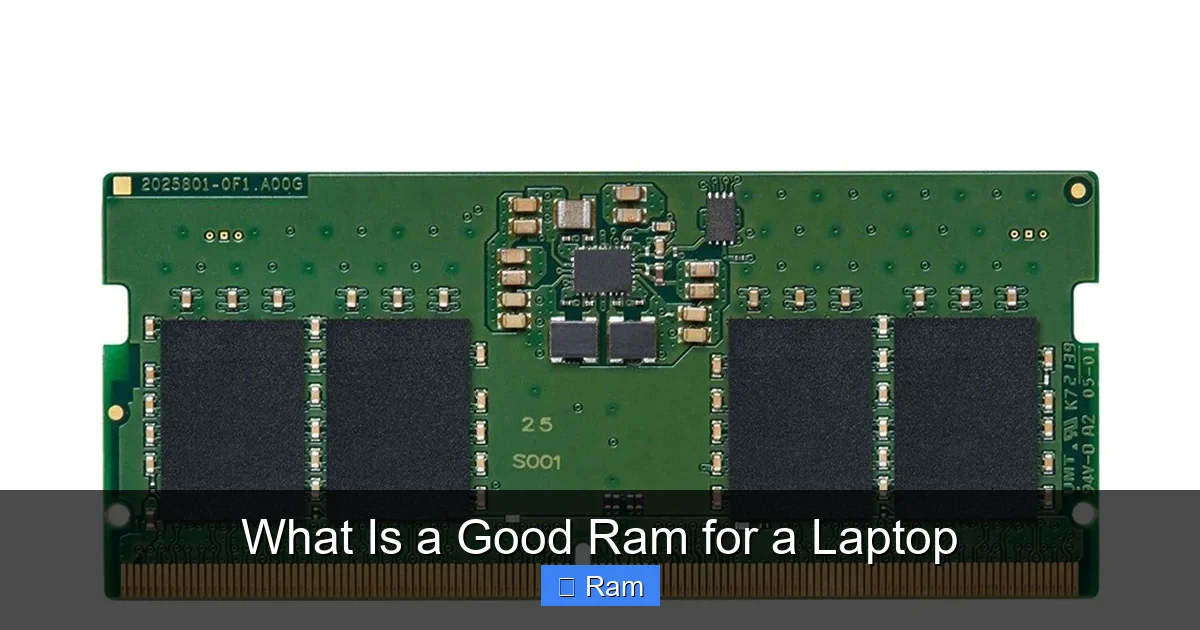
Laptops use a different physical size of RAM module than desktop PCs. It’s called a SO-DIMM (Small Outline DIMM). It’s shorter and has a different notch position. You cannot use standard desktop DIMMs in a laptop. All laptop RAM you buy must be labeled as SO-DIMM.
2. Generation/DDR Type (DDR4, DDR5, etc.)
As discussed, you must match the generation. DDR4 and DDR5 modules are physically incompatible—the notch is in a different place to prevent wrong insertion. You cannot put a DDR4 stick in a DDR5 slot or vice versa. Identify which your laptop uses first.
3. Maximum Supported Capacity & Slots
Every laptop motherboard has a limit on how much RAM it can address. Common limits are 32GB, 64GB, or even 128GB per slot. More importantly, you need to know:
- How many slots are available? Many modern ultrabooks have soldered RAM, meaning the memory chips are permanently attached to the motherboard. There are no slots. You cannot upgrade these. Other laptops have one or two accessible SO-DIMM slots.
- Is any RAM already soldered? Some laptops have one stick soldered and one slot available (e.g., 8GB soldered + 1 slot). You must add a stick that matches the soldered RAM’s speed, voltage, and ideally, capacity and timings for best dual-channel performance.
Use a tool like CPU-Z (run the “Memory” and “SPD” tabs) or Crucial System Scanner to see your current configuration and maximum limits. The laptop’s official manual or support page is the ultimate authority.
4. Speed Support (JEDEC vs. XMP)
Your laptop’s CPU (e.g., an Intel Core i7-1360P) supports a certain range of memory speeds. The laptop manufacturer may only implement support for the base JEDEC speed (e.g., 4800MHz for DDR5). Even if you buy a 6000MHz EXPO kit, the laptop may only run it at 4800MHz. Check the manufacturer’s specifications for “memory speed” or “supported memory.” In practice, for a laptop, you should buy RAM with a speed that matches the JEDEC standard for its generation to guarantee it works at that speed without needing a BIOS tweak you can’t make.
Practical Examples: What “Good” Means for You
Let’s make this concrete. What does a “good RAM” configuration look like for different types of laptop users?
The Student / Office Warrior
Use Case: Microsoft Office suite, 20+ Chrome tabs (research, Canvas, Blackboard), Zoom calls, Spotify, maybe a light photo editor.
Good RAM Spec: 16GB DDR4-3200 (or DDR5-4800). This is the target. 8GB will lead to constant tab reloading and sluggishness. 16GB is smooth, affordable, and will last through college and into a first job. Prioritize capacity over any speed advantage.
The Casual Content Consumer & Creator
Use Case: Streaming 4K Netflix, light photo editing in GIMP or Lightroom, casual 1080p video editing of home movies, blogging.
Good RAM Spec: 16GB DDR4-3200 or DDR5-5200. Photo editing software, especially with high-resolution phone camera photos, loves RAM. 16GB allows you to work on multiple images without lag. If you do more frequent video editing, consider a 32GB kit if your budget and laptop support it.
The Mainstream Gamer
Use Case: Playing modern AAA titles (Cyberpunk 2077, Elden Ring), often with a browser or Discord in the background.
Good RAM Spec: 16GB DDR4-3200 or DDR5-5600 in a dual-channel kit (2x8GB). 16GB is the absolute minimum for modern gaming. Dual-channel (two sticks) provides a significant performance boost (often 10-15% more FPS) over a single 16GB stick. For future-proofing with next-gen games, a 32GB (2x16GB) kit is a smart investment if the price difference is small. Speed matters slightly more here; aim for the mainstream “sweet spot” speed for your platform (e.g., 5600MHz for AMD Ryzen 7000 series, 5200-6400MHz for Intel 13th/14th Gen).
The Professional & Power User
Use Case: 4K/8K video editing, 3D rendering, running multiple virtual machines, large dataset analysis, software compilation.
Good RAM Spec: 32GB minimum, 64GB ideal. For this group, capacity is the only metric that matters. They should use the fastest supported speed (DDR5-6000+ if possible) to feed the CPU, but adding more RAM is always the first upgrade over chasing higher MHz. They must also ensure the RAM is on their laptop’s qualified vendor list (QVL) if possible, for maximum stability with demanding workloads.
Upgrading vs. Buying New: Making the Smart Move
You’ve diagnosed your needs. Now, should you upgrade your existing laptop’s RAM or buy a new one with more pre-installed?
When to Upgrade Your Existing Laptop
Upgrading is the cost-effective, environmentally friendly choice if:
- Your laptop is 1-4 years old and otherwise performs well (good CPU, SSD).
- It has accessible RAM slots (not all soldered).
- The cost of RAM (a $50-100 kit) is much less than the cost of a new laptop.
- You are technically comfortable opening the laptop case (usually just removing a bottom panel and unscrewing a module).
Pro Tip: Before upgrading, run a memory stress test (like MemTest86) on your current RAM to rule out existing faulty modules as a cause of any instability.
When to Buy a New Laptop with More RAM
Buy new if:
- Your laptop has all RAM soldered and you need more than it currently has.
- The laptop is very old (5+ years), with a slow CPU, HDD instead of SSD, or a failing battery. Adding RAM won’t fix these fundamental issues.
- The upgrade cost is disproportionately high (some ultrabooks charge a huge premium for higher RAM configurations at purchase).
- You want the other benefits of a new machine: a newer CPU, better screen, modern ports, warranty.
The Math: If a new laptop with 16GB costs $300 more than the base 8GB model, but you can buy a 16GB upgrade kit for $70, the upgrade is almost always the better deal on an otherwise capable machine.
Conclusion: Your Action Plan for Good Laptop RAM
So, what is a good RAM for a laptop? After all this, the answer is beautifully simple: 16GB of the correct type (DDR4 or DDR5) for your laptop, installed as a dual-channel kit if possible.
Start there. For 90% of users, that is the “good” target that delivers a massively improved, smooth, and future-resistant experience. Only deviate from that formula if your specific professional needs demand 32GB+, or if you’re on an extreme budget and understand the limitations of 8GB. Never buy RAM without first confirming your laptop’s exact compatibility. A quick check with a system scanner tool or a look at the manual will save you from a costly mistake. Remember, the goal isn’t to have the fastest number on the box. The goal is to have a laptop that doesn’t slow you down. More RAM, in the right amount, does that better than almost any other single upgrade.
Frequently Asked Questions
Is 16GB RAM enough for a laptop in 2024?
Yes, 16GB is the recommended sweet spot for most users in 2024. It provides ample space for modern operating systems, dozens of browser tabs, and multiple applications running simultaneously without slowdowns. It’s the best balance of performance and value for students, professionals, and gamers.
Does RAM speed really matter for laptops?
For most laptop users, RAM speed (MHz) matters very little compared to capacity. The performance difference between a 3200MHz and 4800MHz kit in everyday tasks is often negligible. Capacity upgrades (e.g., going from 8GB to 16GB) provide a far more noticeable improvement. Speed is a minor factor, secondary to getting enough RAM.
Can I mix different RAM sizes or brands in my laptop?
You can technically mix different sizes (e.g., 8GB + 16GB), but it will usually run in asymmetric dual-channel mode, which is less efficient. For best performance, use identical sticks (e.g., 2x8GB or 2x16GB). Mixing brands is usually fine if the specs (DDR type, speed, timings) match, but using a matched kit from the same manufacturer ensures the best compatibility and stability.
How do I know if my laptop’s RAM is upgradeable?
First, check your laptop’s manual or support page. You can also use a free tool like CPU-Z (check the “Memory” and “SPD” tabs) or Crucial System Scanner. If your laptop has a panel on the bottom secured by screws that, when removed, reveals RAM sticks, it’s upgradeable. If you cannot access any RAM modules, or if the service manual states “memory is soldered,” it is not upgradeable.
Should I buy more RAM or a faster SSD for a slow laptop?
>If your laptop has a traditional hard drive (HDD), upgrading to a solid-state drive (SSD) is the single biggest performance upgrade you can make. If you already have an SSD and still feel slow when multitasking, then adding more RAM is the next best step. Check Task Manager to see if your RAM usage is consistently near 100%—if so, more RAM will help.
Is ECC RAM good for laptops?
No, ECC (Error-Correcting Code) RAM is not for standard consumer laptops. It’s designed for servers and workstations where data integrity is critical. ECC RAM is more expensive, requires specific motherboard support (which almost no consumer laptops have), and can be slightly slower. For a laptop, stick with non-ECC, unbuffered RAM.