Looking to boost your laptop’s performance? This guide walks you through choosing the perfect RAM, understanding specs, and installing it yourself, so you can enjoy faster apps and smoother multitasking. Read on for expert tips, buying advice, and a step‑by‑step upgrade plan.
Key Takeaways
- Know your laptop’s limits: Check the maximum RAM capacity and supported type before you shop.
- Match speed and voltage: Choose modules with the same MHz and voltage to avoid compatibility issues.
- Dual‑channel matters: Installing RAM in pairs can double bandwidth and improve performance.
- DIY installation is easy: With a few tools and safety steps, you can upgrade yourself in under 30 minutes.
- Best value options: Brands like Crucial, Kingston, and Corsair offer reliable performance at competitive prices.
- Future‑proof your purchase: Consider buying a slightly larger kit than you need now to extend the laptop’s lifespan.
- Test after upgrade: Use tools like MemTest86 to confirm the new memory is stable and error‑free.
📑 Table of Contents
- Introduction: Why RAM Matters for Your Laptop
- 1. Understanding RAM Basics
- 2. How Much RAM Do You Really Need?
- 3. Compatibility: What to Look for Before You Buy
- 4. Where to Buy RAM Memory for Laptop
- 5. Installing Laptop RAM – Step‑by‑Step Guide
- 6. Tips to Get the Most Out of Your New RAM
- Conclusion: Upgrade Smart, Upgrade Confidently
Introduction: Why RAM Matters for Your Laptop
Imagine trying to juggle too many balls at once—eventually, you’ll drop one. That’s exactly what happens inside a laptop when the RAM (Random Access Memory) runs out of space. Each open program, browser tab, or background service needs a slice of that fast‑access memory. If the RAM is too small, the system starts swapping data to the much slower hard drive or SSD, and you feel the lag.
Upgrading RAM is one of the quickest, most cost‑effective ways to make an old laptop feel new again. Whether you’re a student cramming multiple research tabs, a gamer chasing higher frame rates, or a professional running heavy design software, the right amount of RAM can shave seconds off load times and keep everything running smoothly.
1. Understanding RAM Basics
What is RAM?
RAM is a type of volatile memory that stores data your computer needs right now. Unlike a hard drive or SSD, which keeps data even when the power is off, RAM loses its contents when you shut down. Its purpose is to give the CPU quick access to the information it needs, acting like a short‑term workspace.
Visual guide about Buy Ram Memory for Laptop
Image source: m.media-amazon.com
Key specifications you’ll see
- Capacity (GB): Common sizes are 4 GB, 8 GB, 16 GB, and 32 GB. More capacity lets you run more programs simultaneously.
- Speed (MHz): Measured in megahertz; higher numbers mean faster data transfer. Typical laptop RAM runs at 2400 MHz, 2666 MHz, 3200 MHz, or even 3600 MHz.
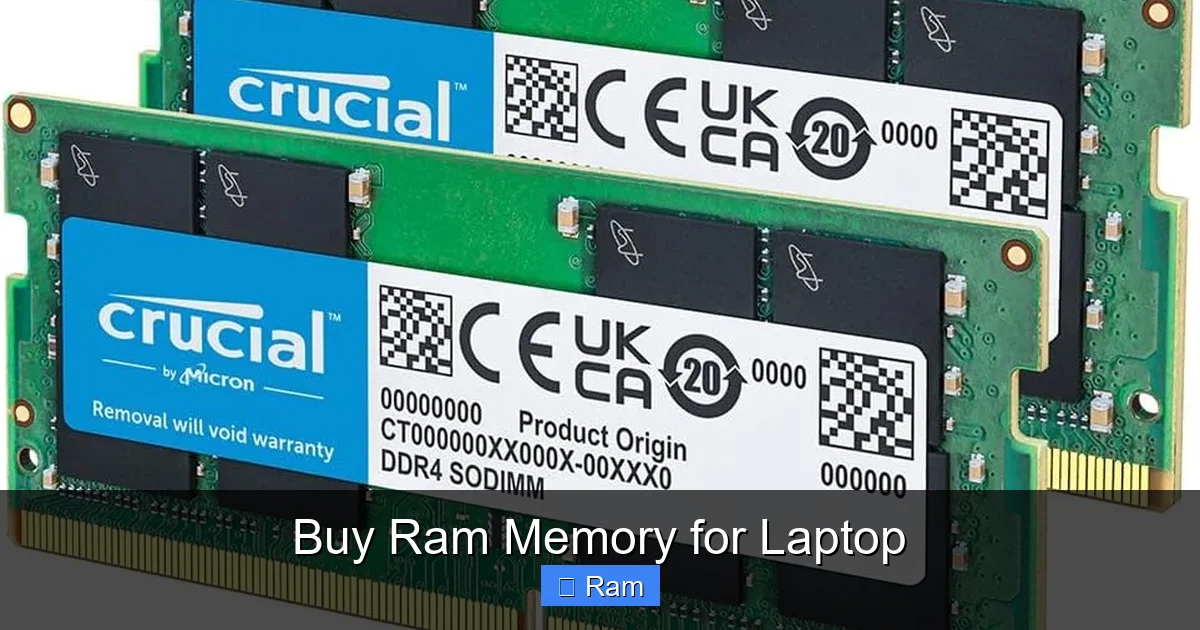
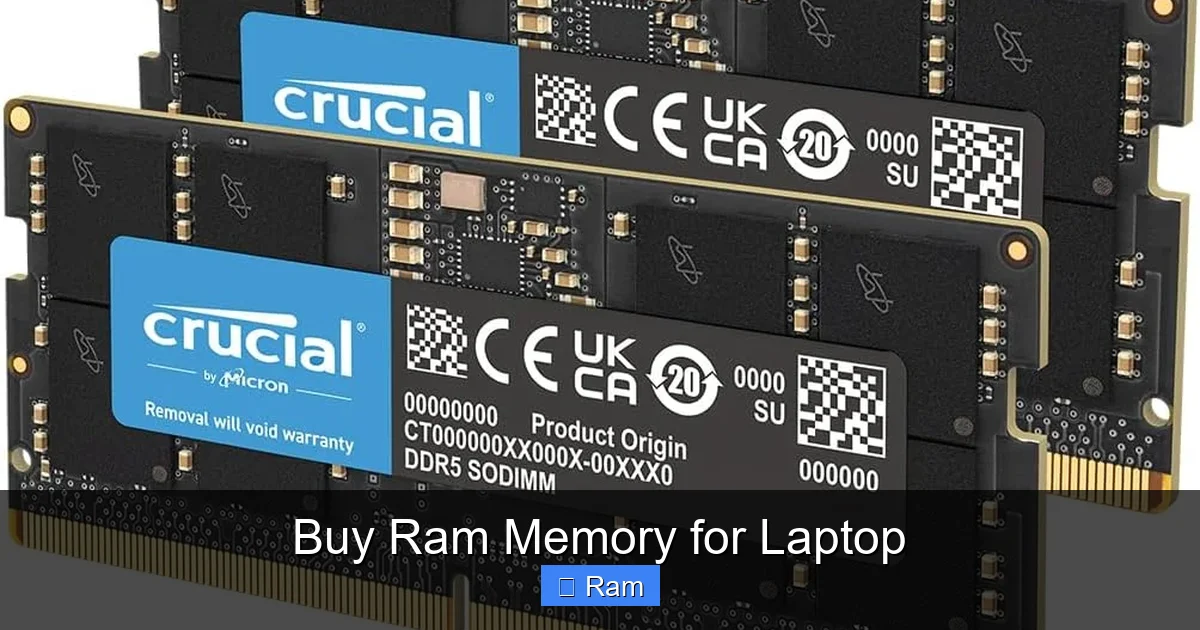
- Form factor: Laptops use SO-DIMM (Small Outline Dual Inline Memory Module) sticks, which are half the size of desktop DIMMs.
- Latency (CL): Lower CAS latency (e.g., CL16 vs. CL22) indicates faster response times, though the difference is subtle for most users.
- Voltage: Most modern laptop RAM runs at 1.2 V (DDR4) or 1.35 V (DDR5). Matching voltage is crucial for stability.
DDR generations explained
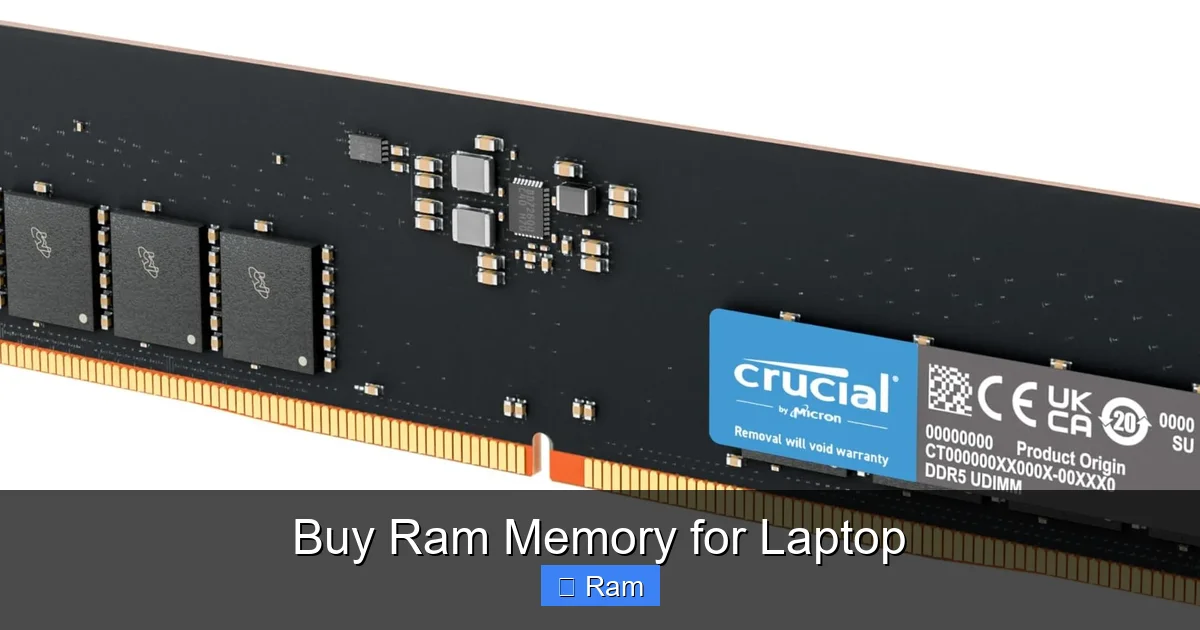
DDR4 is still the most common in laptops today, offering a good balance of speed, power efficiency, and price. DDR5 is emerging, promising higher speeds (up to 5600 MHz) and lower power draw, but it’s only compatible with the newest laptops. Trying to fit DDR5 into a DDR4 slot (or vice‑versa) simply won’t work.
2. How Much RAM Do You Really Need?
General guidelines by use case
- Basic tasks (web browsing, office apps): 4 GB–8 GB is sufficient, but 8 GB gives you more breathing room.
- Multitasking heavy (multiple browsers, Office, streaming): 8 GB–16 GB ensures smooth switching.
- Creative work (photo/video editing, 3D modeling): 16 GB–32 GB helps handle large files and render queues.
- Gaming: 16 GB is the sweet spot for most modern titles; 32 GB future‑proofs for upcoming games.
- Professional software (VMs, CAD, data analysis): 32 GB or more may be required.
Checking your current RAM
On Windows, press Ctrl + Shift + Esc to open Task Manager and view the “Memory” line. On macOS, open “About This Mac” and click the “Memory” tab. This tells you both the total amount and the speed, which you’ll need when shopping.
Visual guide about Buy Ram Memory for Laptop
Image source: m.media-amazon.com
Future‑proofing considerations
If your laptop supports 32 GB or more, buying a 16 GB kit now (two 8 GB sticks) leaves room to add another 16 GB later. This incremental upgrade can spread cost over time while keeping performance strong for years.
3. Compatibility: What to Look for Before You Buy
Finding the max RAM capacity
Every laptop model has a maximum RAM limit set by its motherboard and BIOS. The manufacturer’s website, the user manual, or sites like Crucial’s System Scanner can quickly tell you the limit.
Visual guide about Buy Ram Memory for Laptop
Image source: m.media-amazon.com
Matching the right type
Key things to match:
- Form factor: SO‑DIMM for laptops.
- DDR generation: DDR4 vs. DDR5 (check the existing module or spec sheet).
- Speed: If your laptop ships with 2666 MHz DDR4, you can install 3200 MHz modules, but they will run at the lower 2666 MHz speed.
- Voltage: Most DDR4 SO‑DIMMs are 1.2 V; using a module with a different voltage can cause instability.
Single‑channel vs. dual‑channel
Dual‑channel mode doubles the data path between RAM and CPU, effectively increasing bandwidth. To enable it, install RAM in matching pairs (e.g., two 8 GB sticks) in the correct slots—usually labeled “A1” and “B1”. If you install a single 16 GB stick, you’ll run in single‑channel mode, which is fine but not as fast.
Tools for checking compatibility
Websites like Crucial, Kingston, and Corsair offer “Memory Finder” tools. You input your laptop model, and they list tested, compatible kits.
4. Where to Buy RAM Memory for Laptop
Online retailers
- Amazon: Huge selection, user reviews, and often fast shipping. Look for “Amazon’s Choice” or “Best Seller” tags for reliable picks.
- Newegg: Great for tech‑savvy shoppers; detailed specs and frequent sales.
- Manufacturer stores: Buying directly from Crucial, Kingston, or Corsair guarantees authenticity and often includes a lifetime warranty.
Brick‑and‑mortar options
Best Buy, Micro Center, and local computer shops let you see the product in person. Some stores even offer in‑store installation services for a modest fee.
What to look for in a seller
- Warranty: Minimum one‑year limited warranty; many brands offer lifetime warranties.
- Return policy: At least 30 days return, especially important if you discover incompatibility after testing.
- Authenticity guarantees: Beware of “too good to be true” prices—counterfeit modules can cause crashes.
Price‑watching tips
RAM prices fluctuate with market demand. Use price‑tracking tools like CamelCamelCamel for Amazon or set Google Alerts for “16 GB DDR4 laptop RAM sale”. Buying during major sales events (Black Friday, Cyber Monday, back‑to‑school) can shave 20‑30 % off the MSRP.
5. Installing Laptop RAM – Step‑by‑Step Guide
What you’ll need
- Phillips #0 screwdriver
- Anti‑static wrist strap (or touch a grounded metal object)
- Plastic pry tool (optional, for tight panels)
- The new RAM module(s)
Step 1: Power down and unplug
Shut down the laptop completely, unplug the power adapter, and remove any connected peripherals. If the battery is removable, take it out.
Step 2: Open the access panel
Turn the laptop upside down. Locate the memory compartment—usually a small rectangular panel secured with one or two screws. Remove the screws and gently lift the panel.
Step 3: Ground yourself
Put on the anti‑static wrist strap and attach the clip to a metal part of the chassis. This prevents static discharge that could damage the RAM.
Step 4: Locate existing RAM slots
Most laptops have one or two slots. If there’s an empty slot, you’re ready to add a new stick. If both are occupied, you’ll need to remove one or both modules.
Step 5: Remove old modules (if needed)
Push the metal retaining clips on either side of the module outward. The RAM should pop up at a slight angle. Grasp the edges and pull it out gently.
Step 6: Install the new RAM
Align the notch on the RAM’s connector with the key in the slot. Insert the module at the same angle (about 30°) and press down firmly until the retaining clips click into place.
Step 7: Reassemble
Replace the access panel, screw it back in, re‑insert the battery (if you removed it), and plug the power adapter.
Step 8: Verify the upgrade
Power on the laptop. On Windows, open Task Manager → Performance → Memory to see the new total. On macOS, go to “About This Mac”. If the system doesn’t recognize the new RAM, double‑check the seating and compatibility.
Step 9: Run a memory test
Download MemTest86, create a bootable USB, and run the test for at least one full pass. No errors mean the RAM is stable.
6. Tips to Get the Most Out of Your New RAM
Enable XMP/Memory Profile (if available)
Some laptops with Intel’s Z‑series or AMD’s X570 chipsets let you enable XMP (Extreme Memory Profile) in the BIOS, automatically setting the RAM to its rated speed. Check your BIOS settings under “Advanced → Memory Configuration”.
Keep your OS and drivers updated
Newer RAM can expose inefficiencies in older drivers. Updating Windows, macOS, and firmware ensures the system fully utilizes the added bandwidth.
Balance RAM with storage speed
If you pair a RAM upgrade with an SSD (especially NVMe), the overall system feels dramatically faster. The SSD handles large file transfers while the RAM keeps active apps snappy.
Don’t forget thermal considerations
More RAM can generate a bit more heat, though it’s usually minimal. Make sure the laptop’s cooling vents are clean and consider a laptop cooling pad for heavy workloads.
Plan for future upgrades
When buying, think about the next step. Purchasing a 2 × 8 GB kit now leaves a free slot for a future 2 × 16 GB upgrade, extending the laptop’s life without replacing the whole set.
Conclusion: Upgrade Smart, Upgrade Confidently
Buying RAM memory for your laptop is a low‑risk, high‑reward upgrade that can breathe new life into an aging machine. By understanding the specifications, checking compatibility, and following a careful installation process, you’ll enjoy smoother multitasking, faster app launches, and a more responsive overall experience. Whether you shop online or in‑store, choose reputable brands, watch for sales, and always test the new memory before you settle in. With the right RAM, your laptop will keep up with your workload for years to come.
Frequently Asked Questions
How do I know which type of RAM my laptop uses?
Check the laptop’s specifications on the manufacturer’s site or open the existing memory compartment to read the label (e.g., DDR4‑2666 MHz SO‑DIMM). Tools like Crucial’s System Scanner can also identify the correct type automatically.
Can I mix different RAM sizes or speeds?
Yes, you can mix sizes (e.g., 8 GB + 4 GB), but the system will run in single‑channel mode and default to the slower speed. For best performance, use identical modules in capacity, speed, and latency.
Will adding more RAM improve gaming performance?
Increasing RAM from 8 GB to 16 GB often smooths frame rates and reduces stuttering in modern games, especially when paired with a capable GPU. However, RAM alone cannot replace a weak graphics card.
Is it safe to upgrade RAM myself?
Yes. As long as you follow anti‑static precautions, use the correct screwdriver, and handle modules by the edges, the process is safe and takes under 30 minutes for most laptops.
What should I do if my laptop doesn’t boot after installing new RAM?
Power off, reseat the module ensuring the notch aligns, and confirm the clips are fully engaged. If it still won’t boot, verify the RAM’s speed and voltage match the laptop’s specifications or try the module in a different slot.
Do I need to reinstall the operating system after a RAM upgrade?
No. RAM is a hardware component that the OS detects automatically at boot. Your files, programs, and settings remain unchanged.