Can I Add More Ram to My Laptop
Wondering if you can add more RAM to your laptop? Most modern notebooks let you upgrade memory, but you need to know the type, size limits, and whether the slots are accessible. Follow this guide to find out, buy the right modules, and install them yourself for a noticeable speed boost.
Key Takeaways
- Check compatibility first: Identify your laptop’s RAM type, maximum capacity, and slot configuration before buying.
- Tools are simple: A small Phillips screwdriver and an anti‑static wrist strap are usually all you need.
- Performance gains vary: Adding RAM helps multitasking, heavy apps, and gaming, but won’t fix a slow CPU.
- Soldered vs. removable: Some ultrabooks have RAM soldered to the board, making upgrades impossible.
- BIOS/UEFI may need a tweak: After installation, verify that the system recognizes the new memory.
- Warranty considerations: Opening the laptop might affect the warranty; check the manufacturer’s policy.
- Recycle old modules responsibly: Donate or recycle unused RAM to keep e‑waste low.
📑 Table of Contents
- Introduction: Why More RAM Might Be the Boost You Need
- 1. Understanding Laptop RAM Basics
- 2. How to Determine If Your Laptop Can Be Upgraded
- 3. Choosing the Right RAM Module
- 4. Step‑by‑Step Installation Guide
- 5. Troubleshooting Common Issues
- 6. When Adding RAM Isn’t Enough
- Conclusion: Make an Informed Decision
Introduction: Why More RAM Might Be the Boost You Need
Imagine juggling several apps—browser tabs, a video call, a music player, and a spreadsheet—while your laptop starts to stutter. That lag is often a sign that the computer is running out of memory. Adding more RAM (Random‑Access Memory) gives the system a bigger playground to store data that’s actively being used, which translates to smoother multitasking and faster load times.
But before you rush to the nearest electronics store, you need to answer a simple question: Can I add more RAM to my laptop? The answer depends on the make and model, the type of memory it uses, and whether the memory is soldered onto the motherboard. This article walks you through every step—from checking compatibility to installing the new sticks—so you can decide with confidence.
1. Understanding Laptop RAM Basics
What is RAM and why does it matter?
RAM is short‑term memory for your computer. When you open a program, the OS loads parts of it into RAM so the CPU can access the data quickly. More RAM means more room for active data, reducing the need for the system to swap information to the slower hard drive or SSD.

Visual guide about Can I Add More Ram to My Laptop
Image source: robots.net
Types of RAM you’ll encounter
- DDR3: Common in laptops from 2012‑2015. Runs at 1333‑1600 MHz.
- DDR4: Standard from 2016 onward. Speeds range from 2133‑3200 MHz.
- DDR5: Emerging in premium laptops (2022+). Offers higher bandwidth and lower power draw.
Each type has a unique notch pattern, so a DDR4 stick won’t fit in a DDR3 slot. Mixing different generations is impossible.
Form factor matters: SO-DIMM vs. soldered
Most laptops use SO‑DIMM modules—tiny, rectangular sticks about 2.7 inches long. However, many ultra‑thin models (e.g., MacBook Air, some Dell XPS) have the memory permanently soldered onto the motherboard. In those cases, upgrading isn’t possible without replacing the entire board, which is rarely cost‑effective.
2. How to Determine If Your Laptop Can Be Upgraded
Check the manufacturer’s specifications
Start on the official support page. Look for “Memory Specifications,” “Maximum RAM,” and “Number of Slots.” Brands like Lenovo, HP, and ASUS publish PDFs that list the exact RAM type and capacity limits.
Visual guide about Can I Add More Ram to My Laptop
Image source: wikihow.com
Use system information tools
- Windows: Press
Win+R, typemsinfo32, and hit Enter. Under “Installed Physical Memory (RAM)” you’ll see the current amount, and “System Model” helps you locate the spec sheet. - macOS: Click the Apple menu → About This Mac → Memory. It shows total RAM and whether it’s upgradeable.
- Linux: Run
sudo dmidecode -t memoryin the terminal for detailed slot info.
Physical inspection
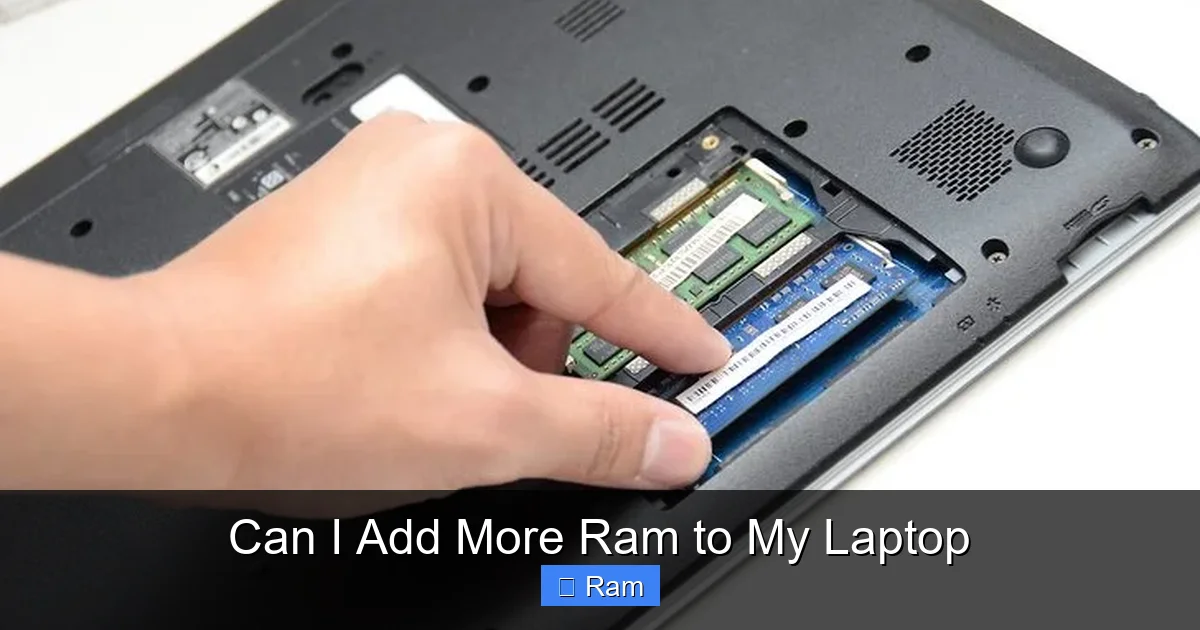
If documentation is vague, open the back panel. Most laptops have a small access hatch secured with one or two screws. Inside you’ll see one or two SO‑DIMM slots, often labeled “DIMM 1” and “DIMM 2.” If you only see a single stick with no empty slot, you can either replace it with a higher‑capacity module or, if the stick is soldered, you’re out of luck.
Common myths debunked
- My laptop is “too old” to upgrade: Even many 10‑year‑old business laptops still have removable DDR3 slots.
- More RAM always makes games run faster: Games also rely heavily on the GPU and CPU; RAM helps only if you’re below the recommended amount.
- All RAM works with any laptop: Wrong. The voltage (1.2 V for DDR4, 1.5 V for DDR3) and timing must match the motherboard’s expectations.
3. Choosing the Right RAM Module
Key specifications to match
- Capacity: Add up to the maximum supported (e.g., 16 GB total on a 8 GB‑max laptop).
- Speed (MHz): Choose a module equal to or slightly higher than the existing one; the system will down‑clock higher speeds.
- Voltage: DDR3 uses 1.5 V, DDR4 uses 1.2 V. Mismatched voltage can cause instability.
- CAS latency (CL): Lower numbers are faster, but stay within the manufacturer’s supported range.
Single‑channel vs. dual‑channel
If your laptop has two slots, installing matching sticks (same size, speed, and brand) enables dual‑channel mode, roughly doubling memory bandwidth. This can noticeably improve integrated‑graphics performance and some productivity apps.
Visual guide about Can I Add More Ram to My Laptop
Image source: i.ytimg.com
Where to buy
Reputable retailers like Crucial, Kingston, Corsair, and the laptop manufacturer’s own store offer compatibility check tools. Buying from a trusted source ensures you get a genuine, warranty‑covered product.
Practical tip: Use a memory configurator
Visit the Crucial website, enter your laptop model, and it will list compatible kits. This saves you from ordering the wrong type and worrying about returns.
4. Step‑by‑Step Installation Guide
What you’ll need
- Phillips #0 or #1 screwdriver (most laptops use tiny screws).
- Anti‑static wrist strap or a grounded metal surface.
- Soft, lint‑free cloth to protect the screen.
- New RAM module(s) that match the specs.
Safety first
Shut down the laptop completely—don’t just sleep or hibernate. Unplug the power adapter, remove the battery if it’s removable, and press the power button for 5 seconds to discharge residual electricity.
Opening the back panel
- Place the laptop upside down on a soft surface.
- Locate the screws that secure the bottom cover. Keep them organized (e.g., in a small dish) so you remember which go where.
- Gently pry the cover off with a plastic spudger; avoid using metal tools that could scratch the chassis.
Finding the RAM slots
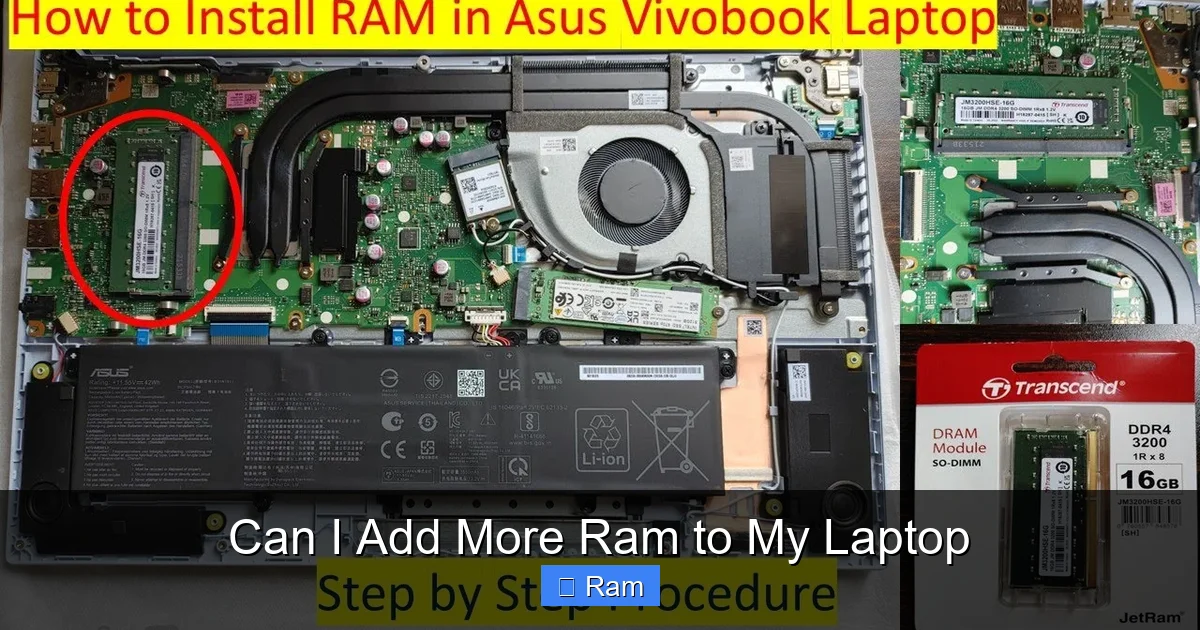
Most laptops have the slots near the center or side, covered by a small metal shield. If a shield is present, unscrew it and set it aside.
Removing the old module (if needed)
- Push the two side clips outward. The stick will pop up at a slight angle.
- Grip the edges of the module—avoid touching the gold contacts.
- Pull the stick straight out.
Installing the new module
- Align the notch on the RAM with the key in the slot. The stick only fits one way.
- Insert the module at the same angle you removed the old one (about 30°).
- Press down gently until the clips snap into place.
Reassembly and first boot
- Replace any shields and re‑screw the bottom panel.
- Re‑insert the battery (if you removed it) and plug the power adapter.
- Power on the laptop. It should POST normally and display the Windows logo or macOS login screen.
Verifying the upgrade
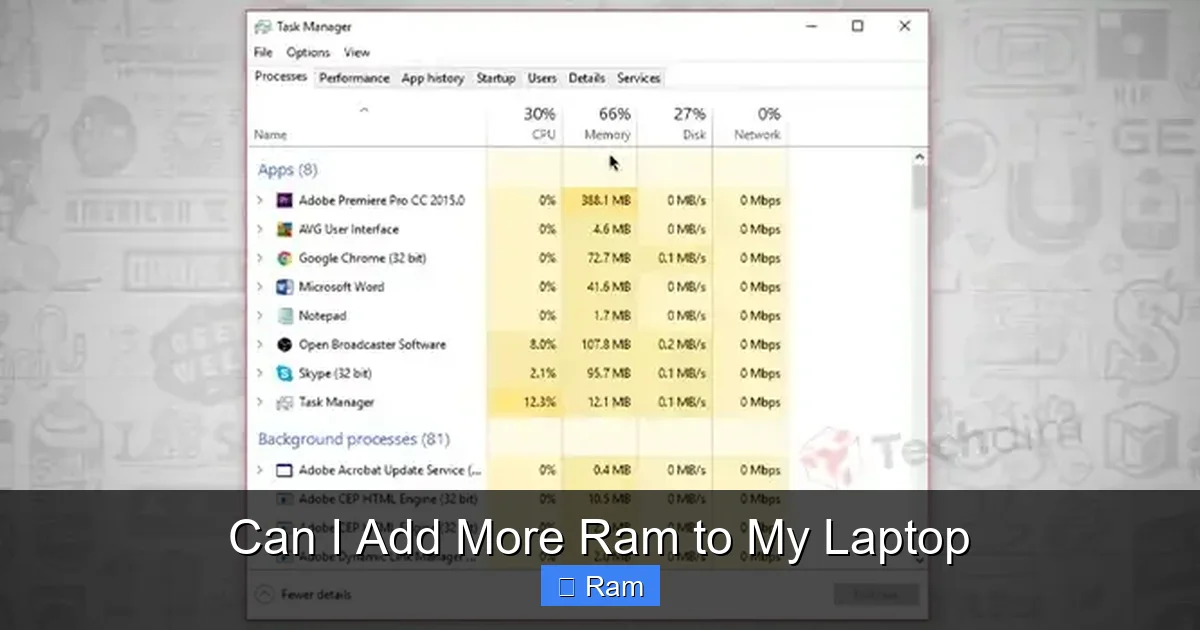
- Windows: Open Task Manager → Performance → Memory. The total should reflect the new amount.
- macOS: Apple menu → About This Mac → Memory.
- Linux: Run
free -hin the terminal.
If the system reports less memory than installed, double‑check that the module is fully seated and that the BIOS is up‑to‑date.
5. Troubleshooting Common Issues
Computer won’t boot or shows a beep code
Beep codes vary by manufacturer, but a series of short beeps often means “memory error.” Power down, reseat the RAM, and ensure the module is the correct type.
System recognizes only part of the installed RAM
Some laptops have a maximum per‑slot limit (e.g., 8 GB per slot). Installing a 16 GB stick in a slot that only supports 8 GB will result in the system seeing only 8 GB. Check the spec sheet for per‑slot limits.
Random crashes or blue screens
Faulty or incompatible RAM can cause instability. Run a memory diagnostic tool—Windows Memory Diagnostic or MemTest86—to identify errors. If errors appear, swap the module with another or return it.
BIOS/UEFI doesn’t show the new memory
Update the BIOS to the latest version from the manufacturer’s website. Some older firmware versions don’t recognize newer high‑density modules.
Warranty concerns
Opening the laptop may void the warranty on some brands. However, many manufacturers (e.g., Dell, Lenovo) provide “User‑Upgradeable” warranties that explicitly allow RAM upgrades. Keep the screw bag and any documentation as proof of proper reassembly.
6. When Adding RAM Isn’t Enough
Other upgrades that complement RAM
- SSD upgrade: Replacing a HDD with an SSD dramatically reduces load times and works hand‑in‑hand with more RAM.
- Clean OS install: A fresh Windows or macOS install can eliminate bloat that eats memory.
- Background app management: Disable unnecessary startup programs to free up RAM.
Knowing when to buy a new laptop
If your laptop has soldered RAM, a low‑power CPU, and an outdated GPU, the cost of a new machine may be lower than the effort and expense of multiple component upgrades. Use the “80/20 rule”: if 80 % of your performance bottlenecks are due to the CPU or GPU, RAM isn’t the fix.
Conclusion: Make an Informed Decision
Adding more RAM to a laptop is one of the most cost‑effective ways to extend its useful life, provided the hardware supports it. By checking compatibility, selecting the right module, and following a careful installation process, you can enjoy smoother multitasking, faster application launches, and a more responsive system.
Remember, RAM is just one piece of the performance puzzle. Pair your upgrade with a clean OS, a fast SSD, and good power management habits, and you’ll get the most out of your notebook for years to come.
Frequently Asked Questions
Can I upgrade the RAM on any laptop?
Not all laptops are upgradeable. Most mid‑range and business notebooks have removable SO‑DIMM slots, but many ultrabooks and some newer models have RAM soldered to the motherboard, making upgrades impossible.
How much RAM do I actually need?
For everyday tasks—web browsing, office apps, streaming—8 GB is usually sufficient. Power users, gamers, and video editors benefit from 16 GB or more.
Will adding RAM improve my laptop’s battery life?
Generally, no. More RAM can slightly increase power draw, but the effect is minimal. The real battery boost comes from using an SSD and optimizing power settings.
Do I need to reinstall my operating system after upgrading RAM?
No. RAM is volatile memory; installing more does not affect the OS installation. Just boot up and verify that the system recognizes the new capacity.
Is it safe to mix different brands or speeds of RAM?
Mixing brands is usually fine as long as the modules share the same type (DDR4), voltage, and speed. However, mismatched speeds will default to the slower module, and dual‑channel performance is best with identical sticks.
What should I do with the old RAM sticks?
Donate them to schools, refurbish them for older machines, or recycle them at an e‑waste facility. Never throw them in the trash.