Adding a Mouse to a Laptop
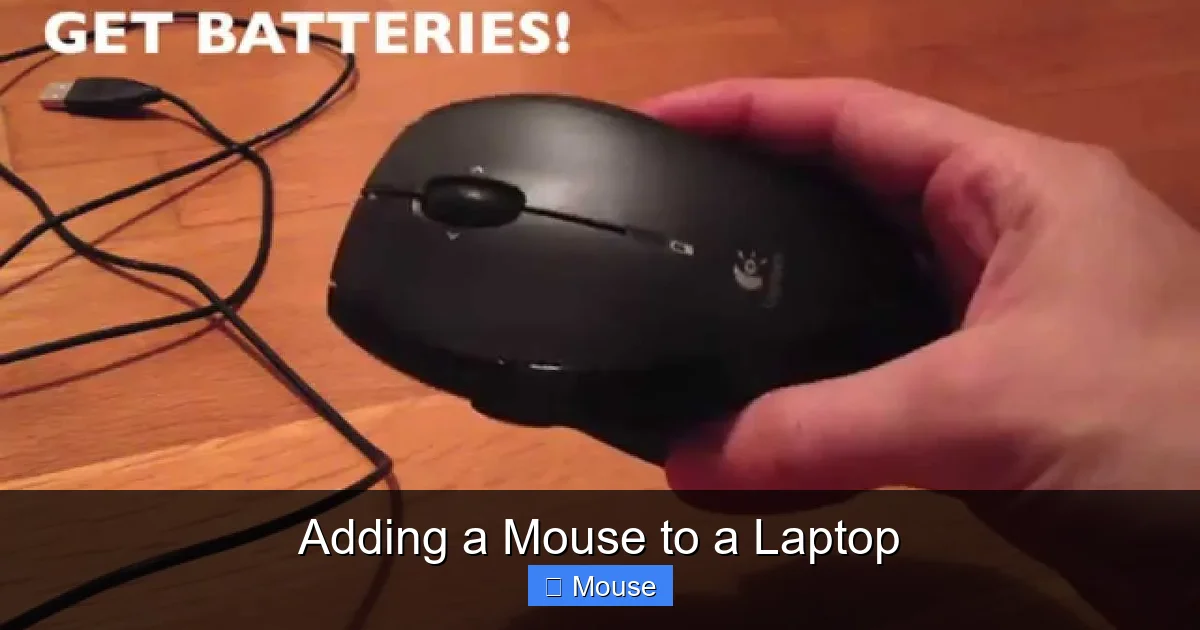
Adding a mouse to a laptop can transform your workflow, boost productivity, and reduce strain on your hands. Whether you prefer a classic USB stick or a sleek Bluetooth device, this guide walks you through every step—from choosing the right type to troubleshooting common issues. Get ready to make your laptop feel like a desktop again.
Key Takeaways
- Versatility: Both wired and wireless mice work with laptops, each offering unique benefits.
- Compatibility: Most modern laptops support USB, Bluetooth, and 2.4 GHz wireless connections.
- Setup Steps: Plug, pair, and install drivers—no more guessing.
- Tips: Use mouse pads, adjust sensitivity, and keep batteries charged.
- Problem Solving: Quick fixes for lost connections, driver errors, and touchpad conflicts.
Key Takeaways
- Understanding adding a mouse to a laptop: Provides essential knowledge
📑 Table of Contents
Why Adding a Mouse to a Laptop Is a Game Changer
Imagine scrolling through a spreadsheet, editing a document, or designing a graphic without the cramped reach of a trackpad. A mouse gives you precision, speed, and comfort. For many, the laptop’s built‑in touchpad feels like a tiny, cramped wheel. Adding a mouse—whether a simple USB model or a high‑end gaming peripheral—replaces that friction with fluid motion.
Beyond comfort, a mouse can improve ergonomics. Frequent users of laptops for coding, design, or gaming often suffer from wrist strain or carpal tunnel syndrome. A proper mouse, paired with a suitable armrest or desk setup, can dramatically reduce these risks.
So whether you’re a student doing research, a professional drafting reports, or a gamer looking for extra precision, a mouse can make a noticeable difference.
Types of Mice and How They Connect
Wired USB Mice
USB mice are the simplest option. Just plug the cable into a USB port, and the device is ready. Most laptops still have a few USB 2.0 or 3.0 ports available. Wired mice have no battery concern and offer instant, lag‑free performance.
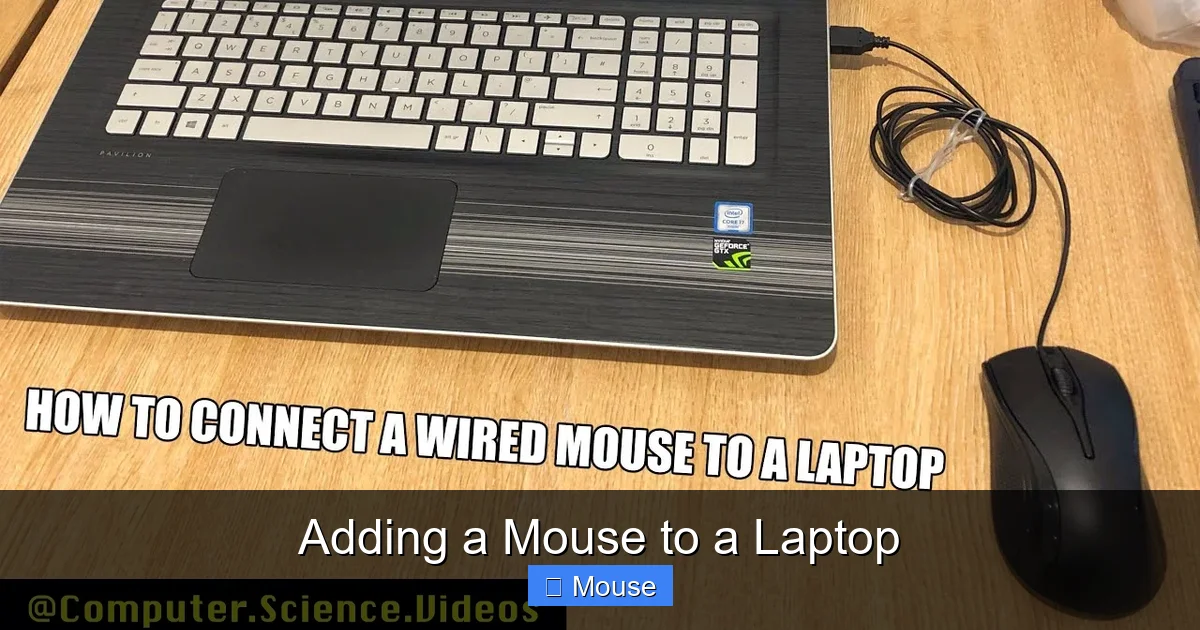
Visual guide about Adding a Mouse to a Laptop
Image source: i.ytimg.com
Wireless USB Dongle Mice
These use a small 2.4 GHz dongle that plugs into a USB port. The mouse communicates wirelessly, giving you freedom from cables. Battery life is typically 6–12 months, depending on usage.
Bluetooth Mice
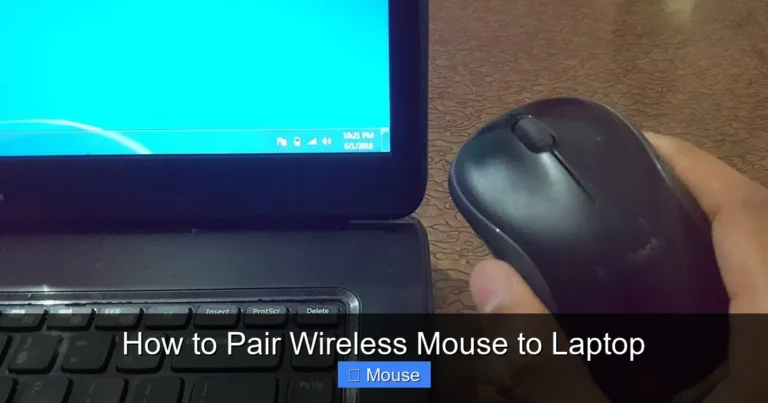
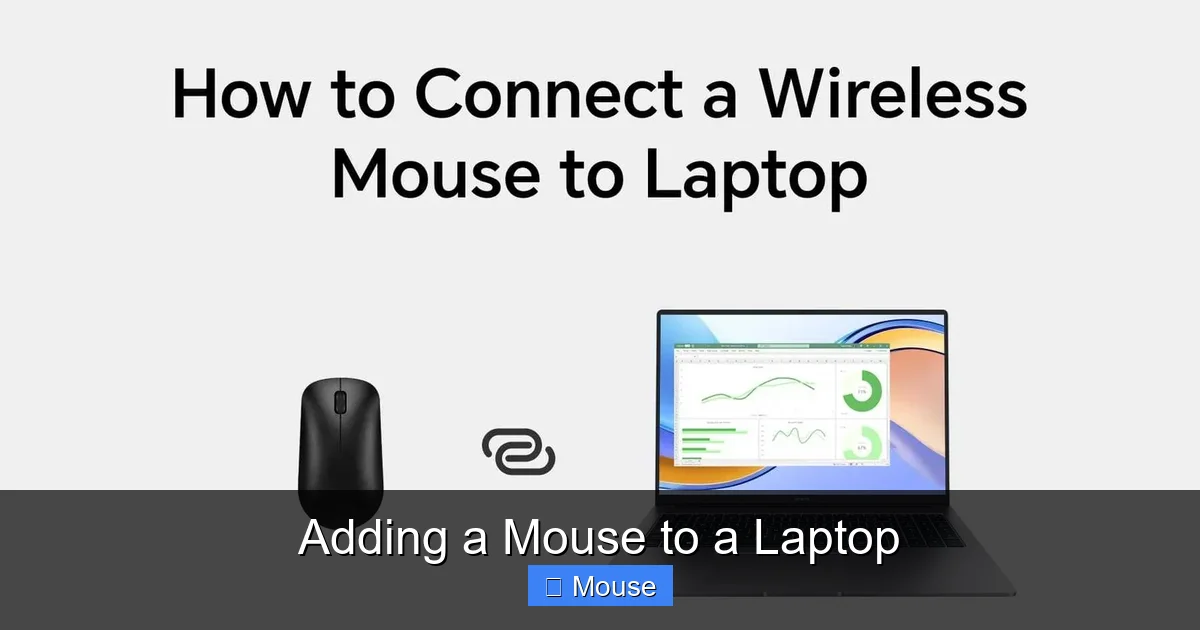
Bluetooth mice pair directly with your laptop’s built‑in Bluetooth module. No extra dongle is needed, saving USB ports. Pairing is straightforward: enable Bluetooth, find the device, and connect. Battery life can be longer since Bluetooth uses less power.
Gaming and High‑Precision Mice
For designers or gamers, consider mice with adjustable DPI, extra buttons, and ergonomic designs. These are usually wired or use a USB dongle, but they can also be Bluetooth if supported.
How to Choose the Right Mouse for Your Laptop
When picking a mouse, think about:
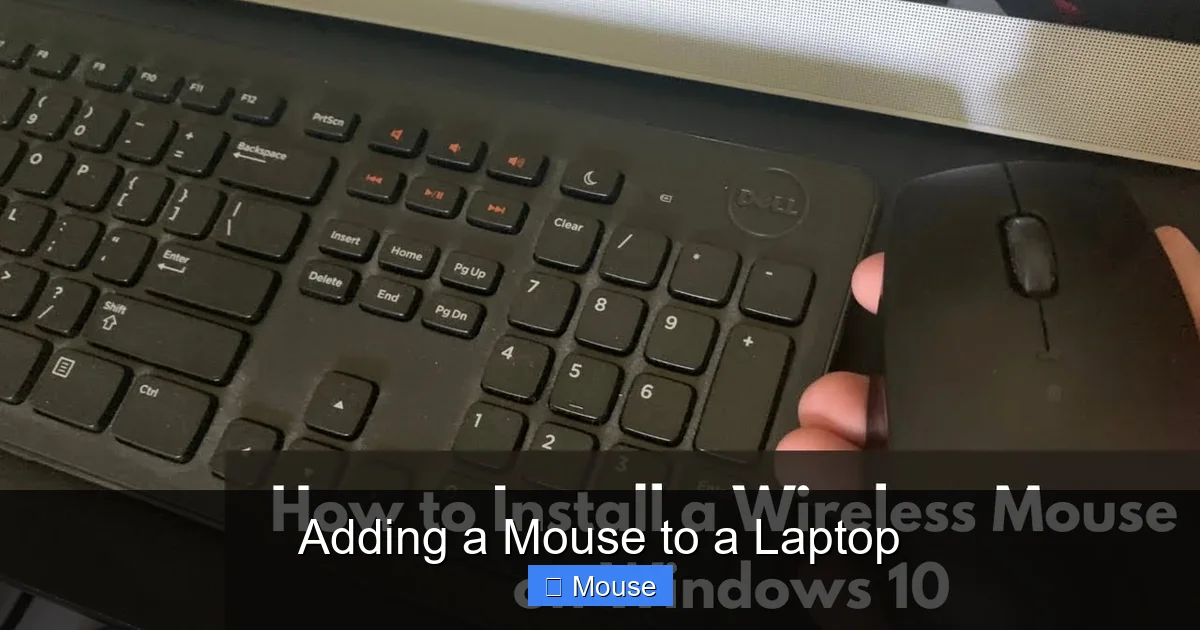
Visual guide about Adding a Mouse to a Laptop
Image source: i.ytimg.com
- Portability: A small, lightweight model is ideal if you travel often.
- Ergonomics: Look for a shape that fits your hand—vertical, right‑handed, or ambidextrous.
- Battery Life: Wired mice don’t need batteries. Wireless ones should last at least 6 months.
- Features: Extra buttons, scroll wheel types, and DPI settings may matter for specific tasks.
Step‑by‑Step: Adding a Mouse to Your Laptop
Step 1: Identify Your Laptop’s Ports
Open your laptop and look for USB ports or a Bluetooth icon in the taskbar. If you’re unsure, consult your laptop’s manual or a quick online search for the model’s specifications.
Visual guide about Adding a Mouse to a Laptop
Image source: mousergb.com
Step 2: Decide on Wired vs Wireless
Consider your workspace. If you have a stable desk, a wired mouse is fine. If you move around or have limited desk space, a wireless or Bluetooth mouse may be preferable.
Step 3: Plug in or Pair Your Mouse
- USB: Insert the mouse or dongle into an available USB port. The laptop will automatically recognize it.
- Bluetooth: Turn on Bluetooth on your laptop (usually via the Settings app). Turn on the mouse, press its pairing button, and select it from the list of devices.
After pairing, you might see a notification that the mouse is ready.
Step 4: Install Drivers (If Needed)
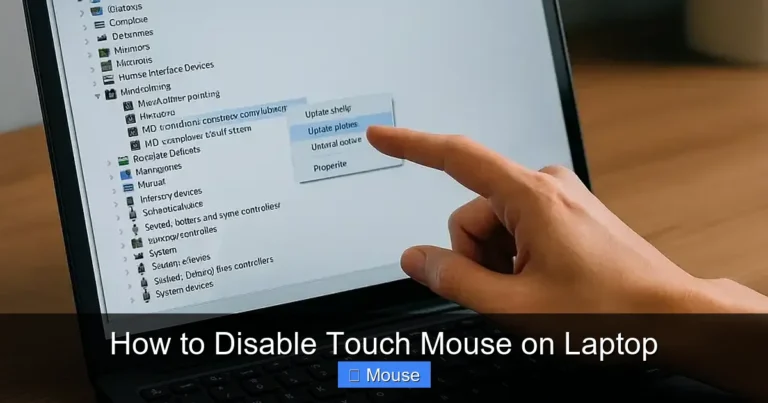
Most mice work out of the box. If your mouse has special buttons or features, visit the manufacturer’s website to download the latest drivers. On Windows, you can also use Device Manager to update drivers automatically.
Step 5: Calibrate Settings
Open your laptop’s mouse settings to adjust pointer speed, scroll behavior, and button assignments. On Windows, go to Settings → Devices → Mouse. On macOS, use System Preferences → Mouse.
Step 6: Test Your Mouse
Open a web browser, move the pointer, and click on links. Test the scroll wheel and any extra buttons to ensure they work as expected.
Common Troubleshooting Tips
Mouse Not Detected
Check the USB port or Bluetooth connection. Try a different port. If using a dongle, remove and re‑insert it. Restart your laptop if the mouse still doesn’t appear.
Visual guide about Adding a Mouse to a Laptop
Image source: i.ytimg.com
Lag or Delayed Response
For wireless mice, replace the batteries or recharge. On Bluetooth, ensure no interference from other devices. For wired mice, try a different USB port.
Touchpad Conflicts
Some laptops disable the touchpad when a mouse is connected. If you want both, go to Settings and enable the touchpad while a mouse is plugged in.
Battery Drain Quickly
Check the mouse’s power settings. Some models allow you to toggle between high‑performance and power‑saving modes.
Enhancing Your Mouse Experience
Use a Mouse Pad
A smooth mouse pad can improve tracking accuracy and protect your desk. Consider a pad with a wrist rest for extra comfort.
Adjust DPI Settings
Many mice let you switch DPI on the fly. Higher DPI means faster pointer movement—useful for large screens or gaming.
Customize Buttons
Software utilities often let you assign shortcuts to extra buttons. For example, set one button to open your email client or toggle dark mode.
Keep Your Mouse Clean
Wipe the sensor area with a microfiber cloth to avoid tracking issues. Clean the scroll wheel regularly to maintain smooth scrolling.
When to Use a Mouse vs Touchpad
If you’re doing detailed graphic work or gaming, a mouse is almost essential. For quick text editing or occasional browsing, the touchpad may suffice. Many users switch between both depending on the task.
For those who need the best of both worlds, consider a laptop with a detachable touchpad or a portable mouse that can be left on a travel bag.
Final Thoughts
Adding a mouse to a laptop is a simple yet powerful upgrade. Whether you choose a wired USB stick, a wireless dongle, or a Bluetooth device, the steps are straightforward. Once set up, you’ll notice faster navigation, less wrist strain, and a more desktop‑like experience. Remember to keep your drivers updated, adjust settings to fit your workflow, and treat your new peripheral with care.
Ready to get started? If you need a guide on how to connect a wireless mouse to my laptop or want to explore adding a mouse to a laptop in more detail, check out our related articles for deeper dives.
Frequently Asked Questions
What is the best type of mouse for a laptop?
It depends on your needs. A wired USB mouse is reliable and has no battery worries, while a Bluetooth mouse offers the most freedom from cables. For gamers, a high‑DPI wired or dongle mouse gives the best performance.
How do I pair a Bluetooth mouse with my laptop?
Enable Bluetooth in your laptop’s settings, turn on the mouse, press its pairing button, and select it from the list of available devices. Most laptops finish pairing within a few seconds.
Can I use a wireless mouse without a USB dongle?
Yes, if your laptop supports Bluetooth. Bluetooth mice connect directly to the built‑in wireless module, eliminating the need for a separate dongle.
Why does my mouse stop working after a few weeks?
Common causes include dead batteries, interference, or driver issues. Check the batteries, try a different USB port, and update the mouse drivers from the manufacturer’s website.
How can I keep my laptop’s touchpad and mouse from interfering with each other?
Most laptops automatically disable the touchpad when a mouse is connected. If you want both, enable the touchpad in settings while keeping the mouse plugged in, or use a touchpad lock feature if your laptop supports it.
What should I do if my mouse is slow or laggy?
For wireless mice, replace or recharge the batteries. If using Bluetooth, ensure no signal interference and consider moving closer to the laptop. For wired mice, switch to a different USB port or try a different mouse to rule out hardware issues.