Best Ram For Synology Nas How To Choose And Upgrade
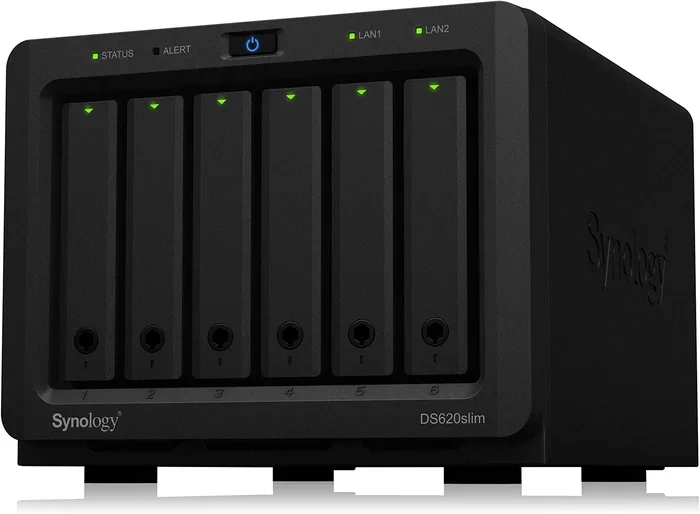
Choosing the best RAM for Synology NAS can boost your storage speed and system performance significantly. Whether you run a home server or a small business setup, the right memory modules make a real difference. This guide walks you through RAM types, capacity needs, and the upgrade process step by step. You will learn what to look for and what mistakes to avoid. By the end, you will feel confident picking and installing the perfect RAM for your NAS.
Running a Synology NAS is one of the best ways to take control of your data. But many users overlook a simple upgrade that can transform their experience. The right best RAM for Synology NAS setup can make your storage faster, smoother, and far more capable.
If your NAS feels slow when accessing files or running apps, the answer might be more memory. Think of RAM as the workspace your NAS uses to handle tasks. The more workspace you have, the more things it can do at once without slowing down.
This guide covers everything you need to know. From understanding RAM types to picking the right capacity and walking through the upgrade process, we have you covered. You do not need to be a tech expert to follow along. Let us dive in and help you get the most out of your Synology NAS.
Key Takeaways
- Right RAM matters: Choosing the correct RAM type and capacity directly impacts your Synology NAS speed and reliability.
- Match RAM to your use case: Light file sharing needs less RAM than running Docker containers or virtual machines.
- DDR4 is the current standard: Most modern Synology models support DDR4 RAM for better speed and efficiency.
- Check your model first: Each Synology DS model has different maximum RAM support and slot configurations.
- ECC vs non-ECC: ECC RAM offers extra data protection, but not all Synology models support it.
- Upgrade is simple: Most Synology NAS units allow easy RAM upgrades without special tools or expertise.
📑 Table of Contents
Why RAM Matters for Your Synology NAS
What RAM Does in a NAS Environment
Your Synology NAS handles many jobs at once. It serves files to multiple devices, runs backup tasks, manages user permissions, and might even host apps like Docker containers or Plex media servers. All of these tasks need memory to work properly.
RAM acts as short-term memory for your NAS. When you open a file or launch an app, the NAS loads data into RAM so it can be accessed quickly. Without enough RAM, your system has to work harder, and everything slows down.
Think of it like a kitchen. RAM is your countertop. The bigger the counter, the more ingredients you can lay out and work with at the same time. A small counter means you constantly have to put things away and pull new ones out. A bigger counter lets you work faster and more efficiently.
For basic file storage and sharing, a modest amount of RAM works fine. But if you want to run advanced services, you will need more. Understanding this difference is the first step in choosing the right memory for your setup.
How RAM Affects NAS Performance
More RAM does not just mean faster speeds. It means your NAS can handle more simultaneous tasks without breaking a sweat. Here are some real-world ways RAM impacts performance:
- Faster file access: More RAM lets your NAS cache frequently accessed files, so retrieval is nearly instant.
- Smoother multitasking: Run multiple apps, backups, and user connections without lag.
- Better virtual machine support: If you run VMs on your NAS, each one needs its own share of memory.
- Improved Docker performance: Containerized apps thrive when they have enough RAM to work with.
- Reduced disk wear: When RAM is sufficient, your NAS relies less on swapping data to disk, which extends drive life.
Understanding what more RAM does for a laptop helps here too. The same principles apply to a NAS. More memory means your system spends less time waiting and more time working efficiently. For users who want NAS optimization, upgrading RAM is one of the simplest and most cost-effective steps you can take.
How Much RAM Do You Need for a Synology NAS
RAM Requirements by Synology DS Model
Every Synology NAS model has different RAM needs and limits. Before buying any memory, check your specific model. Here is a quick breakdown of common scenarios:
- Basic home use (1-2 users): 2GB to 4GB is usually enough for simple file sharing and basic apps.
- Medium use (3-5 users): 4GB to 8GB handles file sharing plus a few extra services like photo backup or light streaming.
- Heavy use (media server, Docker, VMs): 8GB to 16GB gives you the headroom to run demanding applications smoothly.
- Professional or business use: 16GB or more supports multiple virtual machines, heavy database work, and many concurrent users.
If you are unsure where you stand, start by checking what your NAS is currently using. Synology’s built-in Resource Monitor shows you real-time memory usage. If you are consistently above 80 percent usage, an upgrade will help.
For general guidance on RAM needs across devices, knowing how much RAM you need for a laptop gives you a useful baseline. The same logic applies to your NAS. Match the RAM to the workload, not the other way around.
Matching RAM to Your Use Case
Your use case should drive your decision. Here are a few common scenarios and the RAM that fits them best:
Scenario 1: Simple file server. You just want a central place to store photos, documents, and backups. 2GB to 4GB of RAM is plenty. You do not need to spend extra on high-capacity memory.
Scenario 2: Home media center. You run Plex or Jellyfin to stream movies and music to your devices. 4GB to 8GB works well. Transcoding video in real time takes memory, so give yourself some headroom.
Scenario 3: Developer or power user. You run Docker containers, Nextcloud, or even a small machine learning setup. 8GB to 16GB is ideal. If you are curious whether 8GB of RAM is enough for machine learning workloads, the answer depends on your models. For light inference tasks, 8GB can work. For training larger models, you will want 16GB or more.
Scenario 4: Small business server. Multiple users, database hosting, email, and file services all running at once. Go with 16GB or more. Reliability and performance matter more than cost savings at this level.
Best RAM Types for Synology NAS
DDR3 vs DDR4 RAM
The two main types of RAM you will encounter are DDR3 and DDR4. They are not interchangeable, so matching the right type to your NAS model is critical.
DDR3 RAM is older but still found in many Synology models. It runs at lower speeds and uses less power, which can be a plus for always-on devices. If your NAS was built before 2018, it likely uses DDR3.
DDR4 RAM is the current standard. It offers faster speeds, better efficiency, and improved reliability. Most newer Synology NAS models support DDR4. If you are building or upgrading a modern setup, DDR4 is the clear choice.
Here is a quick comparison:
- DDR3: Lower cost, widely available, works with older Synology models, speeds typically up to 1600MHz.
- DDR4: Faster speeds (2133MHz to 3200MHz), better power efficiency, the standard for newer NAS systems.
Always double-check your Synology model’s specifications before purchasing. Using the wrong RAM type will not work, even if the stick physically fits.
ECC vs Non-ECC RAM
You will also come across two categories: ECC and non-ECC RAM. Here is what you need to know.
ECC RAM (Error-Correcting Code) can detect and correct small memory errors on the fly. This makes it more reliable for servers and NAS systems that run 24/7. If data integrity is your top priority, ECC RAM is worth considering.
Non-ECC RAM is the standard type found in most consumer devices. It works perfectly fine for home NAS setups and general use. It is also more affordable and easier to find.
Not all Synology models support ECC RAM. Check your user manual or the Synology website for your specific model’s compatibility. Using unsupported ECC RAM will not cause damage, but it will not provide the error-correction benefits either.
How to Upgrade RAM in Your Synology NAS
Step-by-Step RAM Installation
Upgrading RAM in a Synology NAS is straightforward. Most models have easy access to memory slots. Here is a simple walkthrough:
- Power down your NAS. Shut it down properly through the Synology interface. Do not just unplug it.
- Unplug all cables. Disconnect the power cord and any network cables. This ensures safety during the upgrade.
- Open the chassis. Most Synology NAS units have removable side panels or front-loading drive bays. Consult your model’s manual for the exact steps.
- Locate the RAM slots. They are usually near the back of the unit, close to the motherboard. You will see one or two slots depending on your model.
- Remove existing RAM (if needed). Push the side clips outward. The RAM stick will pop up at an angle. Gently pull it out.
- Insert the new RAM. Align the notch on the RAM stick with the slot. Press it down firmly until the clips click into place.
- Close the chassis and reconnect cables. Make sure everything is secure before powering on.
- Power on and verify. Boot up your NAS and check the Synology DSM. Go to the System Information panel. It should show the new RAM capacity.
The entire process takes about five to ten minutes. No special tools are needed in most cases. If you feel unsure, watch a quick video tutorial for your specific Synology model before starting.
Tips for a Smooth Upgrade
Follow these tips to make your NAS memory upgrade go smoothly:
- Buy matched pairs: If your NAS has two RAM slots, install identical sticks for dual-channel performance.
- Check maximum support: Some older models max out at 6GB or 8GB. Do not buy RAM beyond what your model supports.
- Stick with reputable brands: Kingston, Crucial, and Samsung are reliable choices for NAS memory.
- Keep your old RAM: If your old RAM still works, keep it as a backup or use it in another device.
- Update DSM first: Make sure your Synology operating system is up to date before upgrading. This avoids potential compatibility issues.
The upgrade process is one of the easiest ways to breathe new life into an older NAS. Before you spend money on a whole new system, try a RAM upgrade first. It costs a fraction of the price and delivers noticeable results.
Top RAM Picks for Synology NAS Models
Budget-Friendly Options
You do not need to spend a lot to get a solid performance boost. Here are some affordable choices that work well for most Synology NAS setups:
- Crucial CT2K4G48C16U4: 8GB DDR4 kit (2x4GB). Great for most modern Synology models. Fast, reliable, and reasonably priced.
- Kingston KVR4S13S8/4: 4GB DDR4 single stick. Perfect for filling an empty RAM slot on a budget.
- Samsung M378A1G40BB2-CRC: 8GB DDR4 module. Samsung produces high-quality memory that works seamlessly with Synology systems.
These options typically cost between 20 and 40 dollars for an 8GB kit. For most home users, this is all the RAM you need to see a real improvement in NAS storage speed and overall responsiveness.
High-Performance Options
If you run demanding workloads, consider these higher-capacity picks:
- Crucial CT2K16G48C16U4: 16GB DDR4 kit (2x8GB). Ideal for users running multiple Docker containers or virtual machines.
- Kingston Fury Impact 16GB DDR4: Compact and fast. Designed for small-form-factor systems, including NAS units.
- Samsung 16GB DDR4 ECC RDIMM: For business users who need the reliability of ECC memory with high capacity.
These options range from 60 to 120 dollars depending on capacity and features. They are ideal for power users who want their Synology NAS RAM setup to handle anything they throw at it.
Common Mistakes When Upgrading NAS RAM
Compatibility Errors to Avoid
The most common mistake is buying RAM without checking compatibility. Not every stick of RAM works in every NAS. Here are the key specs you must verify:
- RAM type: DDR3 or DDR4? Mixing them will not work.
- Speed rating: Your NAS may only support specific speeds. Check the manual for the supported frequency.
- Form factor: Some NAS units require SO-DIMM modules, not standard desktop RAM. Make sure you buy the right size.
- Voltage: Different RAM types run at different voltages. Using the wrong voltage can cause instability.
Taking five minutes to verify these specs before purchasing can save you from a frustrating return process. Always buy from retailers with easy return policies, just in case.
Overlooking Your NAS Model Limits
Another mistake is assuming you can install as much RAM as you want. Every Synology model has a maximum RAM capacity. Exceeding it will not give you more performance. It simply will not work.
Some older models also have soldered RAM, meaning you cannot upgrade at all. Before purchasing anything, confirm that your NAS model has upgradeable memory slots. You can find this information in the Synology product specification page or user manual.
Also, avoid the temptation to mix different brands or speeds of RAM. While it might work in some cases, it can lead to instability. For the best results, buy a matched kit or use identical sticks in all slots.
Conclusion
Upgrading the best RAM for Synology NAS is one of the smartest investments you can make. It is affordable, easy to do, and delivers immediate improvements in speed and multitasking ability. Whether you are a casual home user or running a busy small business server, the right memory makes a real difference.
Start by checking your NAS model and understanding your workload needs. Pick the right RAM type, capacity, and brand. Follow the upgrade steps carefully, and you will be up and running in minutes. Your NAS will feel faster, more responsive, and ready to handle whatever you throw at it.
Do not let a RAM bottleneck hold back your Synology NAS. Take action today and enjoy the performance boost that comes with the right memory upgrade.
Frequently Asked Questions
Can I mix different brands of RAM in my Synology NAS?
Technically, it can work, but it is not recommended. Mixing brands may cause compatibility issues or instability. For the best results, use identical RAM sticks from the same brand and model. If you must mix, make sure the speed, voltage, and type match exactly.
Do I need ECC RAM for my Synology NAS?
ECC RAM is not required for most home users. It provides extra data protection by correcting memory errors automatically. Business users or those running critical workloads may benefit from ECC RAM. Check your Synology model’s specifications to confirm ECC support before purchasing.
How long does a RAM upgrade take?
The actual upgrade takes only five to ten minutes. Shutting down the NAS, opening the case, and swapping the RAM stick is quick and straightforward. The most time-consuming part is researching compatibility and ordering the right module.
Will upgrading RAM speed up my existing hard drives?
More RAM will not make your hard drives spin faster, but it can improve overall system responsiveness. With more memory, your NAS can cache more data and reduce the need to read from disk repeatedly. This makes file access feel faster even if the drives themselves have not changed.
What if my Synology NAS has soldered RAM?
Some older or smaller Synology models have RAM that is soldered directly to the motherboard. In these cases, you cannot upgrade the memory. Check your specific model’s specifications online or in the user manual to confirm whether the RAM is upgradeable.
Is 8GB of RAM enough for a Synology NAS running Docker?
For light Docker usage with a few containers, 8GB is usually sufficient. However, if you plan to run multiple containers or resource-heavy applications, consider 16GB. The right amount depends on how many services you run and how much memory they consume.
=== CONCLUSION ===
Choosing and upgrading the best RAM for Synology NAS does not have to be complicated. With the right information, you can pick the perfect memory module, install it in minutes, and enjoy a noticeably faster system. Remember to check compatibility, match your RAM to your workload, and avoid the common pitfalls we covered. Your Synology NAS is a powerful tool, and the right RAM upgrade helps you unlock its full potential. Start your upgrade today and feel the difference in your daily workflow.