Why You Should Check Your Computer Usage History Today
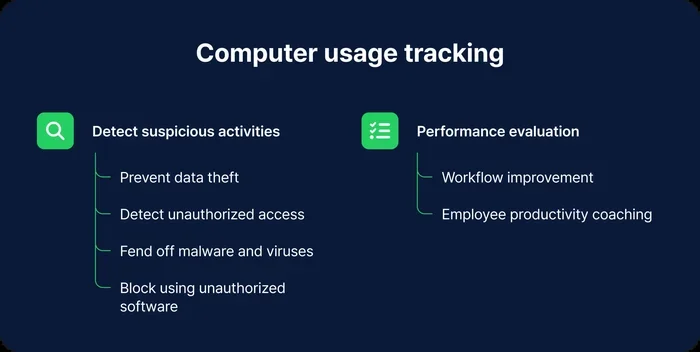
Checking your computer usage history helps you understand how you spend time on your PC, spot unusual activity, and boost productivity. Whether you use Windows or Mac, viewing your usage logs is simple and free. This guide walks you through every method, tip, and benefit so you can take control of your digital habits right now.
Key Takeaways
- Track your habits: Viewing your computer usage history reveals how much time you spend on apps, websites, and tasks.
- Boost security: Checking login history and activity logs helps you spot unauthorized access early.
- Improve productivity: Usage data shows where your time goes so you can cut distractions and focus.
- Free and easy: Built-in Windows and Mac tools let you check usage history without downloading anything.
- Protect your data: Monitoring file access and network activity keeps your personal info safe.
- Troubleshoot faster: Usage logs help you identify what causes your computer to slow down or freeze.
📑 Table of Contents
- Why You Should Check Your Computer Usage History Today
- What Is Computer Usage History?
- How to Check Your Computer Usage History on Windows
- How to Check Your Computer Usage History on Mac
- Why Checking Your Usage History Matters
- Tips for Making the Most of Your Usage Data
- Common Mistakes People Make with Usage History
- Expert Insights on Computer Usage Monitoring
- Conclusion
Why You Should Check Your Computer Usage History Today
Do you ever wonder where your time goes when you sit at your computer? You open a few apps, check social media, work on a project, and before you know it, hours have passed. The truth is, most of us have no idea how we actually use our PCs. That is exactly why checking your computer usage history matters so much.
Your computer keeps a detailed log of everything you do. From the apps you open to the websites you visit, there is a record. And the best part? You do not need any fancy software to access it. Both Windows and Mac computers come with built-in tools that track your activity. All you need to do is know where to look.
In this article, we will show you exactly how to check your computer usage history, why it is valuable, and what you can do with the data. Whether you want to improve productivity, boost security, or just understand your habits better, this guide has you covered. Let us dive in.
What Is Computer Usage History?
Your computer usage history is a record of everything your PC tracks during your sessions. It includes the apps you open, the files you access, the websites you visit, and even how long you spend on each task. Think of it as a diary for your computer.
Different operating systems store this data in different ways. Windows uses tools like Task Manager and Event Viewer. Mac keeps logs through the Console app and system diagnostics. Some of this data is hidden, but it is all there waiting to be explored.
What Does Usage History Include?
Here is a quick look at what your activity log typically tracks:
- App usage: Which programs you open and for how long.
- Browsing history: Websites you visit through your browser.
- Login history: When you sign in and out of your account.
- File access: Documents and files you open or modify.
- Network activity: Connections to the internet or local networks.
- System events: Errors, crashes, and performance issues.
All of this information paints a clear picture of your digital life. And once you know what is tracked, you can start using it to your advantage.
How to Check Your Computer Usage History on Windows
Windows makes it surprisingly easy to view your computer usage history. You do not need to be a tech expert to pull up the data. Here are the simplest methods you can start using right now.
Method 1: Use Task Manager
Task Manager is your go-to tool for seeing what is running on your PC. It also gives you a snapshot of recent app usage. To open it, press Ctrl + Shift + Esc on your keyboard. Click the “App History” tab to see how much CPU, memory, and network time each app has used.
This is great for spotting which apps eat up your resources. If you notice your computer fan keeps running or your system feels sluggish, the Task Manager data can help you identify the culprit. You can also check how your computer running slow and freezing relates to heavy app usage patterns.
Method 2: Check Event Viewer
Event Viewer is a deeper tool that logs system events over time. To find it, type “Event Viewer” in the Windows search bar. Browse through the “Windows Logs” section to see security events, system errors, and application activity.
This is especially useful for checking login history and security events. If you suspect someone else has been using your PC, Event Viewer can show you exact sign-in times and whether any logins came from outside your normal pattern.
Method 3: Use the Privacy Dashboard
Microsoft also offers a Privacy Dashboard where you can view your activity data tied to your Microsoft account. Go to account.microsoft.com/privacy to see your browsing history, search queries, and voice commands. This gives you a broader view of your digital footprint across devices.
How to Check Your Computer Usage History on Mac
If you use a Mac, Apple also provides ways to track your usage history. While the tools are a bit different from Windows, they are just as powerful.
Use Activity Monitor
Activity Monitor is the Mac equivalent of Task Manager. You can find it in your Applications folder under “Utilities.” It shows you real-time data on CPU, memory, energy, and disk usage. The “CPU” tab lists all active processes, so you can see exactly what is running and how much power it uses.
If your Mac feels slow, checking Activity Monitor helps you understand why. Sometimes background apps eat up resources without you even knowing. Closing unnecessary processes can make a big difference in performance.
Check System Diagnostics and Logs
Mac also stores system logs through the Console app. You can access it from the same Utilities folder. The Console shows system messages, error reports, and app activity in real time. It is a great way to dig into what your Mac has been doing behind the scenes.
View Screen Time Data
Apple’s Screen Time feature is one of the most user-friendly ways to track your computer usage history. Go to System Settings and click “Screen Time.” You will see a breakdown of your app usage, pickups, notifications, and even how much time you spend on specific websites. It is perfect for understanding your daily habits at a glance.
Why Checking Your Usage History Matters
You might be thinking, “Why do I need to check my computer usage history?” The answer is simple. It gives you power over your time, your security, and your system performance. Here are the top reasons to start checking today.
1. Improve Productivity
When you see exactly how much time you spend on social media, YouTube, or random browsing, it hits different. Most people are shocked by how much time they waste. Once you know your habits, you can set limits and focus on what really matters. Productivity tracking starts with awareness, and your usage history gives you exactly that.
2. Boost Security
Checking your login history and activity logs helps you catch unauthorized access. If you see a sign-in at 3 AM from a location you have never visited, that is a red flag. Catching these signs early can prevent data breaches and identity theft. Computer safety starts with knowing who and what is using your device.
3. Troubleshoot Performance Issues
If your PC has been acting up, your usage history can point you in the right direction. Maybe a specific app keeps running in the background and hogging resources. Or perhaps your computer fan keeps running because of a process you forgot to close. Usage logs help you connect the dots between symptoms and causes.
For example, if you have been experiencing slowdowns, checking your activity log might reveal that a background program is consuming too much CPU or RAM. This knowledge helps you fix the problem instead of guessing.
4. Manage Screen Time
Too much screen time affects your health, sleep, and focus. Your usage history shows you exactly how many hours you spend in front of your screen each day. Use this data to set healthy boundaries and build better digital habits.
5. Keep Your Data Safe
Monitoring your network activity and file access history helps you detect suspicious behavior. If a program is sending data out without your knowledge, your usage logs can reveal it. This is especially important if you handle sensitive information on your computer.
Tips for Making the Most of Your Usage Data
Once you start checking your computer usage history, you want to make sure you are using the data wisely. Here are some practical tips to get the most out of it.
Set a Weekly Review Routine
Make it a habit to review your usage data once a week. Spend 10 minutes looking at your app usage, screen time, and any unusual activity. Over time, you will start to see patterns and trends that help you make better decisions about how you use your PC.
Use Built-In Tools First
Before you download any third-party software, try the built-in tools first. Windows Task Manager, Event Viewer, Mac Activity Monitor, and Screen Time all provide solid data for free. You do not need to spend money on monitoring apps unless you need advanced features.
Compare Your Data Over Time
The real value of usage tracking comes from comparing data over weeks and months. Are you spending more time on work apps this month? Did your screen time drop after you set limits? Long-term comparisons give you meaningful insights that a single day of data cannot provide.
Share Data with Family When Needed
If you are a parent, sharing screen time data with your kids can be a powerful teaching tool. It helps them understand their habits and make better choices. Many tools also offer parental controls that let you set limits and monitor usage for younger family members.
Check Your RAM and Hardware Too
While you are reviewing your usage history, it is also a good idea to check your hardware specs. Knowing how much RAM your system has helps you understand its capabilities and limitations. If you want to check RAM on your laptop, there are simple built-in methods for both Windows and Mac that take just a few seconds. Having enough memory directly affects how smoothly your computer runs and how well it handles multitasking.
Common Mistakes People Make with Usage History
Avoid these common pitfalls when checking your computer usage history:
- Ignoring the data: Checking your history means nothing if you do not act on what you find. Make changes based on what you discover.
- Checking only once: A single glance gives you a snapshot, not the full picture. Regular reviews are key to understanding trends.
- Overlooking security logs: Many people focus only on app usage and forget to check login history and security events. Do not make this mistake.
- Assuming all data is accurate: Some tracking tools have gaps or limitations. Use multiple sources to get a complete view of your activity.
Expert Insights on Computer Usage Monitoring
According to cybersecurity experts, regularly reviewing your activity log is one of the simplest ways to protect your digital identity. Most data breaches go unnoticed for weeks because users do not check their login and usage history. A quick weekly review can catch problems early before they become serious.
Productivity coaches also recommend usage tracking as a core habit. When you can see exactly where your time goes, you make more intentional choices. Instead of mindlessly clicking through apps, you use your computer with purpose and direction.
One more thing to keep in mind: if your computer has been running hot or noisy, checking your usage history can reveal whether heavy apps or background processes are causing the issue. For instance, a computer fan running constantly often points to high CPU usage from apps you may not even realize are open. Identifying and closing those processes can cool down your system and extend its lifespan.
Conclusion
Checking your computer usage history is one of the simplest yet most powerful things you can do for your PC. It helps you understand your habits, boost security, troubleshoot problems, and make better use of your time. The tools are already built into your computer, and they cost nothing to use.
Start today. Open Task Manager, check Activity Monitor, or review your Screen Time data. Take 10 minutes to look at what your computer has been tracking. You might be surprised by what you find. And once you see the data, you can take control of your digital life in a whole new way.
Your computer usage history is a treasure trove of insights. Do not let it go to waste. Use it, learn from it, and make it work for you.
Frequently Asked Questions
How do I check my computer usage history on Windows 11?
You can use Task Manager by pressing Ctrl + Shift + Esc and clicking the App History tab. You can also open Event Viewer through the Windows search bar to see detailed system and security logs. For broader activity tracking, visit account.microsoft.com/privacy to view your Microsoft activity dashboard.
Can I see which apps I use most on my Mac?
Yes. Open System Settings and click Screen Time. It shows a breakdown of your most-used apps, how much time you spend on each, and even your daily and weekly trends. You can also use Activity Monitor for deeper technical details on app performance.
Is checking my computer usage history safe?
Absolutely. All the tools mentioned are built into your operating system and are completely safe to use. They only show data your computer has already collected. You are not downloading anything or sharing your information with third parties.
Can I delete my computer usage history?
Yes. On Windows, you can clear activity history through your Microsoft account privacy settings. On Mac, you can reset Screen Time data in System Settings. Clearing history removes past records but does not affect your computer’s performance.
How often should I check my computer usage history?
Once a week is ideal for most users. A quick 10-minute review helps you stay aware of your habits, catch any unusual activity, and make adjustments. If you are troubleshooting a performance issue, check it more frequently until the problem is resolved.
Will checking my usage history slow down my computer?
No. The tools used to view usage history are lightweight and built into your operating system. They use minimal resources and will not cause any slowdown. In fact, understanding your usage patterns can help you close resource-heavy apps and improve performance.