Computer Speakers Buzzing What Causes It and How to Stop It

Computer speakers buzzing is a common frustration that ruins your listening experience. The main culprits include ground loops, electromagnetic interference, outdated audio drivers, and loose cable connections. In this guide, you will learn how to identify the root cause of the buzzing and apply simple, proven fixes to restore clean audio. Whether you are dealing with a low hum or a loud crackle, this article covers the solutions you need.
You sit down to enjoy your favorite music or watch a video, and instead of clear sound, your computer speakers buzzing fills the room. It is annoying, distracting, and can make even the best audio content sound terrible. The good news is that this problem is very common, and in most cases, you can fix it yourself without spending a lot of money.
Computer speakers buzzing happens for a variety of reasons, ranging from simple cable issues to deeper electrical problems. Understanding what is causing the noise is the first step toward a solution. This guide walks you through every possible cause and gives you practical fixes you can try right now.
Whether you are using cheap desktop speakers or a high-end audio setup, buzzing and humming can sneak in and ruin your experience. Let us break down the causes and solutions so you can get back to enjoying clean, crisp sound from your computer.
Key Takeaways
- Ground loops are the most common cause of speaker buzzing and are easy to fix with a ground loop isolator.
- Electromagnetic interference from nearby electronics can cause your speakers to buzz or hum.
- Outdated or corrupted audio drivers often lead to distorted or buzzing sound from your computer.
- Loose or damaged cables are a simple but overlooked reason for speaker noise.
- USB interference can affect your sound card and cause buzzing in your speakers.
- Power supply issues may introduce electrical noise into your audio output.
📑 Table of Contents
What Causes Computer Speakers Buzzing
Before you start fixing the problem, you need to know what is causing it. Different sounds mean different things. A low hum, a high-pitched whine, or a crackling noise all point to different issues. Let us look at the most common causes of computer speakers buzzing.
Ground Loops
A ground loop is the number one reason most people deal with buzzing speakers. It happens when two devices connected to the same speaker are plugged into different outlets that have different ground potentials. The result is an electrical current that flows through the audio cable and creates a constant hum or buzz.
You will usually hear a low-frequency hum, around 50 or 60 Hz, that stays steady. This is very common when your computer and speakers are plugged into different power strips or wall outlets on different circuits.
Electromagnetic Interference
Every electronic device gives off some level of electromagnetic radiation. When your audio cables run near phones, routers, monitors, or power adapters, they can pick up this interference. The interference then gets amplified through your speakers and comes out as buzzing or humming.
This type of speaker noise often changes in pitch or volume when you move the cables around. If the buzzing gets louder when your phone rings or when your router blinks, interference is likely the cause.
Outdated or Corrupted Audio Drivers
Your computer uses audio drivers to send sound signals to your speakers. When these drivers become outdated or corrupted, the signal can get disrupted. This often leads to audio distortion, crackling, or buzzing sounds.
Windows updates sometimes break driver compatibility, and this is a very common trigger. If you recently updated your system and started hearing buzzing, the driver is a prime suspect.
Loose or Damaged Cables
It sounds too simple, but loose or damaged cables cause a huge number of speaker buzzing problems. A cable that is not fully plugged in can create intermittent crackling. A cable with frayed wires can pick up interference from nearby devices.
Check both ends of every cable connecting your speakers to your computer. Wiggle them gently while listening for changes in the noise. If the buzzing changes, you have found your problem.
USB Interference
If you use a USB sound card or USB-powered speakers, other USB devices on your computer can cause interference. Webcams, external hard drives, and even USB hubs can introduce noise into your audio signal.
This is a form of electrical interference that travels through the USB data path. It is especially common when you plug multiple USB devices into the same hub.
How to Fix Computer Speakers Buzzing
Now that you know the common causes, let us get into the fixes. Each solution below targets a specific cause. Start from the top and work your way down until the buzzing stops.
Fix 1: Eliminate Ground Loops
The easiest way to fix a ground loop is to plug all your audio equipment into the same power outlet or power strip. This equalizes the ground potential and stops the stray current from flowing through your audio cable.
If moving outlets is not practical, you can buy a ground loop isolator. This small device sits between your computer and your speakers and blocks the unwanted electrical current while letting the audio signal pass through cleanly. They cost around $10 to $20 and work instantly.
Another quick trick is to disconnect your computer from the internet temporarily. If the buzzing stops, it confirms a ground loop issue because the ethernet connection can create a path for stray current.
Fix 2: Reduce Electromagnetic Interference
Move your speakers and audio cables away from other electronics. Keep them at least a few feet away from your router, phone charger, monitor, and power adapters. Use shorter cables when possible because longer cables act like antennas and pick up more interference.
If you use external speakers, try running the cables behind your desk rather than across open space. Cable management not only looks better but also reduces your chances of picking up unwanted noise.
You should also avoid running audio cables parallel to power cables. Cross them at right angles instead. This simple change can dramatically reduce electromagnetic interference.
Fix 3: Update or Reinstall Audio Drivers
Open your Device Manager and look for your sound card under the “Sound, video and game controllers” section. Right-click on it and select “Update driver.” Windows will search for the latest version online.
If updating does not help, try uninstalling the driver completely and then restarting your computer. Windows will automatically reinstall the default driver, which often resolves buzzing caused by corrupted software.
You can also visit your sound card manufacturer’s website directly and download the latest driver. This is especially helpful if you use a dedicated sound card for better audio quality.
Fix 4: Check and Replace Cables
Inspect every cable in your audio chain. Look for frayed ends, bent connectors, and visible damage. Replace any cable that looks worn or damaged.
Even if a cable looks fine, try swapping it with a known working cable. Sometimes the damage is internal and not visible. A cheap replacement cable can solve a frustrating buzzing problem.
Make sure all connections are snug. A loose 3.5mm jack or RCA connector will create crackling and intermittent buzzing. Push the connector in firmly until you feel it click into place.
Fix 5: Adjust USB and Power Settings
If you use USB speakers or a USB sound card, try plugging them into a different USB port. Avoid using USB hubs and plug directly into your motherboard’s rear USB ports for the cleanest signal.
You can also try disabling USB selective suspend in your power settings. Go to Control Panel, then Power Options, and change your plan settings. This prevents Windows from cutting power to USB devices, which can cause audio interruptions and buzzing.
Common Mistakes That Make Speaker Buzzing Worse
Some well-meaning fixes actually make computer speakers buzzing worse. Here are mistakes to avoid.
- Using extension cords for audio equipment. Extension cords add resistance and can introduce additional noise into your audio signal.
- Ignoring the volume knob. Sometimes buzzing gets louder as you increase volume, which points to a speaker or amplifier issue rather than a cable problem.
- Buying expensive speakers to fix the problem. New speakers will not fix a grounding or interference issue. The buzzing will follow the noise to your new speakers.
- Using the wrong type of cable. Shielded cables are designed to block interference. Using unshielded cables for long runs almost guarantees buzzing.
Avoid these mistakes and you will save time and money while getting better results.
When to Seek Professional Help
Most cases of buzzing speakers can be fixed at home with the steps above. But sometimes the problem points to a deeper hardware issue. Here are signs you should consult a professional.
- The buzzing persists even after trying all the fixes listed above.
- You hear buzzing from the built-in speakers on your laptop, which suggests a hardware fault.
- Your speakers produce a burning smell or make crackling sounds even when no audio is playing.
- You suspect your power supply is failing and sending electrical noise through your system.
In these cases, a professional can diagnose whether your sound card, motherboard, or speaker hardware needs replacement. It is always better to get a proper diagnosis than to keep replacing parts that are not the real problem.
Quick Tips to Prevent Speaker Buzzing
- Always use shielded audio cables for your computer setup.
- Keep speaker cables away from power cables and charging cords.
- Plug all audio equipment into the same power strip or outlet.
- Update your audio drivers regularly, especially after major system updates.
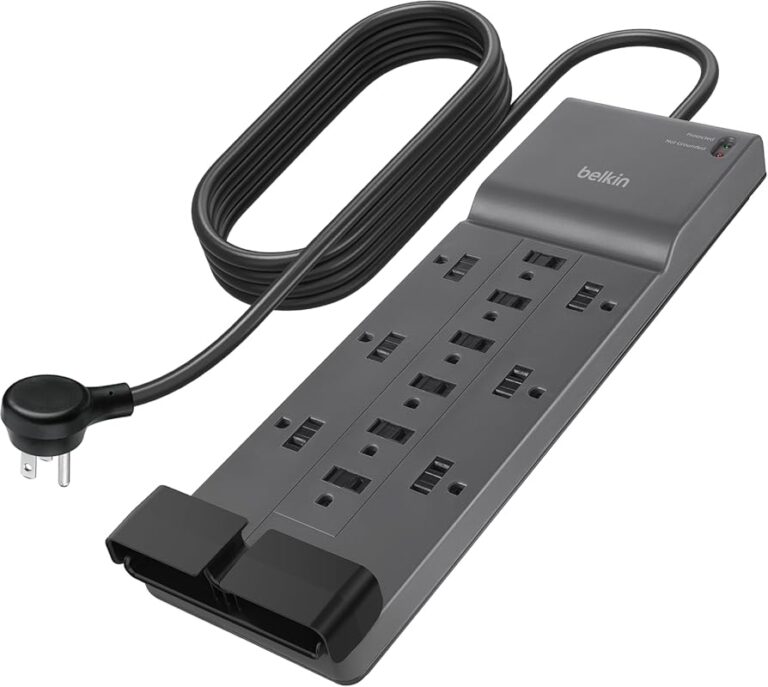
- Use a surge protector with built-in filtering to reduce electrical noise.
- Keep your computer’s firmware and BIOS up to date for optimal hardware performance.
These simple habits go a long way in keeping your audio clean and your buzzing speakers a thing of the past.
Expert Insight on Audio Interference
Audio engineers often say that most speaker noise problems come down to two things: grounding and shielding. A proper ground path and quality shielded cables solve the vast majority of speaker humming and buzzing issues. If you invest in good cables and make sure your equipment shares a common ground, you will notice a huge improvement in sound quality.
For more on related computer troubleshooting, you can check out our guide on why your computer fan keeps running, which covers other common hardware noise issues. If the buzzing is affecting your overall system performance, our article on fixing a computer running slow and freezing may also help identify related problems.
Frequently Asked Questions
Why do my computer speakers buzz even when no audio is playing?
This usually indicates a ground loop or electromagnetic interference issue. The idle buzz is caused by stray electrical current picking up in your audio cables even without an active signal. Try plugging all your equipment into the same outlet or using a ground loop isolator to eliminate the noise.
Can a bad power outlet cause speakers to buzz?
Yes, a faulty or shared power outlet can introduce electrical noise into your audio system. Outlets that are not properly grounded or that share a circuit with high-draw appliances like microwaves and refrigerators are common culprits for speaker buzzing.
Do USB speakers buzz more than regular powered speakers?
USB speakers can be more prone to buzzing because they share the USB data bus with other devices. This makes them vulnerable to USB interference from webcams, external drives, and other peripherals. Plugging USB speakers directly into your motherboard’s rear ports helps reduce this issue.
Is speaker buzzing harmful to my hearing?
Speaker buzzing itself is not harmful, but prolonged exposure to any loud or distorted sound can fatigue your ears. If the buzzing is very loud, reduce your volume immediately and work on fixing the issue. Clean audio is better for both your ears and your equipment.
How much does it cost to fix buzzing speakers?
Many fixes are completely free. Reorganizing cables, updating drivers, and changing power outlet assignments cost nothing. A ground loop isolator typically costs between $10 and $20. Only in rare cases where hardware like a sound card or speaker driver is damaged will you need to spend more on replacements.
Will updating Windows fix buzzing speakers?
Sometimes. Windows updates can overwrite audio drivers and cause compatibility issues that lead to buzzing. Updating your audio drivers manually or rolling back to a previous driver version often resolves the problem. It is one of the first steps you should take when buzzing starts after a system update.