How To Connect Wireless Mouse In Just A Few Minutes
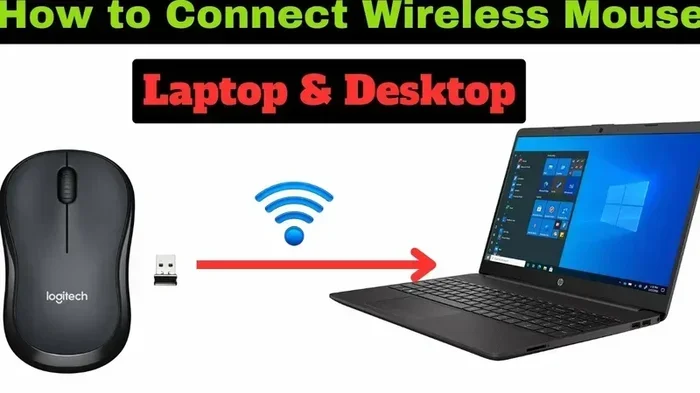
Connecting a wireless mouse is quick and easy once you know the right steps. This guide walks you through pairing your wireless mouse via USB receiver or Bluetooth in just a few minutes. Whether you use a Dell, HP, or Logitech mouse, you will find simple instructions that work every time.
Have you ever unboxed a brand-new wireless mouse and stared at it, wondering how on earth you are going to get it working? You are not alone. Thousands of people search for how to connect wireless mouse steps every single day. The good news is that it takes less time than making a cup of coffee. In this guide, you will learn exactly how to get your wireless mouse up and running in just a few minutes.
A wireless mouse gives you freedom from tangled cords. You can sit farther from your screen, move your cursor smoothly, and keep your desk clean. But first, you need to connect it properly. This guide covers every method you might encounter. From USB receivers to Bluetooth pairing, we have got you covered. Let us dive right in.
Key Takeaways
- Plug and Play: Most wireless mice work instantly when you insert the USB receiver into your laptop.
- Bluetooth Pairing: You can connect a Bluetooth mouse without any extra hardware in just a few clicks.
- Brand-Specific Steps: Logitech, HP, and Dell mice each have simple pairing modes you should know about.
- Troubleshooting Helps: Simple fixes like replacing batteries or restarting your laptop solve most connection issues.
- Driver Updates Matter: Keeping your mouse drivers current ensures smooth performance and fewer glitches.
📑 Table of Contents
- Why Connect a Wireless Mouse?
- How To Connect Wireless Mouse Using a USB Receiver
- How To Connect Wireless Mouse Using Bluetooth
- How To Connect Logitech Wireless Mouse
- How To Connect Wireless Mouse on Windows 10 and Windows 11
- Common Problems and How To Fix Them
- Quick Tips for the Best Wireless Mouse Experience
- Final Thoughts
Why Connect a Wireless Mouse?
A wireless mouse is one of the most useful upgrades you can make to your laptop setup. It removes the clutter of cables and lets you work from anywhere on your desk. Whether you are gaming, designing, or just browsing the web, a good wireless mouse makes everything feel smoother.
Here are some reasons people choose wireless mice over wired ones:
- No cable clutter: Your desk stays clean and organized.
- Portability: You can easily take your mouse with you on the go.
- Comfort: Move freely without pulling on a cord.
- Modern design: Most new laptops do not even come with mouse ports anymore.
- Battery life: Modern wireless mice can last weeks or even months on a single charge.
Once you understand the benefits, the next step is simple. You just need to know how to connect it. And that is exactly what this guide teaches you. Let us look at the different ways to connect a wireless mouse to your laptop.
How To Connect Wireless Mouse Using a USB Receiver
The most common way to set up a wireless mouse is through a tiny USB receiver. This small plug-in device comes with most wireless mice, including brands like Logitech, HP, and Dell. It handles the communication between your mouse and laptop. The process is super simple and takes less than two minutes.
Step-by-Step: USB Receiver Setup
- Insert the USB receiver into any available USB port on your laptop.
- Install the batteries in your mouse if you have not already done so.
- Turn on the mouse using the power switch, usually found on the bottom.
- Wait a few seconds. Your laptop should recognize the device automatically.
- Move the mouse around to test if the cursor responds.
That is it! Your wireless mouse is now connected. Most modern laptops use plug-and-play technology, which means they detect new USB devices instantly. You do not need to download anything extra in most cases.
However, if your laptop does not recognize the mouse, try a different USB port. Sometimes front-facing ports do not provide enough power. Also, make sure your USB drivers are up to date. You can check this in your device manager under the “Mice and other pointing devices” section.
For more details on the general process, check out our guide on How To Connect Wireless Mouse To Laptop which covers USB setup in more depth.
How To Connect Wireless Mouse Using Bluetooth
Bluetooth connectivity is another popular way to pair your wireless mouse with a laptop. Many modern laptops come with built-in Bluetooth support. This means you do not need any extra hardware at all. It is a clean, cable-free solution that works great with newer devices.
Step-by-Step: Bluetooth Pairing
- Turn on Bluetooth on your laptop. Go to Settings, then Devices, and toggle Bluetooth on.
- Put your mouse in pairing mode. Usually, you hold down a small button on the bottom of the mouse for a few seconds.
- Click “Add Bluetooth or other device” on your laptop.
- Select your mouse from the list of available devices.
- Wait for the connection to complete. You should see a confirmation message.
Once paired, your Bluetooth wireless mouse will reconnect automatically every time you turn it on. This is one of the biggest advantages of Bluetooth over USB receivers. No more plugging and unplugging!
If you are using an HP laptop, the process is nearly identical. You can also visit our guide on How To Connect Wireless Mouse To Laptop Hp for HP-specific tips and troubleshooting.
Bluetooth vs USB Receiver: Which Is Better?
| Feature | Bluetooth | USB Receiver |
|---|---|---|
| Setup Speed | Fast | Very Fast |
| Extra Hardware Needed | No | Yes (dongle) |
| Connection Stability | Good | Excellent |
| Multi-Device Support | Yes | Sometimes |
| Best For | Newer laptops | All laptops |
Both methods work great. Your choice depends on your laptop and personal preference. If your laptop has Bluetooth, you can skip the dongle entirely. If you want the most reliable connection, a USB receiver is hard to beat.
For a deeper dive into Bluetooth connections, see our article on How To Connect A Bluetooth Mouse To A Laptop.
How To Connect Logitech Wireless Mouse
Logitech is one of the most popular wireless mouse brands in the world. Their mice are known for reliability, smooth tracking, and comfortable designs. Connecting a Logitech wireless mouse is straightforward, but there are a few brand-specific tips that make the process even easier.
Using Logitech Options Software
Logitech offers a free software called Logi Options+ (or Logitech Options). This program lets you customize your mouse buttons, scroll speed, and pointer precision. It also helps manage multiple Logitech devices connected to the same laptop.
- Download Logi Options+ from the Logitech website.
- Install the software and follow the on-screen prompts.
- Plug in your USB receiver or pair via Bluetooth.
- Open Logi Options+ to fine-tune your settings.
This software is especially useful if you own multiple Logitech devices. You can switch between them seamlessly. For step-by-step pairing instructions, you can also read our guide on How To Connect A Logitech Wireless Mouse To A Laptop.
Logitech Mouse Pairing Shortcut
Most Logitech mice have a quick pairing button. Look for a small button on the bottom or under the battery compartment. Press and hold it for about three seconds. The LED light on the mouse will start flashing. This tells you the mouse is ready to pair with your laptop.
How To Connect Wireless Mouse on Windows 10 and Windows 11
Windows 10 and Windows 11 make it very easy to connect a wireless mouse. Both operating systems support plug-and-play USB devices and built-in Bluetooth. Here is what you need to know for each version.
Windows 10 Steps
- Click the Start menu and go to Settings.
- Select Devices, then Bluetooth & other devices.
- Turn on Bluetooth if you are using a Bluetooth mouse.
- Click “Add Bluetooth or other device” and follow the prompts.
- For USB receivers, just plug in the dongle and wait for recognition.
Windows 11 Steps
- Open Settings from the Start menu.
- Go to Bluetooth & devices on the left panel.
- Toggle Bluetooth on.
- Click “Add device” and select your wireless mouse.
- For USB receivers, plug them in and Windows 11 handles the rest.
If you run into any issues with Windows 10, our detailed guide on How To Connect Wireless Mouse To Laptop Windows 10 walks you through every step with screenshots and tips.
Common Problems and How To Fix Them
Even though connecting a wireless mouse is usually easy, sometimes things go wrong. Do not worry. Most problems have simple fixes. Here are the most common issues and how to solve them quickly.
Mouse Cursor Not Moving
If you move your mouse but the cursor stays still, the first thing to check is the batteries. Low battery power is the number one cause of this problem. Replace the batteries with fresh ones and try again. Also, make sure the USB receiver is firmly plugged in.
Mouse Not Detected by Laptop
Sometimes your laptop simply does not see the mouse. Try these fixes:
- Restart your laptop and plug the receiver back in.
- Try a different USB port. Some ports may not work properly.
- Update your mouse drivers through Device Manager.
- Reinstall the mouse software if you are using Logitech or another branded mouse.
Intermittent Connection
If your mouse keeps disconnecting, it could be a signal interference issue. USB 3.0 ports can sometimes interfere with wireless signals. Try plugging your receiver into a USB 2.0 port instead. Also, keep the mouse close to the receiver for the best signal strength.
Quick Tips for the Best Wireless Mouse Experience
Once your wireless mouse is connected, a few simple habits will keep it working perfectly for years. Here are some expert tips most people overlook:
- Turn off your mouse when you are not using it. This saves battery life significantly.
- Keep the receiver plugged in in a USB port that is easy to access.
- Clean the sensor regularly with a soft cloth to maintain smooth tracking.
- Update your drivers every few months to get the latest performance improvements.
- Store batteries properly. Remove them if you are not going to use the mouse for a long time.
- Use a mouse pad. It helps the sensor track more accurately and reduces wear.
These small steps make a big difference. Your wireless mouse will feel responsive, and you will avoid frustrating connection drops.
Final Thoughts
Connecting a wireless mouse does not have to be complicated. Whether you use a USB receiver or Bluetooth, the process is quick and straightforward. You can have your mouse working in just a few minutes by following the steps in this guide.
Remember to check your batteries, update your drivers, and keep your laptop Bluetooth settings in good shape. These simple habits ensure a smooth and reliable connection every single time. Now you know exactly how to connect wireless mouse on any laptop, any brand, any operating system.
Grab your mouse, follow the steps, and enjoy the freedom of a wireless setup. Happy computing!
Frequently Asked Questions
How do I connect a wireless mouse to my laptop for the first time?
Plug the USB receiver into your laptop, install the batteries, and turn on the mouse. Your laptop should recognize it automatically within seconds. If your mouse supports Bluetooth, you can also pair it through your laptop’s Bluetooth settings.
Why is my wireless mouse not connecting to my laptop?
The most common reasons are low batteries, a loose USB receiver, or outdated drivers. Try replacing the batteries, switching USB ports, and restarting your laptop. If the problem continues, update your mouse drivers through Device Manager.
Can I connect a wireless mouse to any laptop?
Yes, most wireless mice work with any laptop that has a USB port or Bluetooth capability. Almost all modern laptops support both. You just need the right connection method, whether it is a USB receiver or Bluetooth pairing.
Do I need to install software to use a wireless mouse?
For basic use, no. Most wireless mice work instantly without any software. However, installing the manufacturer’s software, like Logi Options+ for Logitech mice, gives you access to customization options like button mapping and DPI settings.
How long does it take to connect a wireless mouse?
It usually takes less than two minutes. USB receiver setups are the fastest, while Bluetooth pairing may take three to five minutes. The entire process is quick and does not require any technical skills.
Can I use a wireless mouse with multiple devices?
Yes, many wireless mice support multi-device pairing. You can switch between a laptop, desktop, and tablet using a button on the mouse or through the manufacturer’s software. Check your mouse model’s specifications to confirm this feature.