How to Record Your Screen on Windows
Recording your screen on Windows is simple and free. You can use built-in tools like Xbox Game Bar or download powerful software like OBS Studio to capture your screen, webcam, or both. This guide covers every method so you can record your screen on Windows quickly and confidently.
Need to record your screen on Windows? Whether you’re creating a tutorial, capturing gameplay, or saving a video call, screen recording is a skill everyone should know. The good news is that Windows has several built-in options, and there are also free tools that give you even more control. You don’t need to be a tech expert to get started.
In this guide, we’ll walk you through every method step by step. You’ll learn how to use the Xbox Game Bar, how to set up OBS Studio, and how to pick the right screen capture tool for your needs. By the end, you’ll be able to record your desktop like a pro.
Key Takeaways
- Xbox Game Bar is built into Windows 10 and 11, so you don’t need to download anything extra.
- OBS Studio is the best free screen recorder for advanced features like custom layouts and webcam overlays.
- You can record your screen with just a keyboard shortcut, making the process fast and easy.
- Checking your system requirements, including RAM, helps ensure smooth screen recording without lag.
- Using a mouse and keyboard shortcuts together gives you full control during recording sessions.
- You can capture screen video, audio, and webcam footage all at the same time.
- Free and paid options exist, so there’s a screen recorder for every budget and skill level.
📑 Table of Contents
- Why Record Your Screen on Windows?
- Method 1: Use Xbox Game Bar (Built-In)
- Method 2: Use OBS Studio (Free and Powerful)
- Method 3: Use the Windows Built-In Snipping Tool
- Method 4: Use Third-Party Screen Recorders
- Tips for Better Screen Recordings
- Troubleshooting Common Recording Issues
- How to Choose the Right Screen Recorder for You
- Final Thoughts
Why Record Your Screen on Windows?
Screen recording has become an essential tool for many people. Teachers use it to create lessons. Gamers share their best moments. Professionals record presentations for teams who couldn’t attend. The reasons are endless.
When you know how to capture screen video on Windows, you open up a world of possibilities. You can save anything happening on your screen for later reference or sharing. It’s one of the most useful skills you can learn in today’s digital world.
Common Uses for Screen Recording
- Tutorials and how-to videos — Show viewers exactly what to do on your computer.
- Gameplay recording — Capture your best gaming moments and share them online.
- Video call saving — Record important meetings or presentations for future reference.
- Bug reporting — Show developers exactly what’s going wrong on your screen.
- Content creation — Build YouTube videos, social media content, or online courses.
Method 1: Use Xbox Game Bar (Built-In)
The easiest way to record your screen on Windows is through the Xbox Game Bar. It comes pre-installed on Windows 10 and Windows 11, so you don’t need to download anything. This built-in screen recorder is perfect for quick captures.
Using your mouse to navigate the Game Bar is straightforward. You can click the widgets icon or use keyboard shortcuts to start and stop recording. It’s one of the fastest ways to get started.
How to Start Recording with Xbox Game Bar
- Open the app or window you want to record.
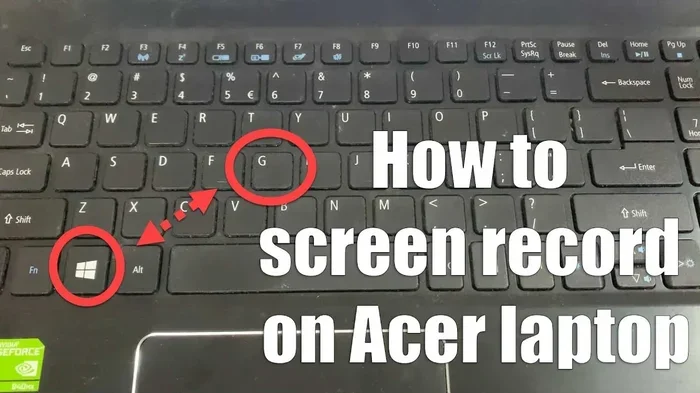
- Press Windows Key + G to open the Game Bar.
- Click the “Record” button or press Windows Key + Alt + R.
- Do whatever you want to capture on screen.
- Click “Stop Recording” or press the same shortcut again.
Your recording saves as an MP4 file in the Videos folder. From there, you can edit, share, or store it however you like. The whole process takes just seconds once you get the hang of it.
Xbox Game Bar Settings
You can customize your recording settings before you start. Go to Settings > Gaming > Captures to adjust the quality and audio options. You can choose to record audio from your microphone, your PC, or both. This gives you flexibility depending on what kind of video recording Windows project you’re working on.
One thing to keep in mind: Xbox Game Bar works best with apps and games. It may not capture the full desktop or File Explorer. If you need to record your entire desktop, you’ll want to try Method 2 or Method 3 below.
Method 2: Use OBS Studio (Free and Powerful)
OBS Studio is a free, open-source screen recording tool that gives you way more control than the Xbox Game Bar. It’s the go-to choice for YouTubers, streamers, and anyone who wants professional-quality recordings without spending a dime.
Setting up OBS might seem a little intimidating at first, but it becomes second nature quickly. The interface looks like a production board, but you only need a few basic features to get great results.
How to Set Up OBS Studio
- Download OBS Studio from the official website and install it.
- Open the app and click “Settings” in the bottom right corner.
- Go to the “Output” tab and choose your recording format (MP4 is recommended).
- Under the “Video” tab, set your resolution and frame rate.
- Click “Add Source” and choose “Display Capture” or “Window Capture.”
- Click “Start Recording” and begin your capture.
OBS lets you add multiple sources at once. You can capture your screen, your webcam, microphone audio, and system audio all in one recording. This makes it the most versatile screen recorder available for Windows.
If your computer has limited resources, you might want to increase your laptop’s RAM before using OBS. Screen recording uses a fair amount of memory, especially at higher resolutions. Having enough RAM ensures your screen record sessions run smoothly without stuttering or lag.
OBS vs. Xbox Game Bar
| Feature | Xbox Game Bar | OBS Studio |
|---|---|---|
| Cost | Free (Built-in) | Free (Download) |
| Desktop Recording | Limited | Full Support |
| Webcam Overlay | No | Yes |
| Custom Layouts | No | Yes |
| Streaming Ready | No | Yes |
| Ease of Use | Very Easy | Moderate |
As you can see, OBS Studio wins on features. But for quick, simple recordings, the Xbox Game Bar gets the job done with less setup. Choose based on what you need.
Method 3: Use the Windows Built-In Snipping Tool
Many people don’t realize that the Snipping Tool in Windows 11 now includes a screen recording feature. It’s a great option if you just need to capture a small area of your screen without installing extra software.
Open the Snipping Tool from your Start menu. You’ll see a new “Record” button in the toolbar. Click it, select the area of your screen you want to capture, and hit record. It’s that simple.
This method works well for quick demonstrations or short clips. It’s not meant for long recordings or gaming, but for everyday screen capture needs, it’s surprisingly capable.
Method 4: Use Third-Party Screen Recorders
If the built-in options don’t meet your needs, several third-party tools offer advanced features. Some are free, and others come with paid tiers for extra capabilities.
Popular Free Screen Recorders
- ShareX — A lightweight tool with screen capture and recording features. Great for quick clips.
- FlashBack Express — Simple interface with no watermarks. Good for beginners.
- ScreenRec — Cloud-based recording with easy sharing links. No installation needed.
- CamStudio — A classic free recorder that captures screen and audio in AVI format.
Each of these tools has its strengths. ShareX is excellent for power users who want customization. FlashBack Express is perfect if you want something simple and clean. Try a few and see which one fits your workflow best.
When using any recording tool, make sure your mouse cursor is visible if you’re creating tutorials. Viewers need to follow where you’re clicking and pointing. You can also adjust your cursor size in Windows settings to make it more visible on recordings.
Tips for Better Screen Recordings
Getting great recordings is about more than just hitting the record button. A few simple tips can dramatically improve your results.
Optimize Your System Before Recording
Close unnecessary programs before you start. This frees up memory and processing power for your recording software. If your system is running slowly, consider closing background apps or even updating your RAM for better performance.
Use Keyboard Shortcuts
Learning keyboard shortcuts saves you time and keeps your recording smooth. Instead of reaching for the mouse to click stop, a quick key combination lets you control recording without interrupting your flow. If you’re using a wireless mouse on Windows 10, make sure it’s charged and connected before you start so you don’t lose control mid-recording.
Check Your Audio Settings
Bad audio ruins good videos. Before you hit record, test your microphone and speaker levels. Make sure you’re capturing the right audio source — system sounds, microphone input, or both. Most recording tools let you preview your audio before you start, so use that feature.
Clean Up Your Desktop
Nobody wants to see a cluttered desktop in their recording. Close unnecessary browser tabs, hide personal files, and organize your icons. A clean desktop looks professional and keeps the viewer focused on what matters.
Record in a Quiet Environment
If you’re using a microphone, background noise can be distracting. Close windows, turn off fans if possible, and record in a quiet room. This simple step makes a huge difference in the quality of your final video.
Troubleshooting Common Recording Issues
Even with the best tools, things can go wrong. Here are common problems and how to fix them.
Recording Is Lagging or Choppy
This usually means your computer doesn’t have enough processing power. Lower the recording resolution or frame rate in your software settings. You can also close other programs to free up resources. If your laptop is older, adding more RAM can make a big difference in recording performance.
Audio Is Not Recording
Check that you’ve selected the correct audio source in your recording software. Many tools default to microphone only, so you may need to manually enable system audio. Go to your sound settings and make sure the correct input and output devices are selected.
Mouse Not Working During Recording
If your cursor disappears or stops responding, try restarting your recording software. Sometimes external devices can cause conflicts. If your mouse isn’t working properly on your laptop, that could also affect your recording experience. Make sure your pointing device is functioning correctly before you start a session.
Recording File Is Too Large
High-resolution recordings create large files. Lower the resolution or bit rate in your settings. You can also compress the file after recording using free video editing tools. Most recording software lets you adjust these settings before you start capturing.
How to Choose the Right Screen Recorder for You
With so many options available, picking the right one can feel overwhelming. Here’s a quick guide to help you decide.
If you just need quick, simple recordings, stick with Xbox Game Bar. It’s already on your PC and requires zero setup. For tutorials and presentations that need webcam overlays and custom layouts, OBS Studio is the clear winner. If you only need to capture small areas of your screen occasionally, the Snipping Tool in Windows 11 does the job perfectly.
Think about what you’ll be recording most often. If it’s gaming, you need high frame rates and system audio capture. If it’s tutorials, you need clear cursor visibility and possibly webcam recording. If it’s quick bug reports, the built-in Snipping Tool is all you need.
The beauty of Windows is that you have options. You can try multiple tools and stick with whichever one feels most natural. There’s no single “right” answer — only what works best for your specific needs.
Final Thoughts
Recording your screen on Windows doesn’t have to be complicated. Whether you use the built-in Xbox Game Bar, the powerful OBS Studio, or one of the many free third-party tools, you have everything you need to create great recordings. Start with the method that feels easiest, and explore more advanced options as you grow more comfortable.
The key is to just start. Don’t worry about making perfect recordings right away. Practice makes progress, and every recording you make will teach you something new. Soon, capturing your screen will feel like second nature.
Remember to keep your system optimized, your audio clean, and your desktop organized. These small habits will set your recordings apart from the rest. Happy recording!
Frequently Asked Questions
What is the easiest way to record your screen on Windows?
The easiest way is to use the Xbox Game Bar, which is already built into Windows 10 and 11. Just press Windows Key + G, then click the record button or use the shortcut Windows Key + Alt + R. No downloads or setup required.
Can I record my screen and webcam at the same time on Windows?
Yes, you can. OBS Studio is the best free tool for this. It lets you add both display capture and webcam sources in the same recording. Xbox Game Bar does not support webcam overlays, so OBS is the better choice for this need.
Do I need a good computer to record my screen?
It helps to have a decent computer, especially if you’re recording at high resolution. Screen recording uses processing power and memory. If your system is slow, consider lowering the recording quality or closing other programs while you capture.
Is there a free screen recorder that works well on Windows?
Absolutely. OBS Studio, ShareX, FlashBack Express, and ScreenRec are all excellent free options. Each has different strengths, so try a few to see which one fits your workflow best.
Why is my screen recording audio not working?
This usually happens when the wrong audio source is selected. Check your recording software settings and make sure you’ve chosen the correct input — microphone, system audio, or both. You can also check your Windows sound settings to confirm your devices are set correctly.
Can I record my screen on Windows without installing anything?
Yes. Windows 10 and 11 both include the Xbox Game Bar, which is a built-in screen recorder. Windows 11 also includes a recording feature in the Snipping Tool. Neither requires any downloads or installations.