Huawei Matebook D15 2024 Ram SSD Upgrade Tips and Steps
Upgrading the RAM and SSD in your Huawei Matebook D15 2024 is one of the best ways to breathe new life into your laptop. This guide walks you through everything you need to know, from picking the right parts to completing the installation. You will learn about compatible components, required tools, and simple steps anyone can follow.
Your Huawei Matebook D15 2024 is a solid machine, but it can feel slow over time. Apps take longer to open, multitasking gets choppy, and storage fills up fast. The good news is that upgrading the RAM and SSD can transform how your laptop performs. This guide gives you a clear path to do it yourself.
Many people think they need a new laptop when things slow down. But often, the real fix is much simpler. A Huawei Matebook D15 2024 RAM SSD upgrade can add speed, boost memory, and give you more storage space. Let us walk you through every step of the process.
Key Takeaways
- Easy Upgrade Path: The Huawei Matebook D15 2024 supports RAM and SSD upgrades with standard tools and basic technical skills.
- Big Performance Boost: Adding more RAM and switching to a faster SSD can dramatically improve boot times and multitasking.
- Affordable Improvement: Upgrading components costs far less than buying a new laptop.
- Right Parts Matter: Choosing compatible DDR4 RAM and M.2 SSD modules ensures a smooth upgrade.
- Warranty Consideration: Opening the laptop may void the warranty, so check before starting.
- Simple Process: With the right guide, most users can complete the upgrade in under 30 minutes.
📑 Table of Contents
- Why Upgrade the RAM and SSD in Your Matebook D15?
- Check Compatibility Before You Buy
- Tools You Will Need
- Step-by-Step Upgrade Process
- Installing the Operating System and Software
- How Much Does a RAM and SSD Upgrade Cost?
- Common Mistakes to Avoid
- Expert Tips for Maximum Performance
- When to Consider Professional Help
- Final Thoughts
Why Upgrade the RAM and SSD in Your Matebook D15?
Before you open up your laptop, it helps to understand what each upgrade does. RAM handles active tasks, while the SSD stores your files and operating system. Together, they shape how fast and smooth your laptop feels every day.
What Does More RAM Do?
RAM is your laptop’s short-term memory. When you have more of it, your system can handle more apps at once. If you often switch between a browser with many tabs, a Word document, and a video call, extra RAM makes a huge difference. The Matebook D15 2024 typically comes with 8GB or 16GB of RAM, but you can go higher depending on the model.
What Does a New SSD Do?
Your SSD is where everything lives. The operating system, apps, photos, and documents all sit on this drive. Swapping in a faster or larger SSD cuts boot times, opens apps quicker, and gives you room for more files. An M.2 NVMe SSD upgrade is one of the most satisfying upgrades you can make to any laptop.
Check Compatibility Before You Buy
Not all RAM or SSD modules work with the Matebook D15. Before purchasing anything, confirm that your specific model supports the parts you want to install. This saves money and avoids frustration.
RAM Compatibility
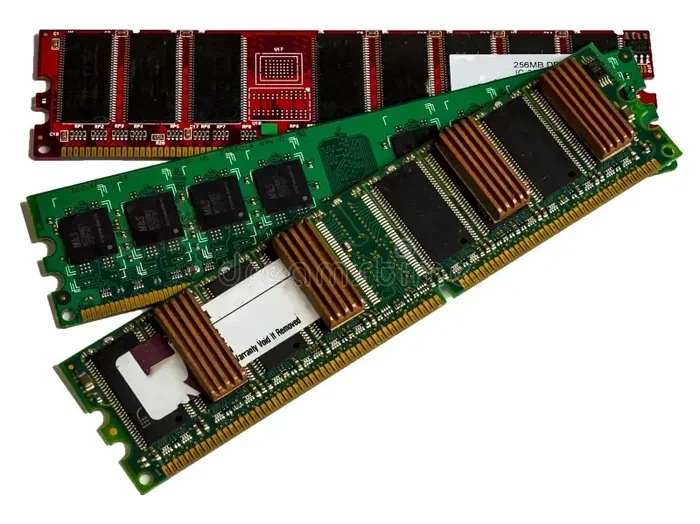
The Huawei Matebook D15 2024 uses DDR4 SO-DIMM RAM modules. Most models support up to 16GB of RAM, and some can handle 32GB if you install two 16GB sticks. Check your laptop’s exact specifications before buying. If you are unsure about whether you can upgrade RAM in your specific unit, the user manual or Huawei’s support page will have the answer.
- RAM Type: DDR4 SO-DIMM
- Speed: Typically 3200MHz
- Slots: Usually one or two slots depending on the model
- Max Capacity: 16GB or 32GB per slot
SSD Compatibility
The Matebook D15 2024 uses an M.2 2280 NVMe SSD slot. This is a standard size that many aftermarket SSDs fit into. Look for drives from brands like Samsung, Crucial, WD, or Kingston. A laptop with 16GB RAM and SSD configuration is a popular target for this upgrade, and the Matebook D15 supports it well.
Tools You Will Need
Gathering your tools before you start makes the process much smoother. You do not need anything fancy, but having the right items ready prevents delays.
- Small Phillips-head screwdriver (usually size PH1 or PH2)
- Anti-static wrist strap (optional but recommended)
- A clean, flat workspace with good lighting
- A soft cloth or mat to place parts on
- The new RAM and SSD you have purchased
Keep a small container nearby to hold the screws. Losing a tiny screw inside your laptop is a nightmare you want to avoid. A magnetic screwdriver can also help keep screws in place during the process.
Step-by-Step Upgrade Process
Now for the part you have been waiting for. The actual upgrade process is straightforward and does not require advanced technical skills. Follow these steps carefully, and your Huawei Matebook D15 2024 will feel like new.
Step 1: Power Down and Unplug
Shut down your laptop completely. Unplug the power adapter and remove any connected USB devices or peripherals. If your laptop has a removable battery, take it out. The Matebook D15 2024 has an internal battery, so make sure the laptop is fully powered off and not just sleeping.
Step 2: Remove the Back Panel
Flip your laptop over and locate the screws on the bottom cover. Use your Phillips screwdriver to remove them. Keep the screws in a safe place. Gently pry the back panel off using a plastic spudger or your fingernail. Work around the edges slowly to avoid damaging the clips that hold the panel in place.
Step 3: Locate the RAM and SSD
Once the back panel is off, you will see the internal components. The RAM slot is usually easy to spot, and the M.2 SSD is typically mounted near the center of the motherboard. Take a photo with your phone before touching anything. This gives you a reference point if you need to put everything back exactly as it was.
Step 4: Remove the Old RAM
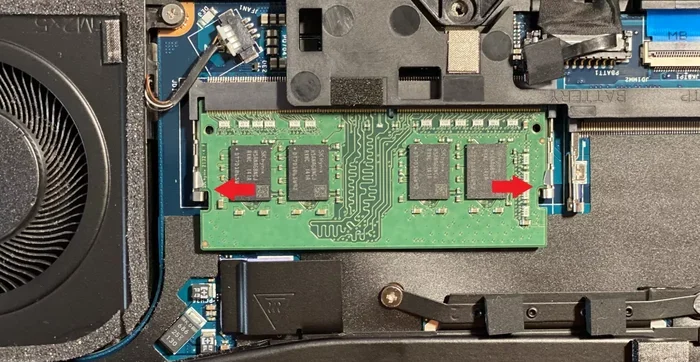
Push the metal clips on either side of the RAM stick outward. The module will pop up at an angle. Gently pull it out. If you are adding more RAM, align the new module with the slot at a 30-degree angle and press it down until the clips click into place.
Step 5: Remove the Old SSD
The M.2 SSD is held in place by a small screw. Remove the screw and carefully pull the SSD out at a slight angle. Insert your new SSD into the slot at a 30-degree angle and press it down flat. Secure it with the screw you removed earlier.
Step 6: Reassemble and Test
Place the back panel back on and screw it in securely. Plug in your power adapter and turn on the laptop. Enter the BIOS or UEFI setup by pressing the appropriate key during boot (usually F2 or Del). Check that the system recognizes your new RAM and SSD. If everything shows up correctly, save and exit.
Installing the Operating System and Software
After the hardware upgrade, you will need to set up your system properly. If you installed a brand-new SSD, you will likely need to install Windows fresh. You can create a bootable USB drive using the Windows Media Creation Tool from Microsoft’s website.
Once Windows is installed, install your drivers, update the system, and transfer your files from a backup if you made one. Your Huawei Matebook D15 2024 RAM SSD upgrade is now complete, and you should notice a significant improvement in speed and responsiveness.
How Much Does a RAM and SSD Upgrade Cost?
The total cost depends on the parts you choose. A 16GB DDR4 SO-DIMM RAM stick typically costs between $30 and $60. A 512GB NVMe SSD ranges from $35 to $70, while a 1TB drive can run $60 to $100. For many users, the cost of upgrading RAM is one of the most affordable ways to improve performance. Compare this to the price of a brand-new laptop, and the savings are obvious.
If you want to see what pre-configured options look like, check out some laptops with 16GB RAM and SSD configurations online to get an idea of the performance tier you are aiming for.
Common Mistakes to Avoid
- Buying the wrong RAM type: DDR3 and DDR4 look similar but are not interchangeable. Double-check the DDR4 requirement.
- Forgetting to ground yourself: Static electricity can damage components. Use an anti-static wrist strap or touch a metal surface before handling parts.
- Over-tightening screws: The M.2 SSD screw only needs a gentle turn. Forcing it can strip the thread.
- Skipping the BIOS check: Always verify that the system recognizes the new parts before closing everything up.
- Not backing up data: Always back up important files before opening your laptop. Even if you are only upgrading the SSD, data loss can happen.
Expert Tips for Maximum Performance
Want to get the most out of your upgrade? Follow these tips from experienced users and technicians.
- Use matching RAM sticks: If you install two identical RAM modules, you enable dual-channel mode, which boosts memory bandwidth and overall performance.
- Choose a PCIe Gen 3 or Gen 4 NVMe SSD: These offer the fastest read and write speeds for the Matebook D15 2024.
- Keep your SSD at least 20% free: SSDs perform best when they have free space. Avoid filling them to capacity.
- Update your BIOS after upgrading: Huawei sometimes releases BIOS updates that improve compatibility with newer RAM and SSD modules.
- Monitor temperatures: After an upgrade, keep an eye on your laptop’s temperatures. More RAM and a faster SSD can sometimes lead to slightly higher heat output.
When to Consider Professional Help
Most users can complete the Huawei Matebook D15 2024 RAM SSD upgrade on their own with the steps above. However, if you feel uncomfortable opening your laptop, it is perfectly fine to seek professional help. Many local repair shops offer RAM and SSD upgrade services for a reasonable fee. You can also visit a Huawei service center if your laptop is still under warranty.
Opening the laptop yourself may void the warranty, so always check your warranty terms first. If your device is still covered, professional service is the safer route.
Final Thoughts
A Huawei Matebook D15 2024 RAM SSD upgrade is one of the smartest investments you can make for your laptop. It costs a fraction of a new device, takes less than an hour, and delivers noticeable results. Whether you are a student, a professional, or a casual user, the extra speed and storage will make your daily tasks faster and more enjoyable.
Do not let a slow laptop hold you back. Follow the steps in this guide, pick the right parts, and enjoy a faster, more responsive machine. Your Matebook D15 2024 has plenty of life left, and a simple upgrade can make it feel brand new again.
Frequently Asked Questions
Can I upgrade the RAM in my Huawei Matebook D15 2024?
Yes, the Huawei Matebook D15 2024 supports RAM upgrades using DDR4 SO-DIMM modules. Most models have one or two RAM slots that accept up to 16GB or 32GB of RAM depending on your configuration.
What type of SSD works with the Matebook D15 2024?
The Matebook D15 2024 uses an M.2 2280 NVMe SSD. This is a standard form factor that many brands manufacture, including Samsung, Crucial, and Western Digital.
How long does the upgrade process take?
Most users complete the entire RAM and SSD upgrade in about 20 to 30 minutes. The actual hardware installation takes around 15 minutes, with the remaining time spent on software setup and data transfer.
Will upgrading the RAM void my warranty?
It depends on your warranty terms. In many cases, opening the laptop to upgrade components may void the warranty. Check with Huawei support before proceeding if your device is still under coverage.
Do I need to reinstall Windows after the upgrade?
If you installed a brand-new SSD, you will need to reinstall Windows or clone your existing operating system to the new drive. If you only upgraded the RAM, no reinstallation is necessary.
Can I upgrade just the RAM or just the SSD?
Absolutely. You can upgrade either component independently. Many users choose to upgrade both at the same time for the best performance improvement, but each upgrade delivers benefits on its own.