Laptop Mouse Does Not Work
When your laptop mouse stops working, it can feel like your whole computer is broken. This guide walks you through simple fixes for both touchpad and external mouse problems, helping you save time and avoid costly repairs.
Key Takeaways
- Check connection first: Loose cables or dead batteries often cause mouse problems – try unplugging and reconnecting before assuming hardware failure.
- Enable touchpad manually: Many laptops have a function key toggle that accidentally disables the touchpad – look for Fn+F7 or similar combinations.
- Update drivers regularly: Outdated or corrupt mouse drivers are common culprits behind cursor issues – keep them current through Device Manager.
- Clean the sensor: Dust and debris blocking optical sensors can make any mouse unresponsive – gentle cleaning often restores functionality.
- Try safe mode testing: Booting in safe mode helps determine if software conflicts are causing your mouse to stop working properly.
- Hardware replacement options: If basic troubleshooting fails, external mice are affordable alternatives to expensive internal repairs.
📑 Table of Contents
- Introduction: When Your Laptop Mouse Stops Working
- Understanding Different Types of Laptop Mouse Issues
- Basic Troubleshooting Steps Everyone Should Try First
- Software Solutions and Driver Updates
- Advanced Fixes for Persistent Mouse Problems
- Brand-Specific Solutions and Common Models
- Preventive Measures and Long-Term Solutions
- Conclusion: Getting Your Mouse Back in Action
Introduction: When Your Laptop Mouse Stops Working
We have all been there. You sit down to work on your laptop, ready to tackle that important project or catch up on emails. You reach for your mouse, give it a gentle click, and… nothing happens. The cursor sits frozen on your screen like it is taking a nap. Your laptop mouse does not work, and suddenly your productivity grinds to a halt.
This frustrating scenario happens more often than you might think. Whether you are dealing with a finicky touchpad or an external mouse that has decided to take a vacation, mouse problems can turn a productive day into a stressful one. The good news? Most mouse issues are not serious hardware failures that require expensive repairs. In fact, many can be fixed with just a few simple troubleshooting steps.
Before you panic and assume your laptop is beyond help, let us walk through some practical solutions together. Think of this guide as having a tech-savvy friend sitting next to you, walking you through each step with patience and care. We will cover everything from basic checks to advanced fixes, ensuring you can get back to clicking and scrolling in no time.
Understanding Different Types of Laptop Mouse Issues
Visual guide about Laptop Mouse Does Not Work
Image source: weetechsolution.com
When we say “laptop mouse does not work,” we are actually talking about several different problems. Your laptop might have a touchpad that stopped responding, an external mouse that refuses to connect, or even a cursor that has vanished completely from your screen. Each of these issues has different causes and solutions, which is why it helps to understand what you are dealing with first.
Touchpad Problems vs. External Mouse Issues
Touchpad troubles are among the most common complaints. These built-in pointing devices can become unresponsive due to accidental disabling, driver conflicts, or physical damage. Unlike external mice, touchpads are integrated into your laptop’s system, making them trickier to troubleshoot sometimes.
External mouse problems tend to be more straightforward. Wired mice usually fail due to cable damage or port issues, while wireless mice often suffer from battery problems or connection interference. The advantage here is that external mice can be easily replaced or swapped for testing.
Identifying Your Specific Problem
Start by asking yourself some questions: Does the mouse work intermittently or not at all? Did this happen suddenly or gradually? Have you recently installed new software or updates? Is this a touchpad or external mouse issue? These clues will guide you toward the most effective solution path.
Sometimes, the problem is not with the mouse itself but with your laptop recognizing input devices. If you find your mouse not showing up on laptop screens or disappearing randomly, this points to different troubleshooting approaches than a completely frozen cursor.
Basic Troubleshooting Steps Everyone Should Try First

Visual guide about Laptop Mouse Does Not Work
Image source: theserpwire.com
Before diving into complex solutions, let us start with the fundamentals. These simple checks resolve most mouse problems without requiring technical expertise or special tools. Think of them as the “turn it off and on again” approach that works surprisingly well.
Physical Inspection and Connection Checks
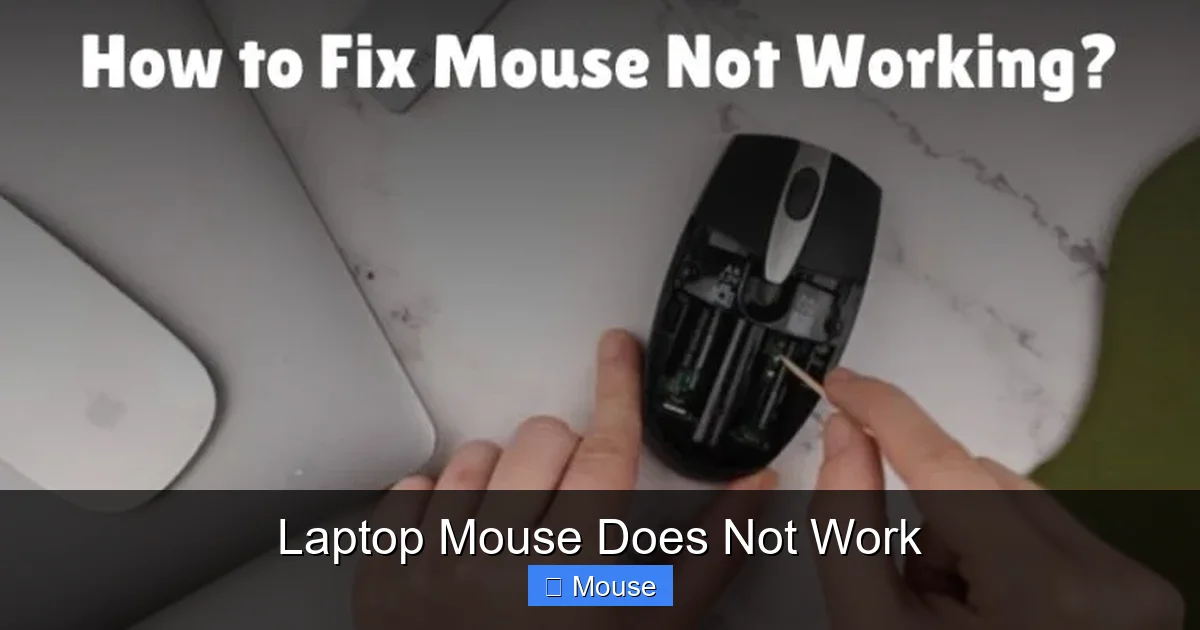
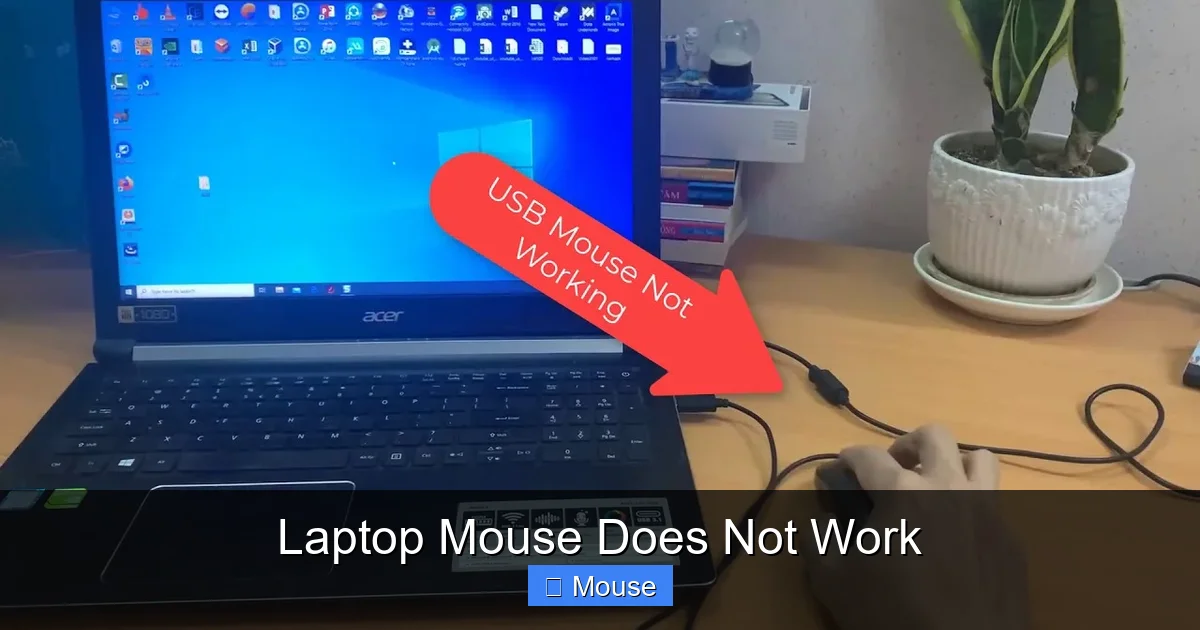
For external mice, check the obvious stuff first. Is the cable firmly plugged into your laptop? Try a different USB port to rule out port-specific issues. If using a wireless mouse, replace the batteries even if they seem fine – low power can cause erratic behavior. Clean the optical sensor on the bottom of the mouse with a soft cloth to remove dust buildup.
Wireless mouse users should also check for interference from other devices. Move your mouse closer to the laptop receiver and remove potential obstacles. Bluetooth mice may need re-pairing if they suddenly stop connecting.
Restarting Your Laptop
A simple restart can work wonders for resolving temporary glitches. Save your work and reboot your system completely. This clears temporary files and resets system processes that might be interfering with mouse functionality. Many users find their laptop mouse does not work issue resolves itself after a fresh restart.
Checking for Physical Switches
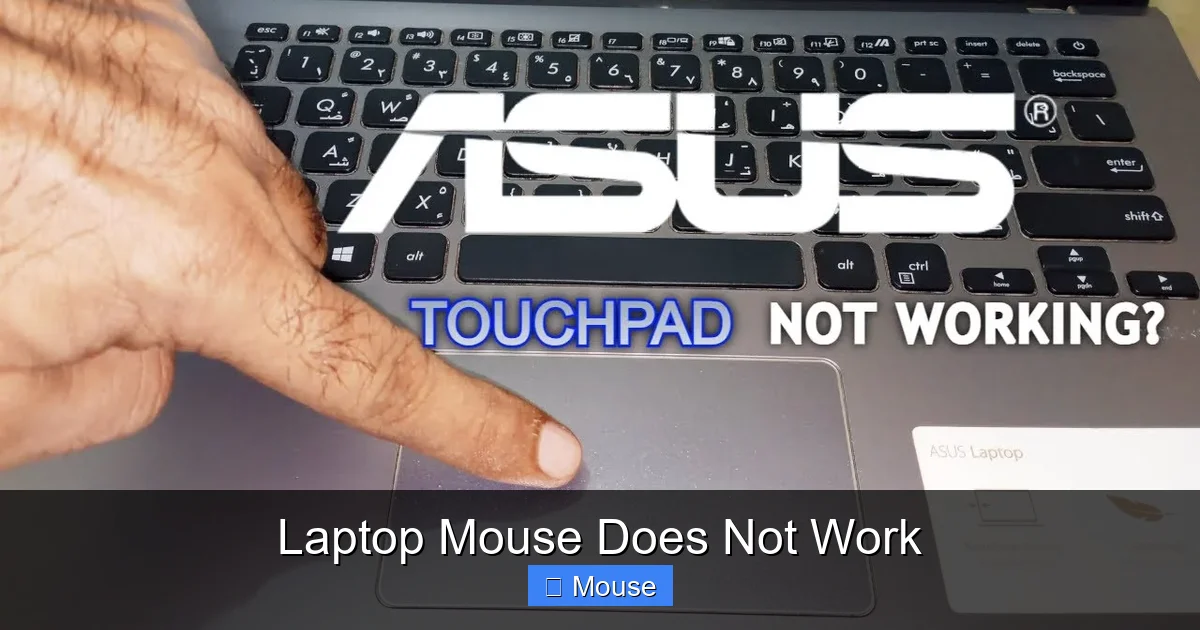
Many laptops have physical switches or buttons that disable the touchpad. Look for a small switch near your touchpad or check your keyboard for function key combinations. On HP laptops, you might need to learn how to unlock touch mouse features that were accidentally activated.
Software Solutions and Driver Updates
Visual guide about Laptop Mouse Does Not Work
Image source: i.ytimg.com
If basic troubleshooting does not solve your problem, it is time to dig into software-related causes. Outdated drivers, corrupted system files, or conflicting applications often lie at the heart of mouse dysfunction. These issues require a bit more technical knowledge but remain manageable for most users.
Updating Mouse Drivers Through Device Manager
Your mouse drivers act as translators between hardware and software. When they become outdated or corrupted, communication breaks down. To update drivers:
Press Windows key + X and select Device Manager. Expand the “Mice and other pointing devices” section. Right-click your mouse device and choose “Update driver.” Select “Search automatically for drivers” and follow prompts.
If Windows cannot find updates, visit your laptop manufacturer’s website directly. Download drivers specific to your model and operating system version. Installing correct drivers often resolves issues where mouse is not working on laptop systems.
Running Hardware Troubleshooter
Windows includes built-in troubleshooters for common hardware issues. Access Settings > Update & Security > Troubleshoot > Additional troubleshooters. Run the “Hardware and Devices” troubleshooter and let it scan for problems automatically.
Checking for Software Conflicts
Recently installed programs might interfere with mouse operation. Boot your laptop in safe mode to test if the mouse works properly. If it does, gradually enable startup programs to identify the culprit. Some security software and accessibility tools are notorious for causing mouse conflicts.
Advanced Fixes for Persistent Mouse Problems
Visual guide about Laptop Mouse Does Not Work
Image source: i.ytimg.com
When basic and software solutions fail, you may need to explore more advanced troubleshooting options. These steps require greater care but can resolve stubborn issues that refuse to go away with simpler fixes.
System Restore for Recent Changes
If your mouse stopped working after installing updates or new software, system restore can revert your computer to a working state. Search for “Create a restore point” in Windows, then “System Restore” to access this feature. Choose a restore point from before your mouse issues began.
Registry Cleaning and System File Checks
Corrupted registry entries can prevent mouse drivers from loading correctly. Use Windows’ built-in System File Checker tool by opening Command Prompt as administrator and typing “sfc /scannow.” This scans and repairs corrupted system files automatically.
BIOS and UEFI Settings
In rare cases, BIOS settings might disable mouse functionality. Restart your laptop and enter BIOS setup (usually by pressing F2, F12, or Delete during startup). Look for pointing device or USB settings and ensure they are enabled. However, only attempt this if you are comfortable with advanced computer settings.
Brand-Specific Solutions and Common Models
Visual guide about Laptop Mouse Does Not Work
Image source: i.ytimg.com
Different laptop manufacturers have unique quirks and common issues. Understanding these brand-specific patterns can save significant troubleshooting time and point you toward targeted solutions faster.
Dell Laptop Mouse Challenges
Dell laptop mouse not responding issues often relate to their proprietary touchpad drivers. Users frequently report problems after Windows updates that require specific Dell mouse management software installations. Check Dell’s support site for touchpad-specific utilities that may not install automatically.
HP Laptop Touchpad Troubleshooting
HP laptops sometimes experience touchpad freezing after sleep modes. The mouse might disappear on wake-up and require manual reactivation. Some models include Synaptics touchpad software that needs separate updates from standard Windows drivers.
Lenovo and ASUS Considerations
Lenovo systems occasionally face Bluetooth mouse connection drops, especially when laptops sleep. ASUS laptops sometimes need function key combinations to re-enable disabled touchpads. Both brands benefit from manufacturer-specific driver updates available through their support portals.
Universal Brand Solutions
Regardless of brand, most mouse-on-laptop-not-working problems stem from similar root causes. Whether you are dealing with why won’t the mouse on my laptop work questions or why is my mouse not working on my laptop frustrations, the fundamental troubleshooting remains consistent across manufacturers.
Preventive Measures and Long-Term Solutions
Visual guide about Laptop Mouse Does Not Work
Image source: i.ytimg.com
Once you fix your immediate mouse problem, take steps to prevent future occurrences. These proactive measures keep your pointing devices functioning smoothly and reduce the likelihood of sudden failures disrupting your workflow.
Regular Maintenance Routines
Clean your touchpad and mouse regularly with appropriate cleaning materials. Avoid eating near your laptop to prevent crumbs from interfering with touchpad sensitivity. Keep your operating system updated to ensure driver compatibility and security patches.
Backup Input Methods
Consider keeping a spare external mouse handy, especially if you rely heavily on precise cursor control. USB mice are inexpensive and provide reliable backup when primary input methods fail. Having alternatives ready prevents productivity losses during troubleshooting.
Professional Help Indicators
Some signs suggest professional repair rather than DIY fixes. Physical damage to touchpads, complete USB port failures, or motherboard-level issues require expert attention. When basic troubleshooting fails and you cannot identify clear software causes, consulting a technician saves time and prevents further damage.
Conclusion: Getting Your Mouse Back in Action
Visual guide about Laptop Mouse Does Not Work
Image source: signal.avg.com
Dealing with a non-functional laptop mouse can feel overwhelming, but remember that most issues are solvable with patience and systematic troubleshooting. Start with basic checks like connections and restarts before moving to advanced driver updates and system repairs.
The key is staying calm and methodical. Jumping straight to complex solutions often wastes time when simple fixes would suffice. Whether your mouse quit working on laptop systems due to accidental disabling or driver conflicts, following this guide step-by-step maximizes your chances of success.
Remember that technology evolves constantly, and what works today might need adjustment tomorrow. Stay informed about updates, maintain your system regularly, and do not hesitate to seek help when needed. Your laptop mouse does not work situation is temporary, and with the right approach, you will be clicking and scrolling again before you know it.
Frequently Asked Questions
Why does my laptop mouse stop working randomly?
Random mouse failures often stem from loose connections, low battery power in wireless devices, or temporary driver glitches. Try unplugging and reconnecting wired mice or replacing wireless batteries. Restarting your laptop frequently resolves intermittent issues.
How can I tell if my mouse problem is hardware or software related?
Test your mouse on another computer to isolate hardware issues. If it works elsewhere, the problem likely lies in your laptop’s software configuration. Boot in safe mode to check if the mouse functions properly without third-party applications running.
What function keys control laptop touchpad settings?
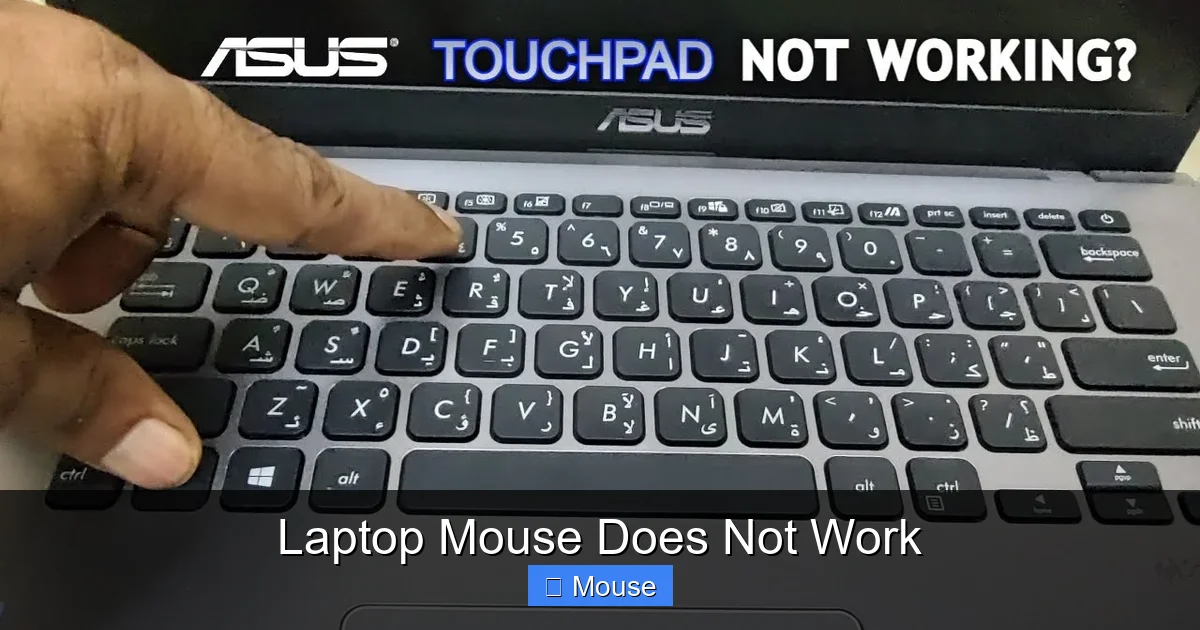
Most laptops use Fn key combinations to toggle touchpad functionality. Common combinations include Fn+F7, Fn+F9, or Fn+F5, though exact keys vary by manufacturer. Look for touchpad icons on function keys for visual guidance.
Can Windows updates break my mouse drivers?
Yes, Windows updates sometimes install incompatible drivers or overwrite customized settings. If mouse problems coincide with recent updates, try rolling back drivers through Device Manager or performing a system restore to pre-update conditions.
Why does my mouse work in some programs but not others?
This typically indicates software conflicts or program-specific settings overriding system defaults. Check individual application settings for input device preferences and look for programs that might be intercepting mouse signals or running in compatibility modes.
Is it better to repair or replace a broken laptop touchpad?
Replacement is usually more cost-effective than repair for laptop touchpads. External USB or wireless mice provide better performance and ergonomics at a fraction of repair costs. Unless your laptop is under warranty, consider external alternatives for improved user experience.