Lenovo Ideacentre Aio 3i 27 2023 Ram Ssd Upgrade Guide
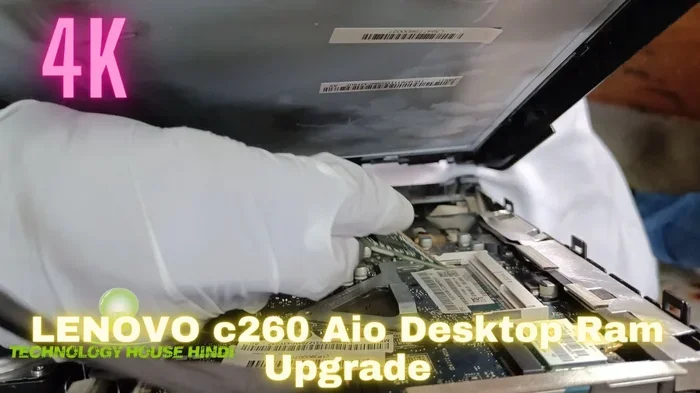
The Lenovo Ideacentre Aio 3i 27 2023 is a powerful all-in-one PC, but upgrading its RAM and SSD can unlock even better performance. This guide walks you through everything you need to know, from choosing compatible parts to completing the installation. You will learn the exact steps, avoid common pitfalls, and enjoy a faster system in under an hour.
The Lenovo Ideacentre Aio 3i 27 2023 is a solid all-in-one desktop PC that handles everyday tasks with ease. But if you have noticed slowdowns or want more storage space, a Lenovo Ideacentre Aio 3i 27 2023 Ram Ssd Upgrade can make a huge difference. This guide breaks down the entire process in simple, easy-to-follow steps.
Upgrading your RAM and SSD is one of the best ways to breathe new life into an older computer. Whether you use your machine for work, school, or entertainment, these improvements will make everything feel faster and smoother. Let us dive into what you need to know before you start.
Key Takeaways
- Easy Upgrade: The Lenovo Ideacentre Aio 3i 27 2023 has accessible RAM and SSD slots, making upgrades simple for most users.
- Performance Boost: Adding more RAM and switching to an SSD dramatically improves speed, boot times, and multitasking.
- Compatible Parts: DDR4 RAM and M.2 NVMe SSDs are the standard upgrades for this model.
- Budget Friendly: Upgrading is far cheaper than buying a new computer and gives your current machine new life.
- Safety First: Following proper steps prevents damage to your components and ensures a successful installation.
📑 Table of Contents
What Is the Lenovo Ideacentre Aio 3i 27 2023?
The Lenovo Ideacentre Aio 3i 27 2023 is a 27-inch all-in-one desktop computer designed for home and office use. It features a sleek design with the screen and internals built into one unit. This setup saves desk space and looks clean and modern.
Out of the box, this model typically comes with 8GB of RAM and a 256GB or 512GB SSD. For basic tasks like browsing, streaming, and document editing, this works fine. But if you run multiple apps at once, edit photos, or play lighter games, you will quickly feel the limits.
The good news is that this machine supports hardware upgrades. Both the RAM and the storage can be expanded, which makes it a great candidate for a PC upgrade guide project. You do not need to be a tech expert to get it done.
Why People Upgrade Their Aio 3i
There are several reasons users choose to upgrade their Lenovo Ideacentre Aio 3i. Here are the most common ones:
- Slow performance: The system takes too long to open apps or switch between tabs.
- Low storage: You keep running out of space for files, photos, and videos.
- Multitasking issues: The system freezes or lags when you have many programs open.
- Better value: Upgrading costs a fraction of buying a brand new computer.
- Future-proofing: More RAM and faster storage help the PC stay relevant longer.
Why Upgrade the RAM and SSD?
Upgrading both the RAM and the SSD at the same time gives you the biggest performance boost. Each component plays a different role in how fast and smoothly your computer runs.
The RAM, or memory, is where your computer stores data it is actively using. More RAM means your system can handle more tasks at once without slowing down. The SSD, or solid state drive, is where your files and operating system live. A faster SSD means quicker boot times, faster file transfers, and snappier app launches.
Together, these two upgrades transform how your machine feels. Even a five-year-old PC can feel like new after a proper hardware upgrade.
How RAM Affects Performance
Think of RAM as your desk workspace. A small desk means you can only spread out a few papers at a time. A bigger desk lets you work on many projects simultaneously. Similarly, more RAM lets your computer run more programs at the same time without slowing down.
The Lenovo Ideacentre Aio 3i 27 2023 uses DDR4 RAM, which is one of the most common and affordable types available today. Most users will benefit from moving to 16GB or even 32GB of RAM. For memory upgrade purposes, DDR4 modules are easy to find and install.
How SSD Affects Performance
Your SSD is like the brain’s long-term memory. It stores everything from your operating system to your personal files. A traditional hard drive spins disks to read data, which is slow. An SSD has no moving parts, so it reads and writes data much faster.
Upgrading to a larger SSD, such as a 1TB or 2TB model, gives you plenty of room for all your files. It also makes the whole system feel incredibly responsive. Opening your browser, loading games, and booting Windows all happen in seconds.
What Parts Do You Need?
Before you start, you need to gather the right components. Using incompatible parts can cause problems, so it is important to choose carefully.
RAM Selection
For the Lenovo Ideacentre Aio 3i 27 2023, you need DDR4 SODIMM RAM modules. These are smaller than desktop RAM sticks, which makes sense since this is an all-in-one PC with compact internals.
Here is what to look for when buying RAM:
- Type: DDR4 SODIMM
- Speed: 3200MHz or 3200MT/s is ideal
- Capacity: 8GB or 16GB per module
- Configuration: Two 8GB modules for 16GB total, or one 16GB module
- Compatibility: Check that the RAM works with your specific model
If you want the best results, consider a Lenovo RAM upgrade kit that matches your system’s requirements. These kits often come with two matched modules for dual-channel performance.
SSD Selection
The Aio 3i 27 2023 uses an M.2 NVMe SSD slot. This is the most common modern SSD format and offers excellent speeds. When shopping for an SSD, keep these points in mind:
- Form Factor: M.2 2280 (22mm wide, 80mm long)
- Interface: NVMe PCIe Gen 3 or Gen 4
- Capacity: 1TB or 2TB for most users
- Brand: Samsung, Crucial, WD, and Kingston are reliable choices
An M.2 SSD upgrade is one of the simplest and most impactful changes you can make. If you are unsure about compatibility, check your user manual or look up your specific model number online.
Tools You Will Need
You do not need many tools for this upgrade. Here is a short list:
- A small Phillips-head screwdriver
- A soft, anti-static cloth or mat
- An anti-static wrist strap (optional but recommended)
- A clean, well-lit workspace
That is it. You do not need expensive equipment or advanced technical skills. The process is designed to be straightforward for anyone who can follow basic instructions.
Step-by-Step Upgrade Process
Now comes the fun part. Let us walk through the actual upgrade process step by step. Take your time, and do not rush. If you have never opened a computer before, do not worry, this is very beginner-friendly.
Step 1: Back Up Your Data
Before you touch any internal components, back up your important files. You can use an external hard drive, a USB flash drive, or a cloud storage service. While the upgrade process is safe, it is always better to be cautious.
This step is especially important if you plan to replace your existing SSD entirely. You will want to transfer your data to the new drive afterward.
Step 2: Power Down and Unplug
Turn off your Lenovo Ideacentre Aio 3i 27 2023 and unplug all cables. This includes the power cord, any USB devices, and external monitors. Let the machine sit for a few minutes to cool down and discharge any static electricity.
Working on a powered-off and unplugged machine is the safest way to avoid damaging your components. Never open a computer while it is still connected to power.
Step 3: Open the Rear Panel
The back panel of the Aio 3i is held in place by several screws. Use your Phillips-head screwdriver to remove them carefully. Keep the screws in a small bowl or container so you do not lose them.
Once all screws are out, gently lift the panel off. Set it aside in a safe place. You should now have clear access to the internal components, including the RAM slots and the SSD.
Step 4: Upgrade the RAM
Locate the RAM slots on the motherboard. They are long, thin slots with small clips on each end. To remove the existing RAM:
- Push the clips on both ends outward gently.
- The RAM stick will pop up at an angle.
- Pull it straight out carefully.
To install the new RAM:
- Align the notch on the RAM stick with the ridge in the slot.
- Push the RAM down firmly until the clips click into place.
- Make sure the stick is fully seated and does not wiggle.
If your machine has two RAM slots and you are adding modules, make sure they match in type and speed for the best performance. For detailed guidance on this process, you can refer to our guide on how to upgrade the RAM of a laptop, which covers the same principles.
Step 5: Upgrade the SSD
The M.2 SSD is usually held in place by a small screw and a mounting bracket. Here is how to replace it:
- Remove the screw that secures the SSD bracket.
- Slide the old SSD out at a slight angle.
- Insert the new M.2 NVMe SSD at a 30-degree angle.
- Press it down gently and secure it with the screw.
Handle the SSD by its edges. Avoid touching the gold connectors, as oils from your fingers can cause connection issues.
Step 6: Reassemble and Power On
Once both upgrades are installed, place the rear panel back on and screw it in securely. Plug in all your cables and power on the machine.
If everything is connected properly, your computer will boot up normally. You may need to enter the BIOS to confirm that the new RAM and SSD are detected. To access the BIOS, press F2 or Del during startup, depending on your model.
Step 7: Install the Operating System (If Needed)
If you replaced the old SSD entirely, you will need to install Windows or your preferred operating system on the new drive. You can create a bootable USB drive with the Windows installation media and follow the on-screen prompts.
After installation, transfer your backed-up files to the new drive. Your system should now feel significantly faster and more responsive.
Common Mistakes to Avoid
Even simple upgrades can go wrong if you are not careful. Here are the most common mistakes people make when upgrading their Lenovo Ideacentre Aio 3i 27 2023:
- Skipping the backup: Always back up your data before opening the case.
- Using incompatible RAM: Not all DDR4 RAM works with every system. Check your model’s specifications.
- Forcing components: If a part does not fit easily, stop and double-check the alignment. Forcing it can damage the slot or the module.
- Forgetting to remove static: Static electricity can fry sensitive components. Use an anti-static wrist strap or touch a metal surface before handling parts.
- Not securing the SSD properly: A loose SSD can cause connection issues and data loss. Make sure it is firmly in place.
- Over-tightening screws: Snapping a screw or stripping the thread can cause problems. Tighten just enough to hold things in place.
Avoiding these simple mistakes will save you time, money, and frustration. Take a deep breath, work carefully, and you will do great.
After the Upgrade: What to Expect
Once your Lenovo Ideacentre Aio 3i 27 2023 Ram Ssd Upgrade is complete, you will notice several immediate improvements. Boot times drop dramatically, apps open almost instantly, and switching between programs feels seamless.
With 16GB of RAM, you can easily run a web browser with dozens of tabs, a word processor, music, and a video call all at the same time. The system will not stutter or freeze, even under heavy workloads.
The SSD upgrade adds generous storage space, so you no longer need to worry about deleting files to make room. You can store photos, videos, games, and documents without hesitation.
For users who want a reference point, a Lenovo 16GB RAM i7 laptop offers a similar level of performance after upgrading, which shows how much difference these changes make.
If you want to push the performance even further, consider pairing your upgrade with a system cleanup. Remove unused programs, clear temporary files, and disable unnecessary startup apps. These small steps compound the benefits of your new hardware.
Maintenance Tips After Upgrading
To keep your upgraded machine running smoothly for years, follow these simple maintenance habits:
- Keep your operating system and drivers up to date.
- Run a disk cleanup every few months.
- Use a cooling pad or ensure proper ventilation around the unit.
- Scan for malware regularly with trusted antivirus software.
- Back up your data on a weekly or monthly schedule.
These habits are simple but powerful. They protect your investment and keep your system running at peak performance long after the upgrade.
How Much Does the Upgrade Cost?
One of the biggest advantages of upgrading your Lenovo Ideacentre Aio 3i 27 2023 is the cost savings. A brand new all-in-one PC can cost over $800 or $1,000. A full RAM and SSD upgrade typically costs between $80 and $150, depending on the parts you choose.
Here is a rough breakdown:
- 16GB DDR4 RAM (2x8GB): Around $40 to $60
- 1TB M.2 NVMe SSD: Around $50 to $80
- Total estimated cost: $90 to $140
For less than the price of a new mid-range laptop, you can make your current machine feel brand new. This is especially true if you already own the Lenovo Ideacentre Aio 3i 27 2023 and it still has a solid frame and display.
Compared to other upgrade paths, such as buying a new laptop with 16GB RAM and 1TB SSD, this upgrade delivers incredible value. You keep your familiar setup, your existing peripherals, and your current display while getting modern performance.
Is It Worth It?
The short answer is yes. A RAM and SSD upgrade is one of the highest-impact improvements you can make to any computer. It costs little, takes under an hour, and the results are immediate and noticeable.
Even if your Lenovo Ideacentre Aio 3i 27 2023 is a few years old, it can still perform like a modern machine with the right upgrades. This is a smart investment that extends the useful life of your PC and delays the need for a costly replacement.
Whether you are a student, a remote worker, or a casual user, you will feel the difference in your daily tasks. Browsing, streaming, working from home, and light gaming all become smoother and more enjoyable after the upgrade.
Do not let a slow computer hold you back. A simple upgrade can transform your experience and remind you why you loved your Lenovo Ideacentre Aio 3i 27 2023 in the first place.
Frequently Asked Questions
Can I upgrade the RAM in the Lenovo Ideacentre Aio 3i 27 2023 myself?
Yes, absolutely. The RAM slots are easily accessible once you remove the rear panel. The process is straightforward and requires only a screwdriver. As long as you follow the steps carefully, most users can complete the upgrade in about 15 minutes.
What type of RAM does the Lenovo Ideacentre Aio 3i 27 2023 use?
This model uses DDR4 SODIMM RAM modules. Make sure to purchase DDR4 SODIMM sticks that match your system’s speed and capacity requirements. DDR4 is widely available and very affordable today.
Do I need to reinstall Windows after upgrading the SSD?
It depends. If you keep your old SSD and add the new one as a secondary drive, you do not need to reinstall Windows. However, if you replace the old SSD entirely, you will need to install Windows on the new drive and transfer your files from a backup.
How much RAM can the Lenovo Ideacentre Aio 3i 27 2023 support?
The Aio 3i 27 2023 typically supports up to 16GB or 32GB of DDR4 RAM, depending on the number of available slots. Check your specific model’s manual for the exact maximum capacity. Most users find 16GB to be the sweet spot for everyday use.
Is an M.2 NVMe SSD compatible with this model?
Yes, the Lenovo Ideacentre Aio 3i 27 2023 uses an M.2 NVMe SSD slot. This is the fastest and most common SSD format available today. Just make sure the SSD is the M.2 2280 form factor for a proper fit.
Will upgrading the RAM and SSD void my warranty?
This depends on your warranty terms and Lenovo’s specific policies. In many cases, upgrading RAM and SSD does not void the warranty because these are user-replaceable components. However, it is always a good idea to check your warranty documentation or contact Lenovo support before opening the case.
=== CONCLUSION ===
The Lenovo Ideacentre Aio 3i 27 2023 Ram Ssd Upgrade is one of the simplest and most rewarding upgrades you can perform. It costs a fraction of what a new PC would cost, takes less than an hour, and delivers noticeable improvements in speed, storage, and multitasking ability.
With the right DDR4 RAM and an M.2 NVMe SSD, your all-in-one desktop will feel fast, responsive, and ready for whatever you throw at it. Whether you are upgrading for work, school, or entertainment, these changes make a real difference in your daily computing experience.
Follow the steps in this guide, avoid the common mistakes, and enjoy the satisfaction of giving your Lenovo Ideacentre Aio 3i 27 2023 a second life. You have everything you need to get started right now.