Mouse Disappears on Dell Laptop

A mouse that disappears on a Dell laptop is a common and frustrating issue, often caused by driver problems, accidental function key presses, or touchpad settings. This guide walks you through every proven fix, from simple restarts to advanced driver updates, so you can get your cursor back without panic. Whether your mouse disappears on a Dell laptop during work or while browsing, these solutions will help you regain control fast.
Key Takeaways
- Function Key Toggle: Accidentally pressing Fn + F3 (or the touchpad key) is the most common reason a mouse disappears on a Dell laptop.
- Driver Issues: Outdated, corrupted, or incompatible touchpad and mouse drivers frequently cause the cursor to vanish.
- Windows Pointer Options: The cursor may be hidden due to pointer trail settings or the “Hide pointer while typing” option being enabled.
- Hardware Glitches: A simple restart or connecting an external USB mouse can quickly confirm if the problem is hardware-related.
- BIOS Settings: In rare cases, the touchpad may be disabled in the BIOS, causing the mouse to disappear entirely.
- Windows Updates: A recent Windows update can sometimes interfere with Dell touchpad drivers and pointer visibility.
- Third-Party Software Conflicts: Antivirus programs or mouse customization software can occasionally cause cursor disappearance.
📑 Table of Contents
- Why Does My Mouse Disappear on My Dell Laptop?
- Quick Fixes to Try First
- Check Windows Mouse and Touchpad Settings
- Update or Reinstall Touchpad Drivers
- Check for Windows Update Conflicts
- Advanced Troubleshooting Steps
- When It Is a Hardware Problem
- Preventing the Mouse from Disappearing Again
- Conclusion
Why Does My Mouse Disappear on My Dell Laptop?
There are few things more frustrating than sitting down to work on your Dell laptop only to find that your mouse cursor has completely vanished. You move the touchpad around frantically, but nothing happens. The pointer is simply gone. If you have ever experienced this, you are definitely not alone. The issue of a mouse disappearing on a Dell laptop is one of the most reported problems among Dell users, and it can happen for a wide variety of reasons.
Sometimes the cause is something as simple as an accidental keystroke that disabled the touchpad. Other times, it could be a deeper software issue involving corrupted drivers or a conflict with a recent Windows update. The good news is that in the vast majority of cases, you can fix the problem yourself without needing to take your laptop to a repair shop. In this comprehensive guide, we will walk you through every possible solution, starting with the easiest fixes and working our way up to more advanced troubleshooting steps.
Before we dive into the solutions, it helps to understand why this happens in the first place. Dell laptops come equipped with a touchpad that serves as the default pointing device. This touchpad communicates with Windows through specialized drivers. When those drivers become outdated, corrupted, or conflict with other software, the cursor can stop responding or disappear entirely. Additionally, Dell laptops include function key shortcuts that allow users to quickly enable or disable the touchpad, which means it is incredibly easy to accidentally turn it off without realizing it. Let us explore all the fixes now.
Quick Fixes to Try First
When your mouse disappears on your Dell laptop, you do not need to jump straight into complex troubleshooting. Some of the simplest solutions often work. Here are the quick fixes you should try before moving on to anything more involved.
Restart Your Laptop
This might sound almost too simple, but restarting your Dell laptop resolves a surprising number of cursor and touchpad issues. A restart refreshes all the running processes, clears temporary glitches, and reloads the touchpad drivers. If your mouse disappeared after a software update or a program crash, a reboot is often all you need. To restart, click the Start menu, select the Power icon, and choose Restart. If you cannot see the cursor to click anything, use the Tab key and arrow keys to navigate, then press Enter to select.
Press the Touchpad Toggle Key
Most Dell laptops have a dedicated function key that turns the touchpad on and off. On many models, this is Fn + F3, but it could also be Fn + F5, Fn + F7, or Fn + F9 depending on your specific laptop model. Look for a small touchpad icon on one of the function keys. If you accidentally pressed this combination, your touchpad would be disabled, making it seem like your mouse disappeared. Press the combination again to re-enable it. On some newer Dell laptops, there is a dedicated touchpad toggle key that does not require the Fn key.
Connect an External Mouse
If you have a USB or wireless mouse handy, plug it into your Dell laptop right away. This serves two purposes. First, it gives you immediate control of your cursor so you can continue working. Second, it helps you diagnose the problem. If the external mouse works perfectly, then the issue is likely with your touchpad hardware or its drivers, not with Windows itself. If the external mouse also does not work, the problem is probably a broader Windows or driver issue. You can learn more about this diagnostic approach in our article on mouse not working on Dell laptop.
Check Windows Mouse and Touchpad Settings
Windows includes several settings that can affect how your mouse pointer behaves. Sometimes a simple settings change is the reason your mouse disappears on your Dell laptop. Let us go through the most important ones.
Disable “Hide Pointer While Typing”
Windows has a feature that hides the mouse cursor while you are typing so it does not get in your way. While this is useful in theory, it can sometimes cause the cursor to remain hidden even after you stop typing. To check this setting, press Windows + I to open Settings, go to Devices, and click on Mouse. Then click on Additional mouse options on the right side. In the Mouse Properties window, go to the Pointer Options tab and uncheck the box that says “Hide pointer while typing.” Click Apply and OK to save the changes.
Adjust Pointer Trail Settings
Another setting that can make it seem like your mouse disappeared is the pointer trail feature. If pointer trails are turned off and your cursor color blends into the background, it can be hard to see. In the same Mouse Properties window, under the Pointer Options tab, check the box that says “Display pointer trails.” This adds a small trail behind your cursor, making it much easier to locate on screen. You can adjust the trail length to your preference.
Check Touchpad Settings in Windows
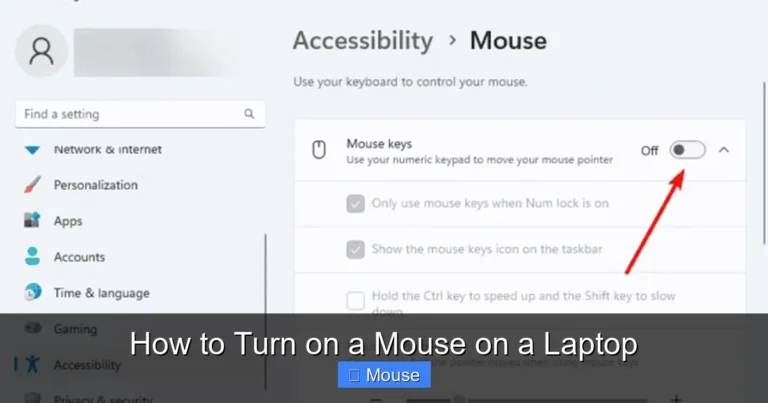
Windows 10 and 11 have built-in touchpad settings that allow you to enable or disable the touchpad and adjust its sensitivity. Go to Settings > Devices > Touchpad and make sure the touchpad toggle is turned On. You can also check the option that says “Leave touchpad on when a mouse is connected” if you use an external mouse and want the touchpad to remain active. If the touchpad setting is grayed out, that usually indicates a driver problem, which we will cover in the next section.
Update or Reinstall Touchpad Drivers
Driver problems are one of the most common reasons a mouse disappears on a Dell laptop. The touchpad driver acts as the communication bridge between your hardware and Windows. When it becomes outdated, corrupted, or incompatible, the cursor can stop working or vanish entirely.
How to Update Touchpad Drivers
To update your touchpad drivers, press Windows + X and select Device Manager from the menu. Expand the Mice and other pointing devices section. You should see your touchpad listed there, often labeled as “Dell Touchpad,” “Synaptics,” “ELAN,” or “ALPS.” Right-click on it and select Update driver. Choose “Search automatically for drivers” and let Windows look for a newer version. If Windows finds an updated driver, it will install it automatically. Restart your laptop after the update is complete.
How to Reinstall Touchpad Drivers
If updating the driver does not work, try reinstalling it. Go back to Device Manager, right-click on the touchpad device, and select Uninstall device. Make sure to check the box that says “Delete the driver software for this device” if it appears. After uninstalling, restart your laptop. Windows should automatically reinstall a fresh copy of the driver upon reboot. This often resolves driver corruption issues that cause the cursor to disappear.
Download Drivers Directly from Dell
For the most reliable driver installation, visit the official Dell support website. Enter your laptop’s service tag or model number, and Dell will show you a list of all available drivers for your specific system. Download the latest touchpad driver and install it manually. Dell often provides newer drivers than what Windows Update offers. This is especially important after a major Windows update, as the generic Microsoft drivers may not work properly with Dell touchpads. Our guide on Dell laptop mouse not working covers this process in more detail.
Check for Windows Update Conflicts
Sometimes a recent Windows update can cause your mouse to disappear on your Dell laptop. Microsoft regularly releases updates that can occasionally interfere with hardware drivers, including touchpad drivers. If your cursor disappeared right after a Windows update, this could be the culprit.
Uninstall Recent Updates
To check if a recent update is causing the problem, go to Settings > Update & Security > Windows Update > View update history > Uninstall updates. Look for the most recent updates and uninstall them one at a time, restarting your laptop after each one. If your cursor returns after uninstalling a specific update, you have found the culprit. You can then pause Windows updates temporarily until Microsoft releases a fix.
Install the Latest Windows Updates
On the flip side, sometimes installing the latest updates can fix the problem. Microsoft often releases patches for known issues in subsequent updates. If you have been postponing updates, go ahead and install all available updates. Restart your laptop and check if the cursor returns. Keeping your system updated is one of the best ways to prevent driver conflicts and compatibility issues.
Advanced Troubleshooting Steps
If the basic fixes did not resolve the issue, it is time to move on to more advanced troubleshooting. These steps require a bit more effort but can solve persistent cursor problems.
Check BIOS Settings
Your Dell laptop’s BIOS includes settings that control the touchpad. If the touchpad is disabled in the BIOS, no amount of driver updates or Windows settings changes will bring it back. To access the BIOS, restart your laptop and press F2 repeatedly as it boots up. Navigate to the System Configuration section and look for Touchpad or Internal Pointing Device. Make sure it is set to Enabled. The exact location of this setting varies by Dell model, so you may need to look around a bit. Save your changes and exit the BIOS.
Run the Windows Power Troubleshooter
Windows includes a built-in power troubleshooter that can detect and fix issues related to power management settings that might be affecting your touchpad. Open Settings > Update & Security > Troubleshoot > Additional troubleshooters and run the Power troubleshooter. Follow the on-screen instructions and apply any suggested fixes. Sometimes power-saving features can cut power to the touchpad, causing the cursor to disappear.
Disable Fast Startup
Fast Startup is a Windows feature that helps your laptop boot up faster after shutdown. However, it can sometimes cause driver initialization problems, including touchpad issues. To disable Fast Startup, go to Control Panel > Power Options > Choose what the power buttons do. Click “Change settings that are currently unavailable” and uncheck “Turn on fast startup.” Save your changes and restart your laptop. This forces a full shutdown and fresh driver loading, which can resolve cursor disappearance issues.
Check for Third-Party Software Conflicts
Some third-party software can interfere with your touchpad and cause the mouse to disappear on your Dell laptop. Antivirus programs, mouse customization software, and even some gaming overlays can conflict with touchpad drivers. Try temporarily disabling your antivirus software to see if that resolves the issue. If you have any mouse or touchpad enhancement software installed, try uninstalling it. You can also perform a clean boot to start Windows with only essential services and drivers, which helps identify if a third-party program is causing the conflict.
When It Is a Hardware Problem
If you have tried all the software fixes above and your cursor still will not appear, the problem might be hardware-related. Hardware issues are less common but do happen, especially with older laptops or after physical damage.
Inspect the Touchpad Physically
Look at your touchpad closely for any signs of physical damage, such as cracks, scratches, or loose edges. If the touchpad is physically damaged, it may need to be replaced. Also check if the touchpad button feels stuck or unresponsive. Sometimes debris can get under the touchpad and prevent it from functioning properly. Gently clean around the edges of the touchpad with a soft, dry cloth.
Check the Touchpad Ribbon Cable
Inside your Dell laptop, the touchpad connects to the motherboard through a thin ribbon cable. If this cable becomes loose or damaged, the touchpad will stop working. Opening your laptop to check this connection is not recommended unless you are comfortable with hardware repairs and your laptop is out of warranty. If you suspect a hardware issue and your laptop is still under warranty, contact Dell support for a professional repair or replacement.
Use an External Mouse as a Permanent Workaround
If you cannot fix the touchpad hardware issue right away, using an external USB or wireless mouse is a reliable workaround. A basic USB mouse is inexpensive and will give you full cursor control immediately. For a wireless option, Bluetooth mice work great with Dell laptops. You can find detailed instructions on setting up an external mouse in our article about how to get mouse back on laptop. While this does not fix the underlying problem, it keeps you productive until you can get the touchpad repaired.
Preventing the Mouse from Disappearing Again
Once you have resolved the issue, you probably want to make sure it does not happen again. Here are some tips to keep your cursor visible and your touchpad working smoothly.
Keep Drivers Updated
Make it a habit to check for driver updates periodically. You can set Dell SupportAssist to automatically check for and install driver updates. This tool is pre-installed on most Dell laptops and can be a lifesaver when it comes to keeping your system running smoothly. Updated drivers not only fix bugs but also improve performance and compatibility with the latest Windows updates.
Be Careful with Function Keys
Now that you know about the touchpad toggle key, be mindful when using the function row on your Dell laptop. If you frequently accidentally press the touchpad toggle, you can sometimes disable it through the Dell Touchpad settings utility. This prevents the function key combination from turning off the touchpad, which can save you from future headaches.
Create a System Restore Point
Before making any major changes to your system, such as installing new software or drivers, create a system restore point. This allows you to roll back your system to a previous working state if something goes wrong. To create a restore point, type “Create a restore point” in the Windows search bar, open the System Properties window, and click Create. If your mouse ever disappears again after a system change, you can use System Restore to go back to when everything was working.
Conclusion
Having your mouse disappear on a Dell laptop is undoubtedly annoying, but it is almost always fixable. In most cases, the problem comes down to an accidental function key press, a driver issue, or a Windows setting that needs adjusting. By working through the solutions in this guide, starting with the simplest fixes and progressing to more advanced troubleshooting, you should be able to get your cursor back in no time.
Remember to start with a quick restart and check the touchpad toggle key. If that does not work, move on to checking your Windows settings, updating or reinstalling drivers, and checking for Windows update conflicts. For persistent issues, advanced steps like checking the BIOS, disabling fast startup, and looking for software conflicts can help. And if all else fails, an external mouse will keep you productive while you arrange for a hardware repair.
The key is to stay calm and methodical. Cursor issues can feel alarming, especially when you are in the middle of important work, but they are rarely a sign of a serious problem. With a little patience and the right troubleshooting steps, your Dell laptop’s touchpad will be back to normal. For more detailed help with specific Dell models and related issues, check out our comprehensive guide on mouse disappeared on Dell laptop which is regularly updated with the latest solutions.
Frequently Asked Questions
Why did my mouse cursor disappear on my Dell laptop?
The most common cause is accidentally pressing the touchpad toggle key (usually Fn + F3), which disables the touchpad. Other causes include outdated or corrupted touchpad drivers, Windows settings like “hide pointer while typing,” or conflicts with recent Windows updates.
How do I get my cursor back on my Dell laptop?
Start by pressing Fn + F3 (or the key with the touchpad icon) to re-enable the touchpad. If that does not work, restart your laptop, connect an external mouse, and then check your touchpad drivers in Device Manager to update or reinstall them.
Can a Windows update make my mouse disappear on a Dell laptop?
Yes, a Windows update can sometimes install a generic driver that is not compatible with your Dell touchpad, causing the cursor to disappear. Uninstalling the recent update or downloading the latest driver directly from Dell’s support website usually resolves this.
How do I check if my touchpad is disabled in the BIOS?
Restart your laptop and press F2 repeatedly during boot to enter the BIOS. Navigate to System Configuration and look for the Touchpad or Internal Pointing Device setting. Make sure it is set to Enabled, then save and exit.
What should I do if none of the software fixes work?
If all software troubleshooting steps fail, the issue may be hardware-related, such as a loose ribbon cable or a damaged touchpad. Contact Dell support for professional repair, or use an external USB or wireless mouse as a reliable workaround in the meantime.
How can I prevent my mouse from disappearing on my Dell laptop in the future?
Keep your drivers updated using Dell SupportAssist, be mindful of the touchpad toggle function key, disable Fast Startup to ensure proper driver loading, and create system restore points before making major system changes. These habits can significantly reduce the chances of the issue recurring.