My Mouse Disappeared on My Laptop

Ever wondered why my mouse disappeared on my laptop? It can be a simple setting, a driver glitch, or a hidden touchpad issue. Follow our friendly guide to troubleshoot, restore, and prevent the problem from returning.
Key Takeaways
- Check the basics first: A quick restart or toggling the touchpad often resolves the issue.
- Driver health matters: Out‑of‑date or corrupted drivers are a top cause of a missing cursor.
- Touchpad settings can hide the cursor: Look for “Hide pointer while typing” and other visibility options.
- External mouse conflicts: USB or Bluetooth mice can disable the built‑in pointer if not configured correctly.
- System updates help: Windows or macOS updates frequently contain fixes for mouse‑related bugs.
- Hardware checks are essential: A loose touchpad cable or dead battery in a wireless mouse can make the cursor vanish.
- Prevent future disappearances: Keep drivers current, adjust power settings, and back up your system regularly.
📑 Table of Contents
- Introduction: When the Cursor Pulls a Vanishing Act
- 1. Quick Checks Before You Dive Deeper
- 2. Dive Into Settings: Visibility and Touchpad Options
- 3. Driver Troubleshooting: The Silent Culprit
- 4. External Mouse Conflicts and Bluetooth Issues
- 5. Hardware Checks: When Software Isn’t the Villain
- 6. Preventive Measures to Keep Your Cursor Visible
- Conclusion: Bring Your Cursor Back Home
Introduction: When the Cursor Pulls a Vanishing Act
Imagine you’re typing an email, and suddenly the arrow that guides you across the screen disappears. You’re not alone—many laptop owners type “my mouse disappeared on my laptop” into search engines in a panic. The good news? In most cases the solution is just a few clicks away.
In this article we’ll walk through the most common reasons the cursor vanishes, give you step‑by‑step fixes, and share tips to keep the problem from returning. Think of it as a friendly chat with a tech‑savvy buddy who knows exactly where to look.
1. Quick Checks Before You Dive Deeper
Restart the Laptop
It sounds cliché, but a simple restart clears temporary glitches that can hide the cursor. Power off, wait ten seconds, then turn it back on.
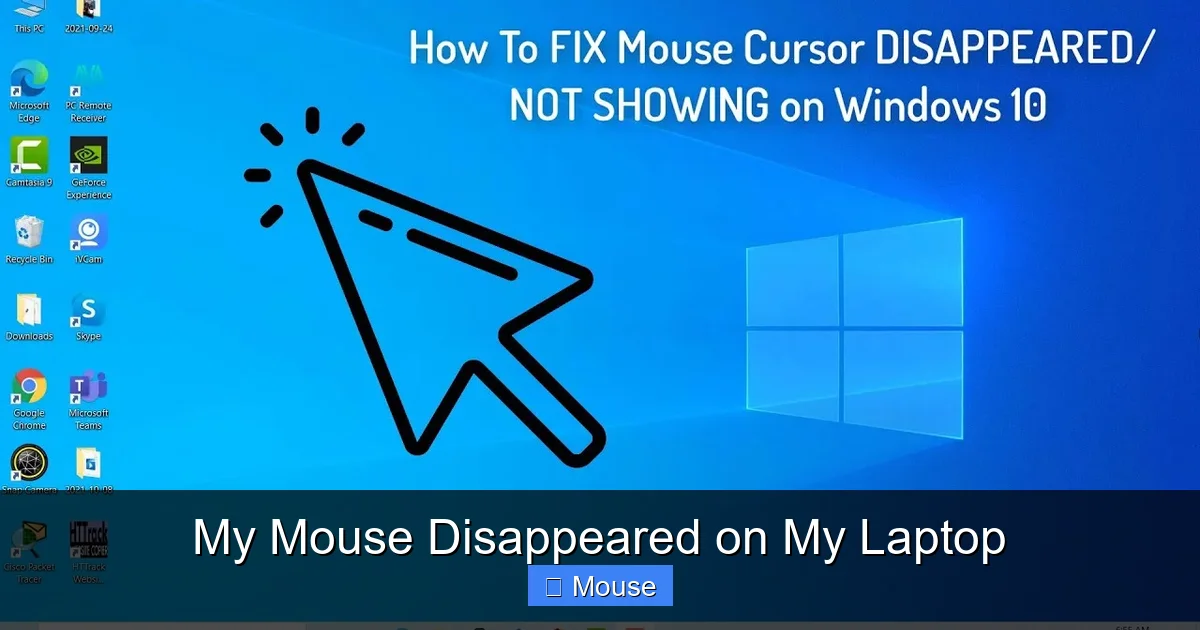
Visual guide about My Mouse Disappeared on My Laptop
Image source: i.ytimg.com
Toggle the Touchpad
Most laptops have a function key (often Fn + F7 or a dedicated touchpad icon) that enables or disables the built‑in mouse. Press it once to see if the cursor reappears.
Connect an External Mouse
Plug in a USB mouse or pair a Bluetooth one. If the external device works, the issue is likely with the touchpad or its driver.
2. Dive Into Settings: Visibility and Touchpad Options
Windows Pointer Settings
1. Open Settings → Devices → Mouse → Additional mouse options.
2. In the Pointer Options tab, uncheck “Hide pointer while typing.”
3. Adjust the pointer speed slider to a comfortable level.

Visual guide about My Mouse Disappeared on My Laptop
Image source: i.ytimg.com
macOS Trackpad Settings
Go to System Settings → Trackpad. Make sure “Tap to click” and “Force Click and haptic feedback” are enabled. Also, verify that “Cursor size” isn’t set to the smallest value.
Touchpad‑Specific Settings
Many brands (Dell, HP, Lenovo) include their own utility (e.g., Dell Touchpad Settings). Look for an option that says “Disable internal pointing device when external mouse is connected” and turn it off.
3. Driver Troubleshooting: The Silent Culprit
Update via Device Manager (Windows)
1. Right‑click the Start button → Device Manager.
2. Expand “Mice and other pointing devices.”
3. Right‑click your touchpad driver (often “Synaptics” or “ELAN”) and choose “Update driver.”
4. Select “Search automatically for updated driver software.”

Visual guide about My Mouse Disappeared on My Laptop
Image source: i.ytimg.com
Reinstall the Driver
If updating doesn’t help, uninstall the driver (choose “Delete the driver software for this device”) and then restart. Windows will reinstall a generic driver that often restores functionality.
macOS Driver Reset
Open Terminal and run sudo kextunload /System/Library/Extensions/AppleUSBMultitouch.kext followed by sudo kextload /System/Library/Extensions/AppleUSBMultitouch.kext. This reloads the touchpad kernel extension.
4. External Mouse Conflicts and Bluetooth Issues
USB Mouse Power Settings
Windows may turn off USB ports to save power, which can make a wired mouse disappear. Go to Device Manager → “Universal Serial Bus controllers” → right‑click each “USB Root Hub” → Properties → Power Management and uncheck “Allow the computer to turn off this device to save power.”

Visual guide about My Mouse Disappeared on My Laptop
Image source: i.ytimg.com
Bluetooth Pairing Problems
1. Open Settings → Bluetooth & Devices.
2. Remove the mouse from the list, then pair it again.
3. Ensure the mouse batteries are fresh; low power can cause intermittent loss of the cursor.
Interference from Other Devices
Wireless mice operate on 2.4 GHz, a crowded band. Keep routers, phones, or other Bluetooth devices a short distance away to avoid signal loss.
5. Hardware Checks: When Software Isn’t the Villain
Loose Touchpad Cable (Laptop Disassembly)
If you’re comfortable opening your laptop, check the ribbon cable connecting the touchpad to the motherboard. A loose or dusty connection can cause the cursor to vanish. Re‑seat the cable and re‑assemble.

Visual guide about My Mouse Disappeared on My Laptop
Image source: i.ytimg.com
Battery Issues in Wireless Mice
Even if the mouse appears powered, a weak battery may cause the cursor to flicker or disappear. Replace AA or AAA cells, or recharge the built‑in battery.
Test on Another Computer
Plug the mouse (wired or wireless) into a different laptop. If it works there, the problem is definitely on your original machine.
6. Preventive Measures to Keep Your Cursor Visible
Keep Drivers Updated
Enable automatic driver updates or use the laptop manufacturer’s support app (e.g., Dell SupportAssist) to stay current.
Regular System Updates
Both Windows and macOS release patches that address peripheral bugs. Set your system to install updates automatically.
Backup Your Settings
Export your mouse and touchpad settings (many manufacturers allow this) so you can quickly restore them after a system reinstall.
Use a System Restore Point
Before making major changes—like BIOS updates—create a restore point. If the cursor disappears after the change, you can roll back safely.
Conclusion: Bring Your Cursor Back Home
When you type “my mouse disappeared on my laptop,” the answer is rarely a mysterious curse. Often it’s a simple toggle, an outdated driver, or a power‑saving setting. By following the steps above—quick checks, settings tweaks, driver updates, and hardware inspections—you’ll have the arrow back in no time.
Remember, regular maintenance (updates, driver checks, and occasional hardware inspections) is the best defense against future vanishings. Keep this guide bookmarked, and the next time the cursor pulls a disappearing act, you’ll know exactly what to do.
Frequently Asked Questions
Why does my mouse cursor disappear only when I type?
Many laptops have a setting called “Hide pointer while typing.” It hides the cursor to prevent distraction. Unchecking this option in the mouse settings restores the cursor.
Can a Windows update cause my mouse to disappear?
Yes. Occasionally, a Windows update replaces or conflicts with the touchpad driver. Updating or reinstalling the driver usually fixes the issue.
My external Bluetooth mouse works, but the built‑in touchpad does not. What should I do?
Check the touchpad’s enable/disable function key and ensure the driver is up‑to‑date. Also, look for a setting that disables the internal mouse when an external one is connected.
Is it safe to open my laptop to check the touchpad cable?
If you’re comfortable with electronics and have the right tools, re‑seating the ribbon cable can solve a hidden cursor problem. Otherwise, seek professional help.
Why does the cursor disappear after I lock my laptop?
Some power‑saving modes turn off the touchpad when the laptop is locked. Adjust the power settings or disable “Turn off touchpad when locked” in the control panel.
Where can I find more detailed help for a missing cursor on a Dell laptop?
Our article on Mouse Disappeared On Dell Laptop offers brand‑specific steps and troubleshooting tips.