Onenote Not Syncing On Windows 11 7 Fixes That Work
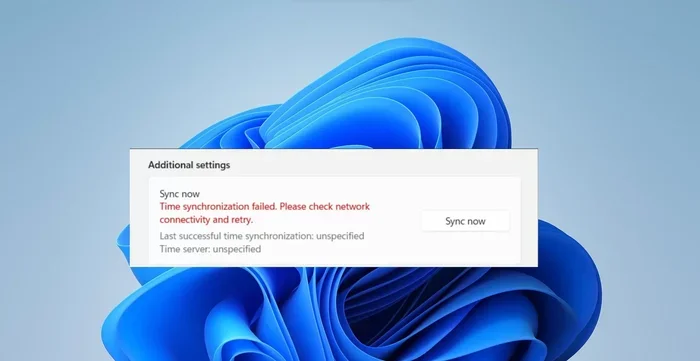
OneNote not syncing on Windows 11 is frustrating, but 7 simple fixes can get your notes back on track. Whether the issue stems from a glitchy Microsoft account, outdated app version, or corrupted cache, this guide walks you through each solution step by step. You will learn how to reset sync settings, re-add your account, and prevent future sync problems.
Have you ever been working on an important note in OneNote, only to find that OneNote not syncing on Windows 11 has brought everything to a halt? It is incredibly frustrating when your carefully organized notes refuse to update across your devices. Whether you use OneNote for work, school, or personal planning, a sync failure can disrupt your entire workflow.
The good news is that this problem is usually fixable. Most OneNote sync issues on Windows 11 come down to a handful of common causes, and each one has a straightforward solution. In this article, we walk you through seven proven fixes that actually work. You do not need to be a tech expert to follow along. Let us get your notes syncing again.
Key Takeaways
- Restart OneNote and your PC: A simple reboot often clears temporary sync glitches on Windows 11.
- Check your Microsoft account: Signing out and back in resolves most login-related sync failures.
- Clear the OneNote cache: Deleting cached files forces OneNote to rebuild fresh sync data.
- Update the OneNote app: Running an outdated version causes compatibility issues with Windows 11.
- Reset OneNote settings: Resetting the app to defaults can fix deep-rooted sync errors.
- Check your internet connection: A weak or unstable connection is a common hidden cause of sync problems.
- Re-add your Microsoft account: Removing and re-adding your account often fixes persistent sync issues.
📑 Table of Contents
- Why Does OneNote Stop Syncing on Windows 11?
- Fix 1: Restart OneNote and Your PC
- Fix 2: Check Your Microsoft Account Connection
- Fix 3: Clear the OneNote Cache
- Fix 4: Update OneNote and Windows 11
- Fix 5: Reset OneNote Settings
- Fix 6: Re-Add Your Microsoft Account
- Fix 7: Check Your Internet Connection and DNS Settings
- Comparison Table: Which Fix Works Best for Common Issues
- How to Prevent OneNote Sync Issues in the Future
- Final Thoughts
Why Does OneNote Stop Syncing on Windows 11?
Before jumping into the fixes, it helps to understand what is going wrong. OneNote sync problems on Windows 11 can happen for several reasons. Sometimes it is a simple login glitch. Other times, a corrupted cache file blocks the sync process entirely.
Here are the most common reasons OneNote stops syncing:
- Microsoft account issues: Your login session may have expired or become corrupted.
- Outdated OneNote app: Older versions of OneNote may not work well with the latest Windows 11 updates.
- Corrupted cache: OneNote stores temporary files that can become damaged over time.
- Internet connection problems: A weak Wi-Fi signal or DNS issue can interrupt sync.
- Windows 11 service conflicts: Some system services that OneNote depends on may not be running properly.
- Conflicting notebook copies: Having the same notebook open on multiple devices can cause conflicts.
If your mouse on my laptop not work while you are trying to troubleshoot OneNote, it could make the process harder. Make sure your input devices are working before you start diving into these fixes. A responsive mouse or trackpad helps you navigate settings menus smoothly.
Fix 1: Restart OneNote and Your PC
This is the simplest fix, but it works surprisingly often. Restarting clears out temporary glitches and refreshes all running processes. Many users skip this step, but it saves a lot of time.
How to Restart OneNote Properly
- Close OneNote completely. Right-click the OneNote icon in your system tray and select Close.
- Press Ctrl + Shift + Esc to open Task Manager.
- Look for any OneNote processes in the list.
- Right-click each OneNote process and select End Task.
- Now restart your PC.
- Open OneNote and check if syncing resumes.
After your PC boots back up, open OneNote and wait a few moments. The sync status icon in the top-right corner should show a green checkmark. If it does not, move on to the next fix.
Fix 2: Check Your Microsoft Account Connection
A OneNote sync error on Windows 11 is often tied to your Microsoft account. If your account session has gone stale, OneNote cannot communicate with the sync servers. This is one of the most frequent causes of sync failure.
How to Verify Your Account
- Open OneNote and go to File > Account.
- Look at the User Information section.
- Check if your name and email are displayed correctly.
- If you see a message asking you to sign in again, do so.
Sometimes simply signing out and then signing back in resolves the issue. Click Sign out, wait ten seconds, and sign back in with your credentials. This refreshes your authentication token and often fixes sync problems immediately.
OneNote relies heavily on cloud services. If your wireless mouse does not work on laptop during this process, check your Bluetooth or USB receiver. A working input device makes navigating account settings much easier.
Fix 3: Clear the OneNote Cache
OneNote stores temporary files on your PC to speed up performance. Over time, these cached files can become corrupted and block syncing. Clearing the cache forces OneNote to download fresh data from the cloud.
Step-by-Step Cache Clearing
- Close OneNote completely.
- Press Windows Key + R to open the Run dialog.
- Type %localappdata%\Microsoft\OneNote and press Enter.
- Navigate to the 16 folder (or whichever version number you see).
- Look for a folder called Cache.
- Delete all the files inside the Cache folder.
- Do not delete the Cache folder itself, just its contents.
- Restart OneNote and check if syncing works.
Be careful not to delete any folders outside the Cache directory. If you are unsure about any file, it is safer to leave it alone. Clearing the cache is safe and will not delete any of your actual notes.
Fix 4: Update OneNote and Windows 11
Running an outdated version of OneNote on Windows 11 can cause sync compatibility issues. Microsoft regularly releases updates that fix bugs and improve sync reliability. Keeping everything up to date is one of the best ways to prevent sync problems.
How to Update OneNote
- Open OneNote and go to File > Account.
- Click on Update Options.
- Select Update Now.
- Wait for the update to download and install.
- Restart OneNote when prompted.
How to Update Windows 11
- Go to Settings > Windows Update.
- Click Check for updates.
- Install any available updates.
- Restart your PC after the updates are installed.
After both OneNote and Windows 11 are fully updated, open your notebook and check the sync status. Most sync issues caused by version mismatches disappear after a fresh update.
Fix 5: Reset OneNote Settings
If the above fixes did not solve the problem, resetting OneNote to its default settings is the next logical step. This does not delete your notes. It only resets the app’s configuration and sync preferences.
How to Reset OneNote on Windows 11
- Open Settings (press Windows Key + I).
- Go to Apps > Installed Apps.
- Find Microsoft OneNote in the list.
- Click the three dots next to it and select Advanced Options.
- Scroll down and click Reset.
- Confirm the reset when prompted.
- Restart your PC and open OneNote.
After the reset, you will need to sign back into your Microsoft account. OneNote will rebuild its settings from scratch. This fix resolves most persistent OneNote sync problems on Windows 11 that other methods cannot address.
Fix 6: Re-Add Your Microsoft Account
Sometimes the connection between OneNote and your Microsoft account becomes broken. Re-adding the account creates a fresh link and often fixes stubborn sync errors that have lingered for days or weeks.
Steps to Re-Add Your Account
- Open OneNote and go to File > Account.
- Click Sign out at the bottom of the account section.
- Close OneNote completely.
- Reopen OneNote and select Sign in.
- Enter your Microsoft account credentials.
- Choose the notebook you want to sync.
- Wait for the sync to complete.
This method is especially effective when you have multiple Microsoft accounts and OneNote is trying to sync the wrong one. After re-adding your account, verify that the correct notebook appears in the sidebar.
If you notice that your mouse is not showing up on laptop during this process, try plugging in a USB mouse or checking your Bluetooth settings. A reliable input device makes account management much smoother.
Fix 7: Check Your Internet Connection and DNS Settings
It sounds basic, but a poor internet connection is one of the leading causes of OneNote not syncing on Windows 11. OneNote needs a stable connection to communicate with Microsoft’s sync servers. If your connection is weak or intermittent, sync will fail.
Quick Internet Check
- Open your web browser and try loading a website.
- If the page loads slowly, your connection may be the problem.
- Try restarting your router or modem.
- Move closer to your Wi-Fi router if you are using wireless.
How to Flush DNS for Better Sync
- Press Windows Key + R to open the Run dialog.
- Type cmd and press Ctrl + Shift + Enter to open Command Prompt as Administrator.
- Type ipconfig /flushdns and press Enter.
- Wait for the message confirming the DNS cache has been cleared.
- Restart OneNote and try syncing again.
Flushing your DNS cache removes old or corrupted network entries that can interfere with OneNote’s connection to Microsoft servers. This is a quick and safe fix that many people overlook.
Comparison Table: Which Fix Works Best for Common Issues
Here is a quick reference guide to help you choose the right fix based on your symptoms.
- Sync stuck on “Waiting”: Fix 1 (Restart) or Fix 4 (Update).
- Error message about account: Fix 2 (Check Account) or Fix 6 (Re-Add Account).
- Notes not updating on other devices: Fix 3 (Clear Cache) or Fix 5 (Reset).
- Sync fails after Windows update: Fix 4 (Update) or Fix 7 (DNS Flush).
- Intermittent sync that comes and goes: Fix 7 (Internet Check) or Fix 2 (Account Check).
How to Prevent OneNote Sync Issues in the Future
Once you get your OneNote syncing again, you want to keep it that way. Prevention is always easier than troubleshooting. Here are some habits that help maintain smooth OneNote sync on Windows 11:
- Keep OneNote and Windows updated: Enable automatic updates so you always have the latest version.
- Use a stable internet connection: Avoid syncing on public Wi-Fi networks with weak signals.
- Close OneNote properly: Always shut down OneNote through the system tray instead of just closing the window.
- Avoid editing the same page on multiple devices simultaneously: This can create sync conflicts.
- Check your account regularly: Periodically sign out and back in to keep your session fresh.
These small habits take minimal effort but save you from the headache of dealing with sync failures later. A little prevention goes a long way toward keeping your notes perfectly in sync across all your devices.
Final Thoughts
OneNote not syncing on Windows 11 is a common but fixable problem. Whether a simple restart does the trick or you need to dig deeper with a cache clear or account reset, one of these seven fixes will likely solve your issue. The key is to work through them in order, starting with the simplest solutions first.
Most users find that Fix 1, Fix 2, or Fix 3 resolves their sync problem. If you are dealing with a more stubborn issue, Fix 5 or Fix 6 usually does the job. And do not forget the importance of a stable internet connection, which Fix 7 addresses.
Your notes are valuable, and keeping them synced ensures you always have access to the information you need. Try these fixes today and get back to focusing on what matters, not on troubleshooting tech problems.
Frequently Asked Questions
Why is OneNote not syncing on Windows 11?
OneNote may fail to sync on Windows 11 due to expired Microsoft account sessions, corrupted cache files, outdated app versions, or unstable internet connections. Most of these causes are easy to fix with the steps outlined above.
Will resetting OneNote delete my notes?
No, resetting OneNote does not delete your notes. It only restores the app’s settings and configuration to their defaults. Your notebooks and all their content remain safe on Microsoft’s cloud servers.
How do I know if OneNote is syncing?
Look at the sync status icon in the top-right corner of OneNote. A green checkmark means syncing is working properly. A spinning icon means sync is in progress, and an error icon indicates a problem that needs attention.
Can a weak Wi-Fi connection cause OneNote sync failures?
Yes, absolutely. OneNote needs a stable internet connection to sync with Microsoft’s servers. If your Wi-Fi signal is weak or intermittent, sync will pause or fail entirely until the connection stabilizes.
How often should I update OneNote on Windows 11?
You should check for OneNote updates at least once a week. Enabling automatic updates through the Microsoft Store ensures you always have the latest bug fixes and sync improvements without any manual effort.
What should I do if none of these fixes work?
If all seven fixes fail, try uninstalling and reinstalling OneNote on Windows 11. Go to Settings > Apps, find OneNote, uninstall it, and then download the latest version from the Microsoft Store. This gives you a completely fresh installation that often resolves deep-rooted sync issues.