Remote Desktop In Windows 11 Everything You Need To Learn
Remote Desktop In Windows 11 lets you control another PC from anywhere. This guide walks you through enabling RDP, connecting to remote machines, fixing common issues, and boosting performance. You will learn step-by-step setup, security best practices, and expert tips to make remote desktop work flawlessly on your Windows 11 device.
Remote Desktop In Windows 11 is one of the most useful features for anyone who works across multiple computers or needs access to their office PC from home. Whether you are a student, a freelancer, or an IT professional, knowing how to set up and use remote desktop can save you a ton of time. This guide covers everything from basic setup to advanced configuration and troubleshooting.
If you have ever wanted to sit at your office computer while sitting on your couch, Remote Desktop makes that possible. It uses a protocol called RDP, which stands for Remote Desktop Protocol, to transmit your screen, keyboard presses, and mouse movements between two machines. The experience feels almost like you are sitting right in front of the remote computer.
In this article, we will break down every step you need. You will learn how to enable remote access, connect from another device, tweak settings for better performance, and solve the most common problems people face. By the end, you will feel confident using Remote Desktop In Windows 11 for all your remote work needs.
Key Takeaways
- Remote Desktop In Windows 11 is built into Pro and Enterprise editions, letting you access your PC from any other device.
- You must enable Remote Desktop in Settings before you can connect to or from your machine.
- A stable internet connection, sufficient RAM, and proper configuration make remote sessions smooth and responsive.
- Common issues like connection failures often have simple fixes, such as checking firewall settings or restarting the Remote Desktop service.
- Using a Remote Desktop Gateway or VPN adds a layer of security when connecting over the internet.
- Performance tips like adjusting display resolution and disabling background apps can greatly improve your remote experience.
📑 Table of Contents
What Is Remote Desktop In Windows 11?
Remote Desktop In Windows 11 is a built-in feature that allows you to connect to another Windows computer over a network or the internet. Once connected, you see the remote computer’s desktop exactly as if you were sitting in front of it. You can open apps, transfer files, and even use printers connected to the remote machine.
The feature relies on the Remote Desktop Protocol (RDP) to send and receive data between the two computers. Your local machine acts as the client, while the remote machine acts as the host. Microsoft has included this tool in Windows for many years, and Windows 11 continues to support it with improvements in speed and security.
Who Can Use Remote Desktop?
Not every version of Windows 11 supports Remote Desktop as a host. The host capability is available in Windows 11 Pro, Enterprise, and Education editions. Windows 11 Home edition can act as a client to connect to other PCs, but it cannot accept incoming remote connections. This distinction matters a lot if you are planning to access your home PC from another location.
If you are running Windows 11 Home and need remote access, you can use third-party tools like Chrome Remote Desktop or AnyDesk. However, for native RDP support, upgrading to Pro is the best route. Many users search for remote desktop Windows 11 Pro because of this edition requirement.
How To Enable Remote Desktop In Windows 11
Enabling Remote Desktop is straightforward, but you need to follow the right steps. Below is a simple walkthrough to get your PC ready to accept remote connections.
Step 1: Open Settings
Click the Start menu and select Settings. You can also press Windows key + I to open Settings quickly. This is the central place where you control all system features in Windows 11.
Step 2: Go To System And Remote Desktop
In the Settings window, click on System in the left sidebar. Then scroll down and select Remote Desktop. You will see a toggle switch to enable Remote Desktop. Turn it on to allow incoming connections.
Step 3: Confirm Your Settings
Windows 11 will ask you to confirm the change. Click Confirm on the pop-up. You will also see your PC name displayed on this screen. Write this name down because you will need it when connecting from another device. Make sure your PC stays awake and discoverable on the network for remote connections to work.
Quick Tip
If you want to allow remote connections even when your PC is asleep, go to Power Settings and change the sleep behavior. This small tweak prevents connection drops when your machine enters sleep mode.
How To Connect To A Remote Desktop
Once Remote Desktop is enabled on the host PC, you can connect to it from another computer. The process is simple and works across devices running Windows, macOS, iOS, or Android.
Using The Remote Desktop Connection App
On your local Windows PC, open the Remote Desktop Connection app. You can find it by searching for “Remote Desktop Connection” in the Start menu. Type the name or IP address of the remote PC and click Connect. You will be prompted to enter the username and password for the remote machine.
After authentication, the remote desktop will appear on your screen. You can now work as if you were physically at that computer. Everything you type and click is transmitted in real time through the RDP connection.
Connecting From A Mac Or Mobile Device
You are not limited to Windows machines. Microsoft offers a Remote Desktop app for macOS, iOS, and Android. Download the app from the respective app store, enter the remote PC name or IP address, and log in with your credentials. The mobile experience is surprisingly smooth for light tasks like checking emails or editing documents.
Using A Remote Desktop Gateway
If you need to connect over the internet rather than a local network, consider setting up a Remote Desktop Gateway. This server acts as a secure bridge between your device and the remote PC. It encrypts the connection and adds authentication layers, making it much safer for remote access over public networks.
Many businesses use a Remote Desktop Gateway to let employees work from home securely. If you are setting up a home office, a VPN combined with RDP is a cost-effective alternative to a full gateway setup.
Remote Desktop Settings And Configuration
Tweaking your Remote Desktop settings can make a big difference in performance and usability. Windows 11 gives you several options to customize how your remote sessions work.
Display And Resolution Settings
In the Remote Desktop Connection app, click Show Options before connecting. Go to the Display tab to adjust the remote desktop window size. A larger window gives you more screen real estate but uses more bandwidth. For slower connections, a smaller resolution keeps things responsive.
Local Resources And Audio
Under the Local Resources tab, you can choose what happens with your keyboard shortcuts, printers, and audio. By default, audio from the remote PC plays on your local machine. This is handy for watching videos or listening to music on the remote computer. You can also redirect your local printers so you can print documents from the remote session.
Experiences And Performance
The Experiences tab lets you toggle features like desktop background, font smoothing, and visual effects. Turning these off can significantly improve performance on slower connections. If you are working on a Windows 11 16Gb Ram laptop, you may not need to disable as many features since your system has plenty of memory to handle the extra load.
Clipboard Sharing
One of the most useful features is clipboard sharing. You can copy text or files on your local PC and paste them directly into the remote session. This makes transferring documents between machines quick and easy. Make sure clipboard redirection is enabled in the Local Resources tab for this to work.
Troubleshooting Common Remote Desktop Issues
Even with a proper setup, you may run into problems when using Remote Desktop In Windows 11. Here are the most common issues and how to fix them.
Remote Desktop Not Working
If your connection fails, the first thing to check is whether Remote Desktop is actually enabled on the host PC. Go to Settings, System, and Remote Desktop to confirm the toggle is on. Also verify that the host PC is awake and connected to the same network.
Sometimes the Windows Firewall blocks RDP connections. Make sure Remote Desktop is allowed through the firewall. You can check this by going to Windows Security, then Firewall And Network Protection, and clicking Allow An App Through Firewall. Scroll down and make sure Remote Desktop is checked for both private and public networks.
Remote Desktop Connection Drops Frequently
Frequent disconnections usually point to an unstable network connection. Try moving closer to your router if you are on Wi-Fi. If possible, use a wired Ethernet connection for more stability. Also check if any background apps on the host PC are consuming heavy bandwidth.
If you are using a Windows 11 8Gb Ram laptop as the host, low memory can also cause instability during remote sessions. Closing unnecessary apps on the host PC before starting a remote session can help free up resources.
Remote Desktop Is Slow Or Laggy
A slow remote session is frustrating but often fixable. Lower the display resolution in the connection settings. Disable visual effects like desktop background and animations. If you are on a wireless network, try switching to a wired connection for better speeds.
Another factor is the hardware on the host PC. A machine with 16 Gb Ram Windows 11 will handle remote desktop much better than one with only 4 GB. If your host PC is underpowered, consider upgrading the RAM to improve the overall experience.
Tips For Better Remote Desktop Performance
Getting the most out of Remote Desktop In Windows 11 comes down to a few smart tweaks. These tips will help you run smoother and faster remote sessions every time.
1. Use A Fast And Stable Network
The single biggest factor in remote desktop performance is your network speed. A wired Ethernet connection is always better than Wi-Fi. If you must use Wi-Fi, make sure you are close to the router and on a 5 GHz band for the best speeds.
2. Close Unnecessary Apps On The Host PC
The host PC should dedicate its resources to the remote session. Close any apps you are not using, especially heavy ones like video editors or games. This frees up CPU, RAM, and bandwidth for the remote connection.
3. Optimize Display Settings
Lower the remote display resolution and turn off visual effects. These changes reduce the amount of data that needs to be transmitted, resulting in a faster and smoother experience. You can always increase the resolution when you need more screen space.
4. Keep Windows 11 Updated
Microsoft regularly releases updates that improve RDP performance and fix bugs. Make sure both the host and client PCs are running the latest version of Windows 11. Check for updates by going to Settings, then Windows Update.
5. Consider Your Hardware
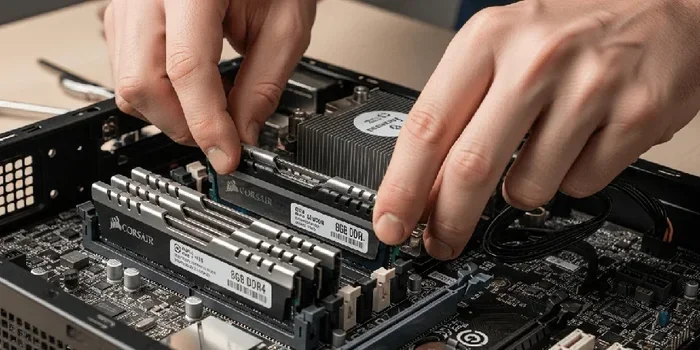
If your laptop struggles with remote desktop, upgrading the RAM can make a noticeable difference. A machine with 8 Gb Ram Windows 11 works fine for light tasks, but 16 GB gives you much more headroom. If you are looking at RAM options, check out our guide on how much RAM do you need in a laptop to find the right configuration for your needs.
6. Use A VPN For Security
When connecting over the internet, always use a VPN or Remote Desktop Gateway. This encrypts your data and keeps your remote session safe from prying eyes. Never expose your RDP port directly to the internet without proper security measures.
Frequently Asked Questions
Can I use Remote Desktop In Windows 11 Home?
Windows 11 Home can connect to other PCs as a client, but it cannot accept incoming remote connections as a host. To host a remote session, you need Windows 11 Pro or Enterprise. If you only need to connect out, Home edition works perfectly fine.
Is Remote Desktop In Windows 11 free to use?
Yes, Remote Desktop is a built-in Windows feature and does not require any extra software or subscription. You just need a compatible edition of Windows 11 and a working network connection between the two computers.
Can I remote desktop over the internet?
Yes, you can connect over the internet, but it requires proper configuration. You need to set up port forwarding on your router, use a static IP address, or set up a VPN for secure access. For the safest experience, use a Remote Desktop Gateway or a VPN connection.
Why is my Remote Desktop connection so slow?
Slow performance is usually caused by a weak network connection, high display settings, or insufficient hardware resources. Try lowering the resolution, turning off visual effects, and closing background apps. A wired connection and at least 8 GB of RAM will greatly improve speed.
Can I use Remote Desktop on a Mac or mobile device?
Absolutely. Microsoft offers a free Remote Desktop app for macOS, iOS, and Android. You can connect to a Windows 11 PC from any of these devices just as easily as from another Windows machine. The app is available on the App Store and Google Play.
How do I find my PC name for Remote Desktop?
Go to Settings, then System, and look for the PC name at the top of the Remote Desktop settings page. You can also find it by right-clicking the Start button and selecting System. Use this name when entering the remote PC address in the connection app.
Final Thoughts
Remote Desktop In Windows 11 is an incredibly powerful tool that gives you the freedom to work from anywhere. Once you set it up, you will wonder how you ever managed without it. The key is to enable it correctly, configure it to match your needs, and troubleshoot any issues that come up along the way.
Remember that your network quality, hardware specs, and security settings all play a role in how well your remote sessions run. A machine with good RAM, a fast SSD, and a stable internet connection will deliver the best experience. If your current setup feels sluggish, consider upgrading your RAM or storage to get the most out of Remote Desktop In Windows 11.
Start with the basic steps in this guide, experiment with the settings, and you will be working remotely like a pro in no time. Happy connecting!