Fix Rendering Lag Delay In Windows 11 24h2 And 25h2

Rendering lag delay in Windows 11 24H2 and 25H2 is a frustrating but fixable problem. Users experience stuttering, slow frame rates, and delayed graphics after updating their system. This guide walks you through the causes, solutions, and preventive steps to restore smooth performance on your PC.
Have you noticed your screen stuttering or freezing after a recent Windows 11 update? You are not alone. Many users report rendering lag delay in Windows 11 24H2 and 25H2 right after installing these builds. The good news is that this problem has clear causes and reliable fixes.
Rendering lag means your PC struggles to draw images on screen smoothly. You might see choppy video playback, delayed animations, or frame drops during gaming. These issues make your computer feel slow and unresponsive. In this article, we break down exactly why this happens and how to fix it step by step.
We will cover everything from driver updates to system settings tweaks. By the end, you will know exactly what to do to restore smooth performance. Let us dive in and get your Windows 11 rendering running like it should.
Key Takeaways
- Update your GPU drivers first: Outdated or incompatible drivers are the top cause of rendering lag in Windows 11 24H2 and 25H2.
- Check Windows display settings: Hardware acceleration and incorrect refresh rates can trigger rendering delays.
- Clear temporary files and cache: Corrupted system files often cause performance drops after updates.
- Disable unnecessary startup apps: Background processes eat up resources and worsen rendering stutter.
- Run the Windows Performance Troubleshooter: It can automatically detect and fix common rendering issues.
- Keep Windows updated: Microsoft regularly patches known rendering bugs in newer builds.
📑 Table of Contents
What Causes Rendering Lag Delay in Windows 11 24H2 and 25H2?
Understanding the root cause is the first step toward a fix. Rendering lag does not just appear out of nowhere. Something triggers it, and in most cases, it is one of a few common culprits.
Outdated or Corrupted Graphics Drivers
Your GPU driver is the bridge between Windows and your graphics card. When this driver is outdated or corrupted, GPU rendering delay becomes very real. Windows 11 24H2 and 25H2 introduced new display protocols that older drivers may not support well.
Many users found their display lag Windows 11 problems started right after a driver update went wrong. Even if you did not manually update, Windows can push driver changes through its update system.
Hardware Acceleration Conflicts
Hardware acceleration lets your GPU handle tasks instead of your CPU. This is great for performance, but sometimes it causes conflicts. Apps like browsers, Discord, and Spotify use hardware acceleration by default.
When these apps clash with Windows 11 24H2 or 25H2, you get graphics rendering slow performance. The result is stuttering frames and delayed response times. This is one of the most common reasons people experience rendering stutter Windows 11.
Corrupted System Files After Update
Every major Windows update carries a small risk of file corruption. Windows 11 24H2 and 25H2 are no exceptions. When key system files related to display and rendering get damaged, your PC struggles to keep up.
You might notice this as a general slowdown or as specific frame drop Windows 11 moments during video playback or gaming. Either way, the fix usually involves repairing or resetting those files.
Insufficient RAM or VRAM
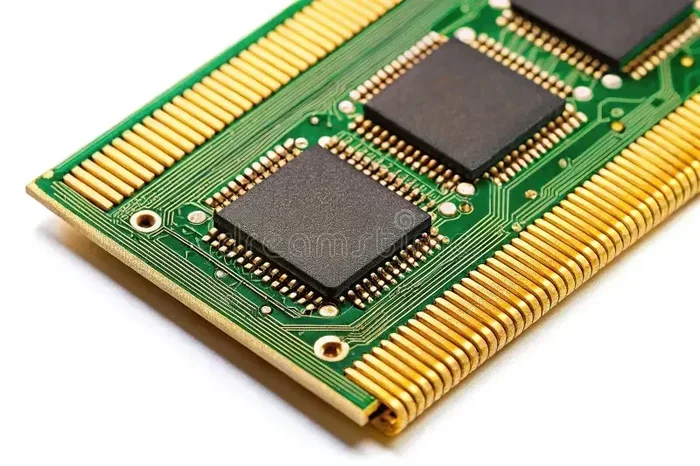
Rendering takes memory. If your system is low on RAM or VRAM, Windows 11 performance issues will follow. Modern apps and games demand more resources than older ones did.
Users running 8GB RAM laptops or older systems often face display rendering delay more frequently. Upgrading your memory can make a huge difference. Check out our guide on Windows 11 16GB RAM Laptop for options that can boost your system’s rendering power.
How to Diagnose Rendering Lag in Windows 11
Before jumping into fixes, it helps to know exactly what you are dealing with. Diagnosing the problem saves time and prevents unnecessary changes.
Use Task Manager to Check Resource Usage
Open Task Manager by pressing Ctrl + Shift + Esc. Look at the GPU and CPU usage tabs. If either is hitting 90% or above during normal use, something is consuming too many resources.
Check the “GPU Engine” section for rendering-specific usage. High numbers here confirm that your graphics rendering slow issue is resource-related. This simple check tells you whether to focus on drivers, memory, or background apps.
Run the Windows Performance Monitor
Type “Performance Monitor” in the Windows search bar. This built-in tool tracks frame rates and rendering times in real time. Look for spikes or drops that correspond with lag moments.
The Performance Monitor gives you hard data. Instead of guessing, you can see exactly when and why rendering lag delay in Windows 11 24H2 and 25H2 occurs. This makes your fix much more targeted.
Check for Driver Errors in Device Manager
Right-click the Start button and open Device Manager. Expand the “Display adapters” section. If you see a yellow warning triangle, your GPU driver has a problem.
Even without warnings, an outdated driver can cause issues. Right-click your GPU and select “Update driver.” Windows will search for the latest version. This alone fixes rendering stutter Windows 11 for many users.
Step-by-Step Fixes for Rendering Lag Delay
Now that you know the causes and how to diagnose the issue, let us get into the fixes. These steps are ordered from easiest to most advanced.
Fix 1: Update Your Graphics Driver
This is the single most effective fix for GPU rendering delay. Here is how to do it properly:
- Open Device Manager.
- Expand “Display adapters.”
- Right-click your GPU and choose “Update driver.”
- Select “Search automatically for drivers.”
- Restart your PC after the update completes.
If Windows does not find a new driver, visit your GPU manufacturer’s website directly. NVIDIA, AMD, and Intel all offer the latest drivers for free. Download and install the newest version compatible with Windows 11 24H2 or 25H2.
For many users, this one step eliminates rendering lag delay completely. It is worth trying first because it takes only a few minutes.
Fix 2: Disable Hardware Acceleration in Apps
Hardware acceleration is helpful but sometimes causes the exact display lag Windows 11 problems we want to avoid. Try turning it off in your most-used apps.
- Chrome: Go to Settings > System > Turn off “Use hardware acceleration when available.”
- Discord: Go to Settings > Advanced > Toggle off “Hardware Acceleration.”
- Spotify: Go to Settings > Show Advanced Settings > Toggle off “Hardware Acceleration.”
Restart each app after making the change. Watch for improvements in frame drop Windows 11 moments. If the lag disappears, you have found your culprit.
You can re-enable hardware acceleration later if everything runs smoothly. Sometimes a Windows update resolves the conflict, and you can safely turn it back on.
Fix 3: Repair Corrupted System Files
Corrupted files are a sneaky cause of Windows 11 performance issues. The good news is that Windows has built-in tools to fix them.
Open Command Prompt as Administrator. Type the following commands one at a time, pressing Enter after each:
sfc /scannowDISM /Online /Cleanup-Image /RestoreHealth
Wait for each scan to complete. These tools check for and repair damaged system files. They specifically target the files that handle display rendering delay and graphics processing.
After running both commands, restart your PC. This fix has helped countless users resolve rendering stutter Windows 11 after major updates like 24H2 and 25H2.
Fix 4: Adjust Windows Visual Effects
Windows 11 comes with fancy visual effects that look great but can hurt performance. Reducing these effects often fixes rendering lag delay on older or lower-spec systems.
- Press the Windows key and type “Adjust the appearance and performance of Windows.”
- Select the “Visual Effects” tab.
- Choose “Adjust for best performance.”
- Click Apply and then OK.
This disables animations, shadows, and transparency effects. Your screen will look simpler, but it will render much faster. You can always re-enable specific effects later if you miss them.
Fix 5: Check Your Display Refresh Rate
Sometimes graphics rendering slow performance is simply a wrong refresh rate setting. A mismatched refresh rate causes stuttering and delayed frame rendering.
Right-click your desktop and select “Display settings.” Scroll down to “Advanced display settings.” Check the refresh rate and make sure it matches your monitor’s native rate. Most modern monitors run at 60Hz or 144Hz. Setting this correctly can eliminate a surprising amount of display rendering delay.
Fix 6: Clean Up Temporary Files and Cache
Over time, temporary files pile up and slow down your system. These files can interfere with how Windows handles rendering lag delay in Windows 11 24H2 and 25H2.
Open Settings > System > Storage > Temporary files. Check all boxes and click “Remove files.” You should also clear your GPU cache through your graphics control panel. NVIDIA users can do this through the NVIDIA Control Panel > Manage 3D Settings > Reset.
This frees up disk space and removes corrupted cache files that may be causing PC rendering problems. It is a simple step that often gets overlooked.
Preventing Rendering Lag in Future Windows Updates
Fixing the current problem is great, but prevention is even better. Here is how to keep rendering stutter Windows 11 from coming back after future updates.
Enable Automatic Driver Updates
Go to Settings > Windows Update > Advanced options > Optional updates. Check the “Driver updates” box. This ensures your GPU driver stays current without manual effort.
Updated drivers are specifically tested against new Windows builds. They prevent the GPU rendering delay that often follows major updates like 24H2 and 25H2.
Keep Your PC Well-Maintained
Regular maintenance goes a long way. Clean out temporary files monthly. Restart your PC at least once a week. Keep your storage at least 15% free.
These habits prevent the kind of system bloat that leads to Windows 11 performance issues. A well-maintained PC handles updates much more gracefully.
Monitor for Known Issues After Updates
After installing a major Windows update, watch for any new lag or stuttering. Check community forums and Microsoft’s support pages for known issues.
Microsoft often releases follow-up patches to fix rendering lag delay bugs. Staying informed helps you apply the right fix quickly. It also saves you from unnecessary troubleshooting.
When to Seek Professional Help
Most rendering lag issues respond well to the fixes above. But sometimes the problem runs deeper. If you have tried everything and still experience display lag Windows 11, it may be time to seek help.
Consider professional assistance if:
- Your GPU is several years old and no longer supported by latest drivers.
- You notice frame drop Windows 11 issues across all apps, not just specific ones.
- Your system crashes or bluescreens alongside rendering lag.
- You have tried all software fixes but the problem persists.
In some cases, the issue is hardware-related. An aging GPU or insufficient RAM can cause graphics rendering slow performance no matter what software fixes you try. Upgrading your hardware might be the real solution here.
For RAM-related rendering lag delay in Windows 11 24H2 and 25H2, check out our guide on How to Fix Computer Running Slow and Freezing for additional troubleshooting steps that address overall system performance.
Conclusion
Rendering lag delay in Windows 11 24H2 and 25H2 is a common but solvable problem. The causes range from outdated drivers to corrupted system files to conflicting app settings. Most fixes are simple and take only minutes to apply.
Start with updating your GPU driver and disabling hardware acceleration. Run system file repairs and adjust visual effects if needed. These steps resolve the issue for the vast majority of users. Prevention through regular maintenance and automatic driver updates keeps your PC running smoothly long-term.
Do not let rendering lag ruin your Windows 11 experience. Apply the fixes in this guide and enjoy smooth, responsive performance again. Your PC deserves to run at its best, and now you have the tools to make it happen.
Frequently Asked Questions
Why is my PC lagging after updating to Windows 11 24H2 or 25H2?
Windows updates can introduce new display protocols that conflict with older GPU drivers. They may also corrupt system files related to rendering. This causes rendering lag delay in Windows 11 24H2 and 25H2 until the drivers and files are repaired or updated.
Can hardware acceleration cause rendering lag in Windows 11?
Yes, absolutely. Hardware acceleration offloads tasks to your GPU, but when apps and Windows clash over how to use it, you get stuttering and display rendering delay. Disabling it in problematic apps often resolves the issue quickly.
How do I know if my GPU driver is causing rendering lag?
Open Device Manager and check for yellow warning triangles on your GPU. Also, visit your GPU manufacturer’s website and compare your current driver version to the latest release. Outdated drivers are the most common cause of rendering stutter Windows 11 and GPU rendering delay.
Will upgrading my RAM fix rendering lag in Windows 11?
If your system is low on RAM, upgrading can definitely help. Rendering tasks need memory to run smoothly. Insufficient RAM leads to graphics rendering slow performance and frame drop Windows 11 issues, especially during multitasking or gaming.
Is rendering lag in Windows 11 25H2 a known issue?
Yes, Microsoft has acknowledged display lag Windows 11 issues in both 24H2 and 25H2. They have released patches and are working on fixes in newer builds. Keeping your system updated ensures you get these patches as soon as they are available.
How long does it take to fix rendering lag in Windows 11?
Most fixes take between 5 and 20 minutes. Updating drivers and adjusting settings are the quickest solutions. Running system file repairs takes a bit longer but is still straightforward. In most cases, you can resolve rendering lag delay in Windows 11 24H2 and 25H2 in a single session.