The Risks Of Not Cleaning Computer Fans And Overheating
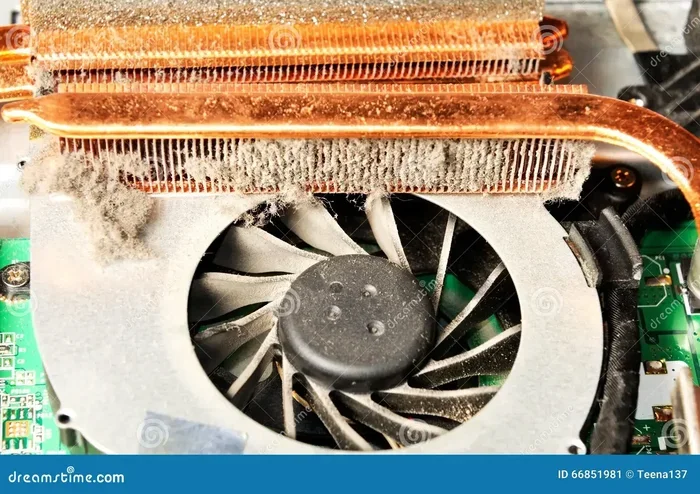
Dust and debris inside your computer can cause serious overheating that damages hardware and kills performance. When you ignore the risks of not cleaning computer fans, your system slows down, components wear out faster, and expensive repairs become inevitable. This guide covers everything you need to know about computer fan maintenance and overheating prevention to keep your PC running at its best.
Key Takeaways
- Dust buildup blocks airflow and causes your PC to overheat quickly
- Overheating shortens component lifespan and leads to costly repairs
- Regular cleaning prevents thermal throttling and keeps performance stable
- Compressed air and proper tools make fan cleaning simple and safe
- Ignoring fan maintenance can result in permanent hardware damage
- Cleaning every 3 to 6 months is the recommended schedule for most PCs
📑 Table of Contents
Why Computer Fans Matter For Your PC
Your computer relies on fans to keep everything cool. Inside your PC case, there are several fans working together to move air across hot components. The PC cooling system pulls in cool air from the front and pushes hot air out the back. Without this constant airflow, heat builds up fast.
When fans work properly, they keep your CPU temperature in a safe range. Most processors run best between 30 and 60 degrees Celsius under normal use. But when dust blocks the fans and heat sinks, temperatures can spike well above safe limits. This is where the real trouble begins.
Many people forget about computer maintenance until something goes wrong. They clean their desks but never think about what is happening inside their machine. Over time, dust buildup becomes a serious problem that affects every part of your system.
The good news is that keeping your fans clean is not hard. It just takes a little time and the right tools. In this article, we will walk you through exactly why neglecting fan cleaning is so dangerous and what you can do about it.
The Risks Of Not Cleaning Computer Fans
Ignoring your computer fans has real consequences. When dust collects on fan blades and blocks vents, the entire PC cooling system suffers. Here are the biggest risks of not cleaning computer fans that every user should know about.
Thermal Throttling And Performance Loss
When your processor gets too hot, it slows itself down to prevent damage. This is called thermal throttling. You might notice your system performance drops suddenly during demanding tasks like gaming or video editing.
Your computer might freeze or lag even when you are doing simple things. If you have ever experienced computer running slow and freezing, overheating could be the hidden cause. Dirty fans are one of the most common reasons this happens.
The problem is that thermal throttling happens gradually. You might not notice it at first. But over weeks and months, the slowdown adds up and makes your PC feel ancient. Regular fan cleaning keeps this from happening and preserves smooth system performance every day.
If your PC struggles with everyday tasks, heat could be the invisible culprit. A clean PC cooling system ensures that your processor and GPU get the airflow they need to perform at their best.
Permanent Hardware Damage
Heat is the enemy of electronics. When components run too hot for too long, they degrade faster. Your motherboard overheating can cause random crashes, blue screens, and even total system failure.
The GPU fans are especially vulnerable because they work so hard during gaming or rendering. If GPU fans are clogged with dust, they cannot spin freely. This traps heat right where it is most dangerous, near your graphics card.
Over time, excessive heat warps circuit boards and degrades solder joints. These types of hardware damage are often irreversible. Replacing a damaged motherboard or graphics card costs hundreds of dollars. A simple cleaning session could have prevented all of that.
Your heat sink relies on direct contact with the processor to draw heat away. When dust fills the fins of your heat sink, it acts like an insulator. Heat gets trapped against the CPU instead of being carried away. This is one of the sneakiest ways dust silently destroys your components.
Reduced Component Lifespan
Every electronic component has an expected lifespan. Heat shortens that lifespan dramatically. When your fans fail to keep things cool, every part inside your case ages faster than it should.
Hard drives, RAM modules, and even your power supply all suffer from excess heat. Studies show that for every 10 degrees Celsius above normal operating temperature, component lifespan can drop by up to 50 percent. That is a staggering number that most people never think about.
By keeping your fans clean, you are essentially investing in the long-term health of your entire system. Computer maintenance like this pays for itself many times over. You get more years out of your hardware and avoid the hassle of early replacements.
How Dust And Debris Build Up Inside Your PC
Understanding where dust comes from helps you fight it more effectively. Your computer pulls in air from the room constantly. That air carries tiny particles of dust, pet dander, and even fibers from clothing and carpet.
Over days and weeks, these particles settle on every surface inside your case. They stick to fan blades, coat the heat sink, and clog the mesh filters on your case vents. What starts as a thin layer quickly becomes a thick blanket of grime that chokes your airflow.
Where Dust Accumulates Most
Not all areas inside your PC collect dust equally. Some spots are much worse than others:
- Fan blades – Dust sticks to the edges and throws the fan off balance
- Heat sink fins – Dust fills the tiny gaps and blocks heat transfer
- Power supply fan – The PSU pulls in a lot of air and collects dust fast
- Case intake vents – These mesh filters catch dust before it enters
- CPU and GPU sockets – Dust here directly affects cooling performance
The power supply fan is often the dirtiest component inside a PC. It runs 24 7 and pulls in a large volume of air. If the PSU fan is blocked, your entire system can overheat even if the other fans are clean. This is why many experts recommend cleaning the power supply area as a priority during every maintenance session.
Pet owners and people who smoke face even faster dust accumulation. If you keep your PC on the floor, you will also notice more debris buildup than if it sits on a desk. Laptop overheating happens for similar reasons, especially in confined spaces like beds or couches where vents get blocked by fabric.
Signs Your Computer Fans Need Cleaning
Your PC tells you when something is wrong. You just need to pay attention. Here are the most common warning signs that your fans are clogged and need a good cleaning.
Loud Or Unusual Fan Noise
If your fans sound like a jet engine, something is wrong. Dust makes fan blades unbalanced. A wobbly blade creates a rhythmic grinding or buzzing sound that gets louder as the fan spins faster.
Sometimes the noise comes from dust hitting the fan blades directly. You might hear a rattling or scratching sound that was not there before. If you notice why does my computer fan keep running at full speed even during idle, dust buildup is a likely culprit.
Unbalanced fans also vibrate more. These vibrations can loosen screws and components over time. What starts as a minor annoyance can turn into a physical problem that affects other parts of your system.
Frequent Overheating Alerts
Most modern computers will warn you when temperatures get too high. You might see a pop-up message, hear a warning beep, or notice your system shutting down unexpectedly.
These are not random glitches. Your PC is protecting itself from heat damage by shutting down. If this happens more than once or twice, you need to clean your fans immediately. Overheating prevention starts with recognizing these early warning signs and taking action before permanent damage occurs.
Reduced Airflow From Vents
Place your hand near your PC vents and feel the airflow. If it feels weak or barely there, dust is blocking the passage. Strong, consistent airflow is a sign of healthy fans. Weak airflow means it is time for a cleaning session.
You can also check this visually. Shine a flashlight into your intake vents and look for dust buildup on the mesh filters. If you cannot see light through the filter clearly, it is time to clean or replace it.
How To Clean Your Computer Fans Safely
Cleaning your fans is easier than most people think. You do not need expensive tools or technical skills. With the right approach, you can do a thorough job in about 15 to 20 minutes.
Tools You Will Need
Before you start, gather these basic supplies:
- Compressed air canister – This is the most important tool for dust removal
- Soft brush – A small paintbrush or anti-static brush works great
- Isopropyl alcohol – Use what percentage of isopropyl alcohol to clean CPU for safely cleaning sensitive components
- Microfiber cloth – For wiping down surfaces gently
- Screwdriver set – You may need to open your case or remove fans
- Rubber gloves – Protect your hands and prevent static discharge
Always work in a well ventilated area. Compressed air can blow dust right back at you. Wear a mask if you are sensitive to dust or allergens. If you are cleaning a laptop, make sure to unplug it and remove the battery if possible.
Step By Step Cleaning Process
Follow these steps to clean your fans safely and effectively:
Step 1: Power down completely. Turn off your computer and unplug it from the wall. Do not just shut it down. You need to disconnect the power to avoid any electrical issues or accidental startups.
Step 2: Open the case. Remove the side panel so you can access the interior. Most cases have thumb screws or regular Phillips screws holding the panel in place. Keep the screws in a small bowl so they do not get lost.
Step 3: Hold fans in place. Before you blast compressed air at the fans, hold the blades steady. If a fan spins freely while you blow air into it, it can generate a voltage that damages the fan motor. Use a finger or a toothpick to keep the blades from spinning.
Step 4: Blow out dust. Use short bursts of compressed air to dislodge dust from fan blades, heat sinks, and vents. Work from the inside out so dust flows toward the openings. Hold the can upright to avoid liquid propellant spraying onto your components.
Step 5: Brush stubborn grime. For stuck on dust, use a soft brush to gently scrub the fins and blades. You can dampen the brush slightly with isopropyl alcohol for tougher grime. Let it dry completely before powering on.
Step 6: Wipe down surfaces. Use a microfiber cloth to clean the exterior of your case and any removable filters. This prevents dust from rushing back in when you turn the PC on. Clean the filters under running water if they are washable.
Step 7: Reassemble and test. Put everything back together, plug in your PC, and power it on. Listen for smooth fan operation and check that temperatures are lower than before. You should notice quieter operation and better airflow immediately.
Preventing Future Dust Buildup
Cleaning is only half the battle. The other half is preventing dust from coming back so quickly. A few simple habits can keep your PC cooling system clean for much longer between cleanings.
Ideal Placement And Environment
Where you place your computer matters more than most people realize. Keep your PC on a hard, flat surface where air can flow freely. Avoid placing it on carpet, beds, or soft surfaces that block vents and trap heat.
If your workspace is dusty, consider using cooling pads for laptops or adding dust filters to your desktop case. Some aftermarket cases come with built in filters that are easy to remove and wash. These small additions make a big difference in how fast dust accumulates.
Keeping your room clean also helps. Vacuum the area around your PC regularly and keep windows closed during dusty conditions. These small steps add up to a big difference over time and reduce how often you need to open your case.
When To Replace Fans
Sometimes cleaning is not enough. If a fan is making grinding noises even after cleaning, the bearings may be worn out. A noisy or wobbly fan should be replaced rather than tolerated.
Look for quietest PC fans when shopping for replacements. Quality fans run cooler and last longer than cheap alternatives. Upgrading your fans is a small investment that pays off in silence and better cooling performance.
Also check the thermal paste on your CPU and GPU. Over time, thermal paste dries out and loses its effectiveness. Replacing it during a fan cleaning session is a great way to improve cooling performance even further. Fresh thermal paste can lower temperatures by several degrees.
Final Thoughts On Computer Fan Maintenance
The risks of not cleaning computer fans are real and serious. From thermal throttling that kills your performance to permanent hardware damage that costs hundreds of dollars, the consequences of neglect add up fast. Every user should take a few minutes to care about what happens inside their machine.
The good news is that prevention is simple and affordable. A can of compressed air and 15 minutes of your time every few months can keep your entire system running cool and quiet. You do not need to be a tech expert to do it. Anyone can learn the basics of fan cleaning and overheating prevention.
Make computer fan cleaning part of your regular computer maintenance routine. Set a reminder on your calendar to clean your fans every three to six months. Your PC will run faster, last longer, and save you from expensive repairs down the road.
Take action today. Open your case, grab a can of compressed air, and give your fans the care they deserve. Your future self and your wallet will thank you when your system runs smoothly for years to come.
—
Frequently Asked Questions
How often should I clean my computer fans?
Most experts recommend cleaning your computer fans every three to six months. If you have pets or live in a dusty area, you may need to clean them more often, perhaps every two months. Regular cleaning prevents buildup and keeps your PC cooling system working efficiently.
Can dust cause my computer to overheat?
Yes, absolutely. Dust blocks airflow and insulates heat sinks, which causes temperatures to rise. When your fans cannot move air properly, overheating becomes inevitable. This is one of the most common causes of computer running slow and freezing that people overlook.
Is it safe to use a vacuum cleaner to clean computer fans?
It is not recommended. Vacuum cleaners can generate static electricity that damages sensitive components. Stick to compressed air and soft brushes for safe dust removal. If you must use a vacuum, use a low-power setting and keep the nozzle at least two inches away from components.
What happens if I do not clean my computer fans at all?
Over time, dust buildup will cause chronic overheating, thermal throttling, and reduced component lifespan. In severe cases, your PC may shut down unexpectedly or suffer permanent hardware damage. The risks of not cleaning computer fans are significant and can lead to expensive repairs or total system failure.
Can I use water to clean my computer fans?
No, never use water directly on computer components. Water causes short circuits and irreversible damage. Use isopropyl alcohol for cleaning sensitive parts, and always let everything dry completely before powering on. Compressed air is your safest and most effective tool for fan cleaning.
Do laptops need fan cleaning too?
Yes, laptops need fan cleaning just as much as desktops. Because laptops have smaller interiors and less airflow, dust buildup affects them faster. Laptop overheating is a common problem that often stems from clogged fans. Use compressed air to clean your laptop vents every few months for best results.
—