Touchpad Mouse Not Working on Laptop
Dealing with a touchpad mouse not working on laptop issues is incredibly frustrating, but it is often a simple fix. This guide walks you through the most common causes, from accidental disabling to driver problems, and provides step-by-step solutions to get your cursor moving again. You’ll learn quick checks and advanced troubleshooting to solve the problem for good.
Key Takeaways
- Accidental Disabling: The most common cause is accidentally turning off the touchpad via a function key or a double-tap on its corner.
- Outdated or Corrupt Drivers: Your touchpad needs the right software to communicate with Windows; outdated drivers are a frequent culprit.
- Windows Settings: A simple setting within Windows might be configured to disable the touchpad when a mouse is plugged in.
- Hardware Issues: While less common, physical damage or a loose internal connection can cause the touchpad to fail completely.
- Quick Restarts: Never underestimate the power of a simple laptop restart, which can resolve many temporary software glitches.
- External Mouse as a Backup: Using a USB or wireless mouse is a great temporary solution while you troubleshoot the main touchpad problem.
- Manufacturer-Specific Fixes: Brands like HP, Dell, and Lenovo often have their own software that can affect touchpad behavior.
📑 Table of Contents
- Introduction: When Your Laptop’s Touchpad Stops Responding
- 1. The Simplest Fixes: Start Here First
- 2. Checking Your Windows Settings
- 3. Updating or Reinstalling Touchpad Drivers
- 4. Deeper Troubleshooting and System Checks
- 5. When It Might Be a Hardware Problem
- 6. Using an External Mouse as a Workaround
- Conclusion: Getting Your Touchpad Back on Track
Introduction: When Your Laptop’s Touchpad Stops Responding
You’re in the middle of an important project, fingers flying across the keyboard, and then it happens. You go to move the cursor, and nothing. Your touchpad is completely unresponsive. The dreaded touchpad mouse not working on laptop problem has struck, and a wave of frustration washes over you. Don’t panic! This is one of the most common laptop issues, and it’s often something you can fix yourself in just a few minutes.
Think of your laptop’s touchpad as its brain for navigation. When it stops working, it can feel like you’ve lost control of your entire machine. The causes can range from a simple accidental key press to more complex software conflicts. The good news is that most of these problems have straightforward solutions. This guide is designed to be your go-to resource, walking you through every possible fix, from the easiest checks to more advanced troubleshooting. We’ll help you diagnose the problem and get your smooth navigation back on track.
Whether you’re using a Windows laptop, a Chromebook, or even a Mac, the core principles of troubleshooting a faulty touchpad are similar. We’ll focus on the most common scenarios and provide clear, step-by-step instructions. By the end of this article, you’ll have the knowledge and confidence to tackle this issue head-on, saving you a trip to the repair shop and getting you back to being productive. Let’s dive in and figure out why your touchpad mouse is not working on your laptop.
1. The Simplest Fixes: Start Here First
Before you start diving into complex settings or downloading software, let’s cover the basics. These simple solutions fix the problem a surprising amount of the time. It’s always best to start with the easiest possibilities first.
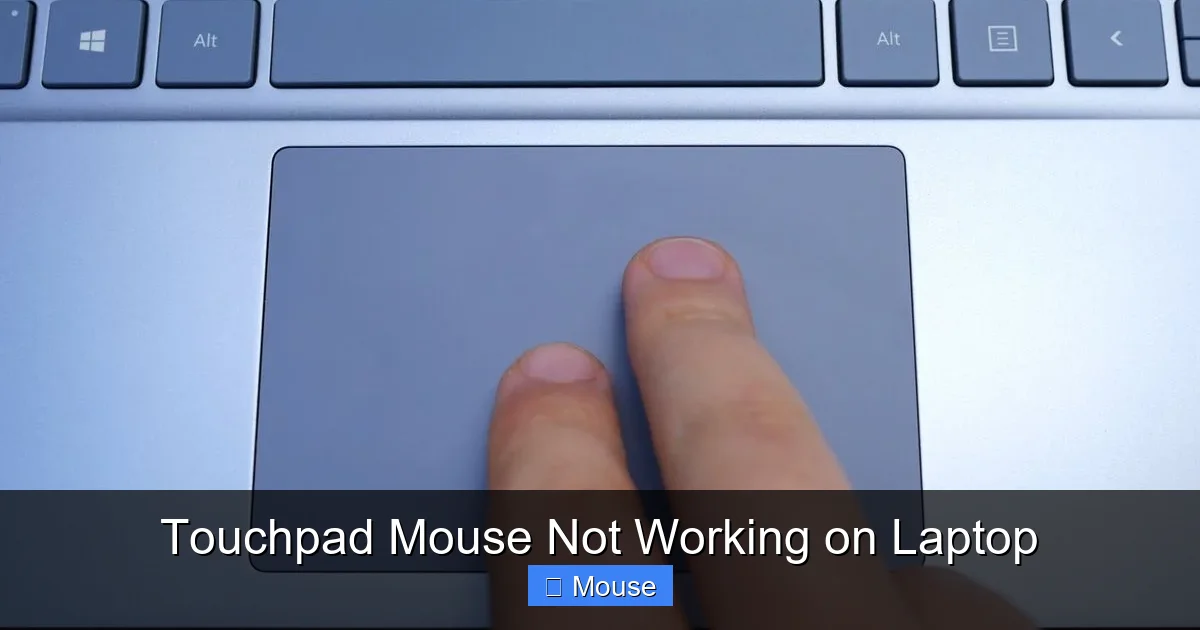
Visual guide about Touchpad Mouse Not Working on Laptop
Image source: cdn.mos.cms.futurecdn.net
The Infamous Function Key
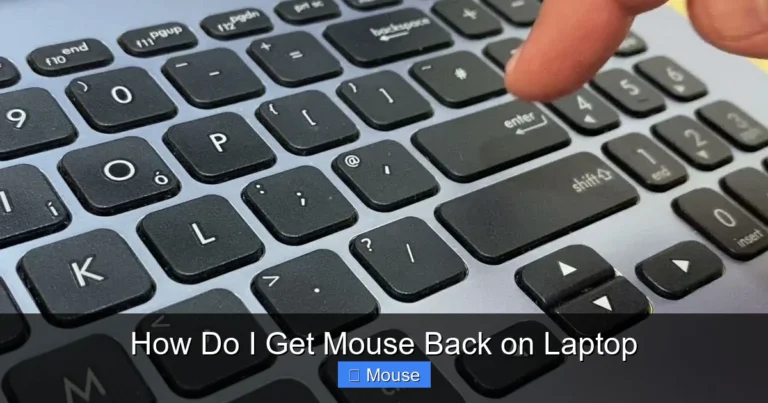
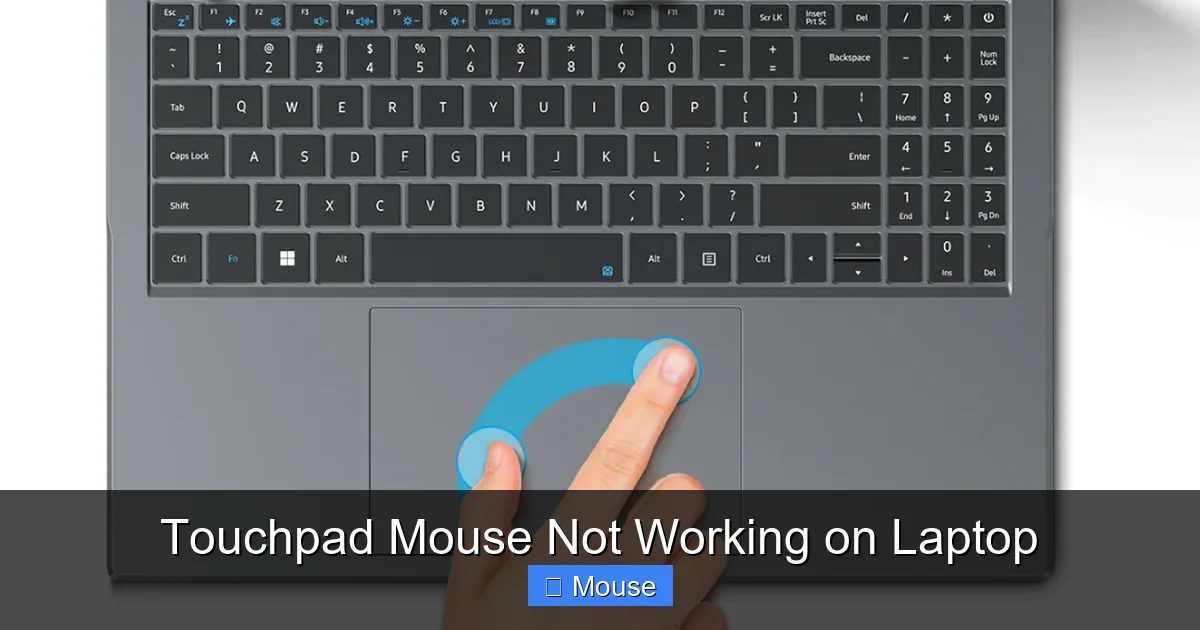
This is the number one reason a touchpad suddenly stops working. Most laptops have a special Function (Fn) key combination that can instantly enable or disable the touchpad. It’s incredibly easy to hit by accident. Look at the top row of your keyboard (F1, F2, F3, etc.) for an icon that looks like a touchpad with a line through it or a hand touching a rectangle.
To fix this, simply press and hold the Fn key and then tap the corresponding function key. For example, it might be Fn + F7 or Fn + F9. Try this combination, and then test your touchpad immediately. If that doesn’t work, try pressing the function key by itself without the Fn key. This simple trick resolves the issue for countless people every day.
The Double-Tap Zone
Many modern touchpads have a hidden feature: a small zone, usually in the top-left corner, that acts as an on/off switch. A quick double-tap in this area can disable the touchpad. It’s a handy feature if you’re using an external mouse and don’t want accidental palm touches to move the cursor, but it’s also easy to trigger by mistake.
To check this, look closely at your touchpad. You might see a small LED indicator light up when it’s disabled. Simply double-tap that corner again to re-enable it. If you’re not sure where the zone is, try double-tapping each corner of the touchpad until you see a change. This is another very common and easily overlooked cause of the problem.
The Power of a Restart
It sounds too simple, but a full restart of your laptop can work wonders. A restart clears out temporary files, resets running processes, and can often fix minor software glitches that might be causing the touchpad to freeze or become unresponsive. It’s the classic “turn it off and on again” for a reason.
Don’t just put your laptop to sleep or close the lid. Go to the Start menu, click the Power icon, and select Restart. Once your computer boots back up, test the touchpad. If a temporary glitch was the culprit, this should solve it. If you’re using a different brand, like an HP, and the problem persists, you might want to look at solutions for an mouse on HP laptop not working.
2. Checking Your Windows Settings
If the quick fixes didn’t work, the next logical place to look is within your operating system’s settings. Windows has several options that can control your touchpad’s behavior, and one of them might be causing the issue.
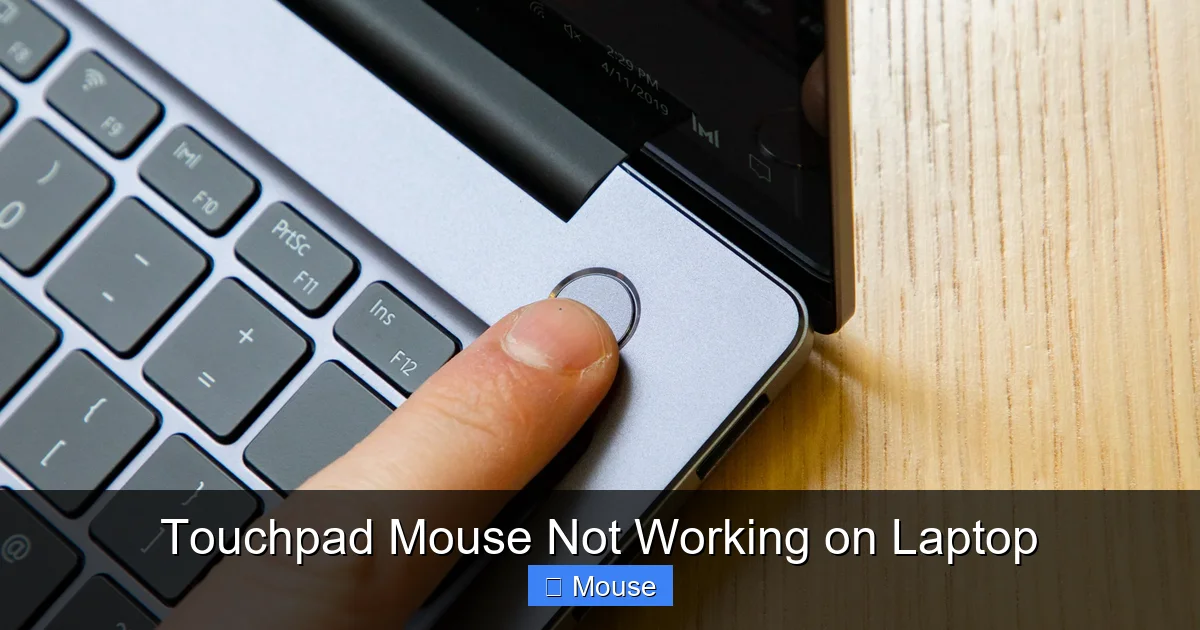
Visual guide about Touchpad Mouse Not Working on Laptop
Image source: cdn.mos.cms.futurecdn.net
Ensuring the Touchpad is Enabled in Settings
Sometimes, the touchpad can be turned off through the Windows settings menu. Here’s how to check and fix it:
- Click the Start menu and go to Settings (the gear icon).
- Click on Bluetooth & devices.
- In the left-hand menu, select Touchpad.
- At the top of the screen, make sure the toggle switch next to Touchpad is turned On.
While you’re in this menu, you can also check other settings. For instance, you can adjust the sensitivity or change what the three-finger and four-finger gestures do. Make sure nothing here seems misconfigured. This is a crucial step in diagnosing why your touchpad mouse is not working on your laptop.
The “Leave Touchpad On” Setting
Windows has a specific setting designed to prevent accidental cursor movement while you’re typing. When you plug in an external USB mouse, Windows can automatically disable the touchpad. This is a useful feature, but it can be confusing if you unplug the mouse and the touchpad doesn’t turn back on.
To check this setting:
- Go back to Settings > Bluetooth & devices > Touchpad.
- Look for a setting that says something like “Leave touchpad on when a mouse is connected”.
- Make sure this box is checked.
With this setting enabled, your touchpad will remain active even if you have a mouse plugged in, and it should automatically become your primary pointing device again when you unplug the mouse. This is a very common setting that gets changed by accident.
3. Updating or Reinstalling Touchpad Drivers
Drivers are the software that allows your operating system to communicate with your hardware. If your touchpad driver is outdated, corrupt, or missing, your touchpad will not work correctly. This is a very common cause of the touchpad mouse not working on laptop issue, especially after a major Windows update.
Visual guide about Touchpad Mouse Not Working on Laptop
Image source: i.extremetech.com
Updating the Driver via Device Manager
The easiest way to check your drivers is through the Windows Device Manager. Here’s how:
- Right-click the Start button and select Device Manager.
- In the list that appears, find and expand the section called Mice and other pointing devices.
- You should see your touchpad listed here. It might have a name like “Synaptics TouchPad,” “ELAN TouchPad,” or “HID-compliant mouse.”
- Right-click on the touchpad device and select Update driver.
- Choose “Search automatically for drivers”. Windows will then look online for the latest version and install it.
After the update is complete, restart your laptop and test the touchpad. If Windows says you already have the best driver installed, that’s okay. It means the driver isn’t the issue, and you can move on to the next step.
Reinstalling the Driver
If updating didn’t work, the driver itself might be corrupt. A clean reinstall can often fix this. The process is very similar to updating:
- Go back to Device Manager > Mice and other pointing devices.
- Right-click on your touchpad device and this time select Uninstall device.
- A confirmation box will appear. If there’s a checkbox that says “Attempt to remove the driver for this device,” check it.
- Click Uninstall.
- Once the device is removed, restart your laptop.
When your computer restarts, Windows will automatically detect the touchpad as new hardware and attempt to install the correct driver from its own library. This fresh installation can often resolve deep-seated software conflicts. If you’re on a Dell laptop and this doesn’t help, you might need to look into specific fixes for a Dell laptop mouse not working.
4. Deeper Troubleshooting and System Checks
If you’ve tried all the steps above and your touchpad is still unresponsive, it’s time to dig a little deeper. These steps involve checking for system-level issues that might be interfering with your hardware.
Running the Hardware Troubleshooter
Windows has built-in troubleshooters designed to automatically find and fix common problems. While Microsoft has been moving these settings around, you can still access them.
- Go to Settings > System > Troubleshoot.
- Click on Other troubleshooters.
- Look for the Keyboard or Hardware and Devices troubleshooter and click Run.
- Follow the on-screen instructions. The troubleshooter will scan for issues and attempt to fix them automatically.
This is a great hands-off approach that can sometimes identify problems you might not have considered. It’s a useful tool in your troubleshooting arsenal.
Checking for Windows Updates
Sometimes, a bug in the Windows operating system itself can cause hardware problems. Microsoft regularly releases updates that include fixes for these kinds of issues. Making sure your system is up-to-date is always a good practice.
- Go to Settings > Windows Update.
- Click the Check for updates button.
- If any updates are available, download and install them. This is especially important for “Optional updates,” which often contain driver fixes.
- Restart your computer after the updates are installed.
Keeping your system updated not only fixes bugs but also improves security and performance. It’s a simple step that can have a big impact. If you’re using a Lenovo, this is particularly important, and you can find more brand-specific advice on our page about Lenovo laptop mouse not working issues.
5. When It Might Be a Hardware Problem
If you’ve exhausted all the software fixes, the problem could be physical. Hardware issues are less common, but they do happen. Here are a few things to consider.
Physical Damage or Debris
Take a close look at your touchpad. Is it cracked, chipped, or physically damaged in any way? Even a small amount of liquid spilled on it can cause it to malfunction. Also, check for any debris stuck around the edges of the touchpad that might be preventing it from being pressed down properly.
Gently clean the surface of the touchpad with a soft, slightly damp cloth. Make sure your hands are clean and dry when you use it, as oil and dirt can build up over time and affect its sensitivity. If you see any obvious physical damage, it’s likely a hardware issue that will need professional repair.
Loose Internal Connection
The touchpad is connected to your laptop’s motherboard by a small, thin ribbon cable. If your laptop has been dropped or bumped hard, this cable can become loose or disconnected. This is not something you should try to fix yourself unless you are experienced with laptop repair.
Opening your laptop can void its warranty and cause further damage if you’re not careful. If you suspect a loose connection, it’s best to take your laptop to a qualified technician. They can open it up, check the cable, and reseat it properly. This is a common fix for touchpads that have suddenly stopped working after physical trauma.
6. Using an External Mouse as a Workaround
While you’re figuring out the main problem, you don’t have to be stuck. Using an external mouse is a perfect temporary solution to keep you productive. It bypasses the touchpad entirely and lets you use your laptop normally.
USB and Wireless Mice
Simply plug a USB mouse into one of your laptop’s USB ports. Windows will recognize it instantly, and you’ll be able to use it right away. If you prefer a wireless mouse, you can use one that connects via a small USB receiver or one that uses Bluetooth.
To connect a Bluetooth mouse, go to Settings > Bluetooth & devices, make sure Bluetooth is turned on, and then click Add device. Put your mouse into pairing mode and select it from the list. An external mouse is a great investment, even if your touchpad is working, for a more comfortable and precise navigation experience.
This workaround is essential if you need to perform some of the software fixes mentioned earlier, like updating drivers or changing settings. It gives you the control you need to fix the underlying issue. For more general advice on this, you can read our guide on how to fix mouse on laptop problems.
Conclusion: Getting Your Touchpad Back on Track
Dealing with a touchpad mouse not working on laptop problem can be a major headache, but as you’ve seen, the solution is often within your reach. The key is to approach the problem methodically. Start with the simplest fixes, like checking the function key or restarting your computer. These easy steps solve the majority of cases.
If the simple fixes don’t work, move on to checking your Windows settings and then your device drivers. These are the most common software-related culprits. Remember to check if the touchpad is disabled when a mouse is connected and ensure your drivers are up-to-date. By following this step-by-step guide, you can systematically eliminate potential causes and find the solution.
Finally, don’t forget the possibility of a hardware issue. If you’ve tried everything and the touchpad is still dead, it might be time to consult a professional. In the meantime, an external mouse is a perfect workaround to keep you up and running. With a little patience and this guide, you’ll have your laptop’s touchpad working like new again in no time.
Frequently Asked Questions
Why did my laptop touchpad suddenly stop working?
The most common reason is accidentally pressing the function key combination (like Fn + F7) that disables the touchpad. It can also be caused by a recent Windows update that changed a setting or corrupted a driver.
How do I turn my touchpad back on?
First, try pressing the touchpad’s function key (e.g., Fn + F9). If that doesn’t work, go to Windows Settings, navigate to Bluetooth & devices, and then select Touchpad to ensure the main toggle is switched to “On.”
Can a virus cause my touchpad to stop working?
While it’s not the most common cause, it is possible for malware to interfere with your system’s drivers and hardware. If you suspect a virus, run a full scan with your antivirus software to rule it out.
How do I fix my touchpad if it’s physically damaged?
Physical damage, like a crack from a drop or liquid spill, usually requires professional repair. You will likely need to take your laptop to a technician who can replace the touchpad hardware.
My touchpad works sometimes but not always. What does that mean?
An intermittent problem often points to a loose internal connection or a driver that is conflicting with other software. Try updating or reinstalling your touchpad drivers first, as this is the most likely software cause.
Will a factory reset fix my touchpad?
A factory reset can fix the problem if it’s caused by a deep software issue, but it should be a last resort. A reset will erase all your files and applications, so be sure to back up your data before attempting it.