Upgrade Kvm for 1440p60hz Expert Guide

Upgrading your KVM to support 1440p60hz transforms your dual-computer setup with crisp, smooth visuals and faster refresh rates. This guide covers everything from choosing the right KVM switch to troubleshooting common issues. You will learn about display bandwidth, cable compatibility, and the best KVM options for your laptop.
A KVM switch lets you control multiple computers with one keyboard, monitor, and mouse. But if your current KVM only supports 1080p or lower, you are missing out on stunning visual clarity. Upgrading your KVM for 1440p60hz changes everything. The sharper text, smoother motion, and wider workspace make a huge difference.
Whether you are a designer, programmer, or gamer, 1440p60hz gives you the resolution and refresh rate you need. This guide walks you through the entire process. You will learn what to look for, how to set things up, and how to avoid common pitfalls. Let us dive in.
Key Takeaways
- 1440p60hz delivers sharper visuals: This resolution offers excellent pixel density for both work and play on a KVM setup.
- Bandwidth matters: You need a KVM that supports sufficient display bandwidth to handle 1440p at 60Hz without signal loss.
- HDMI 2.0 and DisplayPort are key: These ports ensure your KVM can pass through high-resolution signals reliably.
- Check your laptop specs first: Your laptop’s graphics output and port types determine which KVM upgrade you need.
- Cable quality affects performance: Using high-quality cables prevents signal degradation at 1440p60hz.
- Setup is straightforward: Most modern KVM switches offer plug-and-play functionality with minimal configuration.
📑 Table of Contents
What Is a KVM Switch and Why Upgrade to 1440p60hz?
A KVM switch stands for Keyboard, Video, and Mouse. It is a hardware device that lets you share one display and input peripherals across two or more computers. You simply press a button or use a hotkey to switch between machines. It is a game-changer for anyone who works with multiple systems.
So why upgrade to 1440p60hz? Standard 1080p monitors have about 2 million pixels. A 1440p display packs roughly 3.7 million pixels. That is nearly double the detail. At 60Hz, the screen refreshes 60 times per second, which gives you smooth visuals without tearing or stuttering. Together, 1440p and 60Hz create a really satisfying viewing experience.
Many older KVM switches max out at 1080p60hz or even lower resolutions. If you have a modern laptop or monitor, you are leaving performance on the table. The good news is that upgrading is easier than you might think. Let us look at what you need.
Understanding Display Bandwidth
Display bandwidth is the amount of data a KVM can transfer per second. Higher resolutions and refresh rates need more bandwidth. A KVM that supports 1440p60hz must have enough bandwidth headroom to handle the signal without compression or artifacts. Always check the specifications before buying.
Key Features to Look for in a 1440p60hz KVM
Not all KVM switches are created equal. When shopping for an upgrade, focus on these essential features. They will make sure your 1440p60hz experience is smooth and reliable.
Port Compatibility
Your KVM needs to match the ports on your laptop and monitors. Most modern laptops use USB-C, HDMI, or DisplayPort outputs. Make sure the KVM you choose supports these connection types. Some KVMs also include USB ports for sharing peripherals like webcams, external drives, and printers.
Resolution and Refresh Rate Support
This is the most important spec. Look for a KVM that explicitly lists 1440p60hz support. Some models advertise 4K but only at 30Hz, which feels sluggish. You want a KVM that delivers full 1440p at a solid 60Hz refresh rate. Check the product page or manual to confirm this.
Build Quality and Cable Length
A well-built KVM switch uses quality components that reduce signal loss. Longer cables can weaken the signal, especially at higher resolutions. If your setup requires distance between computers, consider active cables or a KVM with built-in signal boosting.
Step-by-Step Guide to Upgrading Your KVM
Upgrading your KVM for 1440p60hz does not have to be complicated. Follow these steps for a smooth transition. Each step is simple and takes only a few minutes.
Step 1: Check Your Current Setup
Start by noting what your current KVM supports. Look at the model number and check the manufacturer’s website for the max resolution. Also, check your laptop’s output ports. If your laptop has USB-C with DisplayPort Alt Mode, you have great options for a KVM upgrade.
Step 2: Choose the Right KVM Switch
Pick a KVM that supports 1440p60hz and matches your port needs. Popular choices include models with HDMI 2.0 or DisplayPort 1.2 inputs. Read reviews to confirm real-world performance. Some KVMs also offer USB 3.0 ports, which speed up file transfers between computers.
Step 3: Gather Your Cables
You will need the right cables for each connection. Use high-quality HDMI or DisplayPort cables rated for 1440p60hz. Cheap cables can cause flickering or no signal at all. If your laptop uses USB-C, get a USB-C to HDMI or USB-C to DisplayPort adapter that supports high bandwidth.
Step 4: Connect and Configure
Connect your laptop to the KVM input, and your monitor to the KVM output. Plug in your keyboard and mouse to the KVM’s peripheral ports. Power on the KVM and switch to your laptop’s input channel. Most KVMs auto-detect the resolution, but you may need to adjust settings in your display settings.
Step 5: Test and Optimize
Switch between computers and check for any signal issues. Make sure the 1440p60hz resolution is recognized by both systems. If you notice any problems, try reseating cables or updating your laptop’s graphics drivers. A quick reboot often fixes detection issues.
Best KVM Switches for 1440p60hz with Laptops
There are many KVM switches on the market. Here are some popular options that work well with laptops and deliver 1440p60hz performance.
- Dual-Input HDMI KVMs: These are affordable and easy to set up. They work great with laptops that have HDMI outputs. Look for models rated at 1440p60hz or higher.
- USB-C KVM Switches: These are ideal for modern laptops with USB-C or Thunderbolt ports. They often include additional USB ports for peripherals.
- DisplayPort KVMs: Best for users who prioritize video quality. DisplayPort handles 1440p60hz efficiently and is common on business laptops.
When choosing, always match the KVM to your laptop’s available ports. A mismatch means adapters, which can introduce signal issues. Also, check if your laptop needs a specific driver for external display output. Some integrated graphics chips perform better with certain connection types.
Common Problems and How to Fix Them
Even with the best KVM, you might run into issues. Here are the most common problems and their solutions.
No Signal or Black Screen
This usually happens when the KVM cannot detect the correct resolution. Try lowering the resolution temporarily, then switch back to 1440p60hz. Also, make sure your cable is fully seated in the port. A loose connection is the most common culprit.
Flickering or Artifacts
Flickering often means your cable cannot handle the bandwidth of 1440p60hz. Replace it with a certified high-speed cable. If you are using an adapter, the adapter might be the bottleneck. Try a different adapter or connect directly without one.
Peripherals Not Working
If your keyboard or mouse stops working after switching, try unplugging and replugging them into the KVM. Some KVMs need a firmware update for full USB peripheral compatibility. Check the manufacturer’s website for updates.
Resolution Not Sticking After Switching
This is a common issue with KVM switches. When you switch back to a computer, the resolution may reset. Go to your display settings on each computer and set the preferred resolution. Saving the monitor profile often fixes this.
Final Thoughts on Upgrading Your KVM for 1440p60hz
Upgrading your KVM for 1440p60hz is one of the best improvements you can make to your workspace. The jump from 1080p to 1440p brings sharper text, more screen real estate, and a much more comfortable viewing experience. At 60Hz, everything feels smooth and responsive.
Start by checking your laptop’s output ports and your current KVM’s specs. Choose a KVM that supports 1440p60hz and matches your connectivity needs. Use quality cables and adapters, and you will be up and running in no time. This upgrade is simple, affordable, and makes a real difference every day.
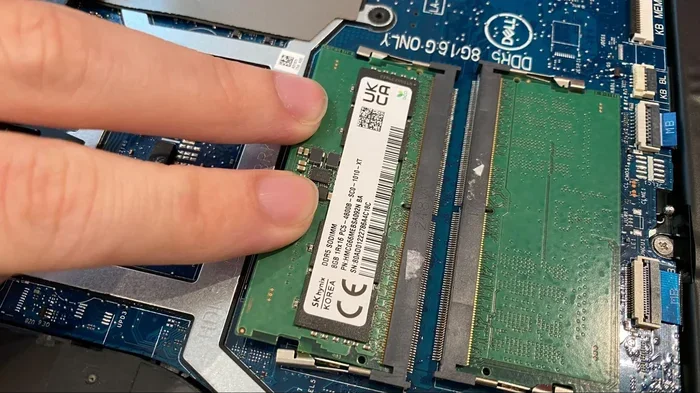
If you are also thinking about improving your laptop’s overall performance, consider a RAM upgrade or adding a faster SSD. These changes pair well with a new KVM setup and give your laptop the boost it deserves.
Take your time picking the right KVM switch. Read reviews, compare specs, and make sure it fits your workflow. Once you make the switch to 1440p60hz, you will wonder how you ever worked at a lower resolution. Happy upgrading!
Frequently Asked Questions
Can any KVM switch handle 1440p60hz?
No, not all KVM switches support 1440p60hz. You need to check the specifications carefully. Look for models that explicitly list 1440p60hz or higher resolution support in their specs.
Do I need special cables for a 1440p60hz KVM setup?
Yes, you should use high-quality HDMI or DisplayPort cables rated for 1440p60hz bandwidth. Cheap or older cables may not handle the data rate and can cause signal issues.
Will upgrading my KVM slow down my laptop?
No, a KVM switch does not affect your laptop’s performance. It simply passes through the video and input signals. Your laptop handles all the processing work.
Can I use a KVM with a laptop and a desktop at the same time?
Yes, that is one of the main benefits of a KVM switch. You can share one monitor and peripherals between your laptop and desktop. Just make sure the KVM supports the ports on both machines.
How do I know if my laptop supports 1440p60hz output?
Check your laptop’s graphics specifications and available ports. Most modern laptops with integrated or dedicated graphics support 1440p60hz via HDMI 2.0 or DisplayPort. You can also check your laptop’s display settings for supported resolutions.
Is a USB-C KVM better than an HDMI KVM for 1440p60hz?
USB-C KVMs offer more versatility, especially for modern laptops. They can carry video, data, and power through a single cable. HDMI KVMs work great too, but may require separate cables for peripherals.