What Causes Ghost Images on Security Cameras
Ghost images on security cameras are caused by a mix of technical quirks and environmental factors. Understanding the root causes—like low light, sensor overload, and lens issues—helps you troubleshoot quickly and maintain reliable surveillance. Follow our practical tips to eliminate phantom shadows and keep your recordings sharp.
Key Takeaways
- Understanding what causes ghost images on security cameras: Provides essential knowledge
📑 Table of Contents
- Introduction
- 1. How Camera Sensors Work – A Quick Primer
- 2. Lighting Conditions – The Usual Suspects
- 3. Camera Settings That Invite Ghosting
- 4. Hardware Factors – Lenses, Sensors, and IR LEDs
- 5. Environmental Interference – Heat, Moisture, and Reflections
- 6. Network and Power Issues – The Invisible Culprits
- 7. How to Diagnose and Fix Ghost Images
- Conclusion
Introduction
If you’ve ever watched a security camera feed and seen a faint, translucent figure that isn’t really there, you’ve experienced a ghost image. It’s a frustrating glitch that can make you question whether your surveillance system is reliable. In everyday language, we call these “ghosts” because they appear like a faint double of a moving object, or a lingering silhouette that fades in and out.
Understanding what causes ghost images on security cameras isn’t just for tech geeks. Homeowners, small‑business owners, and facility managers all need clear footage to protect people and property. In this guide we’ll break down the science, the hardware, and the environment that lead to ghosting, then give you easy‑to‑follow steps to fix or prevent it.
1. How Camera Sensors Work – A Quick Primer
Light, Pixels, and Exposure
Every digital camera, including security cameras, relies on a light‑sensitive sensor—usually a CMOS or CCD chip. The sensor converts incoming photons into electrical signals that become pixels on your video frame. Exposure time (how long the sensor “looks” at a scene) and gain (how much the signal is amplified) are the two main knobs that control brightness.
Visual guide about What Causes Ghost Images on Security Cameras
Image source: serioushomesecurity.com
Why Over‑exposure Leads to Ghosts
When a scene is too bright or the sensor stays open too long, bright areas bleed into darker ones. This creates a “trail” that looks like a ghost. The effect is amplified in low‑light cameras that boost gain to see in the dark.
2. Lighting Conditions – The Usual Suspects
Low Light and Infrared (IR) Illumination
Most outdoor cameras switch to IR LEDs at night. If the IR light is too strong, it can cause “IR blooming,” where bright spots spread across the sensor, leaving a faint duplicate of moving objects. Conversely, insufficient IR light forces the camera to crank up gain, which adds noise that can be mistaken for ghost images.
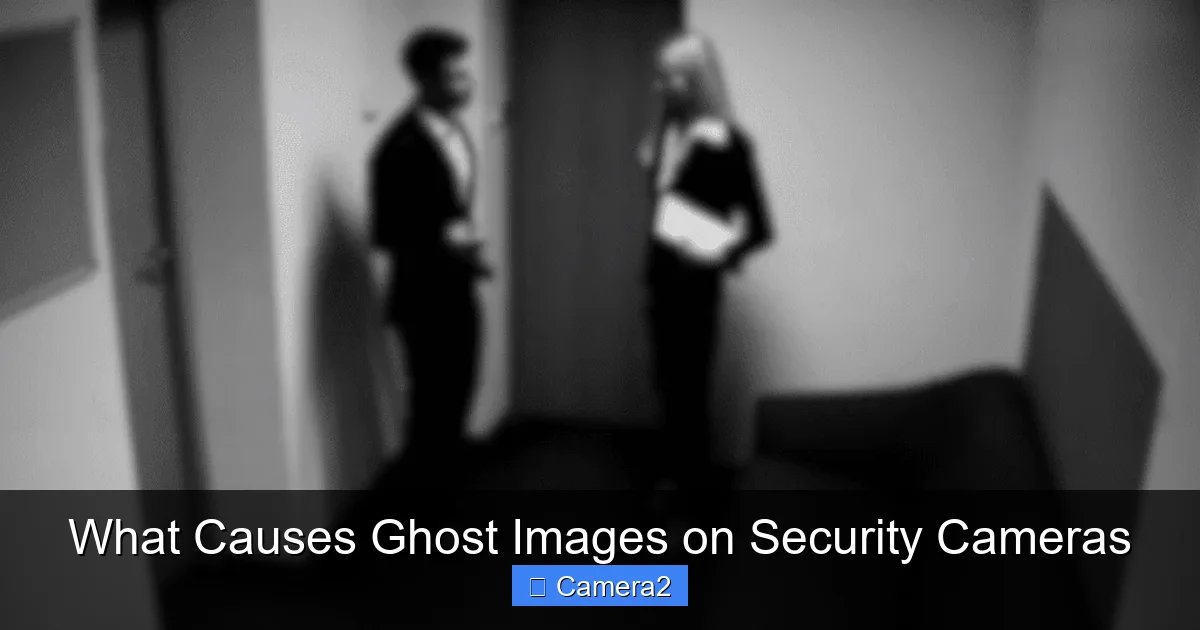
Visual guide about What Causes Ghost Images on Security Cameras
Image source: serioushomesecurity.com
Back‑Lighting and Strong Light Sources
When a subject walks in front of a bright light (like a streetlamp), the camera may struggle to expose both the foreground and background correctly. The result is a semi‑transparent silhouette that lingers after the person moves—classic ghosting.
Practical Tip
- Install supplemental lighting that’s even and diffuse, avoiding direct glare on the lens.
- Use cameras with built‑in HDR (High Dynamic Range) to balance bright and dark areas automatically.
3. Camera Settings That Invite Ghosting
Improper Exposure Settings
If the camera’s auto‑exposure (AE) algorithm is set too aggressively, it may constantly adjust the shutter speed, creating a “ghost trail” for fast‑moving objects. Switching to manual exposure or setting a slower frame rate can help.
Visual guide about What Causes Ghost Images on Security Cameras
Image source: thehomereviews.com
High Gain and Noise Reduction
High gain amplifies both signal and noise. Many cameras apply digital noise reduction (DNR) that smooths out grain, but aggressive DNR can smear moving objects, producing ghost‑like smears.
Compression Artifacts
Most IP cameras compress video using H.264 or H.265. When bandwidth is limited, the encoder may drop frames or use lower bitrate, causing motion‑blur artifacts that mimic ghosts.
Practical Tip
- Set the camera to a constant frame rate (30 fps or 25 fps) and avoid “variable frame rate” modes.
- Use a moderate gain setting and enable “smart DNR” if available.
- Allocate enough network bandwidth; prioritize the camera’s stream in your router’s QoS settings.
4. Hardware Factors – Lenses, Sensors, and IR LEDs
Dirty or Scratched Lenses
A smudged lens scatters light, creating flare that can appear as faint duplicates of bright objects. Over time, small scratches act like tiny prisms, splitting light and generating ghost images.
Aging Sensors
CMOS sensors lose sensitivity with age. The reduced dynamic range makes the camera more prone to over‑exposure in highlights, which can lead to ghosting in high‑contrast scenes.
Faulty IR LEDs
When an IR LED burns out or flickers, the camera may compensate by increasing gain, again inviting ghost artifacts.
Practical Tip
- Clean the lens monthly with a microfiber cloth and lens cleaner.
- Replace cameras older than 5‑7 years to maintain optimal sensor performance.
- Check IR LED operation with a night‑vision tester or a smartphone camera (which can see IR).
5. Environmental Interference – Heat, Moisture, and Reflections
Heat Haze and Mirage Effects
Hot surfaces (asphalt, rooftops) generate rising air currents that refract light. This “heat shimmer” can cause the sensor to record multiple slightly offset images of the same object, perceived as ghosting.
Moisture and Condensation
When a camera’s dome or housing fogs up, light scatters inside the enclosure, creating a soft, ghost‑like overlay on the video.
Reflective Surfaces
Glass doors, mirrored walls, or polished metal can reflect the camera’s own IR light back into the lens, producing a double image.
Practical Tip
- Place cameras away from direct sunlight or hot surfaces; use sun shields if needed.
- Ensure enclosures have proper sealing and consider anti‑fog coatings for humid locations.
- Angle cameras to minimize direct reflections; use polarizing filters if possible.
6. Network and Power Issues – The Invisible Culprits
Power Over Ethernet (PoE) Instability
Fluctuating power can cause the camera’s sensor to reset intermittently, leading to brief frame drops that appear as ghost trails.
Bandwidth Throttling
When multiple cameras share a limited uplink, the router may compress streams aggressively, introducing motion artifacts that look like ghosts.
Practical Tip
- Use a dedicated PoE switch with surge protection.
- Allocate at least 4 Mbps per 1080p stream for smooth video.
- Consider a 16 channel security camera system with built‑in bandwidth management for larger installations.
7. How to Diagnose and Fix Ghost Images
Step‑by‑Step Troubleshooting
- Check lighting: Observe the scene at different times of day. If ghosts appear only at night, focus on IR settings.
- Inspect the lens: Clean it and look for scratches.
- Review camera settings: Switch to manual exposure, lower gain, and disable aggressive DNR.
- Test network bandwidth: Use a speed test tool; ensure each camera gets enough bitrate.
- Swap power source: Connect the camera to a stable PoE injector to rule out power glitches.
- Update firmware: Manufacturers often release patches that improve exposure algorithms.
When to Call a Professional
If ghosting persists after these steps, the sensor may be failing or the installation might have design flaws (e.g., poor placement). A qualified installer can perform a site survey, recommend better‑positioned cameras, and suggest hardware upgrades.
For businesses looking to upgrade, explore a commercial security camera installation that includes proper lighting design and network planning.
Conclusion
Ghost images are a symptom, not a mystery. They arise from a blend of lighting challenges, sensor settings, hardware wear, and environmental conditions. By systematically checking each factor—light, lens, settings, power, and network—you can often eliminate the phantom silhouettes and restore crystal‑clear footage.
Remember, regular maintenance (clean lenses, firmware updates, and proper placement) is the best defense. When in doubt, a professional installation can save you time, money, and the headache of chasing shadows that aren’t really there.
Frequently Asked Questions
Why do I see a faint double of a moving person on my camera?
It’s usually caused by over‑exposure or high gain, which creates a trail that looks like a ghost. Adjust exposure settings or improve lighting to fix it.
Can infrared LEDs cause ghost images?
Yes. Too strong IR illumination can cause blooming, while weak IR forces the camera to increase gain, both leading to ghosting.
Do dirty lenses really affect image quality?
Absolutely. Smudges scatter light and create flare that appears as ghost‑like overlays. A quick lens cleaning often solves the problem.
Is network bandwidth related to ghosting?
Limited bandwidth forces the encoder to compress video heavily, producing motion artifacts that resemble ghosts. Ensure each camera gets enough bitrate.
Can heat or humidity create ghost images?
Heat haze refracts light, and condensation inside the housing scatters light, both resulting in ghost‑like effects.
When should I replace my security camera?
If the sensor is over 5‑7 years old, or if cleaning and settings adjustments don’t stop ghosting, it’s time for a new, more capable camera.