What Does a Usb Port Look Like
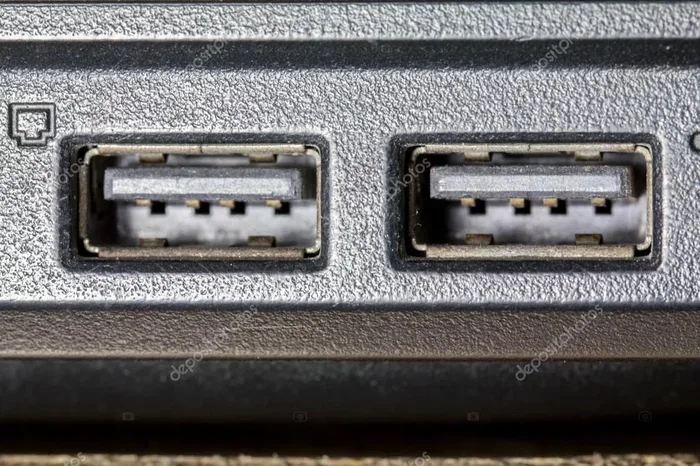
A USB port is a small rectangular or oval-shaped connector on your device that lets you plug in cables for charging, data transfer, and connecting accessories. There are several types, including the classic USB-A, the newer USB-C, and smaller versions like Micro and Mini USB. Knowing what each one looks like helps you pick the right cable and avoid buying the wrong charger or accessory.
You use USB ports every single day. You plug in your phone to charge it. You connect a flash drive to move files. You hook up a mouse or keyboard without thinking twice. But have you ever really stopped to look at the port itself? Understanding what a USB port looks like is more useful than most people think. It saves you time. It prevents frustration. And it helps you buy the right cables and accessories the first time around.
USB stands for Universal Serial Bus. It is the standard way devices talk to each other through a cable. Over the years, USB technology has changed a lot. The ports have gotten smaller, faster, and more versatile. But no matter how much they evolve, the basic idea stays the same. A USB port is a slot on your device where you insert a matching connector. Each type of port has a distinct shape, size, and design. This guide will walk you through every common USB port type so you can identify them with confidence.
Whether you are using a laptop, a desktop computer, a tablet, or even a gaming console, you will encounter USB ports regularly. If you are also curious about what does ram do on a laptop, keep in mind that both USB ports and RAM are essential hardware components that make your device work smoothly. Let us dive into the world of USB ports and learn how to recognize each one.
Key Takeaways
- USB-A is the classic flat rectangular port you have likely seen on computers, TVs, and chargers for years.
- USB-C is the modern oval-shaped port that is replacing older designs on laptops, phones, and tablets.
- Micro USB and Mini USB are smaller ports often found on older devices, cameras, and portable gadgets.
- USB ports serve multiple purposes including data transfer, charging, and connecting peripherals like keyboards and mice.
- Identifying your USB port type helps you choose the right cable and avoid compatibility issues.
- USB technology continues to evolve with faster speeds and improved power delivery in newer versions.
📑 Table of Contents
- The Basics: What Is a USB Port?
- The Most Common USB Port Types and What They Look Like
- How to Identify a USB Port on Your Device
- USB Port Sizes Compared
- What Can You Do With a USB Port?
- Common USB Port Problems and How to Fix Them
- The Future of USB Ports
- Quick Tips for Choosing the Right USB Cable
- Expert Insights
- Key Takeaways
- Frequently Asked Questions
The Basics: What Is a USB Port?
A USB port is a female connector built into your device. It receives a male plug on the end of a cable. Together, they create a connection for power and data. Think of it like a wall outlet, but for digital information and electrical power. USB ports come in different shapes and sizes because different devices need different form factors.
The most important thing to know is that not all USB ports look the same. A port on your laptop might look completely different from a port on your digital camera. This is because manufacturers use different USB types depending on the device size, purpose, and era of production. Let us break down each type so you can tell them apart easily.
Why Does the Shape of a USB Port Matter?
The shape of a USB port matters because it determines what kind of cable and connector you need. You cannot plug a USB-C cable into a USB-A port. They simply do not match. This design on purpose prevents you from damaging your devices by forcing the wrong connector in. Each shape also supports different speeds and power levels. So knowing the shape is the first step toward understanding what your port can do.
The Most Common USB Port Types and What They Look Like
There are several USB port types you will encounter in everyday life. Some you probably recognize right away. Others might be less familiar. Let us go through each one in detail.
USB-A: The Classic Rectangular Port
USB-A is the most recognizable USB port in the world. It is flat and rectangular with a slight bevel on the top edge. If you have ever plugged in a flash drive or a USB mouse, you have used a USB-A port. It has been the standard for decades and still appears on millions of devices today.
USB-A ports are typically found on desktop computers, laptops, TVs, gaming consoles, and wall chargers. They are larger than other USB types, which makes them easy to spot. The port is about 12 millimeters wide and 4.5 millimeters tall. The flat, wide shape means there is only one way to insert the cable correctly.
USB-A ports support different USB versions, from USB 2.0 to USB 3.2. The newer versions often have a blue interior or a “SS” (SuperSpeed) logo next to the port. This helps you identify faster ports at a glance. If you are shopping for a new usb hub or usb cable, you will almost always encounter USB-A connectors.
USB-C: The Modern Oval-Shaped Port
USB-C is the newest mainstream USB connector, and it is quickly becoming the standard. Unlike USB-A, USB-C is small and oval-shaped. It is roughly the size of a micro SD card. The port is symmetrical, which means you can plug it in either way. No more flipping the cable upside down three times before it fits.
USB-C ports are now found on most modern laptops, smartphones, tablets, and even some desktop computers. Apple has used USB-C exclusively on its MacBook lineup since 2019. Many Android phones switched to USB-C years ago. The port supports fast data transfer speeds and high power delivery, which means it can charge laptops and even power external monitors.
The USB-C connector is about 8.4 millimeters wide and 2.6 millimeters tall. It is significantly smaller than USB-A, which makes it perfect for thin and lightweight devices. If you are buying a new laptop, pay close attention to how many USB-C ports it has and what they can do. Some support usb power delivery of up to 100 watts, while others are limited to basic data transfer.
Micro USB: The Small Rectangular Port
Micro USB was the go-to small connector for mobile devices for many years. It looks like a tiny rectangular port, narrower and shorter than USB-A. It has five pins and a slightly trapezoidal shape. You plug it in one way only, so orientation matters.
You will still find Micro USB ports on many budget smartphones, fitness trackers, portable speakers, and Bluetooth earbuds. It is also common on older tablets, e-readers, and handheld gaming devices. While USB-C has largely replaced Micro USB in newer devices, there are still millions of Micro USB accessories in use today.
The Micro USB port is about 6.85 millimeters wide and 1.8 millimeters tall. It is small enough to fit in compact devices, but it does not support the fastest data speeds or the highest power levels that USB-C offers. If you have a device with Micro USB, you can still use it effectively for charging and basic data transfer.
Mini USB: The Older Compact Connector
Mini USB is an older small connector that you will mostly see on legacy devices now. It was popular before Micro USB came along. The Mini USB port is smaller than USB-A but larger than Micro USB. It has a trapezoidal shape with five pins. You will find it on some older digital cameras, MP3 players, and portable GPS devices.
Mini USB is largely obsolete today, but it is still worth knowing what it looks like. If you have an older gadget that uses Mini USB, you may need a special cable or adapter to connect it to modern devices. The port is about 6.85 millimeters wide and 1.8 millimeters tall, very similar in size to Micro USB but with a different pin arrangement.
USB-B and USB-B Mini: The Square-Shaped Ports
USB-B is a square-shaped port that you often see on larger devices like printers and external hard drives. The connector on the cable end is bulky and boxy. It is not as common on consumer devices as USB-A or USB-C, but it plays an important role in professional and office environments.
USB-B Mini is a smaller version of the square connector. It was used on some older portable hard drives and cameras. Both types are being phased out in favor of USB-C, but you may still encounter them on legacy equipment. The square shape makes these ports easy to identify once you have seen them a few times.
How to Identify a USB Port on Your Device
Identifying a USB port is easier than you might think. Start by looking at the shape and size of the port on your device. Is it flat and rectangular? That is likely USB-A. Is it small and oval? That is probably USB-C. Is it tiny and trapezoidal? It could be Micro or Mini USB.
Next, look for markings next to or near the port. Many manufacturers print tiny symbols next to USB ports to indicate their type and speed. A trident logo (the USB symbol) tells you it is a USB port. A “SS” label means it supports SuperSpeed USB. A battery icon or a lightning bolt symbol may indicate a port that supports fast charging or usb power delivery.
You can also check your device manual or the manufacturer website for a full list of ports. This is especially helpful if you are trying to figure out what kind of port is on a laptop or desktop that does not have clear labels. Knowing what your ports support helps you choose the right accessories and avoid buying the wrong cables.
USB Port Sizes Compared
One of the easiest ways to tell USB ports apart is by their size. Here is a quick comparison of the most common USB port types and their physical dimensions.
- USB-A: The largest common USB port. Flat and wide. About 12 mm by 4.5 mm.
- USB-B: Square-shaped and bulky. Used mostly for printers and scanners.
- USB-C: Small and oval. About 8.4 mm by 2.6 mm. Reversible design.
- Micro USB: Very small and rectangular. About 6.85 mm by 1.8 mm.
- Mini USB: Slightly larger than Micro USB. Trapezoidal shape. Now rare.
The size difference matters a lot when you are choosing cables and adapters. A USB-C cable will not fit into a USB-A port, and vice versa. Always check the port size before purchasing a cable or adapter. If you are unsure, a simple usb adapter can bridge the gap between different port types.
What Can You Do With a USB Port?
USB ports do much more than just charge your phone. They are incredibly versatile and serve several important functions on your devices.
Data Transfer
The primary purpose of a USB port is to transfer data between devices. You can plug in a flash drive and move files back and forth. You can connect your phone to a computer and sync photos, music, and documents. External hard drives, cameras, and even some printers rely on USB ports for data transfer. The speed of transfer depends on the USB version your port supports.
Charging Devices
USB ports are now the standard way to charge most portable devices. Your phone, tablet, wireless earbuds, and even some laptops charge through a USB port. The power output varies by port type and USB version. USB-C ports with usb power delivery can deliver significantly more power than older USB-A ports. This means faster charging times and the ability to charge larger devices like laptops through a single cable.
Connecting Peripherals
USB ports connect a wide range of peripherals to your computer or laptop. Keyboards, mice, webcams, microphones, game controllers, and external speakers all use USB connections. You can also connect a usb hub to expand the number of available ports on your device. This is especially useful for laptops that have limited port options.
Display Output
Some modern USB-C ports support video output through technologies like DisplayPort Alt Mode. This means you can connect your laptop directly to a monitor or television using a USB-C to HDMI or USB-C to DisplayPort cable. It is a convenient alternative to dedicated video ports and reduces the number of cables you need to carry.
Common USB Port Problems and How to Fix Them
USB ports can sometimes cause annoying problems. Here are the most common issues and simple fixes.
Loose connection: If your cable wobbles in the port, the internal contacts may be worn out. Try a different cable or plug the connector in more firmly. If the port itself feels loose, you may need to have it repaired by a professional.
Device not recognized: If you plug in a USB device and your computer does not detect it, try a different port. You can also restart your device or update your USB drivers. Sometimes a simple cable swap solves the problem entirely.
Slow data transfer: If your files are copying slowly, check whether your cable and port support the same USB version. Using a USB 2.0 cable in a USB 3.0 port will limit your speed. Also, make sure you are not using a damaged or low-quality cable.
Port not charging: If your device charges slowly or not at all, the port may be clogged with dust or debris. Gently clean it with a toothpick or compressed air. Also check that your power source supports the correct charging speed for your device.
Remember that your device’s overall performance also depends on other hardware components like its memory and processor. If you are wondering about what does ram do in a laptop, it is worth noting that sufficient RAM ensures your system handles USB data transfers smoothly without lag or slowdowns.
The Future of USB Ports
USB technology keeps advancing. The latest USB4 standard builds on the USB-C connector and offers even faster speeds and greater power delivery. USB4 supports data rates up to 40 Gbps and can deliver up to 100 watts of power. This means one USB-C port can handle charging, data transfer, and video output simultaneously.
As more devices adopt USB-C, the need for different cable types is shrinking. Eventually, you may only need one cable to connect all your devices. The transition is already well underway. Most new laptops, phones, and tablets now feature USB-C ports exclusively. The classic USB-A port is slowly becoming a legacy connector, but it will likely remain on many devices for years to come.
Understanding what a USB port looks like today prepares you for the future of connectivity. Whether you are a student, a professional, or a casual user, knowing your ports gives you more control over your tech setup. It helps you make smarter buying decisions and troubleshoot problems faster.
Quick Tips for Choosing the Right USB Cable
- Check the port type first. Match the cable connector to your device port. USB-A needs a USB-A connector. USB-C needs a USB-C connector.
- Look for the USB version. Choose cables that support the fastest version your port can handle for the best performance.
- Buy from reputable brands. Cheap cables may not support the advertised speeds or power levels. They can also be a safety risk.
- Consider cable length. Longer cables are convenient but can sometimes result in slower charging or data transfer speeds.
- Keep spare cables handy. Having extra USB cables at home, in your bag, and at your desk saves you from unexpected connectivity issues.
Expert Insights
Tech experts agree that USB-C is the future of device connectivity. Its reversible design, high power delivery, and fast data speeds make it the most versatile USB connector ever created. However, the transition is still in progress, and many devices still rely on older USB types. The best approach is to understand all the common port types so you can navigate any situation with confidence.
If you are building or upgrading a computer setup, consider how many and what type of USB ports you need. A desktop workstation might benefit from multiple USB-A ports for legacy devices and several USB-C ports for modern peripherals. A laptop user might prioritize USB-C for its versatility and compact size. Planning your port needs ahead of time saves money and prevents compatibility headaches.
Key Takeaways
- USB-A is the classic flat rectangular port found on most computers and chargers.
- USB-C is the modern oval-shaped reversible port that is becoming the new standard.
- Micro USB and Mini USB are smaller ports found on older or compact devices.
- USB-B and USB-B Mini are square-shaped ports commonly used for printers and scanners.
- Each port type has a unique shape and size that determines which cable and connector it uses.
- USB ports serve multiple purposes including data transfer, charging, and connecting peripherals.
- USB technology continues to evolve with USB4 offering faster speeds and more power through USB-C.
Frequently Asked Questions
What does a USB-C port look like?
A USB-C port is small and oval-shaped with rounded edges. It is symmetrical, meaning you can insert the cable either way. It is much smaller than the traditional USB-A port and is now found on most modern laptops, smartphones, and tablets.
Can I plug a USB-C cable into a USB-A port?
No, you cannot. USB-C and USB-A have different shapes and sizes. The USB-C connector is oval and smaller, while the USB-A connector is flat and rectangular. They are designed not to fit together to prevent damage. You would need a USB-C to USB-A adapter or cable to connect the two.
What is the difference between USB 2.0 and USB 3.0 ports?
USB 3.0 ports are faster than USB 2.0 ports. USB 2.0 supports data transfer speeds up to 480 Mbps, while USB 3.0 supports speeds up to 5 Gbps. USB 3.0 ports often have a blue interior or a “SS” (SuperSpeed) logo next to the port. The physical shape of the port is the same for both versions, so they are compatible with the same cables.
Why does my USB port not work?
There are several reasons a USB port might stop working. The port could be physically damaged, clogged with dust, or have loose internal connections. Software issues like outdated drivers can also cause problems. Try plugging your device into a different port, restarting your computer, or updating your USB drivers to troubleshoot the issue.
Is Micro USB the same as Mini USB?
No, they are different connectors. Micro USB is smaller than Mini USB and has a different pin arrangement. Micro USB became the standard for mobile devices, while Mini USB was used on older cameras and MP3 players. Both are now largely replaced by USB-C on newer devices.
How do I know if my USB port supports fast charging?
Look for markings near the port that indicate usb power delivery or fast charging support. USB-C ports are more likely to support fast charging than older USB-A ports. You can also check your device specifications or manual for the port’s power output rating. Using the correct cable and a compatible power source is essential for fast charging.
Now you know exactly what a USB port looks like and why it matters. From the classic USB-A rectangle to the sleek USB-C oval, each port type serves a purpose in your daily tech life. The next time you plug in a cable, you will understand the connection better. Keep this guide handy for quick reference, and you will never buy the wrong cable or adapter again.