What Does Gateway Ping Mean

Gateway ping is a basic network test that checks if your device can talk to your router. It sends small data packets to your default gateway and measures the response time. Understanding gateway ping helps you fix slow internet, connection drops, and other network headaches fast.
If you have ever typed a command into your computer and seen the words “gateway ping,” you might have wondered what it all means. Gateway ping is one of those tech terms that sounds complicated but is actually pretty simple once you break it down. In plain words, it is a quick test your computer runs to see if it can reach your router and get a reply. Think of it like knocking on a door and waiting for someone to answer.
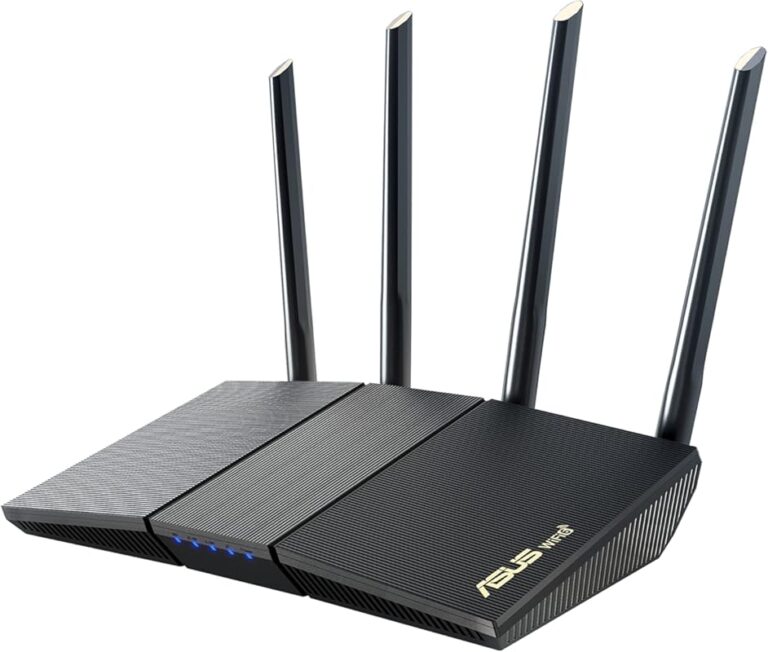
Your default gateway is basically your router. It is the bridge between your device and the wider internet. When you send a ping to that gateway, you are asking, “Hey, can you hear me?” The gateway then replies, “Yes, I am here.” That round trip takes time, and that time is your ping response time or latency. The faster the reply, the better your connection feels.
Many people ignore gateway ping until something goes wrong. A slow or failing ping test can reveal hidden problems with your network connectivity. Whether you are gaming, working from home, or just browsing the web, understanding your gateway ping helps you troubleshoot faster and stay connected. Let us walk through everything you need to know.
Key Takeaways
- Gateway ping tests connectivity: It checks if your device can reach your router and get a response.
- Low ping times are better: Under 50ms is great, while over 150ms signals a problem.
- Packet loss matters: Even small amounts of lost packets can cause lag and slow speeds.
- Common causes include: Router issues, cable problems, network congestion, and outdated firmware.
- Fixes are simple: Restarting your router, checking cables, and updating firmware often solve ping issues.
- RAM affects network performance: Your device’s memory plays a role in handling network data efficiently. What Does Ram Do On A Laptop
- Cloud tools rely on low ping: If you use SaaS platforms or web tools like Webflow, stable ping ensures smooth performance.
📑 Table of Contents
What Is a Gateway?
A network gateway is a node that connects two different networks. In your home, the gateway is your router. It takes data from your laptop, phone, or smart TV and sends it out to the internet. It also brings data back from the internet to your devices.
Every device on your network has an IP address. Your router has its own IP address too, and that address is your gateway address. When your computer wants to send data to the internet, it first sends it to the gateway. The gateway then forwards it along to its final destination.
How Your Gateway Works
Here is a simple way to think about it. Imagine your house is your device. The road outside is the internet. Your gateway is the front gate. Without the gate, you cannot leave your property. Without your router, your devices cannot reach the internet.
When you visit a website, your device sends a request to the gateway. The gateway passes that request to your internet service provider, which routes it to the website. The website sends data back, and the gateway delivers it to your device. This whole process happens in milliseconds.
What Does Ping Mean?
Ping is a network tool that tests whether a device is reachable. It works by sending a small packet of data called an ICMP echo request. The target device receives it and sends back an ICMP echo reply. The time between sending and receiving is your ping time.
The word “ping” comes from sonar technology. Submarines send out sound pulses and listen for the echo. Network ping works the same way, but with data instead of sound. The lower the ping, the faster the response.
Ping vs Latency
People often use ping and latency as synonyms, but they are slightly different. Ping is the tool you run. Latency is the actual delay measured. In everyday use, though, they mean the same thing. A low latency connection feels snappy. A high latency connection feels slow and laggy.
For most home users, a ping under 50 milliseconds is excellent. Between 50 and 100 ms is good. Anything above 150 ms will feel sluggish, especially for gaming or video calls. Network diagnostics tools use these numbers to help you understand your connection quality.
What Does Gateway Ping Mean?
Gateway ping specifically refers to pinging your default gateway. Instead of sending a test packet to a website or server far away, you send it to your own router. This tells you how well your device communicates with the gateway itself.
When you run a gateway ping, you are checking the first hop in your network path. If the gateway ping fails, the problem is local. Your device cannot even reach the router, which means you have no internet access. If the gateway ping succeeds but you still have slow internet, the issue lies beyond your router.
Why Gateway Ping Matters
Gateway ping is the first step in network troubleshooting. Before you check your internet speed or blame your provider, you should verify that your device can talk to the router. A failed gateway ping points directly to a local problem. A successful ping with high latency points to a broader issue.
Here are some real situations where gateway ping helps:
- Wi-Fi drops frequently: A high gateway ping suggests your wireless signal to the router is weak.
- Slow loading pages: If the gateway ping is fast but websites load slowly, the bottleneck is past your router.
- Online gaming lag: A spike in gateway ping tells you the problem starts at your local network.
- Video call freezing: Consistent packet loss in gateway ping can cause audio and video to stutter.
How Gateway Ping Works in Practice
Running a gateway ping is easy. On Windows, you open the Command Prompt and type ping followed by your gateway IP address. On Mac or Linux, you use the Terminal and run the same command. Your gateway address is usually something like 192.168.1.1 or 10.0.0.1.
You can find your gateway address by checking your network settings. On Windows, type ipconfig in Command Prompt and look for the “Default Gateway” line. On Mac, go to System Settings, then Network, and look for your router address.
Reading the Ping Results
When you run the ping command, you get several pieces of information. The time value shows how many milliseconds each round trip took. The TTL (time to live) shows how many hops the packet can take before it is discarded. The packet loss percentage tells you how many requests got no reply.
A healthy gateway ping shows consistent times with zero packet loss. If you see times jumping from 5 ms to 200 ms, that is a red flag. If you see “Request timed out” messages, your device is not reaching the gateway at all.
The Role of Ping Response Time
Ping response time is the most important number in your gateway ping results. It directly affects how fast your network feels. A response time of 1 to 10 ms is near perfect. 10 to 30 ms is great for most activities. 30 to 50 ms is acceptable. Above 50 ms, you may start noticing delays.
Your network speed and ping are not the same thing. You can have a very fast download speed but a terrible ping. This happens when your connection is congested or when your router is struggling to handle traffic. That is why checking gateway ping separately from a speed test gives you a clearer picture.
Common Gateway Ping Problems
Not all gateway ping results are good. Several issues can cause high latency or failed pings. Understanding these problems helps you fix them faster.
Router Overload
Your router handles all the traffic in your home. If too many devices are streaming, downloading, or gaming at the same time, the router can get overwhelmed. This causes gateway ping times to spike. You might notice lag during video calls or slow page loads even though your internet plan is fast.
Restarting your router clears its memory and resets the connection. This simple step fixes many ping issues. If restarting does not help, your router might be too old to handle modern usage. Upgrading to a better router can make a big difference.
Cable and Connection Issues
If you use a wired connection, a damaged Ethernet cable can cause packet loss and high ping. Loose cables, bent connectors, or old wiring all create problems. Wireless connections face their own challenges, such as interference from microwaves, baby monitors, or neighboring Wi-Fi networks.
Try swapping your cable or moving closer to the router to test if the issue is physical. A simple network troubleshooting step like this often reveals the culprit quickly.
Firmware and Software Problems
Your router runs software called firmware. Outdated firmware can cause compatibility issues and poor performance. Manufacturers release updates that fix bugs and improve stability. Checking for router updates and installing them can lower your gateway ping significantly.
On your computer, outdated network drivers can also cause ping problems. Keeping your drivers updated ensures your device communicates with the router efficiently.
Network Congestion Beyond Your Home
Sometimes the problem is not inside your home. Your internet service provider routes traffic through shared infrastructure. During peak hours, this infrastructure can get congested. Your gateway ping might be fine, but the path beyond your router becomes slow.
This is where tools like traceroute come in handy. Traceroute shows every hop your data takes from your device to a destination. If the delay starts after your gateway, the problem is with your ISP or the wider internet.
How to Fix Gateway Ping Issues
Fixing gateway ping problems is usually straightforward. Start with the simplest solutions and work your way up. Most ping issues resolve within a few minutes of basic troubleshooting.
- Restart your router. Unplug it, wait 30 seconds, and plug it back in. This clears temporary glitches and refreshes the connection.
- Check your cables. Make sure Ethernet cables are firmly plugged in. Replace any cables that look damaged or worn.
- Move closer to the router. If you are on Wi-Fi, distance and walls weaken your signal. Getting closer can lower your ping immediately.
- Update your router firmware. Log into your router settings and check for updates. Install any available updates.
- Reduce network load. Pause downloads and stop background streaming on other devices. This frees up bandwidth for your ping requests.
- Change your Wi-Fi channel. Neighboring networks on the same channel cause interference. Switching to a less crowded channel can improve ping.
- Contact your ISP. If none of the above works, the problem might be on their end. Call your provider and report the issue.
When to Upgrade Your Equipment
If you have tried all the fixes and your gateway ping is still poor, it might be time for new equipment. Older routers lack the processing power to handle modern network demands. A router with better hardware can process more data with lower latency.
Your device’s memory also plays a role. Devices with more RAM handle network data more efficiently, reducing lag. If your computer or laptop is older and slow, upgrading the memory can improve overall network performance. To learn more about how memory affects your device, check out this guide on What Does Ram Do On A Laptop.
Gateway Ping and Online Activities
Different online activities have different ping requirements. Understanding these needs helps you set realistic expectations and troubleshoot better.
Gaming
Online gamers need the lowest ping possible. A ping under 30 ms is ideal for competitive games. Between 30 and 60 ms is still playable. Above 100 ms, you will notice delays between your actions and what happens on screen. Gateway ping is especially important for gamers because every millisecond counts.
Video Conferencing
For Zoom, Teams, or Meet calls, a ping under 100 ms works fine. The bigger concern is packet loss. Even 2 to 3 percent packet loss can cause choppy audio and frozen video. Running regular gateway ping tests during important calls can help you catch problems early.
Streaming and Browsing
Watching videos or browsing the web is the most forgiving activity. You can tolerate higher ping and still have a good experience. However, if your gateway ping is consistently high, it may indicate a deeper issue that will eventually affect all your online activities.
Cloud and Remote Work
If you rely on cloud-based tools for work, stable ping is essential. Applications that depend on real-time data transfer suffer when latency is high. This is especially true for teams using SaaS platforms. To understand how cloud-based tools depend on your network, you can read more about what SaaS stands for and how it relies on connectivity.
Similarly, web developers and designers who use platforms like Webflow need reliable network performance to build and preview websites without delays. A stable gateway ping ensures your workflow stays smooth.
Advanced Gateway Ping Tips
Once you understand the basics, you can take your network diagnostics to the next level. These tips help you dig deeper into your connection quality.
Use Continuous Ping
Instead of sending a few pings and stopping, use the -t flag on Windows or the continuous option on Mac. This sends pings nonstop and lets you watch for spikes in real time. You can catch intermittent problems that a single ping test would miss.
Compare Wired vs Wireless
Run gateway ping tests on both your wired and wireless connections. Wired connections almost always have lower and more stable ping. If your wireless ping is much worse than wired, the issue is with your Wi-Fi signal or interference.
Ping Multiple Devices
Test gateway ping from different devices on your network. If one device has high ping and others do not, the problem is with that device, not your router. This helps you narrow down whether the issue is hardware, software, or location-based.
Monitor Over Time
Gateway ping can vary throughout the day. Run tests at different times to identify patterns. If your ping is always high in the evenings, your ISP’s network is likely congested during peak hours. Tracking these patterns gives you useful data when talking to your provider.
Common Mistakes People Make with Gateway Ping
Even tech-savvy users sometimes make mistakes when interpreting gateway ping results. Avoid these common pitfalls.
- Confusing ping with speed: Ping measures latency, not download or upload speed. A fast ping does not mean fast downloads.
- Ignoring packet loss: A good ping time means nothing if you are losing packets. Always check the loss percentage.
- Testing only once: Network conditions change. A single test gives you a snapshot, not the full picture.
- Blaming the ISP too early: Many ping issues are caused by local factors like cables, router settings, or device problems. Rule these out first.
- Not checking the gateway address: Pinging the wrong address gives you meaningless results. Always confirm your correct gateway IP first.
Key Takeaways
Gateway ping is a simple but powerful tool for understanding your network health. It tells you whether your device can reach your router and how fast the communication is. A low, stable gateway ping means your local network is working well. A high or failing ping points to a problem you can often fix yourself.
Start with the basics: restart your router, check your cables, and run regular ping tests. If the problem persists, dig deeper into firmware updates, channel changes, and equipment upgrades. Remember that your device’s memory and processing power also affect how well it handles network tasks, so keeping your hardware in good shape matters too.
By paying attention to your gateway ping, you take control of your network experience. You stop guessing and start solving problems with confidence. Whether you are a casual browser, a remote worker, or a competitive gamer, understanding gateway ping gives you an edge.
Frequently Asked Questions
What is a normal gateway ping time?
A normal gateway ping time is between 1 and 30 milliseconds for most home networks. Anything under 50 ms is considered good. If your gateway ping consistently exceeds 100 ms, you should investigate potential issues like router overload, weak signal, or outdated equipment.
Can a bad gateway ping cause slow internet?
A bad gateway ping does not directly slow your download speed, but it can cause lag, delays, and timeouts. If your device struggles to communicate with the router, every online activity feels sluggish. Fixing gateway ping issues often improves the overall perception of your internet speed.
How do I find my gateway IP address?
On Windows, open Command Prompt and type ipconfig. Look for the Default Gateway line. On Mac, go to System Settings, click Network, and select your active connection. The router address listed is your gateway IP. You can then ping that address to test connectivity.
Why does my gateway ping spike randomly?
Random ping spikes often happen due to network congestion, interference, or background processes using bandwidth. Other devices on your network downloading large files or updating software can cause temporary spikes. If spikes happen frequently, consider upgrading your router or switching to a wired connection.
Is gateway ping the same as internet speed?
No, gateway ping and internet speed measure different things. Ping measures latency, or the time it takes for data to travel to your router and back. Internet speed measures how much data you can download or upload per second. You can have fast internet speed with poor ping, or slow speed with excellent ping.
What should I do if my gateway ping fails completely?
If your gateway ping fails, first check that your device is connected to the network. Verify your Wi-Fi or Ethernet connection is active. Then restart your router and try again. If the ping still fails, check your cable connections, update your network drivers, and try pinging the gateway from a different device to isolate the problem.
=== CONCLUSION ===
Gateway ping is one of the simplest yet most useful tools you have for managing your home network. It gives you instant feedback on whether your device can reach your router and how fast that communication happens. A healthy gateway ping means smooth browsing, lag-free gaming, and reliable video calls. A poor gateway ping means it is time to troubleshoot.
By running regular ping tests and understanding what the results mean, you can catch problems early before they ruin your online experience. Start with the basics, work through the fixes, and upgrade your equipment when needed. Your network will thank you. Take a few minutes today to run a gateway ping test and see what you discover.