What Is a Serial Box on a Mac
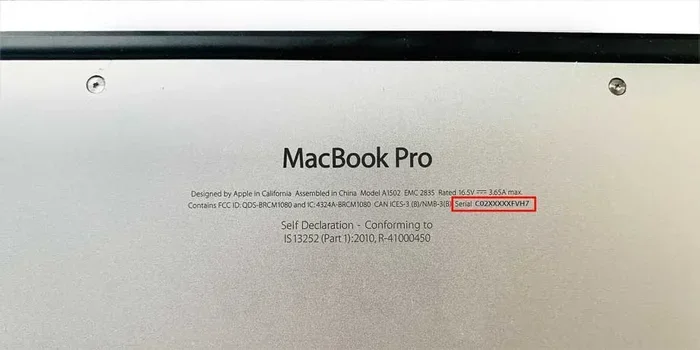
A serial box on a Mac is the display area where your Mac’s unique serial number appears. This number is essential for checking warranty status, getting Apple support, and identifying your specific Mac model. You can find it through system settings, the physical device, or Apple’s online tools.
If you own a Mac, you have probably heard the term serial number thrown around. But what does it really mean? And more importantly, what exactly is a serial box on a Mac? This guide breaks it all down in simple terms. Whether you are checking warranty status, getting repairs, or just curious about your device, understanding your Mac serial number is essential.
Your Mac serial number is like a fingerprint for your computer. No two Macs share the same one. Apple uses this unique code to track every device they sell. It helps them manage warranty claims, provide support, and verify authenticity. When you see the serial box on your Mac, you are looking at the gateway to all of this important information.
In this article, we will walk you through everything you need to know. We will cover where to find your serial number, why it matters, and how to use it for warranty checks. We will also share tips on keeping this information safe. By the end, you will feel confident about managing your Mac serial number like a pro.
Key Takeaways
- Serial Box Location: You can find your Mac serial number in System Settings, on the physical device, or through Apple’s online serial number lookup tool.
- Warranty and Support: Your Mac serial number is the key to checking warranty status, registering your product, and getting Apple support.
- Multiple Ways to Find It: There are at least five different methods to locate your Mac serial number, from software to physical labels.
- Troubleshooting Helper: The serial number helps Apple technicians diagnose issues and verify your Mac model and specifications.
- Keep It Safe: Always record your Mac serial number and store it in a secure place for future reference.
- Free and Easy: Checking your serial number and warranty status takes just a few minutes and costs nothing.
📑 Table of Contents
What Is a Serial Box on a Mac?
The serial box on a Mac refers to the area or display where your Mac’s serial number is shown. This can appear in different places depending on how you are looking for it. On screen, you will find it inside your System Settings or System Preferences. On the physical device, it is printed on a label or engraved on the casing.
Think of the serial box as your Mac ID card. When you open it, you see a string of letters and numbers that is unique to your machine. Apple assigns this code the moment your Mac is manufactured. It follows your device from the factory to your desk and beyond.
The serial number is different from your Mac model number. The model number tells you what type of Mac you have, like a MacBook Pro or MacBook Air. The serial number tells you which exact unit you own. Both pieces of information are useful, but they serve different purposes.
For example, two people might own the same MacBook Pro model. But their serial numbers will be completely different. This is why the serial box matters so much. It gives your Mac its own identity in Apple’s system.
Why the Serial Box Matters
Your serial box holds more power than you might think. It is the key to unlocking important details about your Mac. Here is what you can learn from it:
- Warranty status: Find out if your Mac is still covered under Apple warranty.
- Repair eligibility: Determine if your device qualifies for service or replacement.
- Purchase date: Estimate when you bought your Mac based on the serial code.
- Specifications: View your Mac’s exact hardware details, including memory and storage.
- Support access: Get faster help from Apple support by providing your serial number.
As you can see, the serial box is not just a random string of characters. It is a powerful tool that connects you to Apple’s entire ecosystem of services.
Where to Find Your Mac Serial Number
Finding your Mac serial number is easier than you might think. There are several ways to locate it. You can use software on your Mac, look at the physical device, or visit Apple’s website. Let us go through each method step by step.
Using System Settings
The fastest way to find your serial number is through your Mac’s system settings. Here is how to do it:
- Click the Apple logo in the top-left corner of your screen.
- Select “System Settings” or “System Preferences” depending on your macOS version.
- Click on “General” and then “About This Mac.”
- Your serial number will appear in the overview section.
This method works on every Mac. Whether you have a MacBook Pro, MacBook Air, iMac, or Mac Mini, the steps are the same. The serial number will be clearly labeled and easy to copy if you need it.
Looking at the Physical Device
You can also find your serial number on the physical Mac itself. For most MacBooks, the serial number is printed on the bottom of the device. On older models, it may be engraved near the hinge or on the back of the case.
For iMacs and Mac Studios, the serial number is on the back of the display. For Mac Pros, look at the serial number label on the underside of the chassis.
If you cannot find the physical label, do not worry. The software method always works. You can also check the original packaging. Apple prints the serial number on the barcode sticker on the box.
Using Apple’s Online Tools
Apple provides a free online tool for serial number lookup. You can visit Apple’s support page and enter your serial number to view your Mac’s details. This is especially useful if your Mac is not turned on or you cannot access system settings.
Just like checking how to tell if a CCTV camera is on, verifying your Mac’s identity through its serial number gives you peace of mind. You can confirm your device is registered and active in Apple’s system.
Why Your Mac Serial Number Matters
Your Mac serial number is one of the most important pieces of information you will ever have about your device. It is not just a random code. It serves many practical purposes in your daily use of the Mac.
Warranty Status and Coverage
The first reason your serial number matters is warranty tracking. Apple provides limited warranty coverage on all new Macs. The length of coverage depends on when you purchased the device. By entering your serial number into Apple’s warranty check tool, you can see exactly when your warranty expires.
This is incredibly helpful when something goes wrong. If your Mac develops a hardware issue, the first thing Apple will ask for is your serial number. They use it to verify your warranty status and determine what service options are available to you.
You can also check if your Mac is covered by AppleCare+. This extended protection plan adds more years of coverage and includes accidental damage protection. Without your serial number, you cannot confirm your AppleCare+ status.
Product Registration and Support
When you contact Apple support, they will almost always ask for your serial number. This helps them pull up your device profile instantly. They can see your Mac model, purchase date, and service history.
Having your serial number ready speeds up the support process significantly. Instead of going through lengthy troubleshooting steps, the support team can identify the issue faster. They may even be able to schedule a repair or replacement right away.
Your serial number also ties into Apple’s product registration system. When you register your Mac, Apple creates a record that links your device to you. This is useful for theft recovery and ownership verification.
Mac Hardware Specifications
Your serial number can reveal detailed information about your Mac’s hardware. By using the serial number lookup tool, you can find out exactly what components are inside your device. This includes your processor type, memory amount, and storage capacity.
For example, if you want to know about your Mac’s memory, the serial number lookup can tell you the exact RAM configuration. This is similar to checking what is the RAM on a laptop, but specific to your Mac. You can find out whether your Mac has 8GB, 16GB, or 32GB of memory without opening the case.
This information is especially useful when planning upgrades or troubleshooting performance issues. If your Mac feels slow, checking the serial number can confirm whether your hardware meets the requirements for the latest macOS updates.
How to Check Your Mac Warranty Using the Serial Number
Checking your Mac warranty status is a straightforward process. All you need is your serial number and an internet connection. Apple makes this process free and easy for all Mac users.
Step-by-Step Guide
Follow these simple steps to check your Mac warranty:
- Find your Mac serial number using one of the methods above.
- Go to Apple’s Check Coverage page on their website.
- Enter your serial number in the provided field.
- Click “Continue” to view your warranty and coverage details.
The results page will show you your warranty expiration date, AppleCare+ status, and any eligible service options. It is a quick way to know exactly where you stand with your Mac coverage.
What Information You Can Find
The warranty check page provides several key details. You will see the original purchase date, which helps you estimate your warranty timeline. You will also see if your device has AppleCare+ coverage and when that coverage ends.
Additionally, the page shows your Mac’s model and specifications. This includes the processor type, memory size, and storage capacity. If you ever need to verify your Mac specs for a repair or upgrade, this page has you covered.
Remember, having a good RAM size for a laptop matters for performance. The warranty check page will confirm your Mac’s memory configuration, so you know exactly what you are working with.
Common Issues with Mac Serial Numbers
While finding your Mac serial number is usually straightforward, sometimes you may run into issues. Here are the most common problems and how to solve them.
Serial Number Not Showing Up
If your serial number does not appear in System Settings, try restarting your Mac first. Sometimes the system needs a fresh start to display all information correctly. After restarting, go back to “About This Mac” and check again.
If the serial number still does not show up, you may be dealing with a software issue. Try updating your macOS to the latest version. Go to System Settings, then General, then Software Update. Install any available updates and restart your Mac.
In rare cases, the serial number may be missing due to hardware damage. If your Mac has been dropped or exposed to moisture, the serial number label or engraving may have worn off. In this situation, contact Apple support for assistance.
Invalid or Unrecognized Serial Number
If Apple’s website says your serial number is invalid, double-check that you entered it correctly. Serial numbers are case-sensitive and must include all characters exactly as shown. Even a single missing letter or number can cause the lookup to fail.
Also make sure you are entering the Mac serial number and not a different Apple product number. iPads, iPhones, and Apple Watches all have their own serial numbers. Make sure you are using the one specific to your Mac.
If you recently purchased a used Mac, the previous owner may have removed the device from their Apple ID. This does not affect the serial number itself, but it may cause confusion during warranty checks. Always verify the serial number before buying a used Mac.
Tips for Keeping Your Mac Serial Number Safe
Your Mac serial number is valuable information. Keeping it safe and accessible can save you a lot of headaches down the road. Here are some practical tips for managing your serial number.
Digital Storage Options
Store your Mac serial number in a secure digital location. You can save it in a password manager like iCloud Keychain, 1Password, or Bitwarden. These tools keep your information encrypted and organized.
You can also create a note on your phone or computer with the serial number. Just make sure the note is password-protected or stored in a secure app. Never leave your serial number in an unsecured document or email.
Physical Storage Options
Keep a written record of your Mac serial number in a safe place at home. A fireproof safe or a dedicated filing cabinet works well. Write down the serial number along with the purchase date and store it with your receipt or proof of purchase.
Some people like to take a photo of the serial number label on their Mac. This creates a quick reference that is always available on your phone. Just make sure the photo is stored in a secure album or cloud storage.
When to Share Your Serial Number
Share your Mac serial number only with trusted sources. Apple support, authorized repair centers, and verified retailers are all safe places to provide your serial number. Never share it on public forums or with strangers online.
Your serial number alone cannot be used to access your personal data. However, it can be used to verify warranty status or request service. Keeping it private helps protect your device and your warranty coverage.
Conclusion
Understanding what a serial box on a Mac is and how to use it gives you real power over your device. Your Mac serial number is more than just a string of characters. It is your gateway to warranty coverage, Apple support, and device identification. By learning where to find it and how to use it, you take control of your Mac ownership experience.
Take a few minutes today to locate your Mac serial number. Write it down and store it somewhere safe. Check your warranty status using Apple’s online tools. These small steps can save you significant time and money if anything goes wrong with your Mac in the future.
Your Mac is a valuable investment. Treating its serial number with care is one of the simplest ways to protect that investment. Now that you know everything about the serial box on your Mac, you are better equipped to manage your device with confidence.
Frequently Asked Questions
Can I change my Mac serial number?
No, you cannot change your Mac serial number. Apple assigns a unique serial number to every device during manufacturing. Attempting to alter or remove it can void your warranty and may be considered tampering with the device.
What does a Mac serial number look like?
A Mac serial number is typically a string of 12 alphanumeric characters. It includes a mix of letters and numbers and follows Apple’s specific format. You can always verify the format by checking it against the serial number shown in your System Settings.
How do I find my Mac serial number if it is turned off?
If your Mac is turned off, you can find the serial number on the physical device. Look for the label on the bottom of a MacBook or the back of an iMac. You can also check the original packaging or your purchase receipt for the serial number.
Is my Mac serial number the same as the model number?
No, the serial number and model number are different. The model number identifies the type of Mac you have, such as MacBook Pro 14-inch. The serial number identifies your specific individual unit. Both are important but serve different purposes.
Can someone use my Mac serial number?
Your serial number alone cannot be used to access your personal data or take control of your Mac. However, someone could use it to check warranty status or request service. This is why it is important to keep your serial number private and only share it with trusted sources.
How often should I check my Mac warranty status?
It is a good idea to check your Mac warranty status at least once a year. You should also check it before any repair or service visit. This ensures you are aware of your coverage and can plan accordingly for any out-of-pocket costs.