What Is a Thinkpad Ultranav Utility
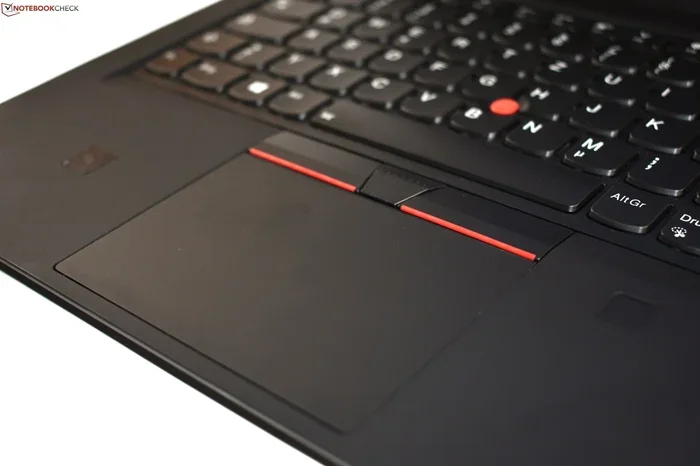
The Thinkpad Ultranav Utility is a software tool from Lenovo that lets you control and customize how your ThinkPad laptop’s pointing device works. It combines settings for the famous TrackPoint and the touchpad into one easy-to-use interface. Whether you want to adjust sensitivity, change scrolling behavior, or set up gestures, this utility gives you full control over your laptop’s input experience.
If you own a Lenovo ThinkPad laptop, you have probably noticed a small red nub sitting between your G, H, and B keys. That little stick is called the TrackPoint, and it is one of the most beloved features of ThinkPad laptops. But did you know there is a dedicated piece of software that controls how this pointing device works? That software is the Thinkpad Ultranav Utility.
Many ThinkPad users never even realize this utility exists. They use their laptop the way it comes out of the box and never dig into the settings. But the Thinkpad Ultranav Utility unlocks a whole level of customization that can make your laptop feel faster, smoother, and more personal. In this article, we will break down exactly what this utility does, how to set it up, and why it matters for your daily workflow.
The Thinkpad Ultranav Utility is more than just a driver. It is a full-featured control center for everything related to how you interact with your laptop through pointing input. Think of it as the bridge between your physical actions and what happens on screen. Let us dive into the details.
Key Takeaways
- What It Is: The Thinkpad Ultranav Utility is Lenovo’s official software for managing ThinkPad pointing device settings.
- TrackPoint Control: It lets you adjust the sensitivity and behavior of the iconic ThinkPad red pointing stick.
- Touchpad Customization: You can fine-tune touchpad gestures, scrolling, and tap-to-click behavior.
- Easy Installation: The utility installs through Lenovo Vantage or direct driver downloads from Lenovo’s website.
- System Compatible: It works on most modern ThinkPad models running Windows 10 or Windows 11.
- Troubleshooting Available: Common issues like unresponsive TrackPoint or touchpad glitches can often be fixed through the utility settings.
📑 Table of Contents
- What Does the Thinkpad Ultranav Utility Do?
- Key Features of the Thinkpad Ultranav Utility
- How to Install and Set Up the Thinkpad Ultranav Utility
- Customizing Your Pointing Device for Maximum Productivity
- System Requirements and Compatibility
- Troubleshooting Common Thinkpad Ultranav Utility Issues
- Final Thoughts
What Does the Thinkpad Ultranav Utility Do?
At its core, the Thinkpad Ultranav Utility manages the pointing devices on your ThinkPad. This includes both the TrackPoint (the red nub) and the touchpad. Without this utility, your laptop would still work, but you would miss out on deep customization options that make the experience feel tailored to you.
The utility combines what used to be separate drivers into one unified package. This is why it is called “Ultranav” — it navigates everything related to how you move the cursor, scroll through pages, and interact with on-screen elements. It handles the laptop pointing device settings that most users never think to change.
Here is what the Thinkpad Ultranav Utility specifically controls:
- TrackPoint sensitivity: How fast the cursor moves when you push the red nub.
- Touchpad sensitivity: How responsive the touchpad is to your finger movements.
- Scrolling behavior: Whether scrolling is smooth or step-by-step, and which direction it goes.
- Tap-to-click: Whether a light tap on the touchpad registers as a click.
- Gesture controls: Multi-finger gestures like pinch-to-zoom or two-finger scrolling.
- Button mapping: What happens when you press different buttons on the touchpad or TrackPoint.
All of these settings are accessible from one place. That is the real power of the Thinkpad Ultranav Utility. Instead of digging through Windows settings and third-party apps, you get everything in a single, clean interface designed specifically for ThinkPad hardware.
Why Does This Matter for ThinkPad Users?
ThinkPad laptops are built for productivity. People use them for hours every day, typing reports, navigating spreadsheets, and clicking through presentations. The way your pointing device behaves has a huge impact on how fast and comfortable your work feels. A ThinkPad pointing device that is too sensitive can cause frustration. One that is too slow can slow you down. The utility lets you find the sweet spot.
Key Features of the Thinkpad Ultranav Utility
The Thinkpad Ultranav Utility comes packed with features that go beyond basic mouse settings. Let us walk through the most important ones so you understand what you are getting.
TrackPoint Customization
The TrackPoint is what sets ThinkPad laptops apart from the competition. It is a small pressure-sensitive nub that lets you control the cursor without ever leaving the keyboard. The Thinkpad Ultranav Utility gives you granular control over how the TrackPoint behaves. You can adjust the pointer speed, set the acceleration curve, and even tweak how much pressure is needed to move the cursor.
For users who rely heavily on the TrackPoint — and that is most ThinkPad users — this feature alone makes the utility worth installing. You can dial in the exact feel that matches your typing style and hand size.
Touchpad Fine-Tuning
While the TrackPoint gets most of the attention, the touchpad is equally important. The Thinkpad Ultranav Utility lets you adjust touchpad sensitivity so it responds exactly how you want. You can enable or disable palm rejection, adjust the tap pressure needed for a click, and configure how the touchpad behaves when you are typing.
Some ThinkPad models also support multi-finger gestures through the utility. You can set up two-finger scrolling, pinch-to-zoom, and other gestures that make navigating your laptop feel modern and intuitive.
Unified Control Panel
One of the best things about the Thinkpad Ultranav Utility is that it brings everything together. Instead of juggling separate settings for the TrackPoint and the touchpad, you get one control panel. This makes it much easier to experiment with different configurations and find what works best for you.
The interface is straightforward and organized. Even if you are not tech-savvy, you can navigate the settings without any confusion. Every option has a clear label and a tooltip that explains what it does.
How to Install and Set Up the Thinkpad Ultranav Utility
Getting the Thinkpad Ultranav Utility on your laptop is a straightforward process. You have a few different options depending on your setup and preferences.
Method 1: Through Lenovo Vantage
The easiest way to install the utility is through Lenovo Vantage. This is Lenovo’s official app that comes pre-installed on most ThinkPad laptops. Here is how to do it:
- Open Lenovo Vantage from your Start menu.
- Click on the “Device” or “Hardware” section.
- Look for “Mouse” or “Pointing Device” settings.
- If the Ultranav Utility is not installed, you will see an option to install or update it.
- Click the install button and follow the on-screen prompts.
Lenovo Vantage will handle the download and installation automatically. This is the recommended method because it ensures you get the correct version for your specific ThinkPad model.
Method 2: Manual Download from Lenovo Support
If you do not have Lenovo Vantage or prefer a manual approach, you can download the utility directly from Lenovo’s support website. Here is what to do:
- Go to the Lenovo Support website.
- Enter your ThinkPad model number in the search bar.
- Navigate to the “Drivers and Software” section.
- Look for the Ultranav Utility or the pointing device driver package.
- Download and run the installer.
Make sure you download the version that matches your operating system. The utility works with Windows 10 and Windows 11. If your laptop is running an older version of Windows, check Lenovo’s website for compatible versions.
Method 3: Through Windows Device Manager
In some cases, the utility may already be installed but needs a driver update. You can check through Windows Device Manager:
- Right-click the Start button and select “Device Manager.”
- Expand the “Mice and other pointing devices” section.
- Right-click your ThinkPad pointing device and select “Update driver.”
- Choose “Search automatically for drivers.”
This method is useful if you suspect the utility is already present but not functioning correctly. Sometimes a simple driver update through Device Manager can resolve pointing device issues without needing a full reinstall.
Customizing Your Pointing Device for Maximum Productivity
Once the Thinkpad Ultranav Utility is installed, the real fun begins. Customization is where this tool truly shines. You can tailor every aspect of your pointing device to match how you work.
For example, if you are a heavy spreadsheet user, you might want to increase the TrackPoint sensitivity so you can move across cells quickly. If you prefer using the touchpad for gestures, you can enable multi-finger scrolling and set up custom gesture shortcuts.
The Thinkpad Ultranav Utility also lets you adjust the touchpad behavior when you are typing. You can set it to ignore accidental touches while you type, which prevents frustrating cursor jumps. This is especially helpful if you have larger hands or tend to rest your palms on the touchpad while typing.
Another great feature is the ability to swap the primary and secondary buttons. If you are left-handed or prefer right-click with a different button, the utility makes it easy to reconfigure. These small adjustments can make a big difference in your daily comfort and efficiency.
Keep in mind that the Thinkpad Ultranav Utility works alongside your system’s main mouse settings in Windows. You can still adjust your overall pointer speed through Windows Settings, but the utility gives you ThinkPad-specific tweaks that the general Windows settings do not offer.
Tips for Getting the Most Out of the Utility
- Start with default settings: Play with one setting at a time so you know what changed.
- Adjust TrackPoint acceleration: A gentle acceleration curve feels more natural for most users.
- Enable palm rejection: This prevents accidental touches when you type on the touchpad.
- Experiment with gesture shortcuts: Custom gestures can save you time on repetitive tasks.
- Update regularly: Lenovo releases updates that improve compatibility and add new features.
System Requirements and Compatibility
The Thinkpad Ultranav Utility is designed to work with a wide range of ThinkPad models. However, there are some requirements and compatibility considerations you should know about.
First, the utility is designed for Windows operating systems. It works with Windows 10 and Windows 11. If you are running a different operating system, such as a Linux distribution, the Ultranav Utility may not be available or may not function as expected. ThinkPad laptops can run Linux, but the pointing device experience is often handled differently through Linux drivers.
In terms of hardware, the Thinkpad Ultranav Utility requires a ThinkPad laptop with a TrackPoint and a touchpad. These features are standard across nearly all ThinkPad models, from the entry-level ThinkPad E series to the high-end ThinkPad X1 Carbon. If your laptop has both of these pointing devices, the utility should work with them.
As for system resources, the utility is lightweight and does not require significant processing power or memory. You do not need a high-end configuration to run it smoothly. Even laptops with basic specifications handle the utility without any performance impact. This is one of the reasons why the Thinkpad Ultranav Utility is so accessible — it works on almost every ThinkPad without demanding extra system resources.
It is also worth noting that the utility receives updates through Lenovo’s driver update channels. Keeping your laptop updated ensures you always have the latest version of the utility with bug fixes and new features.
Troubleshooting Common Thinkpad Ultranav Utility Issues
While the Thinkpad Ultranav Utility is generally reliable, users may occasionally run into issues. Here are some common problems and how to fix them.
TrackPoint Not Responding
If the red nub stops working, the first thing to check is whether the utility is running. Open the utility from your system tray or Start menu and verify that the TrackPoint settings are enabled. Sometimes a Windows update can reset driver settings, causing the TrackPoint to become unresponsive. Reinstalling the utility through Lenovo Vantage usually fixes this.
Touchpad Gestures Not Working
If your multi-finger gestures have stopped working, the utility settings may have been changed accidentally. Open the utility and navigate to the gesture settings. Make sure the gestures you want to use are toggled on. If the issue persists, try updating the utility to the latest version through Lenovo Vantage.
Cursor Movement Feels Jumpy or Inconsistent
This is often a sensitivity issue. Open the Thinkpad Ultranav Utility and reduce the pointer speed slightly. You can also try adjusting the acceleration settings. Sometimes a dirty TrackPoint or touchpad surface can cause erratic behavior, so give the pointing device area a gentle cleaning with a soft cloth.
Utility Not Showing Up in System Tray
If the utility icon is missing from your system tray, it may not be running in the background. You can launch it manually from the Start menu. If it still does not appear, try reinstalling through Lenovo Vantage or the Lenovo Support website. Also check that the utility is set to start with Windows in its settings.
Final Thoughts
The Thinkpad Ultranav Utility is a small but powerful piece of software that every ThinkPad owner should know about. It takes the pointing experience on your laptop from basic to customized, giving you control over the TrackPoint, touchpad, gestures, and scrolling behavior. Whether you are a casual user or a power user who spends eight hours a day on your laptop, the utility helps you get the most out of your ThinkPad’s input devices.
Installing the utility takes just a few minutes, and the customization options are extensive enough to keep you tweaking settings for weeks. The best part is that it is free, officially supported by Lenovo, and designed specifically for ThinkPad hardware. If you have not explored the Thinkpad Ultranav Utility yet, now is the perfect time to do so. Your pointing device — and your productivity — will thank you.
Remember, the pointing device on your laptop, whether it is the TrackPoint, touchpad, or both, is your primary way of interacting with everything on screen. Taking a few minutes to configure it properly through the Thinkpad Ultranav Utility is one of the simplest ways to improve your daily computing experience.
Frequently Asked Questions
Is the Thinkpad Ultranav Utility available for all ThinkPad models?
Yes, the Thinkpad Ultranav Utility is available for virtually all ThinkPad models that include a TrackPoint and touchpad. This covers the vast majority of ThinkPad laptops across all series, from the E series to the X1 series. You can check Lenovo’s support website to confirm compatibility with your specific model.
Do I need to install the Thinkpad Ultranav Utility if my pointing device already works?
Your pointing device will work without the utility, but you will miss out on deep customization options. The utility lets you fine-tune TrackPoint sensitivity, touchpad gestures, scrolling behavior, and more. It is not required for basic functionality, but it greatly enhances the user experience.
Can I use the Thinkpad Ultranav Utility on Windows 11?
Yes, the Thinkpad Ultranav Utility is fully compatible with Windows 11. Lenovo regularly updates the utility to ensure it works with the latest Windows versions. You can install it through Lenovo Vantage or download it directly from the Lenovo support website.
Will installing the Thinkpad Ultranav Utility affect my laptop’s performance?
No, the utility is very lightweight and does not impact laptop performance. It uses minimal system resources and runs quietly in the background. ThinkPad laptops are designed to handle this utility efficiently, even on models with modest specifications.
Can I uninstall the Thinkpad Ultranav Utility if I do not like it?
Yes, you can uninstall the utility at any time through your system’s Apps and Features settings. Keep in mind that uninstalling it will revert your pointing device settings to default Windows configurations. You can always reinstall it later if you change your mind.
How often should I update the Thinkpad Ultranav Utility?
It is a good practice to check for updates whenever you install major Windows updates or notice pointing device issues. Lenovo releases updates periodically to improve compatibility and fix bugs. Using Lenovo Vantage makes it easy to check for and install the latest version of the utility.
=== CONCLUSION ===
The Thinkpad Ultranav Utility is an essential tool for anyone who wants to get the most out of their ThinkPad laptop. It puts complete control over your pointing device — the TrackPoint, touchpad, and all their settings — right at your fingertips. From sensitivity adjustments to gesture customization, the utility covers everything you need to make your laptop feel exactly the way you want it.
Installation is simple, the utility is lightweight, and the customization options are extensive. Whether you are a new ThinkPad owner or have been using one for years, taking the time to explore the Thinkpad Ultranav Utility can genuinely improve your daily workflow. So go ahead, open Lenovo Vantage, and start tweaking your pointing device settings today.