What Is an Eaccess Violation
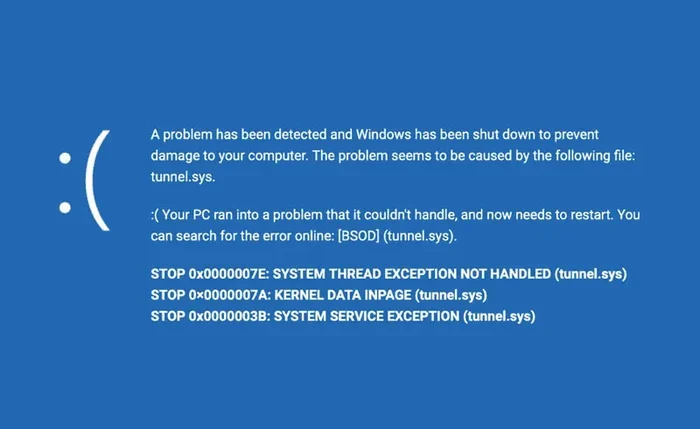
An Eaccess Violation is a Windows error that happens when a program tries to read or write to memory it does not have permission to access. This common access violation error can crash your apps, freeze your system, or even trigger a blue screen. Understanding the root causes and fixes for this Windows error code helps you keep your PC stable and running smoothly.
Have you ever been working on your computer when suddenly a pop-up appears that reads Eaccess Violation? It can be scary, especially if you are not sure what it means. The truth is, this error is more common than most people think. It shows up when a program on your Windows PC tries to access memory that it should not be touching. In this guide, we will break down everything you need to know about this error. You will learn what causes it, how to fix it, and how to stop it from coming back.
Whether you are a casual user or someone who works on a PC every day, understanding the Eaccess Violation error can save you a lot of frustration. Let us dive right in and explore this topic together.
Key Takeaways
- What It Is: An Eaccess Violation is a memory access error that occurs when software tries to reach protected or invalid memory.
- Common Causes: Corrupted files, outdated drivers, faulty RAM, and software conflicts are the top triggers for this error.
- Easy Fixes Exist: Simple steps like updating drivers, running system scans, and checking your RAM can resolve most issues.
- Prevention Matters: Keeping your system updated and using reliable software reduces the chance of encountering this error again.
- Hardware Plays a Role: Sometimes the problem is not software but faulty hardware like memory modules or a failing hard drive.
- When to Seek Help: If basic fixes do not work, deeper troubleshooting or professional help may be needed.
📑 Table of Contents
- What Exactly Is an Eaccess Violation?
- Common Causes of an Eaccess Violation
- How to Fix an Eaccess Violation Error
- Preventing Eaccess Violation Errors
- When to Seek Professional Help
- Understanding the Error Code 0xc0000005
- Eaccess Violation in Different Windows Versions
- Quick Tips for Troubleshooting
- Conclusion
What Exactly Is an Eaccess Violation?
An Eaccess Violation, also known as an access violation error, is a runtime error that Windows generates when a program attempts to access a memory location it does not have permission to use. Every program on your computer uses memory to store and retrieve data. The operating system manages this memory and assigns specific blocks to different applications. When a program tries to step outside its assigned boundaries, Windows steps in and stops it. This is the access violation in action.
The error code most commonly associated with this problem is 0xc0000005. You might see this code appear in a crash report or a blue screen message. It is Windows way of saying, “Hey, that program just tried to do something it is not allowed to do.” The program usually closes immediately after this happens.
Not all access violations are the same. Some are minor and cause a single app to close. Others can be severe enough to crash your entire system. The severity depends on what triggered the error and which part of memory was involved.
How Memory Access Works on Windows
To understand the Eaccess Violation better, it helps to know a little about how memory works. Your computer has system memory, also called RAM, that programs use to run. Windows allocates portions of this memory to each running application. Each app gets its own space. One program cannot simply reach into another program’s memory space unless the operating system allows it.
When a program tries to read or write to a memory address that is not assigned to it, the memory access violation occurs. Think of it like someone trying to open a door that is locked. The door is there, but they do not have the key. Windows responds by blocking the access and shutting down the program to protect the rest of the system.
Common Causes of an Eaccess Violation
Knowing what triggers an Eaccess Violation is the first step toward fixing it. Several factors can lead to this error. Let us look at the most common ones.
Corrupted System Files
Over time, important Windows system files can become damaged or corrupted. This can happen due to sudden shutdowns, disk errors, or even malware. When a program tries to load a corrupted file, it may attempt to access memory in the wrong way, triggering the error. Corrupted system files are one of the leading causes of access violation errors on Windows.
Outdated or Faulty Drivers
Drivers are the software that lets your operating system talk to hardware like graphics cards, printers, and sound devices. When a driver is outdated or damaged, it can send wrong commands to the hardware. This can cause the program to try accessing memory incorrectly. Driver issues are a very common reason for this type of runtime error.
Faulty RAM Modules
Your computer’s RAM is the short-term memory that programs use to operate. If a stick of RAM is damaged or not seated properly, it can cause data to be read or written incorrectly. This directly leads to memory access violations. Running a RAM check is one of the best steps you can take when troubleshooting this error.
Software Conflicts
Sometimes two programs do not get along. They might both try to use the same memory resource at the same time. This conflict can trigger an Eaccess Violation. Antivirus programs, in particular, can sometimes clash with other software and cause these kinds of errors.
Malware or Virus Infections
Malicious software can tamper with system files and memory addresses. Some viruses are designed to interfere with how programs access memory. This can lead to repeated Windows error code messages, including the Eaccess Violation. Keeping your system protected with reliable security software is important.
How to Fix an Eaccess Violation Error
Now that you know what causes this error, let us look at how to fix it. These steps are listed from the simplest solutions to more advanced ones. Most people find that one of the first few steps solves the problem.
Step 1: Restart Your Computer
This might sound too simple, but a restart can clear temporary memory issues and stop a rogue process from causing further problems. Many access violation errors are one-time glitches that a fresh restart will resolve. Always try this first.
Step 2: Update Your Drivers
Outdated drivers are a major cause of the Eaccess Violation. Go to your device manager and check for any drivers that need updating. Focus on your graphics card driver, sound driver, and network adapter driver. You can also use Windows Update to pull in the latest driver versions automatically.
Keeping your drivers up to date not only fixes runtime errors but also improves overall system performance. If you want to learn more about keeping your PC in top shape, check out our guide on what is the best investment for the lifespan of your PC.
Step 3: Run the System File Checker
Windows has a built-in tool called SFC (System File Checker) that scans for and repairs corrupted system files. Here is how to use it:
- Open the Start menu and type cmd.
- Right-click Command Prompt and select Run as Administrator.
- Type sfc /scannow and press Enter.
- Wait for the scan to finish and follow any prompts.
This tool is one of the most effective ways to fix corrupted files that cause access violation errors.
Step 4: Check Your RAM
Faulty memory is a frequent culprit behind the Eaccess Violation. Windows includes a built-in memory diagnostic tool. Search for Windows Memory Diagnostic in your Start menu and run it. The tool will restart your PC and check your RAM for errors. If it finds problems, you may need to replace the faulty RAM stick.
If you are unsure about what kind of RAM is right for your system, our guide on what is good RAM for a laptop can help you make the right choice.
Step 5: Reinstall or Update the Problematic Software
If the error only happens with one specific program, the issue might be with that software itself. Try updating it to the latest version. If that does not work, uninstall it completely and then reinstall it fresh. This often fixes software compatibility issues that lead to memory access violations.
Step 6: Scan for Malware
Run a full system scan using Windows Defender or a trusted third-party antivirus tool. Remove any threats that are found. After the scan, restart your computer and check if the Eaccess Violation error still appears.
Preventing Eaccess Violation Errors
Prevention is always better than cure. Here are some simple habits that can keep access violation errors away from your PC.
- Keep Windows Updated: Microsoft regularly releases updates that fix known bugs and improve system stability. Turn on automatic updates whenever possible.
- Update Drivers Regularly: Check for driver updates at least once a month. Updated drivers mean fewer conflicts and smoother performance.
- Use Reliable Software: Only download programs from trusted sources like the Microsoft Store or official websites. Sketchy software can introduce malware that triggers system instability.
- Run Regular Disk Checks: Use the built-in chkdsk tool to scan your hard drive for errors. A healthy disk means fewer file corruption issues.
- Avoid Overloading Your System: Running too many heavy programs at once can strain your memory and CPU. Close apps you are not using.
- Scan for Malware Weekly: Regular security scans help catch threats before they can damage your system files or interfere with memory access.
Taking these small steps can make a big difference. Your PC will run faster, smoother, and with fewer annoying error messages. For more tips on maintaining your system, our article on what is the best CPU cooler offers great advice on keeping your hardware in top condition.
When to Seek Professional Help
Most Eaccess Violation errors can be fixed at home using the steps above. However, there are times when professional help is the right call. If you have tried all the fixes and the error keeps coming back, there might be a deeper hardware issue. A failing hard drive or a damaged motherboard can cause persistent access violations that software fixes cannot solve.
Also, if you see the error accompanied by a blue screen of death, it is a sign of a serious system problem. In these cases, backing up your data and consulting a professional technician is the safest approach. Do not ignore repeated crashes. They can lead to data loss if the underlying issue is not addressed.
Understanding the Error Code 0xc0000005
The code 0xc0000005 is the most common Windows error code associated with the Eaccess Violation. It is also known as an STATUS_ACCESS_VIOLATION. This hexadecimal code tells you exactly what type of violation occurred. There are three main types:
- Read Access Violation: The program tried to read data from a memory address it does not own.
- Write Access Violation: The program tried to write data to a protected memory location.
- Execute Access Violation: The program tried to run code from a memory region that is not executable.
Each type points to a different root cause. Read violations often point to corrupted files. Write violations are commonly linked to driver problems. Execute violations are frequently caused by malware or security software blocking unauthorized code execution.
Understanding which type of violation you are dealing with can help you narrow down the fix faster. Pay attention to the error message details when the Eaccess Violation appears. The extra information in the crash log can be very valuable for troubleshooting.
Eaccess Violation in Different Windows Versions
The Eaccess Violation can appear on any version of Windows, from Windows 7 all the way to Windows 11. The way the error is displayed may vary slightly, but the underlying cause is the same. Here is a quick look at how it shows up on different systems.
On older versions like Windows 7 and 8, you might see a simple dialog box that says the program has stopped working. On Windows 10 and 11, the error reporting is more detailed and may include a crash dump file that you can send to the developer. No matter which version you use, the fixes described in this article apply across the board.
If you are running a virtual machine or using emulator software, you might encounter this error more frequently. Emulators sometimes have trouble managing memory properly, especially if your system resources are limited. Keeping your emulator updated and allocating enough memory to it can help reduce these issues.
Quick Tips for Troubleshooting
- Always note the exact error message and the name of the program that crashed.
- Check the Event Viewer in Windows for detailed error logs.
- Try running the problematic program in compatibility mode.
- Disable any recently installed software or updates to see if they are the cause.
- Boot your PC in Safe Mode to check if the error persists without third-party software running.
These quick tips can save you a lot of time when you are trying to track down the source of an Eaccess Violation. They give you a structured way to narrow down the problem.
Conclusion
The Eaccess Violation error might look intimidating at first, but it is actually a very common Windows issue with straightforward solutions. At its core, this error simply means a program tried to access memory it should not have. Whether the cause is a corrupted file, an outdated driver, faulty RAM, or a software conflict, there are clear steps you can take to fix it.
Start with the simple fixes like restarting your PC and updating your drivers. Move on to system scans and memory checks if those do not work. And remember, prevention is key. Keeping your system updated, using reliable software, and running regular security scans will go a long way in keeping these errors at bay.
You now have the knowledge and tools to handle an Eaccess Violation like a pro. The next time that error message pops up, you will know exactly what to do. Stay calm, follow the steps, and your PC will be back to running smoothly in no time.
Frequently Asked Questions
What does an Eaccess Violation error mean?
An Eaccess Violation means a program tried to access a part of your computer’s memory that it does not have permission to use. Windows stops the program to protect your system from potential damage. It is essentially a safety mechanism built into the operating system.
Is an Eaccess Violation the same as a blue screen error?
Not exactly. An Eaccess Violation can sometimes lead to a blue screen, but they are not the same thing. The access violation error happens when a single program crashes. A blue screen means the entire system has encountered a critical error. However, severe access violations can trigger a blue screen if they affect core system processes.
Can faulty RAM cause an Eaccess Violation?
Yes, faulty or improperly seated RAM is one of the most common causes of this error. When your memory modules are damaged or not working correctly, programs may try to read or write data to the wrong memory addresses. Running a memory diagnostic test is a great way to check if your RAM is the culprit.
How do I know which program is causing the Eaccess Violation?
When the error appears, it usually names the program that crashed. You can also check the Windows Event Viewer for detailed logs that show which application triggered the access violation error. Look for error entries with the source name related to the crashing application.
Can malware cause an Eaccess Violation?
Yes, malicious software can interfere with how programs access memory. Some viruses are designed to tamper with system files or inject code into running processes, which can trigger memory access violations. Running a full antivirus scan is an important step in troubleshooting this error.
Do I need to be a tech expert to fix an Eaccess Violation?
No, you do not need to be a tech expert. Most fixes are simple and do not require advanced technical skills. Restarting your PC, updating drivers, and running system scans are steps anyone can follow. If the problem persists, consulting a professional is always a good option.