What Is Input and Output

Input and output are the foundation of how your laptop communicates with you. Input refers to data you send into the laptop, while output is what your laptop sends back to you. Understanding I/O basics helps you use your laptop more effectively and troubleshoot problems faster.
Every time you type on your keyboard, click your mouse, or speak into a microphone, you are sending input to your laptop. Every time you see text appear on your screen, hear sound from your speakers, or print a document, your laptop is sending output back to you. These two processes form the backbone of everything your laptop does.
Understanding what input and output means is more important than most people realize. Whether you are a student, a professional, or someone who just browses the web, your daily experience depends entirely on how well input and output work together. This guide breaks it all down in simple, easy-to-understand terms.
We will explore the different types of input and output devices, how they function inside your laptop, and why they matter for everyday performance. By the end, you will have a clear picture of how your laptop receives and sends information. Let us dive right in.
Key Takeaways
- Input devices let you send data into your laptop, like keyboards, mice, and microphones.
- Output devices display or produce results, such as screens, speakers, and printers.
- I/O ports on your laptop handle both input and output signals every day.
- Knowing the difference between input and output helps you troubleshoot laptop issues quickly.
- Laptop RAM and GPU play key roles in processing both input and output tasks efficiently.
- Input and output work together in a continuous loop that keeps your laptop responsive.
📑 Table of Contents
What Is Input? Understanding the Basics
Input is any data or signal that goes into your laptop. Think of it as information flowing into the system. Without input, your laptop would just sit there doing nothing. You need to give it something to work with, and that something comes through input devices.
The most common input devices on a laptop include the keyboard, touchpad, and built-in webcam. External devices like a USB mouse, external microphone, or drawing tablet also count as input. Even your fingerprint reader or facial recognition camera sends input signals to the system.
When you press a key on your keyboard, the laptop receives an electrical signal. That signal travels through the motherboard to the processor. The processor then interprets the signal and turns it into text on your screen. This entire process happens in milliseconds, but it is a perfect example of how input works in real time.
Types of Input Devices on a Laptop
Not all input devices look the same, and they do not all work the same way. Here are the main types of input devices you will find on or connected to a laptop:
- Keyboard — The primary text input device. Every letter, number, and symbol you type is input data.
- Touchpad — A built-in pointing device that detects finger movement and converts it into cursor movement.
- Webcam — Captures video and sends visual input to the laptop for video calls or recording.
- Microphone — Captures audio input, which the laptop processes for voice commands or recordings.
- USB peripherals — External keyboards, mice, scanners, and game controllers all send input through USB ports.
- Touchscreen — Found on some laptops, it lets you use your fingers to interact directly with the display.
Each of these devices sends a different kind of signal, but they all serve the same purpose: getting data into the laptop. The central processing unit then takes that data and decides what to do with it.
How Input Signals Travel Through Your Laptop
When you press a key or move your finger on the touchpad, the input signal does not just appear on screen. It follows a path. First, the device sends a signal to the motherboard. The motherboard routes that signal to the processor. The processor analyzes the signal and sends instructions to the relevant component, like the display or the storage drive.
This whole chain happens incredibly fast. A good laptop with solid RAM handles input signals more smoothly because it has enough system memory to process multiple inputs at once. If your laptop struggles with lag while typing or clicking, it might be worth checking whether your RAM is sufficient for your workload.
What Is Output? Understanding the Basics
Output is the result your laptop produces after processing input. It is the information that flows out of the system and back to you. Without output, you would have no way of knowing what your laptop is doing. Output makes the digital world visible and audible.
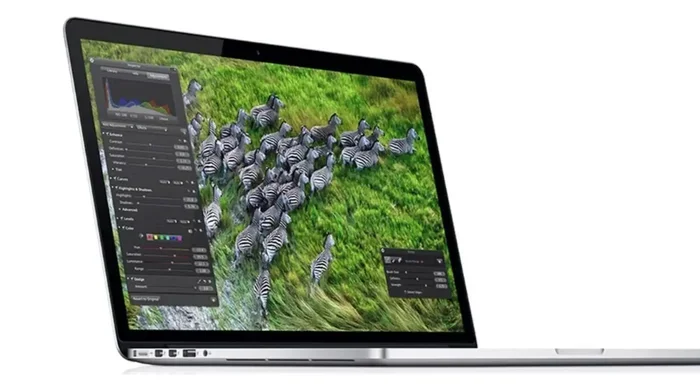
The most familiar output devices on a laptop are the display screen and the built-in speakers. But output goes beyond those. Your laptop can also send output to a printer, external monitors, headphones, and even other computers over a network connection.
When you type a sentence on your keyboard (input), the laptop processes it and displays the text on your screen (output). That simple example shows how input and output work hand in hand. The screen is an output device because it receives data from the laptop and presents it to you.
Types of Output Devices on a Laptop
Here are the most common output devices you will encounter on a laptop:
- Display screen — The primary output device. It shows visuals, text, videos, and graphics.
- Speakers — Produce audio output for music, videos, alerts, and calls.
- Headphone jack — Sends audio output directly to headphones for private listening.
- Bluetooth output — Sends audio or data wirelessly to paired devices like speakers or earbuds.
- USB output — Sends data to external devices like flash drives, printers, or external hard drives.
- HDMI/DisplayPort output — Sends video and audio to an external monitor or projector.
Every output device serves a specific purpose. The display handles visual output, while speakers handle audio output. Some laptops also have Bluetooth capabilities that let you send output wirelessly to other devices. This flexibility is one of the reasons laptops are so versatile.
How Output Signals Are Generated
After the processor handles the input, it generates output signals. These signals travel back through the motherboard to the relevant output device. For example, when you watch a video, the processor sends visual data to the display and audio data to the speakers simultaneously.
The GPU, or graphics processing unit, plays a huge role in output. It handles all the visual data that appears on your screen. If your GPU runs too hot during heavy output tasks like gaming or video editing, it can affect performance. That is why it is important to know what a good idle GPU temperature looks like and monitor it regularly.
How Input and Output Work Together
Input and output do not work in isolation. They operate as a continuous loop. You provide input, the laptop processes it, and the laptop gives you output. Then you provide more input based on that output, and the cycle continues. This loop is what makes using a laptop feel natural and responsive.
For example, imagine you are browsing the web. You click a link on your touchpad (input). The laptop processes that click and loads the new page. The page appears on your screen (output). You then scroll down using the touchpad (input again), and the page moves (output again). This back-and-forth happens millions of times during a normal computing session.
The speed and smoothness of this loop depend on several factors. Your laptop RAM affects how much data the system can handle at once. Your processor speed determines how fast input gets processed. And your display quality affects how clear the output looks. All of these components work together to deliver a seamless experience.
The Role of I/O Ports
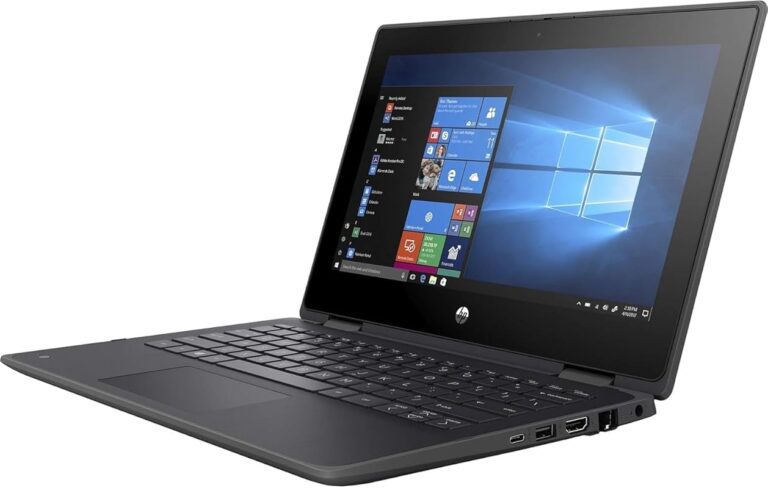
I/O ports are the physical connections on your laptop that handle both input and output. USB ports, HDMI ports, headphone jacks, and SD card slots are all examples of I/O ports. Each port serves a specific function, and they are essential for connecting external devices.
USB ports are the most versatile I/O ports on a laptop. You can connect input devices like keyboards and mice through USB. You can also connect output devices like external hard drives and printers. Some USB ports even carry power, allowing you to charge accessories while they transfer data.
HDMI ports handle output only. They send video and audio to external displays. Headphone jacks handle audio output. And SD card slots handle input by letting you import photos and files from cameras or memory cards.
Common Input and Output Problems on Laptops
Like any technology, input and output devices can develop problems. Knowing what to look for can save you time and frustration. Here are some of the most common issues users face:
- Keyboard not responding — A common input problem. It could be a software glitch or a hardware issue.
- Touchpad not working — Often caused by a driver issue or a disabled setting in the operating system.
- No sound from speakers — Check volume settings and make sure the correct output device is selected.
- Screen flickering — Could be a display output problem related to the GPU or cable connection.
- USB devices not recognized — Might be a port issue or a driver problem.
Most of these issues have simple fixes. Restarting your laptop, updating drivers, or checking cable connections often solves the problem. If a device is not recognized, try plugging it into a different port. Sometimes the port itself is the issue, not the device.
One thing many people overlook is the connection between laptop RAM and I/O performance. If your system runs low on memory, input and output tasks slow down. The laptop struggles to process incoming data and deliver outgoing results smoothly. Keeping your RAM at a healthy level helps maintain strong input and output performance.
Tips to Improve Input and Output Performance
Want your laptop to handle input and output faster and more reliably? Here are some practical tips that make a real difference:
- Keep your drivers updated. Updated drivers ensure that all input and output devices communicate properly with your laptop.
- Close unused programs. Running too many programs at once eats up memory and slows down both input and output processing.
- Use an external mouse and keyboard. If your built-in touchpad or keyboard feels sluggish, a wired or wireless external mouse can improve your input experience significantly.
- Check your display settings. Adjusting resolution and refresh rate can improve visual output quality.
- Monitor your GPU temperature. Overheating affects output performance, especially during graphics-heavy tasks.
- Upgrade your RAM if needed. More memory means smoother handling of multiple input and output tasks at the same time.
These small changes add up. You do not need to be a tech expert to make them work. Even a simple driver update can fix a stubborn input or output problem that has been bugging you for weeks.
Input and Output in the Broader Computing World
The concepts of input and output go far beyond just laptops. Every computer, tablet, and smartphone relies on the same basic principles. A smartphone uses its touchscreen for input and its screen and speaker for output. A smart TV uses a remote for input and the display for output. The idea is universal.
Understanding input and output also helps you when shopping for new devices. If you need a laptop for graphic design, you will want strong output capabilities, meaning a high-resolution display and a powerful GPU. If you need a laptop for coding, you will want excellent input devices, like a comfortable keyboard and a responsive trackpad.
In the world of audio production, output quality is everything. Musicians need accurate speakers and headphone output to hear every detail. In video editing, both input and output matter, from capturing footage through a camera to reviewing the final product on a high-quality display.
Final Thoughts
Input and output are the two sides of every computing experience. Input brings your commands and data into the laptop, and output brings the results back to you. Without either one, your laptop would be nothing more than a box of electronics sitting on a desk.
Now that you understand how input and output work, you can use your laptop more intentionally. You can troubleshoot problems faster. And you can make smarter decisions when choosing devices and accessories. The next time you type on your keyboard or watch a video on your screen, remember the incredible journey that data takes from your fingertips to your eyes.
Take a moment to appreciate how far laptop technology has come. The input and output systems in modern laptops are faster, more accurate, and more reliable than ever before. And with the right knowledge, you can get the most out of every single interaction with your device.
Frequently Asked Questions
What is the difference between input and output on a laptop?
Input is data you send into the laptop, like typing on a keyboard or clicking a mouse. Output is what the laptop sends back to you, like text on a screen or sound from speakers. They work together in a continuous cycle to make your laptop functional.
Can a device be both input and output?
Yes, some devices can do both. A touchscreen on a laptop acts as an input device when you tap it and as an output device when it displays information. USB drives also work both ways, receiving data and sending data back to the laptop.
Why is my laptop not recognizing input devices?
This is usually caused by outdated drivers, a disabled setting, or a loose connection. Try restarting your laptop first. If that does not work, check your device manager for driver updates. You can also try plugging the device into a different USB port to rule out a faulty port.
How does RAM affect input and output performance?
RAM acts as short-term memory for your laptop. When you run multiple programs or handle large files, the system needs enough RAM to process input smoothly and deliver output without delays. Insufficient RAM can cause lag, freezing, and slow response times during both input and output tasks.
What are the most common output devices on a laptop?
The most common output devices are the display screen, built-in speakers, headphone jack, and Bluetooth audio output. Some laptops also support output to external monitors through HDMI or USB-C ports, as well as output to printers and other peripherals.
How can I improve the output quality of my laptop?
You can improve output quality by updating your display and audio drivers, adjusting resolution and sound settings, and using external devices like a better monitor or headphones. Keeping your GPU at a healthy temperature also helps maintain strong visual output performance over time.