Why Cant I Hear Audio On My Computer And How To Fix It
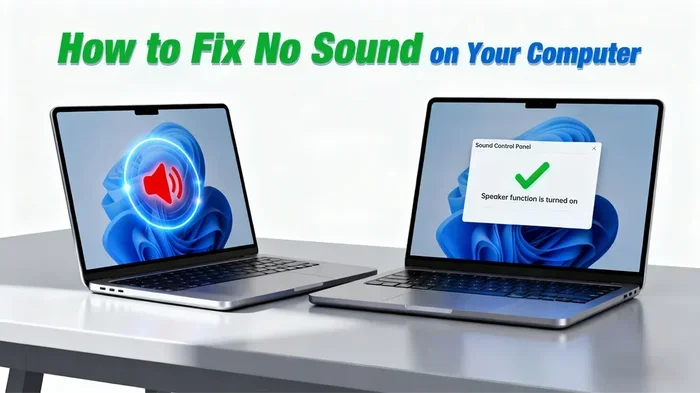
Why Cant I Hear Audio On My Computer is a frustrating problem with several common causes, from simple mute settings to outdated audio drivers. This guide walks you through every major reason your computer sound is not working and gives you clear, actionable fixes you can try right now. Whether the issue is software-related or hardware-based, you will find a solution that gets your audio back up and running.
There are few things more annoying than sitting down to watch a video or listen to music and realizing your computer has no sound at all. You click, you adjust, you tap the speaker icon, and nothing happens. If you have ever asked yourself, Why Cant I Hear Audio On My Computer, you are not alone. This is one of the most common PC problems, and it can happen for a variety of reasons.
The good news is that most audio issues are easy to fix. You do not need to be a tech expert. In this guide, we will walk you through every possible cause and every practical fix. From simple settings to driver updates and hardware checks, we cover it all. Let us get your sound back.
Key Takeaways
- Check volume and mute settings first: Most audio problems start with simple oversights like muted speakers or incorrect output devices.
- Update your audio drivers regularly: Outdated or corrupted drivers are one of the top reasons sound stops working on a PC.
- Inspect your hardware connections: Loose cables, faulty ports, or damaged speakers can block audio completely.
- Use Windows audio troubleshooters: Built-in tools can quickly diagnose and resolve many common sound issues.
- Try a system restore if all else fails: Reverting your system to a point before the issue started often fixes stubborn audio problems.
- Seek professional help for persistent issues: Some problems, like failing sound cards, need expert diagnosis and repair.
📑 Table of Contents
Why Cant I Hear Audio On My Computer: Common Causes
Before you start fixing anything, it helps to understand what might be causing the problem. Audio issues on a computer usually fall into a few broad categories. Each category has its own set of triggers and solutions.
Software and Settings Issues
Sometimes the problem is not your hardware at all. It is your software. Windows and other operating systems have many layers of audio controls. A wrong setting in any one of them can silence your sound entirely.
- Muted volume: This sounds obvious, but it happens more than you think.
- Wrong output device: Your PC might be sending sound to a device you are not using.
- Disabled audio service: A background Windows service could be turned off.
- Application-level mute: The specific app you are using might be muted.
Driver Problems
Your audio driver is the bridge between your operating system and your sound hardware. When this bridge breaks, sound disappears. Outdated audio drivers are one of the leading causes of no-sound issues on computers.
Drivers can become outdated after a Windows update, or they might get corrupted by a sudden shutdown. Sometimes a new driver update causes conflicts with existing hardware. Any of these scenarios can leave you with a silent screen and no idea what to do next.
Hardware Failures
Hardware problems are less common but more serious. A damaged speaker, a loose cable, or a broken audio jack can all prevent sound from reaching your ears. If you recently dropped your computer or spilled liquid on it, hardware damage is a real possibility.
It is also worth noting that other hardware issues can sometimes mimic audio problems. For example, if your system is running low on memory, you might experience unusual behavior across multiple components. If you have been dealing with performance issues alongside the audio problem, you might want to check your system resources. Learning how to check RAM on your laptop can help you rule out memory-related issues that might be contributing to system instability.
Check Your Sound Settings First
Before you dive into complex fixes, start with the basics. Checking your sound settings takes less than two minutes and solves the problem more often than you would expect.
Step-by-Step Volume Check
Follow these steps to make sure your volume is not the culprit:
- Click the speaker icon in your taskbar, usually at the bottom-right of your screen.
- Make sure the volume slider is not set to zero.
- Check that the mute button is not active.
- Click on the output device selector and make sure the correct device is chosen.
If you are using external speakers or headphones, make sure the cable is plugged in firmly. A loose connection at the jack can completely kill your audio. Also, check the volume controls on the external device itself. Some speakers have their own volume knobs that can be accidentally turned down.
Select the Correct Output Device
Windows sometimes switches your default audio output without telling you. This often happens after you plug in or unplug a device. To fix this:
- Right-click the speaker icon in your taskbar.
- Select “Open Sound settings.”
- Scroll down to the “Output” section.
- Choose the correct device from the dropdown menu.
This simple step fixes the problem for many users. It is one of the most overlooked audio troubleshooting steps out there.
Update or Reinstall Your Audio Drivers
If your settings are correct but you still have no sound, your audio driver is the next place to look. A corrupted or outdated audio driver can completely block sound output.
How to Update Audio Drivers on Windows
Updating your driver is straightforward. Here is how to do it:
- Right-click the Start button and select “Device Manager.”
- Expand the “Sound, video and game controllers” section.
- Right-click your audio device and select “Update driver.”
- Choose “Search automatically for drivers.”
- Follow the on-screen instructions to complete the update.
After updating, restart your computer and test your audio. In many cases, this alone resolves the issue. If updating does not work, try uninstalling the driver and then reinstalling it from the manufacturer’s website.
When to Use Driver Update Software
If you do not want to manually update drivers, you can use third-party driver update tools. These programs scan your system, identify outdated drivers, and install the latest versions automatically. However, be cautious and only download reputable software from trusted sources.
Also, keep in mind that other system issues can sometimes be linked to driver problems. For instance, if your mouse or other peripherals are also acting up, it could point to a broader system issue. If you have noticed your mouse not working properly on your laptop, it might be worth troubleshooting those issues alongside your audio problem, as they could share a common root cause.
Hardware Issues That Block Sound
Software fixes do not solve every problem. Sometimes the issue is physical. Hardware-related audio problems require a different approach.
Check Your Cables and Connections
Loose or damaged cables are a frequent cause of no sound. Here is what to check:
- Make sure your speaker or headphone cable is fully inserted into the correct port.
- Look for visible damage like frayed wires or bent connectors.
- Try a different cable to rule out a faulty connection.
- If you are using a USB audio device, try a different USB port.
Test with Different Hardware
The fastest way to determine if your hardware is the problem is to test with a different device. Plug in a different pair of headphones or connect a different set of speakers. If the new device works, your original hardware is likely the issue.
If you have been troubleshooting other device issues on your laptop, you might have noticed similar patterns. For example, if your mouse is not showing up on your laptop alongside audio problems, it could indicate a broader connectivity or system issue that needs a more comprehensive fix.
Internal Sound Card Problems
Some computers have internal sound cards that can fail over time. Signs of a failing sound card include:
- Intermittent audio that comes and goes.
- Distorted or crackling sound.
- Complete loss of audio that no software fix can resolve.
If you suspect a sound card issue, you may need to replace the card or use an external USB audio adapter as a workaround. These adapters are affordable and plug directly into a USB port, bypassing the internal sound card entirely.
Quick Fixes That Work Fast
Sometimes you need a fast solution and do not have time for deep troubleshooting. Here are some quick fixes that often work instantly.
Run the Windows Audio Troubleshooter
Windows has a built-in troubleshooter designed specifically for audio problems. To use it:
- Go to Settings > System > Sound.
- Scroll down and click “Troubleshoot.”
- Follow the on-screen prompts.
- Let the tool detect and apply fixes automatically.
The troubleshooter checks for common issues like incorrect default devices, disabled services, and driver conflicts. It is one of the fastest ways to resolve computer sound problems without any technical knowledge.
Restart Windows Audio Service
Sometimes the audio service simply stops running. Restarting it can bring your sound back immediately:
- Press Windows Key + R to open the Run dialog.
- Type “services.msc” and press Enter.
- Find “Windows Audio” in the list.
- Right-click it and select “Restart.”
This simple restart often fixes temporary glitches that cause audio to disappear. It is one of the most underrated audio troubleshooting tips available.
Perform a System Restore
If your audio stopped working after a recent change, a system restore can undo those changes. This rolls your system back to a previous state where everything was working correctly:
- Search for “Create a restore point” in the Start menu.
- Click “System Restore” and follow the wizard.
- Choose a restore point from before the audio issue started.
- Let the process complete and restart your computer.
System restore is a powerful tool. It can fix audio issues caused by bad driver installations, conflicting software, or problematic Windows updates.
When To Seek Professional Help
Most audio problems are solvable at home with the steps outlined above. But some situations call for professional assistance. You should consider seeking help if:
- None of the software fixes have worked after multiple attempts.
- You suspect physical damage to your sound card or audio ports.
- Your audio issue started after a hardware upgrade or installation.
- You are hearing unusual noises like buzzing or static that persist across all devices.
A professional technician can run deeper diagnostics and identify problems that are not visible from the surface. They can also replace faulty components safely without risking further damage to your system.
If your computer is also experiencing other performance issues, it might be worth doing a broader check. For example, if you are wondering whether your system has enough memory to run smoothly, learning how much RAM you need on your laptop can help you determine if a memory upgrade might improve overall performance and stability.
Conclusion
Why Cant I Hear Audio On My Computer is a question that frustrates many users, but the answer is usually simpler than you think. Start with the basics like volume settings and output device selection. Move on to driver updates and quick fixes like the Windows troubleshooter. Check your hardware connections and test with different devices. And if all else fails, do not hesitate to seek professional help.
Most audio problems are temporary and solvable. With the right approach, you can get your computer sound back in minutes. Keep this guide bookmarked for the next time your audio acts up. And remember, patience and a systematic approach will take you a long way in troubleshooting any PC issue.
Frequently Asked Questions
Why is there no sound coming from my computer even though the volume is up?
The most common reason is that your computer is sending audio to the wrong output device. Check your sound settings and make sure the correct output device is selected. Also, make sure your speakers or headphones are properly connected and powered on.
How do I know if my audio driver needs updating?
If you recently updated Windows and lost sound, or if you hear crackling and distortion, your driver is likely outdated. Open Device Manager, find your audio device, and check if a driver update is available. Updating the driver often resolves these issues immediately.
Can a virus or malware cause audio problems on my computer?
Yes, it is possible. Some malware can disable audio services or corrupt system files related to sound. Running a full system scan with trusted antivirus software can help identify and remove any threats that might be affecting your audio.
What should I do if my headphones work but my speakers do not?
This usually means your default output device is set to headphones. Go to your sound settings and change the default output device to your speakers. Also, check that the speaker cable is securely connected to the correct port on your computer.
Is it safe to use third-party driver update tools?
Most reputable driver update tools are safe to use. However, always download software from official websites or trusted sources. Avoid lesser-known tools that may bundle unwanted software or install incorrect drivers that could cause more problems.
Can a Windows update cause audio to stop working?
Yes, Windows updates can sometimes cause audio driver conflicts or reset audio settings. If your sound stopped working after an update, try running the audio troubleshooter, rolling back the driver, or performing a system restore to undo the update.