Why Is My Mini Pc Fan So Loud Are Mini Pcs Noisy
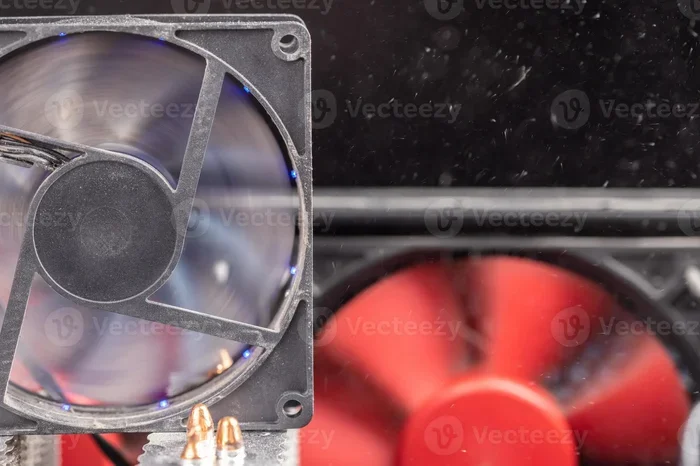
A loud mini PC fan is a common frustration, but it usually has a fixable cause. Whether your mini PC fan is loud due to dust buildup, poor airflow, or high CPU usage, understanding the root problem is the first step. This guide covers every reason your mini PC might be noisy and gives you practical solutions to quiet it down.
You sit down to work or game, and immediately you hear it. That loud, constant whirring from your mini PC. It sounds like a jet engine on your desk. You start wondering, are mini PCs noisy by design, or is something wrong?
The truth is, a loud mini PC fan is more common than you think. These small machines pack a lot of power into a tiny space. That means heat builds up fast, and fans have to work overtime to keep things cool. But that does not mean you have to live with it.
In this guide, we will walk through every reason your mini PC fan might be so loud. We will also cover simple fixes you can try right now. Whether you just bought a mini PC or have had one for years, this article will help you understand and fix the noise problem.
Key Takeaways
- Dust buildup is the #1 culprit: Dirty fans force your mini PC to work harder and spin faster.
- Poor ventilation causes noise: Placing your mini PC in a confined space traps heat and ramps up the fan.
- Software settings matter: High CPU or GPU usage from background tasks keeps fans running at full speed.
- Fan replacement and pads help: Simple hardware upgrades can dramatically reduce mini PC fan noise.
- Not all mini PCs are equally noisy: Some models have better cooling designs than others.
- Regular maintenance prevents noise: Cleaning your device every few months keeps fans running smoothly.
- Thermal paste degrades over time: Reapplying it can lower temperatures and reduce fan speed.
📑 Table of Contents
Why Is My Mini PC Fan So Loud?
Before you can fix the noise, you need to understand what is causing it. Fans are not designed to be loud on purpose. When they are screaming, something is off. Let us look at the most common reasons your mini PC fan is loud.
Dust and Debris Buildup
This is the number one cause of loud fan noise in any computer, but especially in mini PCs. Because these machines are small, air intake vents are tiny. Dust collects on the fan blades and heatsinks very quickly. When dust builds up, the fan has to spin faster to push the same amount of air through.
Think of it like a vacuum cleaner. When the filter gets clogged, the motor works harder and gets louder. The same thing happens with your mini PC cooling system. Over weeks and months, dust layers up and restricts airflow.
Poor Airflow and Ventilation
Where you place your mini PC matters a lot. If you shove it against a wall, inside a desk drawer, or on a carpet, hot air has nowhere to go. The internal temperature rises, and the fan spins faster to compensate.
Mini PCs need space around them for air to circulate. Even a few inches of clearance can make a big difference. Many people learn this the hard way when they notice their compact computer cooling is not working well after moving the device to a tighter spot.
High CPU and GPU Usage
When your mini PC is working hard, it generates more heat. If you are gaming, editing video, or running heavy software, the CPU and GPU temperatures climb. The fans respond by spinning faster to keep temperatures safe.
Sometimes, the problem is not what you are doing. It is what is running in the background. Programs you do not even know are open can push your CPU usage up. This leads to excessive fan noise even when you are not doing anything demanding. Checking your CPU temperature at idle can reveal if something is wrong behind the scenes.
Thermal Paste Deterioration
Thermal paste is the gooey material between your CPU and the heatsink. It helps transfer heat away from the processor efficiently. Over time, this paste dries out and becomes less effective. When it does, your CPU runs hotter, and the fan has to spin faster.
This is a less obvious cause, but it is very common in mini PCs that are a year or two old. The small form factor makes thermal management already challenging, and degraded paste makes it worse.
Fan Speed Settings and BIOS Configuration
Many mini PCs come with aggressive fan profiles out of the box. The BIOS or firmware is set to keep temperatures low at all costs, which means the fans spin fast even when they do not need to. Some models allow you to adjust fan curves through software or BIOS settings.
If your fan is loud but your temperatures look fine, the fan speed policy might just be too aggressive. Tuning this can reduce mini PC fan noise significantly without any hardware changes.
Low-Quality or Failing Fan Hardware
Not all fans are created equal. Some mini PCs use cheap fans that are louder and less durable. Over time, fans wear out. Bearings degrade, blades get unbalanced, and the noise gets worse. In some cases, a fan might be partially broken and vibrating, creating a rattling or grinding sound.
If your mini PC is making unusual sounds like clicking or grinding, the fan itself may need replacement. This is more common in budget models where cost savings came at the expense of component quality.
Are Mini PCs Noisy by Design?
Here is the honest answer. Some mini PCs are louder than their larger counterparts, but not all of them. The size constraint is real. There is less room for large fans and big heatsinks, so engineers have to get creative with cooling.
That said, many modern mini PCs are designed to be quiet. Premium models use larger heatsinks, better fan bearings, and smarter fan curves. Budget models sometimes cut corners on cooling, which leads to more noise. If you are shopping for a new mini PC, checking reviews for noise levels is a smart move.
It is also worth noting that a mini PC used for gaming will almost always be louder than one used for basic tasks. Gaming pushes the hardware hard, which generates more heat. If you are interested in gaming on a small form factor, you might want to check whether are mini PCs good for gaming and what cooling trade-offs come with that.
How to Reduce Mini PC Fan Noise
The good news is there are many ways to quiet down a loud mini PC fan. You do not need to be a tech expert. Most of these fixes are simple and free.
Clean Your Mini PC Regularly
Grab a can of compressed air and gently blow out the dust from the vents and fan area. Do this every 2 to 3 months. If you have pets or live in a dusty area, you may need to clean more often.
Make sure your mini PC is powered off and unplugged before cleaning. Hold the fan in place while blowing air so it does not spin too fast and damage the bearings.
Improve Placement and Ventilation
Move your mini PC to a well-ventilated spot. Keep it on a hard, flat surface. Avoid enclosed spaces, fabric surfaces, and walls that block airflow.
Even small changes in placement can drop internal temperatures by several degrees. This alone can reduce fan speed and noise noticeably.
Adjust Fan Speed Settings
If your mini PC allows it, go into the BIOS or use fan control software to adjust the fan curve. A slower fan at moderate temperatures can make a huge difference in noise levels.
Just be careful not to set the fans too slow. You still want safe temperatures. Monitor your CPU temperature after making changes to make sure everything stays within a healthy range.
Use a Cooling Pad or Stand
Some mini PCs benefit from external cooling. A small cooling pad or stand with built-in fans can help draw heat away from the bottom of the device. This is especially useful if your mini PC tends to run warm on the bottom side.
Replace Thermal Paste
If your mini PC is a couple of years old and running hot, reapplying thermal paste can help. This is a simple fix that many people overlook. New thermal paste improves heat transfer, which lowers CPU temperatures and reduces the need for loud fan speeds.
Replace the Fan
If the fan itself is worn out or defective, replacing it is the best solution. Look for a compatible replacement fan for your specific mini PC model. Many aftermarket fans are quieter and more durable than the original ones.
When to Be Concerned About Fan Noise
Not all fan noise is bad. A little humming is normal. But certain sounds and situations should make you pay attention.
- Grinding or clicking sounds: This usually means the fan bearing is failing. Replace the fan soon.
- Constant full-speed spinning: If the fan never slows down even at idle, something is wrong with the cooling or the temperature sensors.
- Sudden loud noise: A sudden change in fan volume could indicate a hardware issue or a software problem causing high CPU usage.
- Overheating shutdowns: If your mini PC shuts down unexpectedly, the cooling system is not keeping up. This needs immediate attention.
If you notice your computer fan keeps running at full speed even during light tasks, check for background processes. Sometimes malware or a runaway program is eating up your CPU resources, which causes the fan to ramp up. Using a temperature monitoring tool can help you track what is happening inside your machine.
Mini PC Fan Noise Comparison Table
| Fan Noise Level | Typical Cause | Recommended Fix |
|---|---|---|
| Soft hum (20-30 dB) | Normal operation | No action needed |
| Moderate noise (30-40 dB) | Light workload, minor dust | Clean vents, check placement |
| Loud noise (40-50 dB) | Heavy workload, dust buildup | Clean fan, adjust fan curve |
| Very loud (50+ dB) | Fan failure, dried thermal paste | Replace fan, reapply thermal paste |
Keep in mind that decibel levels are approximate and can vary by model. The table above gives you a general idea of what is normal and what needs attention.
Expert Tips for a Quieter Mini PC
Monitor your temperatures regularly. Free tools like HWMonitor or Core Temp let you watch your CPU and GPU temperatures in real time. If you see temperatures climbing, take action before the fans start screaming.
Keep your software up to date. Driver updates and BIOS firmware updates often include improved fan control algorithms. A simple update can sometimes fix noisy fan issues.
Avoid blocking the vents. This sounds obvious, but many people place their mini PC flat on a desk and wonder why it gets loud. Tilting it slightly or using a stand can improve airflow significantly.
Consider the environment. A warm room means your mini PC has to work harder to stay cool. If possible, keep your workspace at a comfortable temperature and away from direct sunlight.
Use your mini PC for tasks it is suited for. While some models handle gaming well, others are designed for office work and media consumption. Pushing a budget mini PC beyond its limits will always result in more fan noise.
Final Thoughts
A loud mini PC fan does not mean your device is broken. It usually means something simple needs attention. Dust, placement, software, or thermal paste are the most common culprits, and all of them are fixable.
Regular maintenance goes a long way. Clean your vents, keep your software in check, and give your mini PC room to breathe. If the fan is truly failing, a replacement is affordable and easy to install.
Remember, not every mini PC is the same. Some are naturally quieter than others. If noise is a top priority for you, look for models with good cooling reviews and adjustable fan settings. With the right care, your mini PC can run cool and quiet for years to come.
Take a few minutes today to check on your mini PC. Open the case, blow out the dust, and listen to how much quieter it can be. Your ears will thank you.
Frequently Asked Questions
Why is my mini PC fan so loud all of a sudden?
A sudden increase in fan noise usually means your CPU or GPU temperature has spiked. Check for background programs using too much processing power, dust buildup on the fan, or a failing fan bearing. A quick temperature check will help you pinpoint the cause.
Are mini PCs louder than regular desktop computers?
Not necessarily. Mini PCs can be louder because they have less space for cooling components. However, many modern mini PCs are designed to be quiet. The noise level depends on the model, build quality, and what you are using it for.
Can I replace the fan in my mini PC myself?
Yes, in most cases. Mini PCs are designed to be accessible. You can usually remove the side panel, disconnect the fan cable, and swap in a replacement. Just make sure to get the right size and connector for your specific model.
How often should I clean my mini PC fan?
Every 2 to 3 months is a good rule of thumb. If you have pets, smoke, or live in a dusty area, you may need to clean more frequently. Regular cleaning prevents dust buildup and keeps your fan running quietly.
Is it normal for a mini PC fan to run constantly?
It can be normal if your mini PC is under heavy load or running warm. However, if the fan runs at full speed even during idle tasks, something may be wrong. Check your CPU temperature, close unnecessary programs, and make sure the vents are not blocked.
Does thermal paste really make a difference in fan noise?
Yes, it can make a big difference. Dried-out thermal paste causes the CPU to run hotter, which forces the fan to spin faster. Reapplying fresh thermal paste can lower temperatures by several degrees, which reduces fan noise significantly.