Windows 11 Task Manager Ghost Processes Bug After Kb5067036
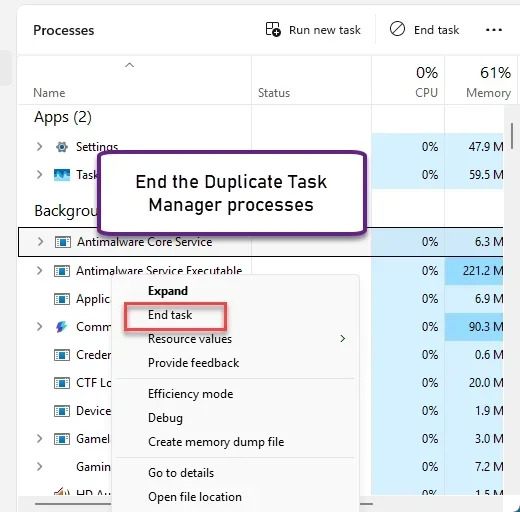
The Windows 11 Task Manager ghost processes bug after KB5067036 is a frustrating issue where phantom entries appear in your process list. This update caused many users to see processes that do not actually exist or consume real resources. You can fix this through simple methods like restarting services, clearing caches, or rolling back the update. This guide covers every solution you need to get your Task Manager working normally again.
This is a comprehensive guide about Windows 11 Task Manager Ghost Processes Bug After Kb5067036.
Key Takeaways
- KB5067036 triggers ghost processes: This Windows 11 update introduced a bug that displays fake or duplicated entries in Task Manager.
- Multiple fixes work: Restarting the Task Manager service, clearing the cache, and running SFC scans can resolve the issue.
- Rollback is an option: If fixes fail, you can temporarily remove the update until Microsoft releases a patch.
- Check your RAM and system specs: Having adequate memory and hardware helps your system handle update-related bugs more gracefully.
- Stay updated: Microsoft frequently patches known bugs, so keeping your system current reduces long-term risks.
[FEATURED_IMAGE_PLACEHOLDER]
Windows 11 Task Manager Ghost Processes Bug After Kb5067036
If you have been staring at your Task Manager and seeing processes that should not be there, you are not alone. After installing KB5067036, many Windows 11 users reported strange ghost entries in their process list. These phantom processes show up with random names, high CPU usage, or no resource consumption at all. It is confusing, annoying, and can make you wonder if your system has been compromised.
The good news is that this is a known bug tied to a specific update. It is not malware, and it is not your fault. Microsoft introduced this issue through KB5067036, and there are several reliable ways to fix it. In this guide, we walk you through every solution step by step. Whether you are a casual user or someone who troubleshoots Windows 11 machines for a living, this article has you covered.
We will explain what causes the ghost processes bug, how it affects your system, and the best ways to resolve it. You will also learn how to prevent this from happening again in the future. Let us dive in and get your Task Manager back to normal.
What Is the KB5067036 Ghost Processes Bug?
KB5067036 is a cumulative update released by Microsoft for Windows 11. Updates like this typically fix security holes, improve performance, and add new features. However, sometimes updates introduce new problems instead of solving old ones. That is exactly what happened with this particular patch.
After installing KB5067036, users opened Task Manager and found processes listed that did not correspond to any running application. Some showed names like “Ghost Process” or random strings of characters. Others displayed zero CPU and memory usage but still appeared in the list. These entries do not represent real programs running on your computer.
How Ghost Processes Affect Your System
Ghost processes themselves do not damage your computer. They are display errors within Task Manager. However, they can cause real problems. Here is how this bug impacts your daily use:
- Confusion and frustration: You cannot tell which processes are real and which are fake. This makes troubleshooting actual performance issues much harder.
- False CPU spikes: Some ghost processes show high CPU usage numbers even though nothing is actually running.
- Misleading diagnostics: If you try to end a ghost process, nothing happens, or worse, you accidentally close a real application.
- System slowdown: In some cases, the bug causes Task Manager itself to become slow or unresponsive.
- Anxiety about security: Seeing unknown processes naturally makes users worried about malware or hacking.
If your laptop has limited resources, this bug can feel even more disruptive. Users with a Windows 11 laptop with 8GB RAM or similar configurations may notice the slowdown more acutely because their systems have less headroom to handle background quirks.
Why Does KB5067036 Cause Ghost Processes?
Understanding the root cause helps you choose the right fix. The ghost processes bug stems from a flaw in how KB5067036 handles process enumeration. Windows uses a component called the Process Status API (PSAPI) to list running processes in Task Manager. After this update, the API sometimes returns duplicate or phantom entries.
The Role of the Update Cache
Windows stores update data in a local cache to manage installations and rollbacks efficiently. After KB5067036, this cache appears to retain corrupted data that confuses the process listing system. When Task Manager queries the system for active processes, it receives corrupted information and displays entries that do not exist in reality.
This is not a hardware problem. It is purely a software issue caused by the update. Even users with powerful systems like a Windows 11 16GB RAM laptop experience the same ghost process behavior. The bug does not discriminate based on hardware specs.
Who Is Most Affected?
While anyone running Windows 11 with KB5067036 installed can encounter this bug, certain groups report it more frequently:
- Users who installed the update on a fresh Windows 11 build
- People who rely heavily on Task Manager for daily workflow
- IT professionals managing multiple machines
- Users with older hardware running Windows 11
How to Fix the Ghost Processes Bug
Now for the part you have been waiting for. Here are the most effective methods to eliminate ghost processes from your Task Manager. Try them in order, starting with the simplest fix.
Method 1: Restart the Task Manager Service
This is the quickest and easiest fix. Restarting the service that powers Task Manager can clear temporary glitches caused by the update.
- Press Ctrl + Shift + Esc to open Task Manager.
- Go to the Processes tab and look for any ghost entries.
- Close Task Manager completely.
- Press Win + R, type services.msc, and hit Enter.
- Find “Task Manager” or “User Manager” in the list.
- Right-click and select Restart.
- Reopen Task Manager and check if the ghost processes are gone.
Many users report that this simple restart clears the phantom entries immediately. If it does not work for you, move on to the next method.
Method 2: Run the System File Checker
Windows has a built-in tool that scans for and repairs corrupted system files. This tool is incredibly useful for fixing update-related bugs.
- Click the Start menu and type cmd.
- Right-click Command Prompt and select Run as Administrator.
- Type sfc /scannow and press Enter.
- Wait for the scan to complete. This may take 10-15 minutes.
- Restart your computer.
- Check Task Manager to see if ghost processes disappeared.
The SFC tool replaces damaged or corrupted files with clean copies from Windows. This often fixes the process enumeration errors caused by KB5067036.
Method 3: Clear the Windows Update Cache
Since the bug originates from corrupted update data, clearing the cache can remove the problematic files. Here is how to do it safely:
- Open Settings and go to System > Storage.
- Click on Temporary Files.
- Check the box for Windows Update Cleanup.
- Click Remove Files.
- Restart your PC.
Alternatively, you can use Disk Cleanup for a more thorough approach. This method clears out old update files that may be interfering with process management.
Method 4: Uninstall KB5067036
If none of the above methods work, you can remove the problematic update entirely. This rolls back your system to the state before the bug appeared.
- Go to Settings > Windows Update > Update History.
- Click Uninstall Updates.
- Find KB5067036 in the list.
- Click Uninstall and follow the prompts.
- Restart your computer.
Keep in mind that uninstalling the update means you lose the security patches and fixes included in KB5067036. However, Microsoft typically releases a follow-up patch to address known bugs. Check for new updates after removing the problematic one.
Method 5: Perform a System Restore
If the ghost processes started appearing right after the update, a System Restore point can take your computer back to a time before the problem existed.
- Type Create a Restore Point in the Start menu and open it.
- Click System Restore.
- Choose a restore point from before you installed KB5067036.
- Follow the on-screen instructions to complete the restore.
- Check Task Manager after your PC restarts.
This method is very effective because it reverts system files and settings without affecting your personal files like documents and photos.
Preventing Future Task Manager Bugs
Nobody wants to deal with Task Manager bugs repeatedly. While you cannot prevent every software glitch, you can take steps to reduce the chances of encountering similar issues after future updates.
Best Practices for Update Management
- Delay optional updates: Wait a few days after an update releases before installing it. This gives other users time to report bugs.
- Create restore points: Always create a restore point before installing major updates. This gives you a safety net.
- Keep your system clean: Regularly clear temporary files and run disk cleanup to prevent data conflicts.
- Check for known issues: Visit Microsoft’s release health page to see if others are reporting problems with a specific update.
- Maintain adequate hardware: Systems with sufficient RAM and storage handle updates better. If you are considering an upgrade, check out options for a Windows 11 8GB RAM laptop to ensure smooth performance.
Regular Maintenance Tips
Simple habits can keep your Windows 11 system running smoothly and reduce the impact of buggy updates:
- Restart your PC at least once a week
- Run SFC and DISM scans monthly
- Keep at least 15% of your drive free
- Update drivers alongside Windows updates
- Monitor Task Manager regularly for unusual activity
When to Contact Microsoft Support
Most users can fix the ghost processes bug using the methods above. However, some situations require professional help. Contact Microsoft Support if:
- None of the fixes in this article resolved the issue
- Your Task Manager crashes repeatedly after trying each solution
- You notice actual malware or suspicious activity alongside the ghost processes
- Your system becomes unstable after uninstalling KB5067036
- Other Windows features stop working alongside Task Manager
Microsoft’s support team has access to internal tools and patches that are not yet publicly released. They can often push a targeted fix to your system directly.
Final Thoughts
The Windows 11 Task Manager ghost processes bug after KB5067036 is a frustrating but fixable problem. Microsoft made a mistake with this update, but the solutions in this guide can get your system back to normal. Start with the simplest methods like restarting services and running SFC. If those do not work, move on to clearing the update cache or uninstalling the update entirely.
Remember that this is a known issue, and Microsoft is likely working on a permanent fix. In the meantime, the methods above have helped thousands of users eliminate phantom processes from their Task Manager. Keep your system maintained, create restore points before updates, and stay patient. Your Task Manager will be back to working perfectly in no time.
If you found this guide helpful, share it with others who might be experiencing the same issue. We also have detailed guides on Windows 11 8GB RAM laptop configurations and system optimization tips that can help you get the most out of your Windows 11 experience.
Frequently Asked Questions
What is KB5067036 in Windows 11?
KB5067036 is a cumulative update released by Microsoft for Windows 11. It includes security patches, performance improvements, and new features. However, this specific update introduced a bug that causes ghost processes to appear in Task Manager.
Are ghost processes in Task Manager dangerous?
No, ghost processes are not dangerous. They are display errors caused by a corrupted update. They do not represent actual malware or running programs. However, they can make it difficult to monitor your system’s real performance.
Can I keep KB5067036 and still fix the bug?
Yes, in most cases. Methods like restarting services, running SFC scans, and clearing the update cache can fix the ghost processes bug without removing the update entirely. Try these solutions before uninstalling the patch.
How long does it take to fix the ghost processes bug?
Most fixes take between 5 and 30 minutes. Simple solutions like restarting services take just a few minutes. More thorough methods like SFC scans or System Restore may take longer depending on your system speed.
Will uninstalling KB5067036 remove other updates?
No, uninstalling KB5067036 only removes that specific update. Your other Windows updates and security patches remain intact. However, you will lose the security fixes included in KB5067036 until you install a replacement update.
How can I prevent Task Manager bugs from future updates?
Create a system restore point before installing any update. Delay optional updates for a few days to let others report issues. Run regular maintenance like SFC scans and disk cleanup. Keeping your system well-maintained helps it handle updates more smoothly.
Frequently Asked Questions
What is Windows 11 Task Manager Ghost Processes Bug After Kb5067036?
Windows 11 Task Manager Ghost Processes Bug After Kb5067036 is an important topic with many practical applications.